
User Manual
Multi Plug Wall Outlet Surge Protector with USB Ports
Model: CPATS00-040
Brand: CIAO TECH
Introduction
This manual provides essential information for the safe and efficient operation of your CIAO TECH Multi Plug Wall Outlet Surge Protector. This device is designed to expand a single wall outlet into multiple power points, offering both AC outlets and USB charging ports, while providing surge protection for connected electronics.
Please read this manual thoroughly before using the product and retain it for future reference.
Safety Information
To reduce the risk of electric shock, fire, or injury, always follow basic safety precautions when using electrical products. This device is for indoor use only. Do not expose to liquids, moisture, or extreme temperatures.
- Do not exceed the electrical ratings of the surge protector.
- Do not disassemble or modify the device.
- Keep away from children and pets.
- Do not use in wet environments or near water.
- Ensure the device is properly plugged into a grounded wall outlet.
- If the surge protector is damaged, discontinue use immediately.
WARNING: Risk of Electric Shock. Do not plug into another relocatable power tap.
Package Contents
- 1 x CIAO TECH Multi Plug Wall Outlet Surge Protector (Model: CPATS00-040)
- 1 x User Manual
Product Overview
The CIAO TECH Multi Plug Wall Outlet Surge Protector features a compact design that integrates multiple power options into a single unit.

Figure 1: Front view of the CIAO TECH Multi Plug Wall Outlet Surge Protector, showing two AC outlets, one USB-A port, and one USB-C port, with a blue indicator light.
- AC Outlets (x2): Standard 3-prong grounded outlets for electrical appliances.
- USB-A Port (x1): 2.4A output for charging USB-compatible devices.
- USB-C Port (x1): 3.0A output for fast charging USB-C enabled devices.
- Surge Protection Indicator: A blue LED light indicates that the surge protection is active and functioning.
Setup
- Locate a Wall Outlet: Choose a standard, grounded 3-prong wall outlet that is easily accessible.
- Plug In the Device: Insert the surge protector directly into the wall outlet. Ensure it is firmly seated. The blue surge protection indicator light should illuminate, confirming that the surge protection is active.
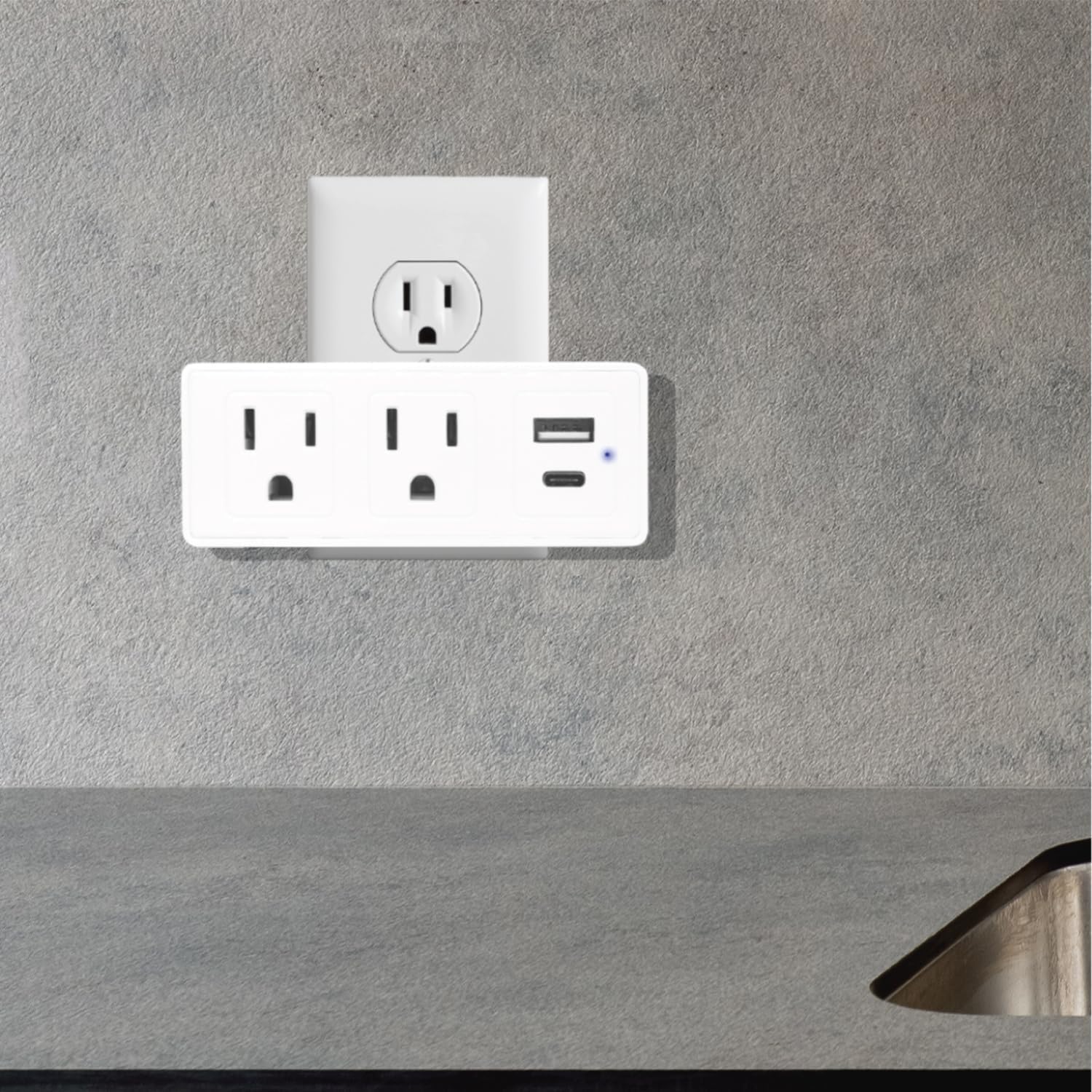
Figure 2: The surge protector securely plugged into a standard wall outlet, ready for use.
- Verify Indicator Light: Confirm that the blue LED indicator light on the device is on. This light signifies that the surge protection feature is active. If the light is off, the surge protection may be compromised, and the device should be replaced.
Operating Instructions
Once the surge protector is properly installed, you can begin connecting your devices.
- Connecting AC Devices: Plug your electrical appliances directly into the two AC outlets on the surge protector. The adapter-spaced design allows for larger plugs without blocking adjacent outlets.
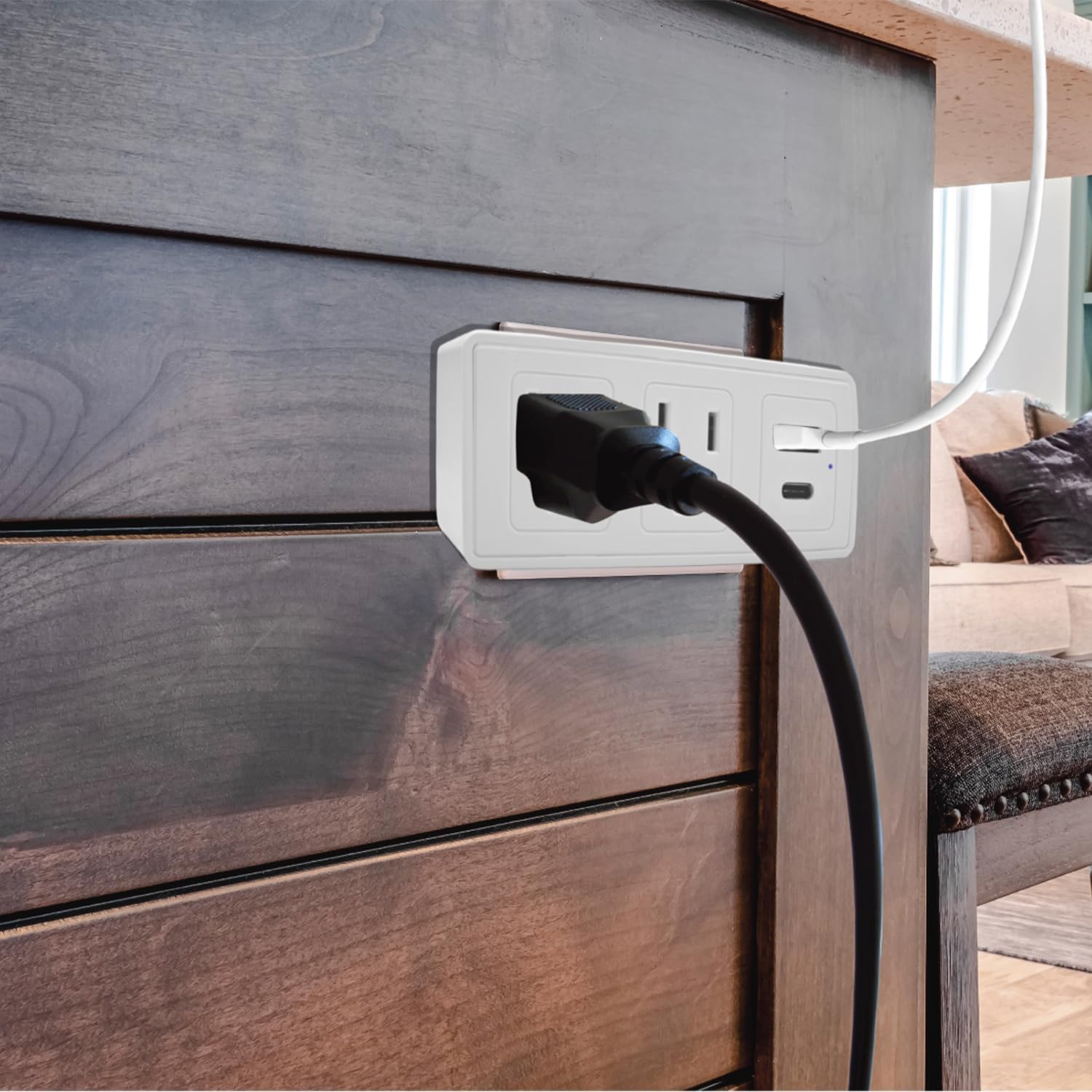
Figure 3: An example of a power cord plugged into one of the AC outlets on the surge protector.
- Connecting USB Devices: Use a compatible USB cable to connect your USB-A or USB-C devices to the respective USB ports on the surge protector.
- For standard USB devices, use the USB-A port (2.4A).
- For fast-charging USB-C devices, use the USB-C port (3.0A).
- Surge Protection: The built-in 300J surge protection safeguards your connected devices from power surges and voltage spikes. The blue indicator light confirms its active status.
Maintenance
Proper maintenance ensures the longevity and safe operation of your surge protector.
- Cleaning: Disconnect the surge protector from the wall outlet before cleaning. Use a soft, dry cloth to wipe the exterior. Do not use liquid cleaners or aerosols.
- Inspection: Periodically inspect the device for any signs of damage, such as cracks, frayed wires, or discoloration. If damage is observed, discontinue use and replace the unit.
- Surge Protection Status: Regularly check the blue surge protection indicator light. If it is off, the surge protection has been consumed or is no longer functional, and the unit should be replaced to ensure continued protection for your devices.
Troubleshooting
| Problem | Possible Cause | Solution |
|---|---|---|
| No power from AC outlets or USB ports. |
|
|
| Blue surge protection indicator light is off. |
|
|
| USB charging is slow or not working. |
|
|
Specifications
| Model Number | CPATS00-040 |
| Brand | CIAO TECH |
| AC Outlets | 2 (3-prong grounded) |
| USB-A Output | 5V / 2.4A |
| USB-C Output | 5V / 3.0A |
| Surge Protection | 300 Joules |
| Product Dimensions | 4 x 2 x 0.1 inches (L x W x H) |
| Item Weight | 8.2 ounces |
| Material | Plastic |
| Color | White |
| Indoor Use Only | Yes |
Warranty and Support
For warranty information or technical support, please contact CIAO TECH customer service. Details can typically be found on the product packaging or the official CIAO TECH website.
Please have your model number (CPATS00-040) and purchase information ready when contacting support.
Manufacturer: Lifeware Group LLC