
1. Introduction
The Lenovo USB-C Slim Travel Dock is a versatile 8-port docking solution designed to expand the connectivity of your USB-C enabled laptop. This device facilitates enhanced productivity by providing multiple ports for peripherals, external displays, and power delivery, all through a single USB-C connection. Its compact design makes it suitable for various work environments.

Figure 1: Top view of the Lenovo USB-C Slim Travel Dock.
2. Product Features
The Lenovo USB-C Slim Travel Dock offers a range of features to enhance your connectivity:
- 8-in-1 Port Expansion: Includes 2x USB-A 3.2 Gen 2, 3x USB-C 3.2 Gen 2 (one for power input only), 1x HDMI 2.1, 1x SD card reader, and 1x TF (MicroSD) card reader.
- Power Delivery: Supports up to 65W Power Delivery (PD) pass-through to charge your USB-C laptop via the dock.
- 4K Display Support: The HDMI 2.1 port supports resolutions up to 4K at 60 Hz for high-quality external display output.
- High-Speed Data Transfer: USB-A and USB-C data ports provide up to 10 Gbps transfer speeds.
- Integrated USB-C Cable: Features a 12.5 cm tuckable USB-C cable for convenient storage and portability.
- Universal Compatibility: Compatible with USB-C Alt-Mode, Thunderbolt™ 3, and Thunderbolt™ 4 enabled laptops running Windows 10 or Windows 11.
- Sustainable Design: Constructed with 66% Post-Consumer Recycled Content (PCC) in its exterior.
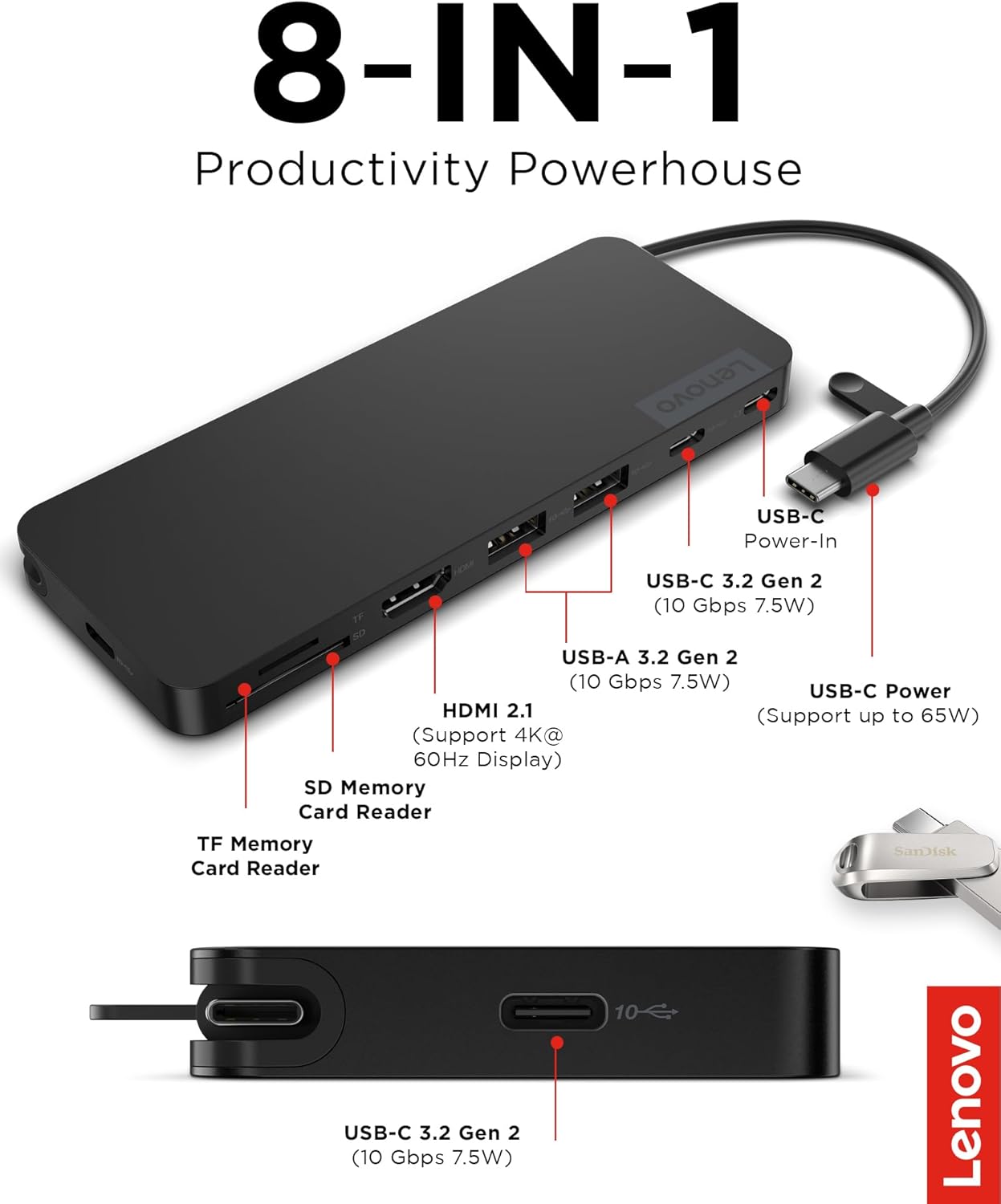
Figure 2: Overview of the 8-in-1 ports on the Slim Travel Dock.
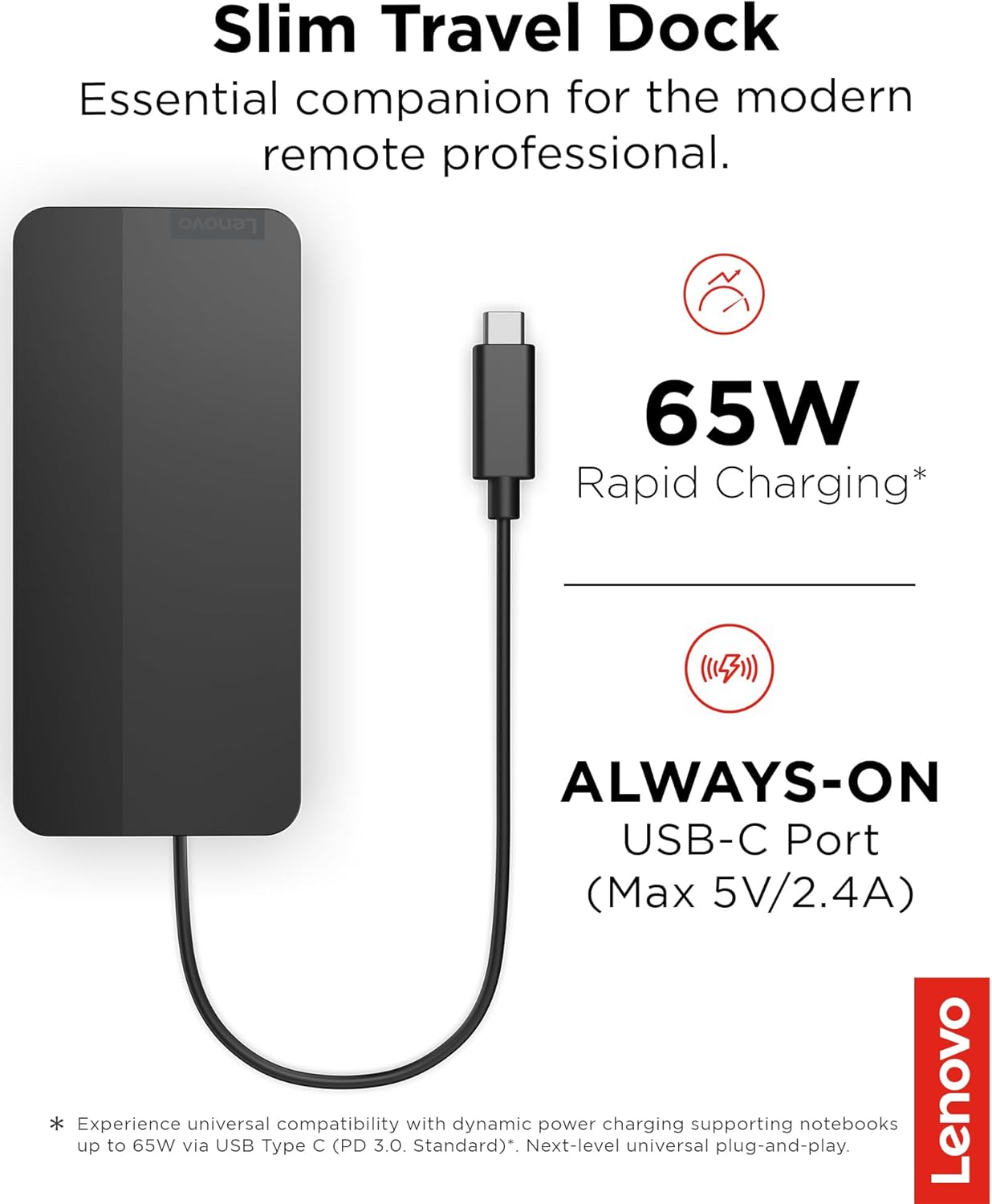
Figure 3: Dock features 65W rapid charging capability.

Figure 4: The dock's compact design and tuckable USB-C cable.
3. Setup Instructions
Follow these steps to set up your Lenovo USB-C Slim Travel Dock:
- Connect to Host Device: Unfold the integrated USB-C cable from the dock and connect it to an available USB-C port on your laptop. Ensure your laptop's USB-C port supports DisplayPort Alternate Mode (Alt Mode) or Thunderbolt™ for full functionality.
- Connect Power Adapter (Optional): If your laptop requires charging via the dock, connect your laptop's USB-C power adapter to the USB-C Power-In port on the dock. The dock supports up to 65W pass-through charging.
- Connect Peripherals: Connect your USB devices (e.g., mouse, keyboard, external hard drive) to the USB-A 3.2 Gen 2 or USB-C 3.2 Gen 2 data ports on the dock.
- Connect External Display: Use an HDMI cable to connect your external monitor to the HDMI 2.1 port on the dock.
- Insert Memory Cards: If needed, insert SD or TF (MicroSD) cards into the respective card reader slots.
The dock is designed for plug-and-play operation, meaning drivers are typically not required for basic functionality on supported operating systems (Windows 10/11).
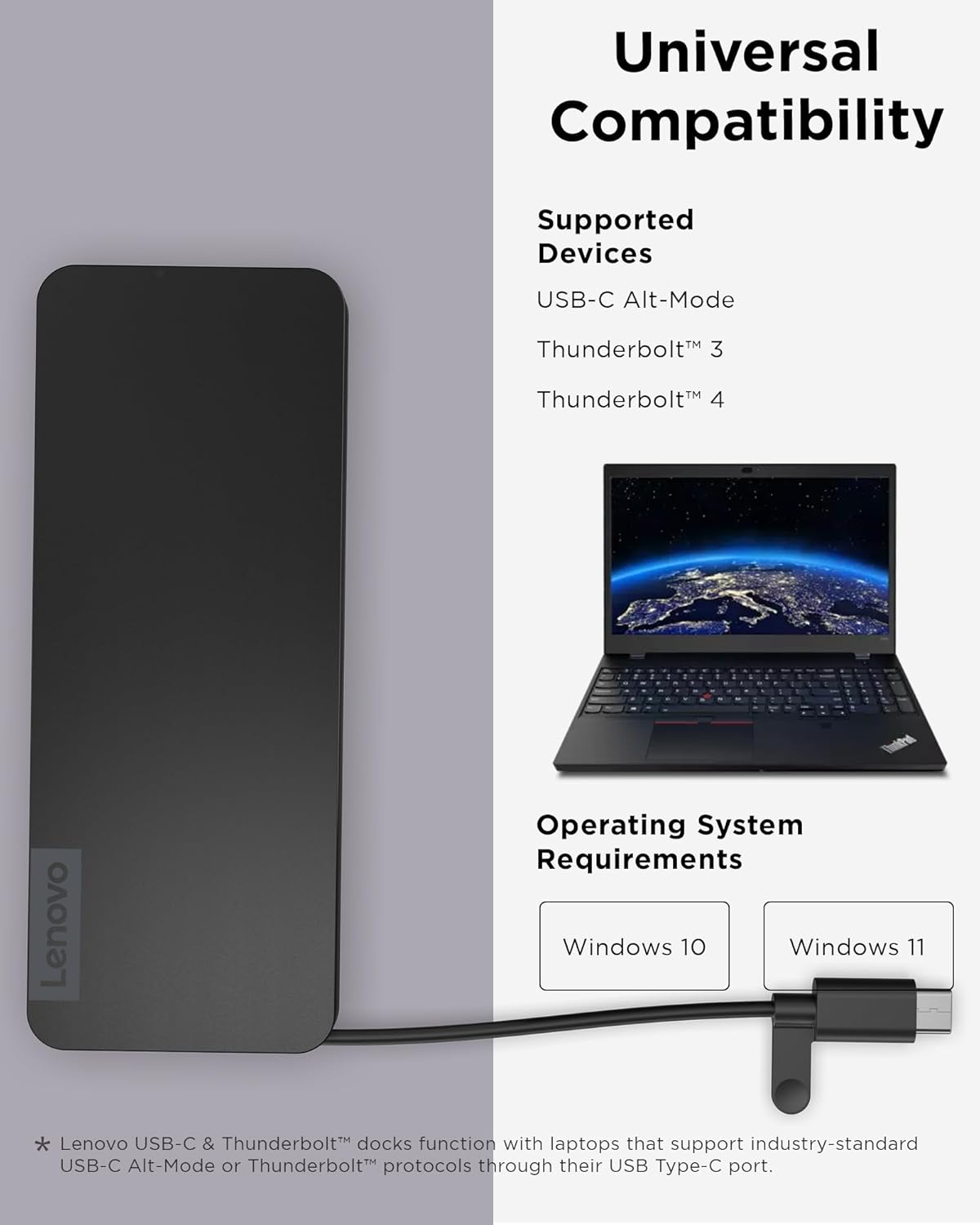
Figure 5: Compatibility information for the Slim Travel Dock.
4. Operating Instructions
Once connected, the Lenovo USB-C Slim Travel Dock operates seamlessly with your laptop:
- Using USB Ports: Connect USB devices to the available USB-A or USB-C data ports. Data transfer will occur at up to 10 Gbps, depending on the connected device's capabilities.
- External Display: Your laptop should automatically detect the connected external display. You can configure display settings (e.g., extend, duplicate) through your operating system's display settings. The HDMI port supports 4K resolution at 60 Hz.
- Power Delivery: If a power adapter is connected to the dock's USB-C Power-In port, your laptop will receive power and charge through the integrated USB-C cable.
- Memory Card Readers: Insert SD or TF cards to access their contents directly on your laptop. They will appear as removable drives.

Figure 6: The dock supports 4K@60Hz display output via HDMI 2.1.

Figure 7: High-speed data transfer capabilities of the dock's USB ports.
5. Maintenance
To ensure the longevity and optimal performance of your Lenovo USB-C Slim Travel Dock, follow these maintenance guidelines:
- Cleaning: Use a soft, dry, lint-free cloth to clean the exterior of the dock. Avoid using liquid cleaners, aerosols, or solvents.
- Storage: When not in use, store the dock in a cool, dry place. Utilize the tuckable USB-C cable feature to protect the connector.
- Handling: Avoid dropping the dock or subjecting it to strong impacts. Do not expose it to extreme temperatures or moisture.
- Cable Care: Do not bend or twist the integrated USB-C cable excessively. Ensure the cable is not pinched or stressed.
6. Troubleshooting
If you encounter issues with your Lenovo USB-C Slim Travel Dock, refer to the following common troubleshooting steps:
- No Display Output:
- Ensure the HDMI cable is securely connected to both the dock and the monitor.
- Verify your laptop's USB-C port supports DisplayPort Alt Mode.
- Check your laptop's display settings to ensure the external monitor is detected and configured correctly.
- Try a different HDMI cable or monitor if available.
- Update your laptop's graphics drivers and USB-C port drivers.
- Laptop Not Charging:
- Ensure your laptop's original USB-C power adapter is connected to the dock's USB-C Power-In port.
- Verify the power adapter is functioning correctly and plugged into a working power outlet.
- Confirm your laptop supports charging via USB-C Power Delivery.
- USB Devices Not Recognized:
- Ensure the USB devices are properly inserted into the dock's ports.
- Try connecting the USB device directly to your laptop to confirm it is functional.
- Restart your laptop and reconnect the dock.
- Intermittent Connectivity/Performance Issues:
- Ensure all connections are secure.
- Disconnect and reconnect the dock from your laptop.
- Ensure your laptop's operating system and drivers are up to date.
- Avoid overloading the dock with high-power-draw devices if not using an external power adapter.
7. Specifications
| Feature | Specification |
|---|---|
| Model Number | 4X11N40213 |
| Product Dimensions (L x W x H) | 4.72 x 2.17 x 0.79 inches (120 x 55 x 20 mm) |
| Item Weight | 4.8 ounces (136 g) |
| Color | Black |
| Hardware Interface | USB Type-C |
| Total USB Ports | 8 (2x USB-A 3.2 Gen 2, 3x USB-C 3.2 Gen 2, 1x USB-C Power-In, 1x SD, 1x TF) |
| USB-A 3.2 Gen 2 Ports | 2 (10 Gbps, 7.5W) |
| USB-C 3.2 Gen 2 Data Ports | 2 (10 Gbps, 7.5W) |
| USB-C Power-In Port | 1 (Supports up to 65W PD Pass-Through) |
| Total HDMI Ports | 1 |
| HDMI Version | 2.1 |
| Max. Display Resolution | 4K @ 60 Hz |
| Card Readers | SD, TF (MicroSD) |
| Compatible Devices | USB-C Alt-Mode, Thunderbolt™ 3, Thunderbolt™ 4 enabled laptops (e.g., MacBook Pro) |
| Operating System Support | Windows 10, Windows 11 |
| Manufacturer | Lenovo |
8. Warranty and Support
This Lenovo product is covered by a standard manufacturer's warranty. For specific warranty terms, duration, and support options, please refer to the warranty information included with your purchase or visit the official Lenovo support website. Keep your proof of purchase for warranty claims.
For technical assistance, driver updates, or further inquiries, please contact Lenovo customer support or visit their online support portal.