1. Introduction
Thank you for choosing the UGREEN Unidirectional DisplayPort to HDMI Cable. This cable is designed to connect DisplayPort-enabled devices (such as PCs, laptops, or graphics cards) to HDMI-enabled displays (monitors, projectors, HDTVs) for high-quality audio and video signal transfer. It supports advanced resolutions and features for an immersive visual experience.

Image 1: UGREEN Unidirectional DisplayPort to HDMI 8K Cable. This image shows the cable with its DisplayPort and HDMI connectors, highlighting its unidirectional nature.
Key Features:
- Unidirectional Transmission: Connects from DisplayPort source to HDMI display only.
- High Resolution Support: Up to 8K@60Hz and 4K@120Hz for crisp, clear visuals.
- Advanced Technologies: Supports HDR, Dolby 7.1, HDCP 2.3, and DSC 1.2a.
- High Bandwidth: 32.4Gbps data transfer rate for stable signal.
- Durable Design: Features a braided nylon jacket, aluminum alloy housing, and nickel-plated connectors.
2. Setup
Setting up your UGREEN DisplayPort to HDMI cable is straightforward. Please follow these steps for proper connection:
2.1. Connection Overview

Image 2: Diagram illustrating the unidirectional connection from a DisplayPort source (PC) to an HDMI display (monitor). The arrows clearly show the signal flow from DP to HDMI.
2.2. Step-by-Step Connection
- Identify Ports: Locate the DisplayPort output on your source device (e.g., computer, graphics card) and the HDMI input on your display device (e.g., monitor, TV, projector).
- Connect DisplayPort: Plug the DisplayPort end of the UGREEN cable into the DisplayPort output of your source device.
- Connect HDMI: Plug the HDMI end of the UGREEN cable into the HDMI input of your display device.
Important Note: This cable is unidirectional. It transmits signals only from DisplayPort to HDMI. It will not work if connected from an HDMI source to a DisplayPort display.

Image 3: Visual guide for connecting the DisplayPort end to the computer host and the HDMI end to the display. It also explicitly shows non-compatible connections (HDMI source, USB, DP monitor).
Tip: Ensure both your source device and display device are powered on before connecting the cable to ensure proper signal detection.
3. Operating Modes
The UGREEN DisplayPort to HDMI cable supports various display modes to enhance your productivity and entertainment.
3.1. Single Display Modes
- Mirror Mode: Duplicate your primary screen onto the connected HDMI display. Ideal for presentations or sharing content on a larger screen.
- Extend Mode: Extend your desktop across multiple screens, allowing you to display different content on each. This boosts multitasking efficiency.
- Game Mode: Connect your gaming PC to an HDMI TV or monitor for an immersive gaming experience with high refresh rates.
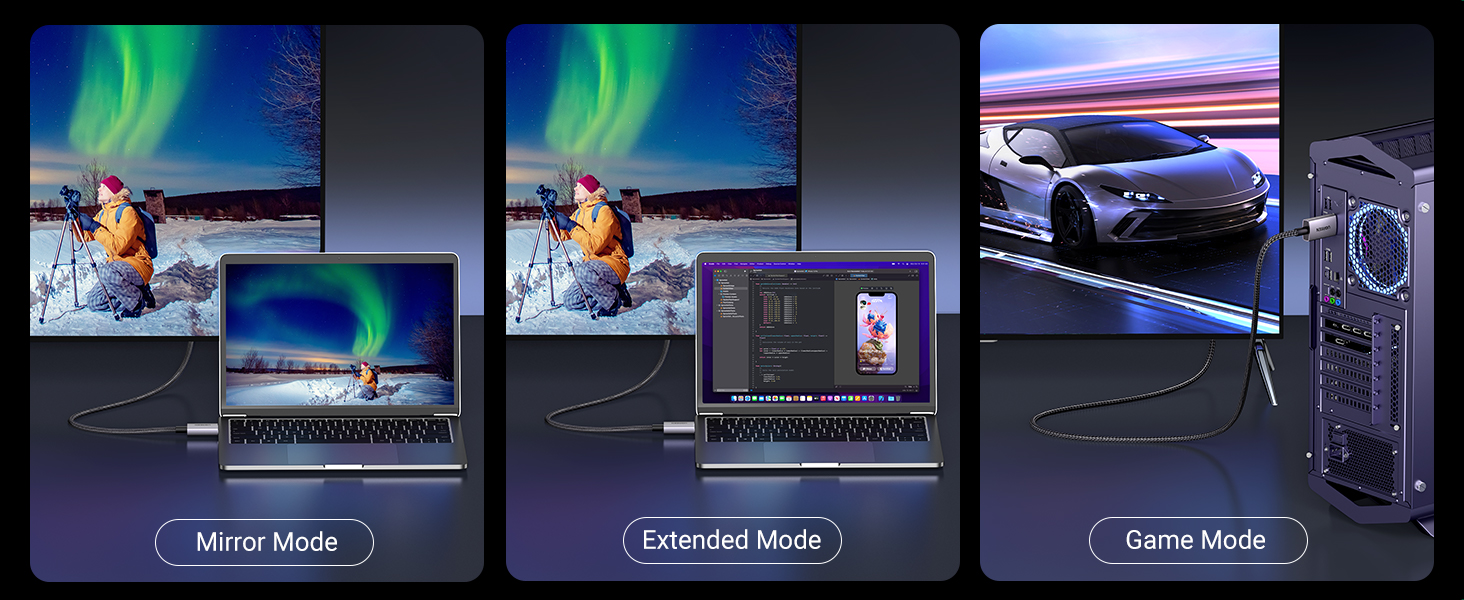
Image 4: Examples of Mirror Mode (duplicate screen), Extended Mode (different content on each screen), and Game Mode (PC connected to a large screen for gaming).
3.2. Multi-Screen Expansion
As an active DisplayPort to HDMI cable, it supports Eyefinity Multiple Screen SLS mode and AMD Eyefinity Multi-Display Technology. This allows you to connect up to 6 screens simultaneously for an expansive workspace or gaming setup.

Image 5: Illustration of a multi-display setup, showing a single DisplayPort source extending to multiple HDMI screens.
3.3. Supported Resolutions and Features
- Resolution: Supports up to 8K@60Hz and backward compatible with 4K@120Hz.
- High Dynamic Range (HDR): Enjoy more realistic images and videos with brighter colors and higher contrast.
- Audio: Supports Dolby 7.1 for immersive sound.
- Content Protection: Compatible with HDCP 2.3.
- Display Stream Compression: Supports DSC 1.2a.

Image 6: Overview of key features including 8K@60Hz, 3D, Dolby, 32.4Gbps, 4K@120Hz, HDR10+, and HDCP 2.3.
Note: This cable does not support VRR (Variable Refresh Rate) or ALLM (Auto Low Latency Mode).
4. Maintenance
To ensure the longevity and optimal performance of your UGREEN DisplayPort to HDMI cable, follow these simple maintenance guidelines:
- Proper Handling: Always grasp the connector head when plugging or unplugging the cable. Avoid pulling directly on the cable itself to prevent internal damage.
- Cable Management: Utilize the included Velcro straps to keep the cable neatly coiled when not in use or to manage excess length. This prevents tangles and reduces strain.
- Storage: Store the cable in a cool, dry place away from direct sunlight and extreme temperatures.
- Cleaning: Use a soft, dry cloth to gently wipe the cable and connectors if they become dusty. Avoid using liquid cleaners.

Image 7: Close-up of the cable highlighting its durable construction: Aluminum Alloy Shell, Par-Excellent Nylon Braided, and Nickel Plated for Anti-Rust.
5. Troubleshooting
If you encounter issues with your UGREEN DisplayPort to HDMI cable, please refer to the following common solutions:
| Problem | Possible Solution |
|---|---|
| No display/Signal loss |
|
| Screen flickering |
|
| Overscan/Underscan issues |
|
| Cable gets warm |
|
6. Specifications
| Feature | Detail |
|---|---|
| Brand | UGREEN |
| Model Name | 80397 |
| Connector Type | DisplayPort to HDMI |
| Cable Type | Braided Cable |
| Data Transfer Rate | 32.4 Gbps (DP 1.4) / 48 Gbps (HDMI 2.1) |
| Max Resolution | 8K@60Hz, 4K@120Hz |
| Special Features | Digital Display, Data Transfer, High Speed, Alu Braided, HDR, Dolby 7.1, HDCP 2.3, DSC 1.2a |
| Cable Length | 6.6 FT (2 meters) |
| Color | Grey |
| Item Weight | 1.06 ounces (30 Grams) |
| Compatible Devices | DisplayPort-enabled laptops (HP ProBook EliteBook, Lenovo, ThinkPad), desktop towers (HP, Dell Optiplex/Precision/xps, Lenovo), graphics cards (AMD, NVIDIA). HDMI-enabled TV, projector, monitor, VR headset. |
| Non-Compatible Devices | HDMI source devices such as MacBook, PlayStation, Switch, Xbox. |
7. Warranty and Support
UGREEN products are designed for reliability and performance. For specific warranty details and support, please refer to the product packaging or visit the official UGREEN website. If you encounter any issues or have questions regarding your DisplayPort to HDMI cable, our customer support team is ready to assist you.
Contact Support: Please refer to the contact information provided on the UGREEN official website or your product's packaging for assistance.
8. Product Demonstration Video
Watch this official video from UGREEN for a quick demonstration of the DisplayPort to HDMI Cable.
Video 1: Official UGREEN video demonstrating the DisplayPort to HDMI Cable. This short video shows the cable and its basic connection, highlighting its functionality.


