
SYLVOX SYLVOX-Deck-020
SYLVOX 43-inch Deck Pro 2.0 Outdoor Smart TV User Manual
Model: SYLVOX-Deck-020
1. Introduction
Thank you for choosing the SYLVOX 43-inch Deck Pro 2.0 Outdoor Smart TV. This manual provides essential information for the safe and efficient use of your new television. Designed for partial sun outdoor areas, this TV features 4K resolution, HDR 10 support, 1000 nits brightness, and a weatherproof design, ensuring a high-quality viewing experience in various outdoor conditions.
Please read this manual thoroughly before operating the device and retain it for future reference.
Safety Information
- Ensure the TV is installed by qualified personnel according to local electrical codes.
- Do not attempt to repair the TV yourself. Refer all servicing to authorized service personnel.
- Keep the power cord away from heat sources and sharp edges.
- Do not block ventilation openings.
- Although weatherproof, avoid direct high-pressure water jets on the screen or ports.
2. What's in the Box
Carefully unpack your SYLVOX Outdoor TV and check that all items are present. If any items are missing or damaged, please contact your retailer.
- SYLVOX 43-inch Outdoor TV
- Waterproof Voice Remote Control
- Power Cable (59 inches)
- User's Manual
- Warranty Card
- AAA Batteries (x2) for remote
- Screws for mounting (if included with specific mounting hardware)

Image: Contents of the SYLVOX Outdoor TV box, showing the waterproof voice remote, power cable, user manual, and warranty card.
3. Setup
3.1 Physical Installation
The SYLVOX Outdoor TV is designed for outdoor use in partial sun areas. Ensure the mounting location is secure and can support the TV's weight (approximately 51.9 lbs).
- Mounting: Use a compatible outdoor TV mount (not included) that can withstand outdoor elements. Follow the mount manufacturer's instructions for installation.
- Placement: Position the TV in a location that minimizes direct sunlight exposure to the screen for optimal viewing. The TV is weatherproof, but protection from extreme weather conditions is recommended for longevity.
- Ventilation: Ensure adequate airflow around the TV. Do not install in enclosed spaces without proper ventilation.

Image: The SYLVOX 43-inch Outdoor TV, showcasing its design and key features.
3.2 Power Connection
- Connect the provided power cable to the TV's power input port.
- Plug the other end of the power cable into a grounded outdoor-rated electrical outlet.
3.3 Initial Power On and Network Setup
- Press the power button on the remote control or the TV to turn it on.
- Follow the on-screen instructions to complete the initial setup, including language selection and time zone.
- Network Connection: Select your Wi-Fi network from the list and enter the password. The TV supports both 2.4G and 5G Wi-Fi for stable connectivity. Alternatively, connect an Ethernet cable to the LAN port for a wired connection.
- Bluetooth Pairing: The TV supports Bluetooth 5.0. You can pair Bluetooth devices like soundbars or headphones during setup or later in the settings menu.

Image: The TV supports both 2.4G and 5G Wi-Fi, and Bluetooth 5.0 for enhanced connectivity.
3.4 Google TV Account Setup
Your SYLVOX Outdoor TV runs on the Google TV system. You will be prompted to sign in with your Google account to access smart features, apps, and personalized content.
- Follow the on-screen prompts to sign in or create a new Google account.
- You can set up multiple family accounts to personalize watchlists and recommendations for each user.

Image: The Google TV interface provides access to a wide range of entertainment.
4. Operating Instructions
4.1 Remote Control Functions
The included waterproof voice remote control allows for easy navigation and interaction with your TV.
- Power Button: Turns the TV on or off.
- Navigation Pad: Use the directional buttons to move through menus and select options.
- Voice Assistant Button: Press and hold to activate Google Assistant for voice commands.
- Volume Buttons: Adjust the TV volume.
- Channel Buttons: Change channels (for broadcast TV, if connected).
- App Shortcut Buttons: Quick access to popular streaming services.
- Screenshot Button: Capture screenshots of the TV display.

Image: The waterproof voice remote control with Google Assistant for convenient operation.
4.2 Navigating the Smart TV System
The Google TV interface organizes your content for easy access.
- Home Screen: Displays personalized recommendations, installed apps, and live TV options.
- Apps: Access a wide range of streaming applications from the Google Play Store.
- Library: Find your purchased movies and shows.
- Watchlist: Add movies and TV shows you want to watch later. This can be synchronized across your Google devices.

Image: The Personal Watchlist feature allows for customized content tracking for different users.
4.3 Connecting External Devices
The TV offers multiple connectivity options for external devices.
- HDMI Ports: Connect gaming consoles (Playstation, Xbox), Blu-ray players, or other HDMI-enabled devices.
- USB Ports: Connect USB drives for media playback or to power streaming devices.
- Bluetooth: Pair Bluetooth sound systems, headphones, or other compatible accessories.
- Ethernet: For a stable wired internet connection.

Image: The TV supports various connectivity options for external devices.
4.4 Picture and Sound Settings
Optimize your viewing and listening experience through the TV's settings menu.
- Picture Modes: Adjust brightness, contrast, color, and sharpness. The 1000 nits brightness ensures a clear, vibrant picture even in outdoor lighting.
- 4K Resolution: Enjoy ultra-high-definition content with 3840x2160 pixels.
- HDR 10: Experience enhanced contrast and a wider range of colors with HDR 10 support.
- Dolby Atmos: The TV supports Dolby Atmos for immersive audio. For optimal sound, consider connecting an external sound system.
- Noise Reduction: This feature helps to reduce visual noise for clearer images.
- Wide Viewing Angle: The 178° wide viewing angle ensures consistent picture quality from various positions.

Image: The 1000 nits high brightness ensures visibility even in bright outdoor environments.
4.5 Special Features
- Chromecast Built-in: Cast content directly from your compatible smartphone or tablet to the TV.
- Game Mode: Optimize settings for gaming to reduce input lag.
- Share to TV: Easily share content from your mobile device to the TV screen.

Image: The 'Share to TV' feature allows for easy content mirroring from mobile devices.
5. Maintenance
5.1 Cleaning the TV
Regular cleaning helps maintain the TV's appearance and performance.
- Screen: Gently wipe the screen with a soft, lint-free cloth. For stubborn marks, slightly dampen the cloth with water or a mild, non-abrasive screen cleaner. Do not spray liquid directly onto the screen.
- Frame and Back: Use a soft, damp cloth to wipe the frame and back of the TV. Avoid harsh chemicals or abrasive cleaners.
- Ports: Ensure all port covers are securely closed when not in use to maintain waterproofing.

Image: The TV's waterproof design allows for easy cleaning and resilience against splashes.
5.2 Weather Protection
While the SYLVOX Outdoor TV is designed to be weatherproof, proper care can extend its lifespan.
- Ensure all cables are properly connected and sealed to prevent water ingress.
- In extreme weather conditions (e.g., heavy storms, prolonged freezing temperatures), consider using a protective cover or temporarily relocating the TV if possible.
6. Troubleshooting
If you encounter issues with your SYLVOX Outdoor TV, refer to the following common problems and solutions.
| Problem | Possible Cause | Solution |
|---|---|---|
| No power | Power cable disconnected, outlet issue, remote batteries dead. | Check power cable connection, test outlet, replace remote batteries. |
| No picture/sound | Incorrect input source, external device off, cable issue. | Verify input source, ensure external devices are on, check HDMI/audio cables. |
| Remote not responding | Batteries dead, obstruction, remote not paired. | Replace batteries, remove obstructions, re-pair remote if necessary (refer to TV settings). |
| Wi-Fi connection unstable | Router distance, interference, incorrect password. | Move router closer, reduce interference, re-enter Wi-Fi password, try Ethernet connection. |
| Picture quality issues (e.g., lines on screen) | Hardware defect, external interference. | Perform a factory reset (if software related). If persistent, contact customer support. |
If the problem persists after attempting these solutions, please contact SYLVOX customer support for further assistance.
7. Specifications
Detailed technical specifications for the SYLVOX 43-inch Deck Pro 2.0 Outdoor Smart TV.
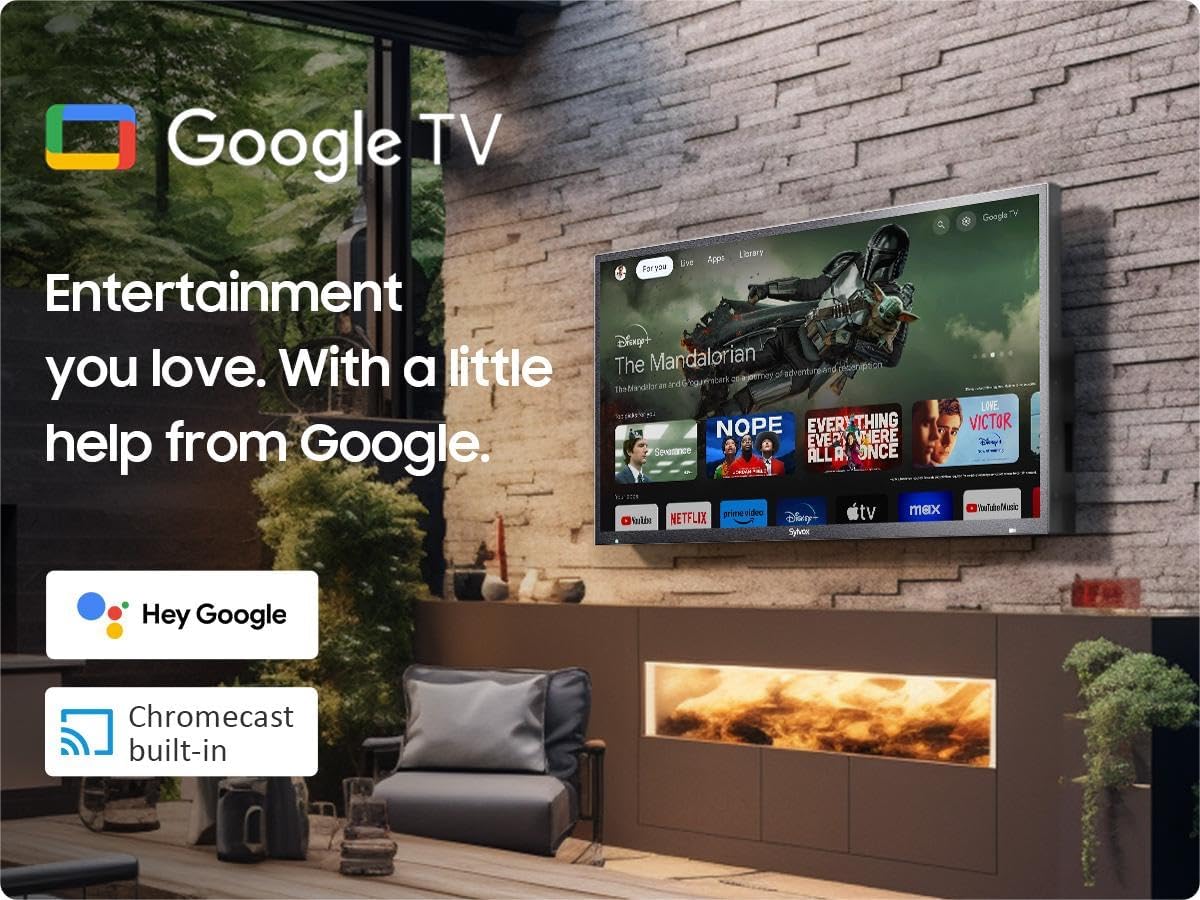
Image: Dimensions of the SYLVOX 43-inch Deck Pro 2.0 Outdoor TV.
| Feature | Specification |
|---|---|
| Brand | SYLVOX |
| Model Number | SYLVOX-Deck-020 |
| Screen Size | 43 Inches (110 cm visible diagonal) |
| Display Technology | LED |
| Resolution | 4K (3840 x 2160) |
| Refresh Rate | 60 Hz |
| Brightness | 1000 nits |
| Contrast Ratio | 3000:1 |
| Viewing Angle | 178° |
| Special Features | Chromecast, Waterproof, Weatherproof, High Brightness, Wide Viewing Angle, HDR 10, Dolby Atmos, Noise Reduction, Game Mode |
| Connectivity Technology | Ethernet, Wi-Fi (2.4G/5G), Bluetooth 5.0, HDMI (multiple), USB (multiple) |
| Operating System | Google TV |
| Product Dimensions (D x W x H) | 3.44 x 38.41 x 22.64 inches |
| Item Weight | 51.9 pounds |
| Batteries | 2 AAA batteries (included for remote) |
8. Warranty and Support
8.1 Warranty Information
Your SYLVOX Outdoor TV comes with a 12-month free defect protection from the date of purchase. This warranty covers manufacturing defects under normal use. Please retain your proof of purchase for warranty claims.
8.2 Returns Policy
SYLVOX offers 30-day hassle-free returns for quality issues. Original packaging is required for all returns. Free returns are provided for quality-related issues.
8.3 Customer Support
For technical assistance, troubleshooting, or warranty inquiries, please contact SYLVOX customer support. Refer to the warranty card or the SYLVOX official website for contact details.
Related documentsSYLVOX-Deck-020


Ask a question about this manual
Ask about setup, troubleshooting, compatibility, parts, safety, or missing instructions. Manuals+ will review the question and use this page’s manual context to help answer it.