1. Product Overview
The laiyonggr 10.26" 4K Car DVR is an advanced dashboard camera system designed to enhance your driving experience and safety. Featuring a powerful 4-core processor, it offers seamless operation, high-resolution video recording, and smart driving assistance systems. This device integrates essential functions like CarPlay, Android Auto, GPS navigation, and 24-hour parking monitoring, providing comprehensive coverage and connectivity on the road.
1.1. Package Contents
Upon unboxing, please verify that all components listed below are present and in good condition:
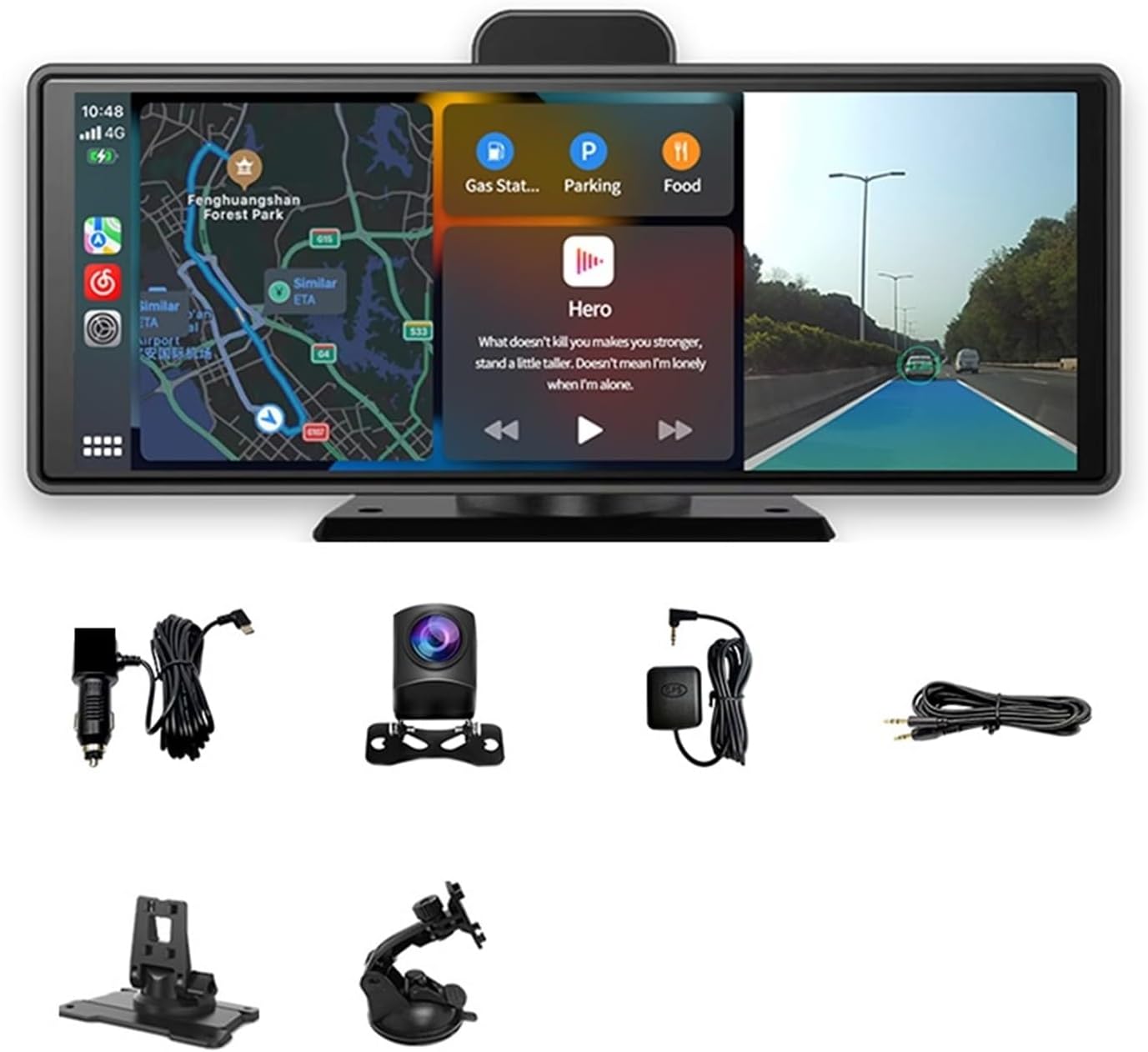
Image 1.1: The main 10.26-inch display unit, a power cable for the car's cigarette lighter, a rear camera, a GPS antenna, an AUX audio cable, and two distinct mounting brackets (one suction cup, one adhesive base).
- 1 x 10.26" 4K Car DVR Main Unit
- 1 x Car Power Cable
- 1 x Rear Camera (if included in your package)
- 1 x GPS Antenna (if included in your package)
- 1 x AUX Audio Cable
- 1 x Suction Cup Mounting Bracket
- 1 x Adhesive Base Mounting Bracket
- 1 x User Manual (this document)
- 1 x TF Card (128G, if included in your package)
2. Setup and Installation
Proper installation ensures optimal performance and safety. Please follow these steps carefully.
2.1. Choosing a Mounting Location
Select a location on your dashboard or windshield that does not obstruct your view of the road or interfere with airbag deployment. Ensure the chosen spot allows for easy access to the touch screen.
2.2. Installing the Main Unit
- Attach the Bracket: Choose either the suction cup or adhesive base bracket. Securely attach it to the main DVR unit.
- Mount the Unit:
- For Suction Cup: Clean the windshield area. Press the suction cup firmly against the glass and engage the lever to secure it.
- For Adhesive Base: Clean and dry the dashboard surface. Peel off the protective film from the adhesive pad and firmly press the bracket onto the dashboard for at least 30 seconds. Allow the adhesive to cure for 24 hours before driving.
- Adjust Viewing Angle: Adjust the bracket to achieve the desired viewing angle. The bracket allows for 360-degree rotation for flexible positioning.

Image 2.1: The adjustable mounting bracket allows for 360-degree rotation, providing flexibility in positioning the main unit for optimal viewing.
2.3. Connecting Power
Insert the car power cable into the DVR's power input port and plug the other end into your vehicle's cigarette lighter socket. The device will power on automatically when the vehicle starts.
2.4. Installing the Rear Camera (Optional)
If your package includes a rear camera, mount it at the rear of your vehicle, typically above the license plate or inside the rear window. Route the camera cable discreetly to the main DVR unit and plug it into the designated rear camera input port.
2.5. Connecting the GPS Antenna (Optional)
For accurate speed data and full ADAS functionality (especially LDWS and Front Vehicle Start Reminder), connect the GPS antenna to the DVR unit and place it in a location with a clear view of the sky, such as on the dashboard near the windshield.
2.6. Inserting the TF Card
Locate the TF card slot on the DVR unit. Insert the provided (or a compatible) TF card (Class 10 or higher, up to 128GB recommended) with the gold contacts facing down until it clicks into place. The device requires a TF card for video recording.
3. Basic Operation
3.1. Power On/Off
- Power On: The device automatically powers on when connected to the car's power supply and the ignition is turned on.
- Power Off: The device automatically powers off when the car's ignition is turned off. You can also manually power off by pressing and holding the power button.
3.2. Touch Screen Navigation
The 10.26-inch IPS touch screen allows for intuitive control. Tap icons to access different functions and swipe to navigate menus.

Image 3.1: The main user interface displaying key functions such as CarPlay, Android Auto, File management, Settings, FM transmitter, and Dash Cam recording view.
3.3. Video Recording
- Automatic Recording: Once powered on and a TF card is inserted, the DVR automatically begins loop recording.
- Loop Recording: The device continuously records video in segments. When the TF card is full, it automatically overwrites the oldest unlocked files to ensure continuous recording.
- Emergency Recording: In case of a sudden impact or collision (detected by the G-sensor), the current video segment will be locked and protected from being overwritten. You can also manually trigger emergency recording.
3.4. Instant Video Playback
To review recorded footage, navigate to the "File" or "Playback" section on the touch screen. You can instantly play back videos to analyze events that occurred during driving.
4. Key Features
4.1. CarPlay & Android Auto
Connect your smartphone via a wired USB connection to access CarPlay or Android Auto. This allows you to use navigation, make calls, send messages, and listen to music directly from the DVR screen.
- Wired Connection: Use a USB cable to connect your phone to the DVR.
- Compatibility: Supports Android 10 and above, as well as older Android mobile phones, resolving screen projection issues for a wider range of devices.
- Note: Huawei mobile phones are not supported for CarPlay/Android Auto functionality.
4.2. GPS Navigation
When in CarPlay or Android Auto mode, the DVR can utilize your phone's GPS navigation. You can activate voice assistants (e.g., Siri, Google Assistant) to set destinations and receive turn-by-turn directions, enhancing convenience and safety.
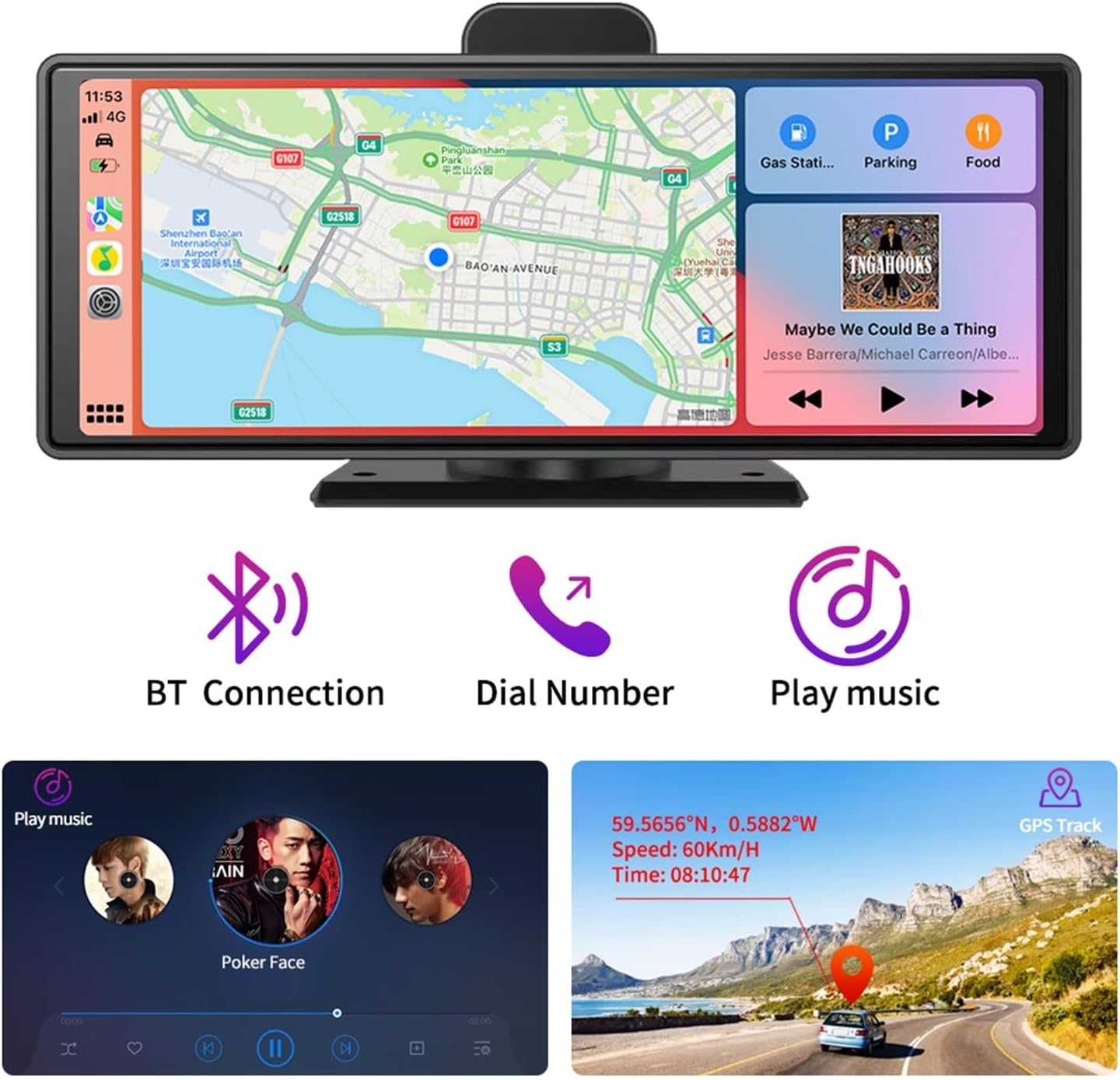
Image 4.1: The display unit showcasing integrated GPS navigation, music playback controls, and icons indicating Bluetooth connectivity, phone dialing, and music streaming capabilities.
4.3. Advanced Driver-Assistance Systems (ADAS)
The ADAS system provides real-time alerts to help prevent accidents. Ensure the GPS antenna is connected for full functionality.
- Lane Departure Warning System (LDWS): Alerts you if your vehicle deviates from its lane.
- Trigger Condition: If using a GPS antenna, vehicle speed must be 50 km/h or higher. Without a GPS antenna, there is no speed requirement for LDWS.
- Forward Collision Warning (FCW): Warns you if you are approaching a vehicle ahead too quickly, helping to prevent rear-end collisions.
- Front Vehicle Start Reminder System: Notifies you when the vehicle in front of you starts moving, useful in traffic jams.
- Requirement: This function requires the GPS antenna to be connected for normal operation.

Image 4.2: Visual representations of the ADAS features: Forward Collision Warning (FCW) indicating proximity to the vehicle ahead, Lane Departure Warning System (LDWS) showing lane deviation, and Front Vehicle Start Reminder System detecting movement of the vehicle in front.
4.4. 24-Hour Parking Monitoring
With the parking monitoring function, the DVR can record video in parking mode, capturing potential collisions or events even when your vehicle is parked, providing comprehensive protection.
4.5. High-Resolution Video Recording & Night Vision
- 4K UHD Front Camera: Records in true 3840x2160P 4K resolution, capturing critical details like license plates and road signs.
- 1080P Rear Camera: Provides clear footage from the rear of the vehicle.
- H.265 Encoding: Utilizes H.265 video compression, which saves over 30% more storage space compared to H.264, allowing for more recorded video.
- TS Format (Power Off Protection): Records in TS format, which helps save files even if the vehicle is shut down abruptly in a crash, unlike MP4 format which may result in lost or damaged files.
- Night Vision: Capable of recording clear images and videos even in low-light conditions.
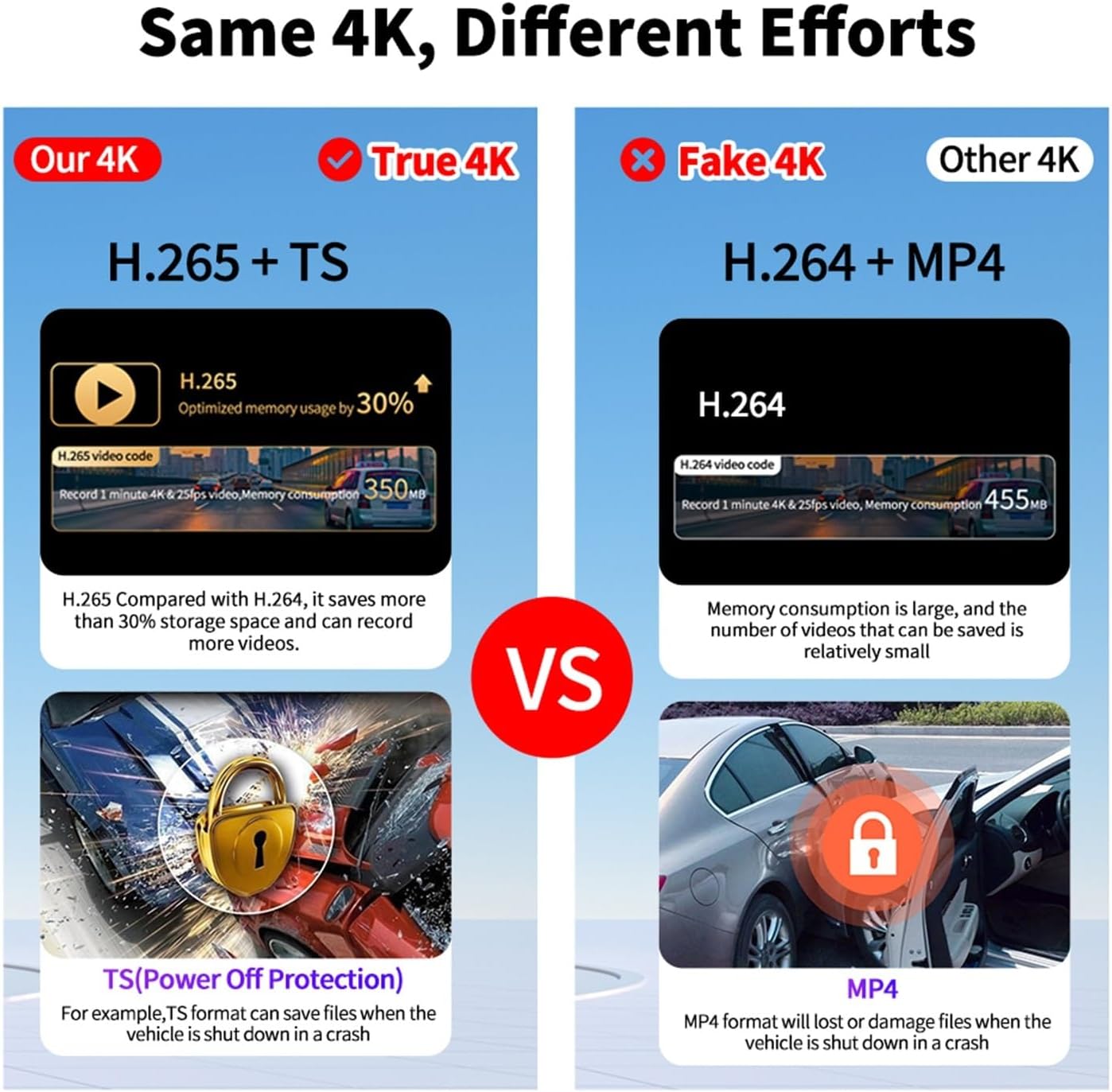
Image 4.3: A comparison illustrating the advantages of H.265 + TS format ("Our 4K") over H.264 + MP4 ("Fake 4K"), highlighting reduced memory consumption and enhanced file protection during sudden power loss.
4.6. Audio Output
The device supports AUX audio output, allowing you to connect it to your car's audio system for high-fidelity, low-noise stereo sound, enhancing your music listening experience during journeys.

Image 4.4: Promotional graphic emphasizing the device's audio capabilities, including stereo sound and AUX audio output for a high-fidelity, low-noise music experience.
5. Maintenance
Regular maintenance helps prolong the life of your DVR and ensures optimal performance.
- Cleaning the Unit: Use a soft, dry cloth to wipe the screen and body of the DVR. For stubborn smudges, slightly dampen the cloth with water. Avoid using abrasive cleaners or solvents.
- Cleaning Lenses: Gently clean the camera lenses with a lens cleaning cloth to ensure clear recordings.
- TF Card Management:
- Format the TF card regularly (e.g., once a month) through the DVR's settings menu to prevent data corruption and maintain optimal recording performance.
- Replace the TF card if you notice frequent errors or degraded performance.
- Firmware Updates: Check the manufacturer's website periodically for any available firmware updates. Follow the instructions provided with the update carefully.
6. Troubleshooting
If you encounter issues with your DVR, refer to the following common problems and solutions:
| Problem | Possible Cause | Solution |
|---|---|---|
| Device does not power on. | No power connection; faulty power cable; car's cigarette lighter socket issue. | Check power cable connection. Ensure car's cigarette lighter socket is working. Try a different power source if available. |
| Recording stops or freezes. | TF card full or corrupted; slow TF card speed; TF card error. | Format the TF card. Use a Class 10 or higher TF card. Replace the TF card if issues persist. |
| Rear camera shows no signal. | Loose connection; faulty cable; camera malfunction. | Check the rear camera cable connection to the main unit. Ensure the cable is not damaged. |
| ADAS features (LDWS, FCW) not working. | GPS antenna not connected or poor signal; vehicle speed too low (for LDWS with GPS). | Ensure GPS antenna is connected and has a clear view of the sky. For LDWS with GPS, ensure vehicle speed is 50 km/h or higher. |
| CarPlay/Android Auto not connecting. | Incorrect USB cable; phone incompatibility (e.g., Huawei); software glitch. | Use a high-quality USB data cable. Confirm your phone is not a Huawei model. Restart both the DVR and your phone. |
| Poor video quality at night. | Dirty lens; extreme low light conditions. | Clean the camera lens. Ensure no obstructions are blocking the camera's view. |
7. Technical Specifications
| Feature | Detail |
|---|---|
| Model | laiyong1987 |
| Display | 10.26-inch IPS Touch Screen |
| Front Camera Resolution | 4K UHD (3840x2160P) |
| Rear Camera Resolution | 1080P (if included) |
| Wide Angle | 135° |
| Processor | High-end 4-core chip, 14nm, 2T computing power |
| Video Encoding | H.265 (HEVC) |
| Video Format | TS (Power Off Protection) |
| Storage | Supports TF Card up to 128GB (Class 10 or higher recommended) |
| Connectivity | CarPlay (Wired), Android Auto (Wired), GPS, Bluetooth, AUX Audio Output |
| ADAS Features | LDWS (Lane Departure Warning System), FCW (Forward Collision Warning), Front Vehicle Start Reminder System |
| Parking Monitoring | 24-hour parking surveillance |
| Dimensions (L x W x H) | Approximately 1 x 1 x 1 cm (as per product data, likely placeholder) |
| Weight | Approximately 50 g (as per product data, likely placeholder) |
Note: Dimensions and weight provided are based on available product data and may represent packaging or a component rather than the full device.
8. Warranty and Support
For any questions, technical assistance, or warranty claims, please contact your retailer or the manufacturer directly. Please have your product model number (laiyong1987) and purchase details ready when contacting support.
Manufacturer: laiyong1987
Brand: laiyonggr
For the most up-to-date support information, please refer to the contact details provided at the point of purchase or on the official laiyonggr website.