
UGREEN DXP8800 Plus, 8-Bay
Contents
UGREEN NASync DXP8800 Plus 8-Bay Desktop NAS User Manual
Model: DXP8800 Plus, 8-Bay | Brand: UGREEN
1. Product Overview
The UGREEN NASync DXP8800 Plus is an advanced 8-bay Network Attached Storage (NAS) device designed for high-performance data management and storage. Featuring a powerful Intel i5 1235u 10-Core CPU, 8GB DDR5 RAM, and a 128G SSD, it offers robust capabilities for both personal and professional use. With dual 10GbE ports, M.2 NVMe slots, and 8K HDMI output, it provides versatile connectivity and exceptional speed for various applications.

Figure 1.1: UGREEN NASync DXP8800 Plus 8-Bay Desktop NAS.
Key Features:
- Dual 10GbE Network Ports: Achieve up to 2500MB/s download speeds with aggregated 20G bandwidth, ideal for large file transfers.
- Unparalleled Processing Performance: Equipped with a 12th Gen, 10-core 12-thread Intel Core i5 Processor for superior performance.
- 8-Bay, 256TB Massive Data Storage: Supports eight SATA and two M.2 NVMe drive bays, with various RAID levels (JBOD/Basic/RAID0/RAID1/RAID5/RAID6/RAID10).
- One, All-Inclusive App: Centralized access to Storage Manager, Files, Photos, and more for simplified data management.
- Professional Data Security: Local data storage with professional encryption and multi-factor authentication for enhanced privacy.
- Widely Compatible: Supports hard drives from Western Digital, Seagate, Toshiba, and other third-party brands.

Figure 1.2: The NASync DXP8800 Plus offers massive storage capacity up to 256TB.

Figure 1.3: Powered by a 12th Gen Intel Core i5 Processor for high performance.

Figure 1.4: Dual 10GbE network ports provide high-speed file transfers.

Figure 1.5: Dual Thunderbolt 4 ports enable blazing-fast data transmission.
2. What's in the Box
Please check the contents of your package to ensure all items are present:
- NASync DXP8800 Plus 8-Bay NAS x 1
- User Manual x 1
- After-sales Card x 1
- Hard Drive Tray Keys x 2
- Power Cable x 1
- Ethernet Cables (CAT7) x 2
- SSD Silicone Pads x 2
- Screws & Screwdriver
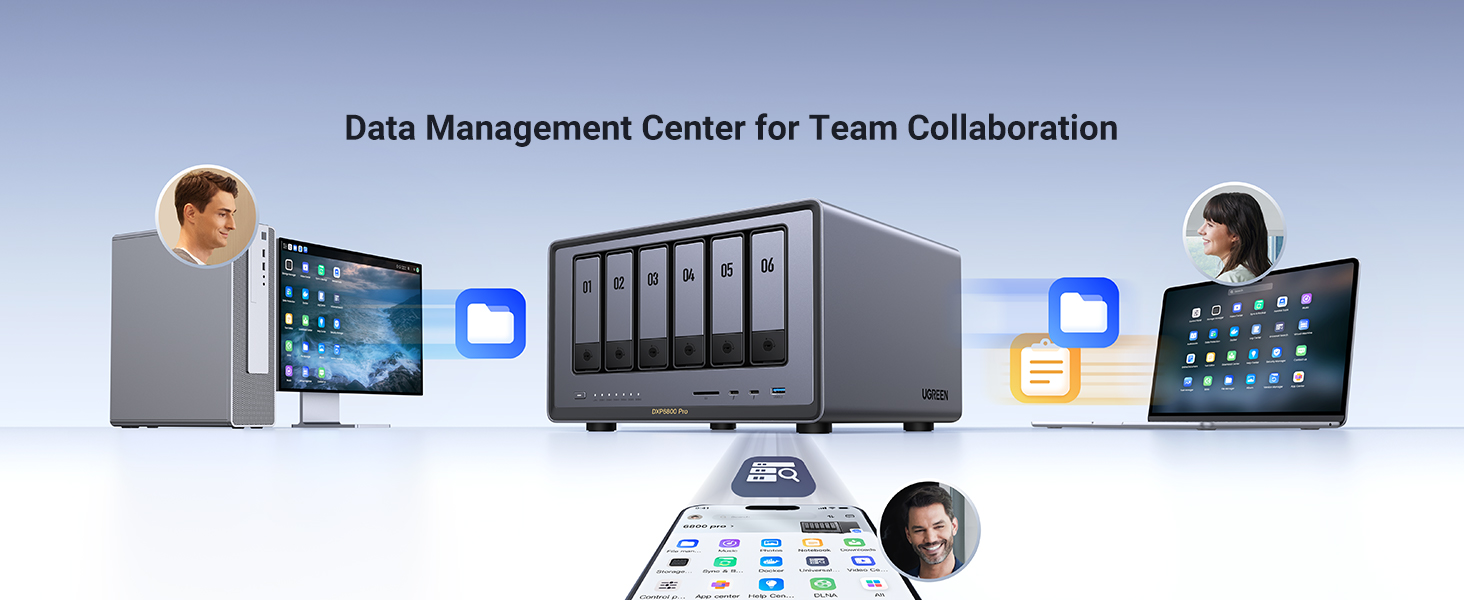
Figure 2.1: Included accessories with the NASync DXP8800 Plus.
3. Setup Guide
3.1 Installing Hard Drives
The NASync DXP8800 Plus supports up to eight 3.5-inch or 2.5-inch SATA hard drives/SSDs and two M.2 NVMe SSDs. Follow these steps to install your drives:
- Unlock the drive trays using the provided keys.
- Pull out the desired drive tray from the NAS unit.
- For 3.5-inch HDDs, align the drive with the tray and secure it with the provided screws. For 2.5-inch SSDs, use the SSD silicone pads and screws to mount the drive.
- Carefully slide the populated drive tray back into the NAS until it clicks into place.
- Lock the drive tray to secure the drive.
- For M.2 NVMe SSDs, refer to the detailed instructions in the included User Manual for installation in the dedicated slots.

Figure 3.1: Easy installation of drives using push/pull trays.
3.2 Initial Connection
- Connect the NAS to your network router or switch using one of the provided CAT7 Ethernet cables.
- Connect the power adapter to the NAS and plug it into a power outlet.
- Press the power button on the front of the NAS to turn it on.
- Wait for the system to boot up. The status indicator lights will show the progress.
3.3 Software Installation and Configuration
Once the hardware is set up, you will need to access the NAS through your computer to complete the software configuration. Refer to the full User Manual for detailed instructions on accessing the UGOS Pro system and setting up storage pools, users, and network settings.
4. Operating Your NASync DXP8800 Plus
4.1 UGOS Pro System and All-Inclusive App
The NASync DXP8800 Plus runs on the intuitive UGOS Pro operating system, accessible via a web interface or the dedicated all-inclusive app. This app simplifies managing your data, streaming media, and accessing files from various devices (Windows, macOS, iOS, Android, Web, TV).

Figure 4.1: UGOS Pro System is available across multiple platforms.

Figure 4.2: The all-inclusive app simplifies streaming, access, and file management.
4.2 Data Management and Accessibility
- Smart Search & Classification: Utilize the integrated smart assistant for quick searches of pictures by text and intelligent classification of people, pets, and places.
- Remote Access: Sync photos in real-time and access any files remotely, ensuring your data is always available.
- Automatic Sync & Backup: Easily back up files from all your devices to the NAS.
- Media & Entertainment: Transform your NAS into a movie library, photo album, and file storage space.

Figure 4.3: Smart search and classification features for easy data organization.

Figure 4.4: Access your NAS files remotely from anywhere.

Figure 4.5: Easily back up and sync files across all your devices.
4.3 Official Product Video
Video 4.1: Smarter, Faster, Easier Storage Solution with AI. This video provides a visual overview of the NASync's features, including its user-friendly app, high-speed file transfers, massive storage capabilities, smart recognition, and data security.
5. Maintenance
5.1 Cooling System
The NASync DXP8800 Plus features a smart cooling fan system with multiple modes (Default, Quiet, Full Speed) to ensure optimal operating temperatures for your drives and internal components, prolonging the lifespan of your device.

Figure 5.1: The smart cooling fan system maintains optimal temperatures.
5.2 Magnetic Dust Filter
To maintain optimal performance and prevent dust accumulation, the NAS is equipped with a magnetic dust mesh filter. Regularly clean this filter to ensure proper airflow and prevent overheating.

Figure 5.2: The magnetic dust filter helps keep the internal components clean.
6. Troubleshooting
If you encounter any issues with your UGREEN NASync DXP8800 Plus, please refer to the following common troubleshooting steps:
- NAS not powering on: Ensure the power cable is securely connected to both the NAS and a working power outlet. Verify the power button is pressed firmly.
- Cannot access NAS on network: Check Ethernet cable connections. Ensure your router is functioning correctly. Verify the NAS has obtained an IP address from your network.
- Drive not detected: Ensure the drive is properly seated in its tray and the tray is fully inserted and locked into the NAS. Check if the drive itself is functional by testing it in another device if possible.
- Slow transfer speeds: Verify both the NAS and your connected devices are utilizing 10GbE connections if available. Check network cable quality (CAT7 recommended for 10GbE). Ensure there are no heavy background processes running on the NAS or connected devices.
- System unresponsive: Try restarting the NAS. If the issue persists, consult the full User Manual for advanced troubleshooting or contact UGREEN support.
For more detailed troubleshooting guides and solutions, please visit the official UGREEN support website or refer to the comprehensive User Manual PDF provided with your product.
7. Technical Specifications
| Feature | Specification |
|---|---|
| Brand | UGREEN |
| Model Number | DXP8800 Plus, 8-Bay |
| CPU | Intel i5 1235u 10-Core CPU |
| RAM | 8GB DDR5 RAM |
| Internal SSD | 128G SSD (for OS) |
| Drive Bays | 8 x SATA (3.5"/2.5" HDD/SSD) |
| M.2 NVMe Slots | 2 |
| Max. Storage Capacity | Up to 256TB |
| Network Ports | 2 x 10GbE |
| Thunderbolt Ports | 2 x TBT4 |
| Video Output | 8K HDMI |
| Operating System | UGOS Pro |
| Dimensions | 19.25 x 13.75 x 10.75 inches |
| Item Weight | 20.8 pounds |
| Batteries | 1 CR2032 (included) |
8. Warranty and Support
UGREEN products are designed and manufactured to the highest quality standards. This product is covered by a limited warranty from the date of purchase. For specific warranty terms and conditions, please refer to the After-sales Card included in your package or visit the official UGREEN website.
For technical support, product registration, or to download the latest firmware and software updates, please visit the UGREEN official support page:
You can also refer to the full User Manual (PDF) for more detailed information:
Ask a question about this manual
Ask about setup, troubleshooting, compatibility, parts, safety, or missing instructions. Manuals+ will review the question and use this page’s manual context to help answer it.