
1. Introduction
This manual provides comprehensive instructions for the Blackmagic Design Pyxis 6K Cinema Camera, L-Mount. It covers essential information regarding setup, operation, maintenance, and troubleshooting to ensure optimal performance and longevity of your camera. Please read this manual thoroughly before using the camera.
2. Safety Information
- Do not expose the camera to water or excessive moisture.
- Avoid operating the camera in extreme temperatures.
- Use only Blackmagic Design approved accessories and power supplies.
- Do not attempt to disassemble or modify the camera. Refer all servicing to qualified personnel.
- Keep the camera away from strong magnetic fields.
3. Package Contents
Verify that all items are present in the package:
- Blackmagic Design Pyxis 6K Cinema Camera (L-Mount)
- Power Supply
- User Manual (this document)
- DaVinci Resolve Studio activation key
4. Camera Overview
The Blackmagic Design Pyxis 6K Cinema Camera features a 36x24mm full-frame 6K sensor, offering exceptional image quality and flexibility for cinematic content creation. It supports various recording formats including Blackmagic RAW and H.264 proxies, with resolutions up to 6048 x 4032.

Figure 4.1: Front-side view of the Blackmagic Design Pyxis 6K Cinema Camera with an L-Mount lens attached. This image highlights the camera's robust body, the lens mount, and the integrated top handle.
Key features include a built-in 4-inch HDR 1500 nit LCD screen for clear monitoring, and support for open gate 3:2, full height 6:5 anamorphic, and Super 35 recording modes. The camera records full resolution up to 36 frames per second (fps) or 120 fps in windowed mode.

Figure 4.2: Rear view of the Blackmagic Design Pyxis 6K Cinema Camera, showcasing the 4-inch HDR LCD touchscreen display, control buttons, and the attached lithium-ion battery pack. The screen displays recording settings and menu options.
The camera utilizes CFexpress for flash memory storage and offers HDMI connectivity for external monitoring. Audio is supported in AAC, MP3, and PCM formats.
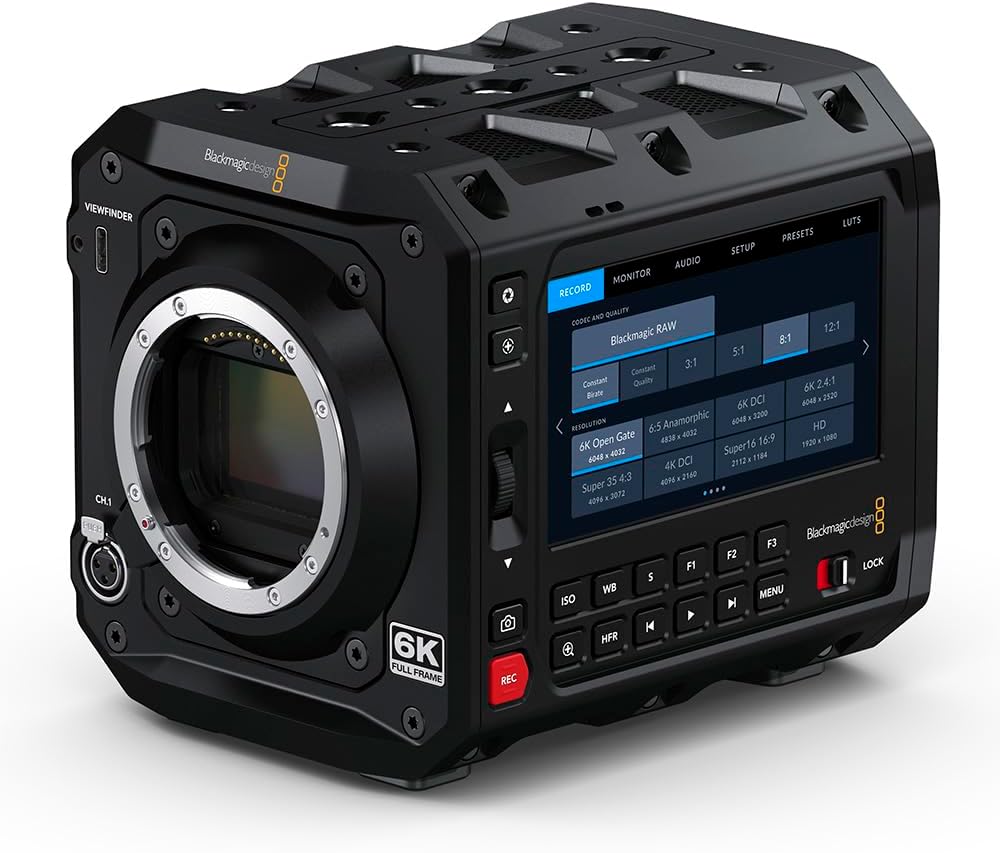
Figure 4.3: Front view of the Blackmagic Design Pyxis 6K Cinema Camera without a lens, clearly showing the L-Mount for lens attachment and the '6K FULL FRAME' designation. This view highlights the camera's robust construction and lens interface.
5. Setup
5.1. Battery Installation
- Ensure the camera is powered off.
- Locate the battery compartment on the rear of the camera.
- Insert a compatible lithium-ion battery pack, ensuring it clicks securely into place.
5.2. Lens Attachment (L-Mount)
- Remove the body cap from the camera and the rear cap from your L-Mount lens.
- Align the white index mark on the lens with the white index mark on the camera's lens mount.
- Insert the lens into the mount and rotate it clockwise until it locks into position.
5.3. Media Card Insertion
- Locate the CFexpress card slot.
- Insert a CFexpress card with the label facing the correct direction until it clicks into place.
- To remove, press the card gently to eject it.
5.4. Powering On/Off
- To power on, slide the power switch to the 'ON' position.
- To power off, slide the power switch to the 'OFF' position.
5.5. Initial Settings
Upon first power-on, you may be prompted to set the language, date, and time. Follow the on-screen instructions using the touchscreen LCD.
6. Operating the Camera
6.1. Menu Navigation
The 4-inch HDR LCD screen is a touchscreen interface. Tap icons and swipe to navigate through menus and adjust settings. Physical buttons are also available for quick access to common functions like ISO, White Balance, and Frame Rate.
6.2. Recording
- Recording Formats: The camera supports Blackmagic RAW for maximum quality and H.264 proxies for efficient workflow. Select your desired format in the 'Record' menu.
- Resolution and Frame Rate: Adjust resolution (e.g., 6K Open Gate, 6K DCI, Super 35) and frame rate (up to 36 fps at full resolution, 120 fps windowed) via the 'Record' or 'Project' settings.
- Start/Stop Recording: Press the dedicated 'REC' button on the camera body to start and stop recording.
6.3. Audio Settings
Access audio input levels, monitoring options, and format settings (AAC, MP3, PCM) through the 'Audio' menu. Ensure external microphones are properly connected to the camera's audio inputs.
6.4. Monitoring and Connectivity
Use the built-in LCD for on-camera monitoring. For external displays, connect an HDMI cable from the camera's HDMI output to your monitor. Adjust display settings in the 'Monitor' menu.
7. Maintenance
7.1. Cleaning
- Use a soft, dry cloth to clean the camera body.
- For the LCD screen, use a specialized screen cleaning solution and a microfiber cloth.
- Keep the lens mount free of dust and debris. Use a blower brush for sensor cleaning if necessary, or consult a professional.
7.2. Storage
When not in use, store the camera in a cool, dry place, preferably in a padded camera bag or case to protect it from physical damage and environmental factors.
7.3. Firmware Updates
Periodically check the Blackmagic Design website for firmware updates. Updates can improve performance, add features, and resolve issues. Follow the instructions provided with the firmware update carefully.
8. Troubleshooting
- Camera not powering on: Ensure the battery is fully charged and correctly inserted, or the external power supply is connected.
- No image on LCD: Check lens attachment, ensure the lens cap is removed, and verify monitor settings.
- Recording issues: Confirm a compatible CFexpress card is inserted and has sufficient free space. Check recording format and resolution settings.
- Audio problems: Verify microphone connection, audio input levels, and selected audio format.
- For persistent issues, perform a factory reset (refer to the 'Settings' menu) or contact Blackmagic Design support.
9. Specifications
| Feature | Specification |
|---|---|
| Product Dimensions | 5.91 x 4.72 x 4.33 inches |
| Item Weight | 4.62 pounds |
| Item Model Number | CINECAMCPYXA60LFL |
| Photo Sensor Technology | CMOS |
| Video Capture Resolution | 6K (6048 x 4032), 1080p, 720p |
| Maximum Aperture | 2 Millimeters (Lens dependent) |
| Flash Memory Type | CFexpress |
| Video Capture Format | Blackmagic RAW, CinemaDNG, ProRes, DNxHR |
| Supported Audio Format | AAC, MP3, PCM |
| Screen Size | 4 Inches (HDR 1500 nit LCD) |
| Connectivity Technology | HDMI |
| Color | Black |
| Manufacturer | Blackmagic Design |
10. Warranty and Support
10.1. Warranty Information
Blackmagic Design products typically come with a limited manufacturer's warranty. Please refer to the warranty card included with your product or visit the official Blackmagic Design website for detailed warranty terms and conditions specific to your region.
10.2. Technical Support
For technical assistance, product registration, or to download the latest software and drivers, please visit the official Blackmagic Design support page. You can find comprehensive FAQs, knowledge base articles, and contact information for customer support.
Official Blackmagic Design Store: Blackmagic Design on Amazon


