
Introduction
Thank you for choosing the Tibuta 10-inch Android Kids Tablet. This manual provides essential information for setting up, operating, and maintaining your device. Please read it thoroughly to ensure proper use and to maximize your child's learning and entertainment experience.
Safety Information
- Do not expose the tablet to extreme temperatures, direct sunlight, or moisture.
- Avoid dropping the tablet or subjecting it to strong impacts, even with its protective case.
- Use only the original charger and USB-C cable provided with the tablet.
- Keep the tablet away from small children who might attempt to disassemble it or ingest small parts.
- Supervise children during tablet use to ensure safe and appropriate content consumption.
- If the tablet overheats, disconnect it from the power source and allow it to cool down before resuming use.
Package Contents
Verify that all items are present in the box:
- Tibuta 10-inch Android Kids Tablet
- Charger
- USB-C Cable
- User's Manual (this document)
- Warranty Card

Image: Contents of the Tibuta 10-inch Android Kids Tablet package.
Product Overview
The Tibuta 10-inch Android Kids Tablet is designed for educational and entertainment purposes, featuring a robust build and child-friendly software.

Image: Key product specifications and features of the Tibuta Kids Tablet.
Key Features:
- Display: 10.1-inch HD screen (1280 x 800 resolution) for clear visuals.
- Performance: Quad-core processor with 4GB RAM (2GB expandable) for smooth operation.
- Storage: 64GB internal storage, expandable up to 128GB via Micro SD card.
- Operating System: Android 13 for access to a wide range of applications.
- Connectivity: Integrated Wi-Fi and Bluetooth for wireless connections.
- Cameras: 2MP front camera and 5MP rear camera for photos and video calls.
- Battery: 5000mAh battery providing up to 8 hours of usage.
- Durability: Robust design with a protective case, resistant to shocks and drops.

Image: Tablet display and camera features.

Image: Memory and camera details.

Image: Battery capacity and estimated usage times.
Setup
1. Charging the Tablet
Before first use, fully charge the tablet. Connect the USB-C cable to the tablet's charging port and the other end to the provided charger. Plug the charger into a power outlet. The battery indicator on the screen will show charging status.
2. Powering On/Off
- To Power On: Press and hold the Power button (usually located on the side) until the screen lights up.
- To Power Off: Press and hold the Power button until a menu appears. Select "Power off" and confirm.
3. Initial Setup
Upon first power-on, follow the on-screen prompts to:
- Select your preferred language.
- Connect to a Wi-Fi network.
- Set up your Google account (optional, but recommended for app downloads).
- Configure date and time.
4. Inserting a Micro SD Card (Optional)
To expand storage, locate the Micro SD card slot (usually on the side). Gently insert a compatible Micro SD card (up to 128GB) until it clicks into place. The tablet will recognize the new storage.
Operating Instructions
1. Basic Navigation
The tablet uses a touchscreen interface:
- Tap: To select an item or open an app.
- Swipe: To scroll through pages or menus.
- Pinch: To zoom in or out on images and web pages.
- Long Press: To access additional options for an item.
2. Connecting to Wi-Fi
- Go to Settings > Network & internet > Wi-Fi.
- Toggle Wi-Fi On.
- Select your desired network from the list.
- Enter the password if prompted and tap Connect.
3. Downloading Applications
The tablet runs on Android 13, allowing access to the Google Play Store for a wide variety of applications.
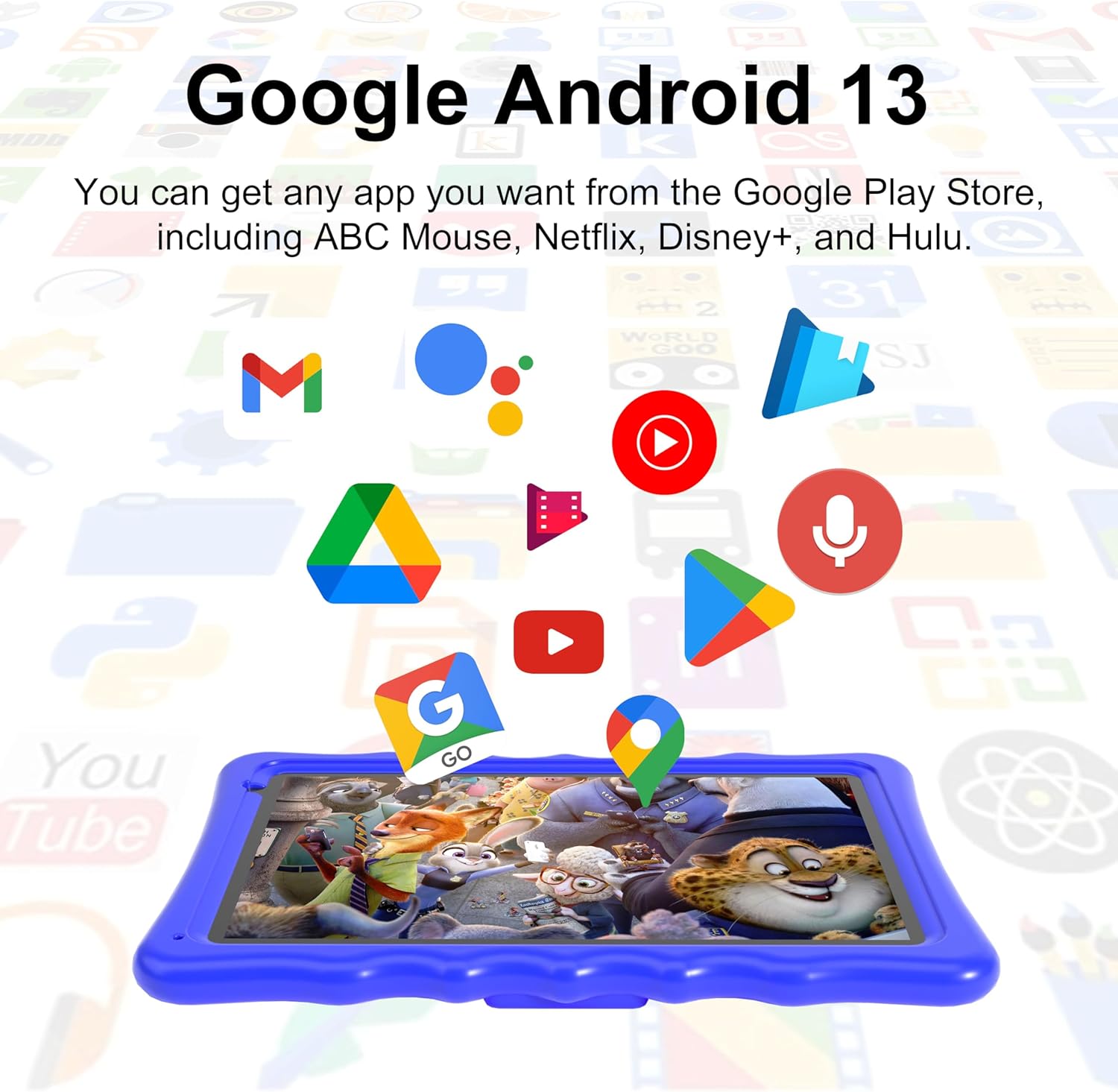
Image: Google Android 13 interface and app access.
- Open the Play Store app.
- Search for the desired app.
- Tap Install and follow the on-screen instructions.
4. Bluetooth Pairing
- Go to Settings > Connected devices > Bluetooth.
- Toggle Bluetooth On.
- Ensure the device you want to pair is in pairing mode.
- Select the device from the list and follow any on-screen prompts to complete pairing.
5. Using the Camera
Open the Camera app. You can switch between the front (2MP) and rear (5MP) cameras. Tap the shutter button to take photos or record videos.

Image: Child interacting with the tablet.
Parental Control Features
The Tibuta Kids Tablet comes with pre-installed parental control software. This allows parents to manage content, set time limits, and monitor usage to create a safe digital environment for children.
- Access the parental control settings through the dedicated app or the tablet's system settings.
- Set up a password or PIN to prevent children from altering settings.
- Configure allowed applications, websites, and screen time schedules.
- Review usage reports to understand your child's activity.
Maintenance
1. Cleaning the Tablet
Use a soft, lint-free cloth to clean the screen and body of the tablet. Do not use abrasive cleaners or solvents. For stubborn smudges, slightly dampen the cloth with water.
2. Battery Care
- Avoid fully discharging the battery frequently.
- Do not leave the tablet charging for extended periods after it's full.
- Store the tablet in a cool, dry place when not in use for long periods.
3. Software Updates
Regularly check for and install software updates to ensure optimal performance and security. Go to Settings > System > System update.
Troubleshooting
| Problem | Possible Solution |
|---|---|
| Tablet does not turn on | Ensure the battery is charged. Connect the charger and try again. If unresponsive, perform a hard reset by holding the power button for 10-15 seconds. |
| Slow performance | Close unused applications. Clear cache from apps in Settings > Apps. Consider uninstalling unnecessary apps or moving files to an SD card. |
| Wi-Fi connection issues | Ensure Wi-Fi is enabled. Restart the tablet and your Wi-Fi router. Forget the network and reconnect. |
| Battery drains quickly | Reduce screen brightness. Close background apps. Disable Wi-Fi/Bluetooth when not in use. Check for power-intensive apps in battery settings. |
| Apps crashing or freezing | Clear the app's cache and data in Settings > Apps. Update the app to the latest version. If the issue persists, uninstall and reinstall the app. |
Specifications
| Feature | Detail |
|---|---|
| Model Name | A70W |
| Brand | Tibuta |
| Operating System | Android 13 |
| Screen Size | 10.1 Inches |
| Display Resolution | 1280 x 800 Pixels (HD) |
| Processor | Quad-Core (Allwinner) |
| RAM | 4 GB |
| Internal Storage | 64 GB |
| Expandable Storage | Up to 128 GB (Micro SD) |
| Battery Capacity | 5000 mAh (Lithium-polymer) |
| Average Battery Life | 8 hours |
| Front Camera | 2 Megapixels |
| Rear Camera | 5 Megapixels |
| Connectivity | Wi-Fi (802.11ax), Bluetooth, USB-C |
| Dimensions (L x W x H) | 30L x 25W x 5H centimeters |
| Weight | 1.04 Kilograms |
| Age Range Description | Child |
Warranty and Support
Warranty Information
This Tibuta tablet comes with a limited warranty. Please refer to the included Warranty Card for specific terms, conditions, and duration of coverage. Keep your proof of purchase for warranty claims.
Customer Support
If you encounter any issues not covered in this manual or require further assistance, please contact Tibuta customer support. Contact details can typically be found on the Warranty Card or the official Tibuta website.