
1. Introduction
The XGODY Gimbal5 Smart Mini-projector offers a full HD 1080p native resolution with 4K support, 18000 lumens brightness, and a 10,000:1 dynamic contrast ratio. Featuring Android 11.0, WiFi 6, Bluetooth 5.0, and automatic keystone correction, this portable projector is designed for versatile home entertainment. This manual provides essential information for safe and effective use of your projector.
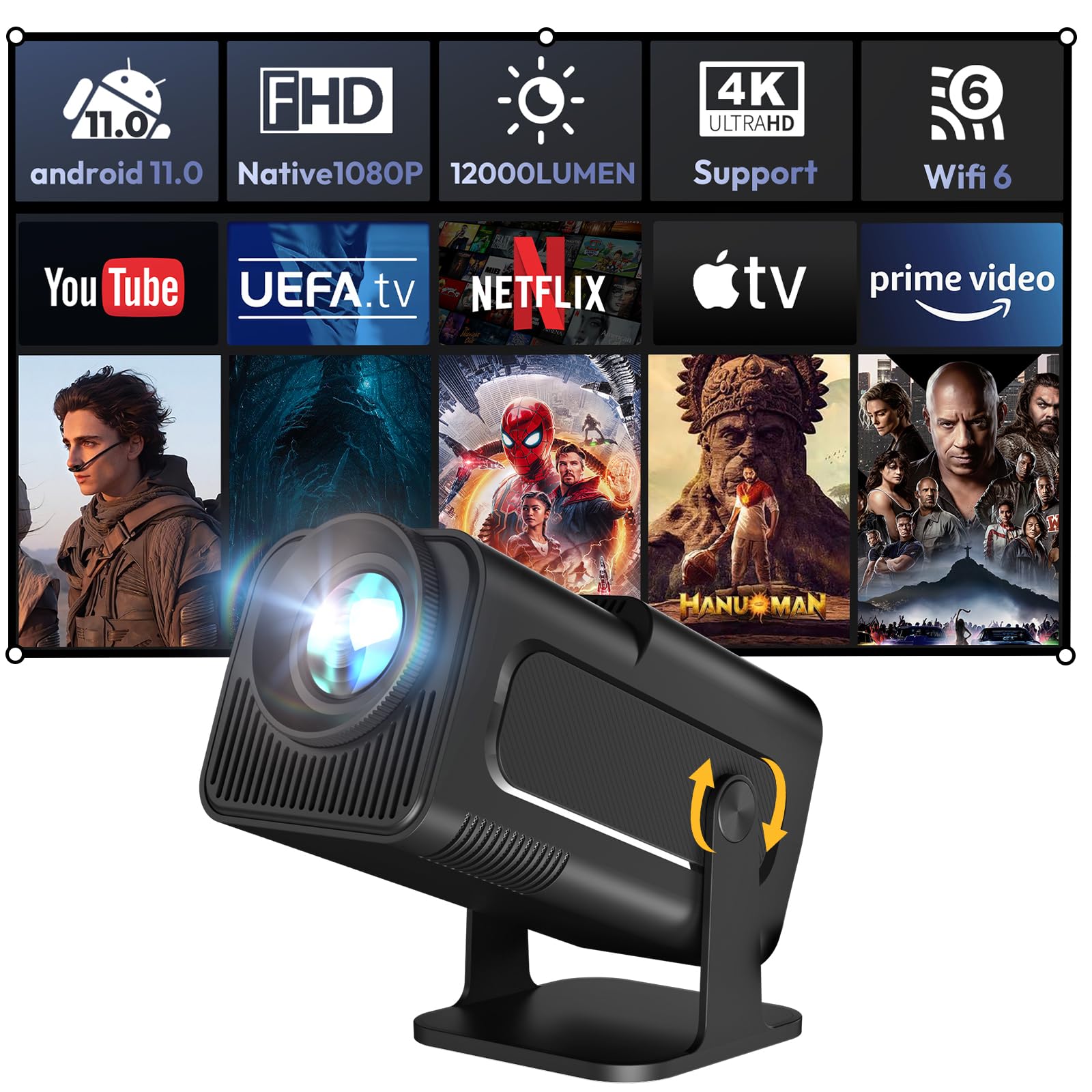
Image 1.1: The XGODY Gimbal5 Smart Mini-projector.
2. Safety Information
Please read all safety instructions before using the projector to prevent injury or damage. Keep this manual for future reference.
- Power Supply: Use only the provided power adapter. Ensure the voltage matches your local power supply.
- Ventilation: Do not block ventilation openings. Ensure adequate airflow around the projector to prevent overheating.
- Water and Moisture: Do not expose the projector to rain, moisture, or liquids.
- Cleaning: Unplug the projector before cleaning. Use a soft, dry cloth. Do not use liquid or aerosol cleaners.
- Placement: Place the projector on a stable, flat surface. Avoid placing it in direct sunlight or near heat sources.
- Eye Safety: Do not look directly into the projector lens when the lamp is on.
3. Package Contents
Verify that all items are present in the package:
- XGODY Gimbal5 Smart Mini-projector
- Remote Control
- Power Cable
- User Manual (this document)
4. Product Overview
4.1 Physical Features
The Gimbal5 projector features a compact design for portability and a versatile stand that allows for 180° rotation, enabling projection onto walls or ceilings.

Image 4.1: The compact size of the XGODY Gimbal5, designed for portability.

Image 4.2: The projector's 180-degree rotation feature for flexible projection angles.
4.2 Ports and Controls
The projector is equipped with various ports for connectivity and is controlled via the included remote.

Image 4.3: Rear view showing HDMI, USB, and 3.5mm audio ports for diverse connectivity.
5. Setup
5.1 Initial Power On
- Connect the power cable to the projector and a power outlet.
- Press the power button on the projector or the remote control to turn it on.
5.2 Network Connection
Connect your projector to a stable internet connection for optimal performance and access to online content.
- Navigate to the settings menu using the remote control.
- Select Network & Internet and choose your desired Wi-Fi network.
- Enter the Wi-Fi password if prompted. The projector supports the latest 5G dual-band WiFi 6 for faster speeds.

Image 5.1: Demonstrating the Dual-Band WiFi 6 for enhanced connectivity.
5.3 Automatic Image Adjustments
The projector features automatic keystone correction and electric focus for a clear and properly aligned image.
- The projector will automatically adjust the image shape (keystone) to be rectangular.
- Electric focus ensures a sharp image without manual adjustment.

Image 5.2: The Auto-Vertical Keystone feature automatically corrects image distortion.
6. Operating Instructions
6.1 Android 11.0 Smart System
The projector runs on Android 11.0, providing access to a wide range of applications.
- Use the remote control to navigate the Android interface.
- Access pre-installed apps like Netflix and YouTube, or download more from the integrated Google Store.

Image 6.1: The Android 11.0 interface displaying various streaming applications.
6.2 Screen Mirroring (Eshare)
Share content from your mobile device directly to the projector screen using the Eshare function.
- Ensure your mobile device and projector are connected to the same Wi-Fi network.
- Select the Eshare application on the projector.
- Follow the on-screen instructions to connect your iOS or Android device.
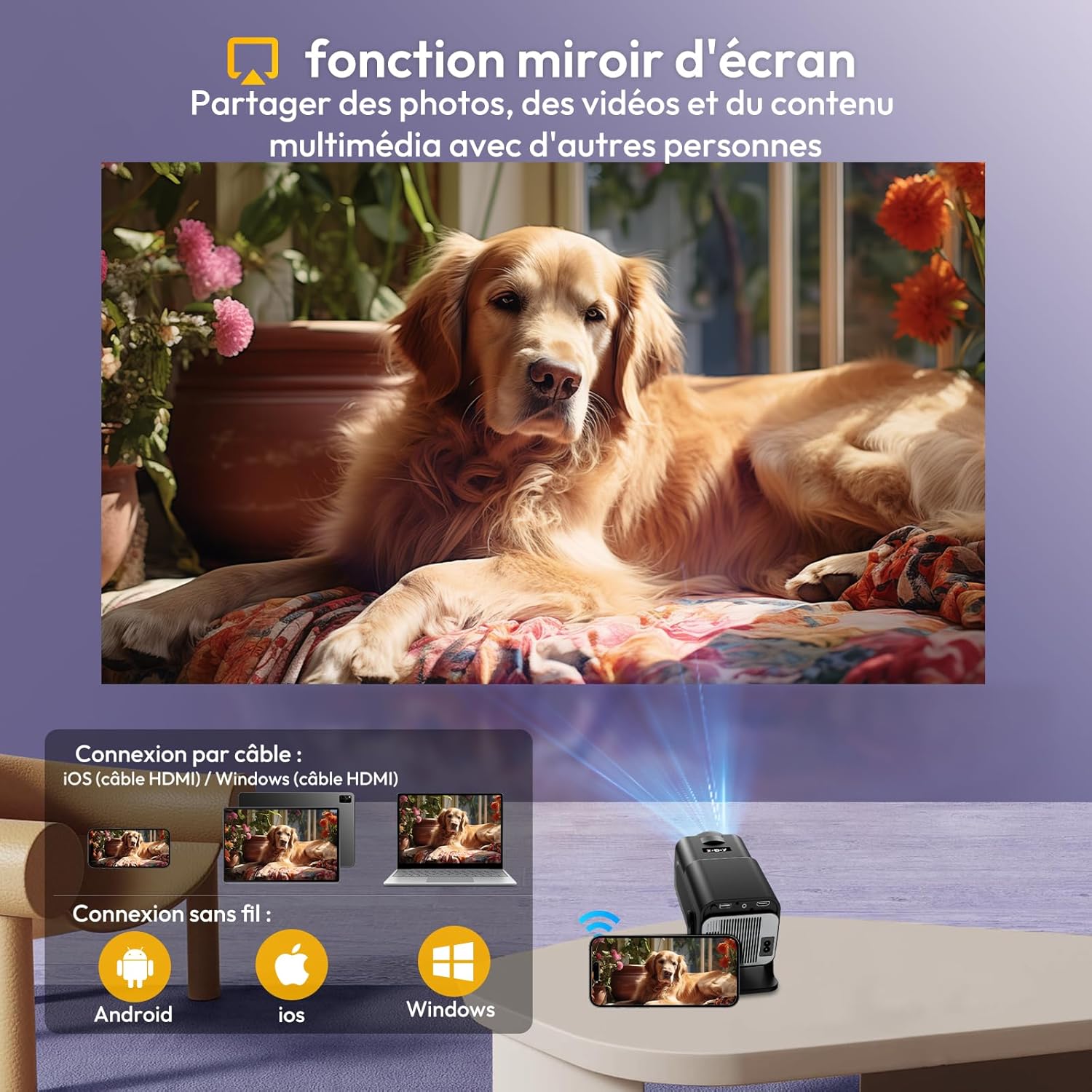
Image 6.2: Screen mirroring functionality, allowing content sharing from mobile devices.
6.3 Connecting External Devices
The projector supports various external devices via HDMI, USB, and Bluetooth.
- HDMI: Connect TV sticks, laptops, game consoles (PS5) using an HDMI cable.
- USB: Plug in USB drives for media playback.
- Bluetooth 5.2: Connect external Bluetooth speakers for an enhanced audio experience. The projector also has a built-in 3W Hi-Fi speaker.
- 3.5mm Audio: Connect headphones or external speakers via the audio jack.
Image 6.3: Overview of multiple connection options including HDMI, USB, and audio interfaces.
6.4 Image Quality
The projector delivers vivid and detailed picture quality with its native 1080p resolution and high brightness.

Image 6.4: Visual representation of the projector's vivid and detailed picture quality.
6.5 Projection Distance and Size
The short-throw projection ratio allows for large images even in limited spaces.
- Minimum projection distance: 1.5 meters for a 30-inch image.
- Maximum projection distance: 5 meters for a 200-inch image.
- Recommended display size: up to 150 inches for optimal viewing.
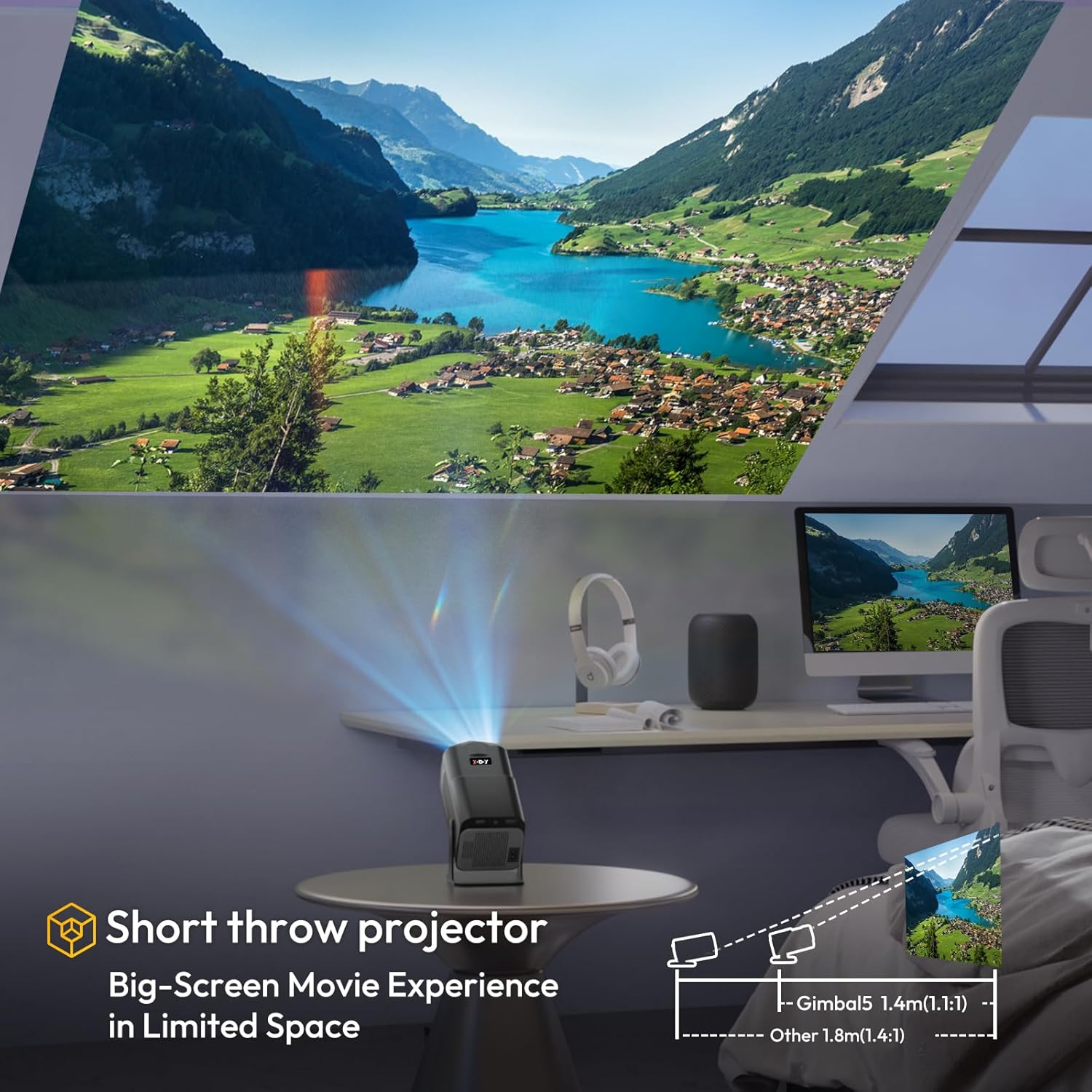
Image 6.5: Illustration of the short-throw projection, enabling large screens in small rooms.
7. Maintenance
Proper maintenance ensures the longevity and performance of your projector.
- Lens Cleaning: Use a soft, lint-free cloth specifically designed for optical lenses to gently wipe the projector lens. Avoid harsh chemicals.
- Ventilation: Regularly check and clean the ventilation grilles to prevent dust buildup, which can lead to overheating. Use a soft brush or compressed air.
- Storage: When not in use for extended periods, store the projector in a cool, dry place, away from direct sunlight and extreme temperatures.
8. Troubleshooting
If you encounter issues with your projector, refer to the following common problems and solutions:
| Problem | Possible Cause | Solution |
|---|---|---|
| No Power | Power cable disconnected; Power outlet issue | Ensure power cable is securely connected. Try a different power outlet. |
| No Image | Input source not selected; Device not connected; Projector in standby mode | Select correct input source (HDMI, USB). Check device connection. Press power button to wake up. |
| Blurry Image | Focus issue; Keystone issue | The projector has electric focus and auto-keystone. If issues persist, check for obstructions or try restarting. |
| No Sound | Volume too low; Muted; External audio device issue | Increase volume. Check if muted. Ensure external audio devices are properly connected and powered on. |
| Remote Control Not Working | Batteries low/dead; Obstruction; Remote not paired | Replace batteries. Remove obstructions between remote and projector. Re-pair the remote if necessary (refer to Android TV settings). |
9. Specifications
Key technical specifications of the XGODY Gimbal5 Smart Mini-projector:
| Feature | Detail |
|---|---|
| Brand | XGODY |
| Model Number | Gimbal5 |
| Product Dimensions | 14L x 15W x 25.5H centimeters |
| Weight | 1 Kilogram |
| Native Resolution | 1920 x 1080 (Full HD) |
| Maximum Screen Resolution | 1920 x 1080 |
| Brightness | 18000 Lumens |
| Contrast Ratio | 10000:1 |
| Display Type | LCD |
| Operating System | Android 11.0 |
| Connectivity Technology | USB, 3.5 mm audio, HDMI, WLAN (WiFi 6), Bluetooth (5.0) |
| Special Features | Speaker, Auto-Keystone, 180° Rotation |
| Minimum Projection Distance | 1.5 Meter |
| Maximum Projection Distance | 5 Meter |
| Minimum Image Size | 30 inch |
| Maximum Image Size | 200 inch |
| Compatible Devices | TV Stick, laptop, iOS, Android, PS5 |
10. Warranty and Support
The XGODY Gimbal5 Smart Mini-projector comes with a manufacturer's warranty. Please refer to the warranty card included in your package for specific terms and conditions.
- For technical support or warranty claims, please contact XGODY customer service through their official website or the contact information provided in your warranty documentation.
- Keep your purchase receipt as proof of purchase for warranty purposes.


