
FreedConn R3
Contents
FreedConn R3 Motorcycle Helmet Bluetooth Headset User Manual
Model: R3
Brand: FreedConn
1. Introduction
The FreedConn R3 Motorcycle Helmet Bluetooth Headset is an advanced communication system designed for motorcyclists. It integrates a 2K camera for recording, a multi-rider intercom system, Hi-Fi audio capabilities, and intuitive controls for a comprehensive riding experience. This manual provides detailed instructions for the proper setup, operation, and maintenance of your R3 headset.
2. Safety Information
- Road Safety: Always prioritize road safety. Do not operate the device in a manner that distracts you from riding.
- Volume Levels: Avoid prolonged exposure to high volume levels, which can cause hearing damage. Adjust volume to a safe level that allows you to hear ambient traffic sounds.
- Water Resistance: The R3 headset is IP67-rated for water resistance, meaning it can withstand heavy rain and temporary submersion (1m for 30 minutes). However, avoid intentional submersion or high-pressure water jets. Ensure all ports are securely closed before exposure to water.
- Battery Safety: Do not disassemble, puncture, or expose the battery to extreme temperatures or fire. Dispose of batteries according to local regulations.

The FreedConn R3 is designed with drop-proof and shock-proof features, automatically saving video footage in the event of a crash.
3. Package Contents
Verify that all items listed below are included in your package:
- FreedConn R3 Bluetooth Kit
- 2-in-1 Soft & Hard Mic Earphone
- Hook Clip and Velcro Clip
- Headphone Velcro
- USB Cable
- Allen Key
- User Manual
- 128GB Memory Card (pre-installed or included separately)

Illustration of the FreedConn R3 package contents.
4. Product Overview
Familiarize yourself with the various components and controls of your FreedConn R3 headset:
- Volume Up/Next Song Button: Controls audio volume and navigates music tracks.
- Volume Down/Last Song Button: Controls audio volume and navigates music tracks.
- WiFi Button: Activates/deactivates WiFi hotspot for app control.
- Lens: 2K camera lens for video recording.
- Recorder ON/OFF, Video/Photo Button: Controls camera recording and photo capture.
- LED Indicator Light: Displays device status (power, pairing, recording).
- Bluetooth ON/OFF, Intercom Button: Manages Bluetooth power and intercom functions.
- Multi-function Button: Used for various operations including call management and voice assistant activation.
- Microphone: For voice communication.
- Headphone Port: Connects the included earphones.
- Charging Port/USB Port: For charging and data transfer.
- Reset Button: Used to reset the device.
- TF Card Slot: For inserting the memory card.

Front and bottom views of the FreedConn R3 headset, highlighting its various controls and ports.
5. Setup
5.1. Installing the Memory Card
The FreedConn R3 requires a TF (microSD) card for video recording. A 128GB card is typically included. Ensure the device is powered off before inserting or removing the card.
- Locate the TF card slot on the side of the R3 unit.
- Gently insert the memory card into the slot with the gold contacts facing down until it clicks into place.
- To remove, push the card inward until it springs out.

This video demonstrates the process of installing the memory card into the FreedConn R3 headset.
5.2. Mounting the Unit to Your Helmet
The R3 unit can be mounted to most motorcycle helmets using the provided clips.
- Choose between the hook clip or velcro clip based on your helmet type and preference.
- Attach the chosen clip securely to the side of your helmet.
- Slide the R3 unit onto the mounted clip until it locks into place.
- Connect the earphone and microphone cables to the corresponding ports on the R3 unit. Route the cables neatly inside the helmet padding.
Visual guide for installing the FreedConn R3 headset onto a helmet, showing the clip attachment and unit placement.
6. Operating Instructions
6.1. Power On/Off
- Power On: Press and hold the Bluetooth ON/OFF button for approximately 3 seconds until the LED indicator lights up and you hear a voice prompt.
- Power Off: Press and hold the Bluetooth ON/OFF button for approximately 3 seconds until the LED indicator turns off and you hear a voice prompt.

This video demonstrates the basic operation of powering on the FreedConn R3 Bluetooth headset.
6.2. Bluetooth Pairing
The R3 can connect to two smartphones simultaneously and pair with other Bluetooth devices.
- Pairing with a Smartphone: With the R3 powered off, press and hold the Multi-function button until the LED indicator flashes red and blue alternately, indicating pairing mode. On your smartphone, search for "FreedConn R3" in Bluetooth settings and select it to connect.
- Pairing with Third-Party Bluetooth Products: The R3 supports universal pairing with other brands of Bluetooth headsets. Refer to the specific pairing instructions for the third-party device and initiate pairing mode on both units.

This video illustrates how to connect your FreedConn R3 with a Bluetooth device.

This video demonstrates connecting the FreedConn R3 with third-party brand products.
6.3. Intercom Function
The R3 supports group intercom for up to 6 riders over a distance of 1200m.
- Two-Way Intercom: To initiate intercom with another R3 unit, ensure both units are powered on and within range. Follow the pairing instructions in your manual to establish a direct intercom connection.
- Multi-Rider Intercom: For 3-6 riders, follow the specific pairing sequence outlined in the detailed manual to create a group intercom chain.

This video shows how to establish an intercom connection by pairing two FreedConn R3 units.

This video demonstrates the method for connecting and using four FreedConn R3 units in an intercom group.
6.4. Camera and Recording
The R3 features a 2K camera with a 140° adjustable lens for high-quality video recording.
- Start/Stop Recording: Press the Recorder ON/OFF, Video/Photo button to start or stop video recording.
- Photo Capture: Briefly press the Recorder ON/OFF, Video/Photo button to take a still photo.
- Loop Recording: The device supports loop recording, automatically overwriting the oldest footage when the memory card is full.
- Adjustable Lens: The camera lens can be rotated 30° and the host unit can rotate 360° for optimal shooting angles.
- WiFi App Control: Connect to the R3's built-in WiFi hotspot using the dedicated app (e.g., Roadcam) on your smartphone to view live footage, download videos/photos, and adjust camera settings.
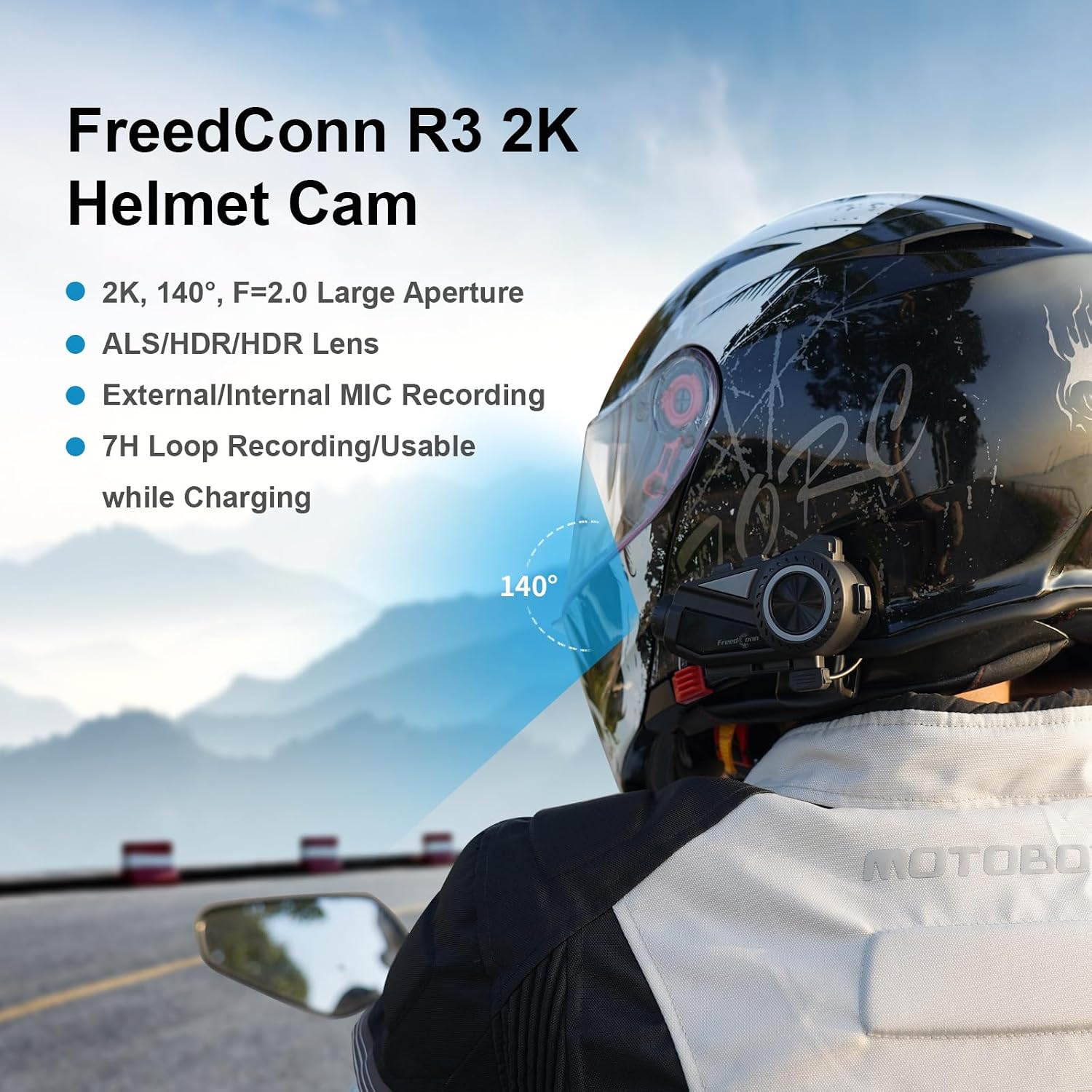
Key features of the FreedConn R3's 2K helmet camera.

The R3 allows for 360° host rotation and 30° lens rotation for flexible camera positioning.

This video provides an overview of the FreedConn R3 motorcycle camera features.

Control your R3 camera and access footage via the WiFi hotspot and dedicated smartphone app.
6.5. Radio Function
The R3 includes an FM radio function.
- Turn On/Off Radio: Refer to your manual for the specific button combination or duration to activate or deactivate the FM radio.
- Scan Channels: Use the volume buttons or multi-function button to scan for available radio stations.

This video demonstrates how to turn the radio function on and off on the FreedConn R3.
6.6. Voice Commands
The R3 supports voice assistant integration.
- Activate Voice Assistant: Briefly press the Multi-function button to activate your smartphone's voice assistant (Siri or Google Assistant).
- Use Commands: Once activated, you can use voice commands for navigation, calls, music control, and more.
7. Maintenance
7.1. Charging
The R3 is equipped with a 2000mAh battery and supports USB-C fast charging.
- Connect the provided USB-C cable to the charging port on the R3 unit and to a compatible USB power source.
- A full charge typically takes approximately 2.5 hours.
- Battery life provides up to 45 hours of talk time, 42 hours of music time, and 7 hours of recording time.

Battery specifications and usage times for the FreedConn R3 headset.
7.2. Cleaning and Storage
- Wipe the unit with a soft, damp cloth. Do not use harsh chemicals or abrasive cleaners.
- Store the device in a cool, dry place when not in use.
8. Troubleshooting
If you encounter issues with your FreedConn R3 headset, refer to the following common problems and solutions:
| Problem | Possible Cause | Solution |
|---|---|---|
| Device does not power on | Low battery; Device frozen | Charge the device fully; Press the reset button with a small pin. |
| Cannot pair with phone/intercom | Incorrect pairing mode; Previous pairing interference | Ensure device is in pairing mode; Clear historical pairing information. |
| No audio from earphones | Earphones not connected; Volume too low | Check earphone connection; Increase volume. |
| Camera not recording | No memory card; Memory card full/corrupted | Insert memory card; Format or replace memory card. |
| WiFi connection issues | Incorrect password; App issues | Verify WiFi password; Try a different compatible app (e.g., Roadcam). |

This video demonstrates how to delete historical pairing information, which can resolve connectivity issues.
9. Specifications
| Feature | Detail |
|---|---|
| Model Name | R3 |
| Connectivity Technology | Wireless (Bluetooth 5.1) |
| Camera Resolution | 2K |
| Intercom Range | Up to 1200m (0.75 miles) |
| Max Riders (Intercom) | 6 Riders |
| Battery Capacity | 2000mAh Lithium Polymer |
| Talk Time | Up to 45 hours |
| Music Time | Up to 42 hours |
| Recording Time | Up to 7 hours |
| Charging Time | Approx. 2.5 hours (USB-C Fast Charging) |
| Water Resistance | IP67 Rated |
| Noise Control | Active Noise Cancellation |
| Item Weight | 13.7 ounces |
| Product Dimensions | 4.53 x 2.56 x 5.91 inches |
10. Warranty and Support
FreedConn products typically come with a limited warranty covering manufacturing defects. Please refer to the warranty card included with your product or visit the official FreedConn website for detailed warranty terms and conditions.
For technical support, troubleshooting assistance, or warranty claims, please contact FreedConn customer service through their official channels. Provide your product model (R3) and purchase details when seeking support.
Documents and downloads
Ask a question about this manual
Ask about setup, troubleshooting, compatibility, parts, safety, or missing instructions. Manuals+ will review the question and use this page’s manual context to help answer it.