
1. Introduction
The GuliKit King Kong 2 Pro is a versatile wireless Bluetooth game controller designed for a superior gaming experience across multiple platforms. Featuring advanced Hall Effect technology for joysticks and triggers, it aims to eliminate common issues like stick drift and provide precise control. This manual provides detailed instructions for setup, operation, maintenance, and troubleshooting to help you get the most out of your controller.

Figure 1.1: GuliKit King Kong 2 Pro Game Controller (Black)
2. Key Features
- All-In-One Controller: Universally compatible with multi-systems & consoles including Switch, Switch OLED, Switch Lite, Windows PC, Android, iOS, Mac, and Steam Deck.
- New Electromagnetic Thumbsticks: GuliKit's powerful Hall Effect joystick technology eliminates stick drift. Features a no-wear & tear magnetic sensing mechanism with anti-friction steel thumbstick rings for silky smoothness, high precision, and long life. Adjustable sensitivity and no dead zone mode options are available.
- Hall Effect Analog Triggers: Magnetic Hall sensing analog triggers provide greater immersion with varying levels of acceleration in racing games. Supports on-the-fly setting for instant triggering for super-fast shooting.
- Motion Control & Gyro Aiming: Supports smooth motion sensing control on Switch for immersive gaming. Set unique gyro aim assist function on left trigger/shoulder button for fast aiming in PC FPS games.
- Auto-Pilot Gaming (APG): With GuliKit's innovative APG feature, you can record any series of inputs up to 10 minutes and map them to the APG button for custom commands or macros, allowing auto-replay with hands-free operation.
- Quick Setting On The Fly: Use simple button combinations to quickly adjust Turbo Function, Adjustable Vibration, Interchangeable Buttons Layout, Stick Sensitivity, and Aim Assist Sensitivity.
- Additional Features: Supports Switch Wake-up, Amiibo Support, Wireless & Wired Connection, Anti-slip Textured Grips, and a 1000mAh Lithium Battery for up to 25 hours of gaming.
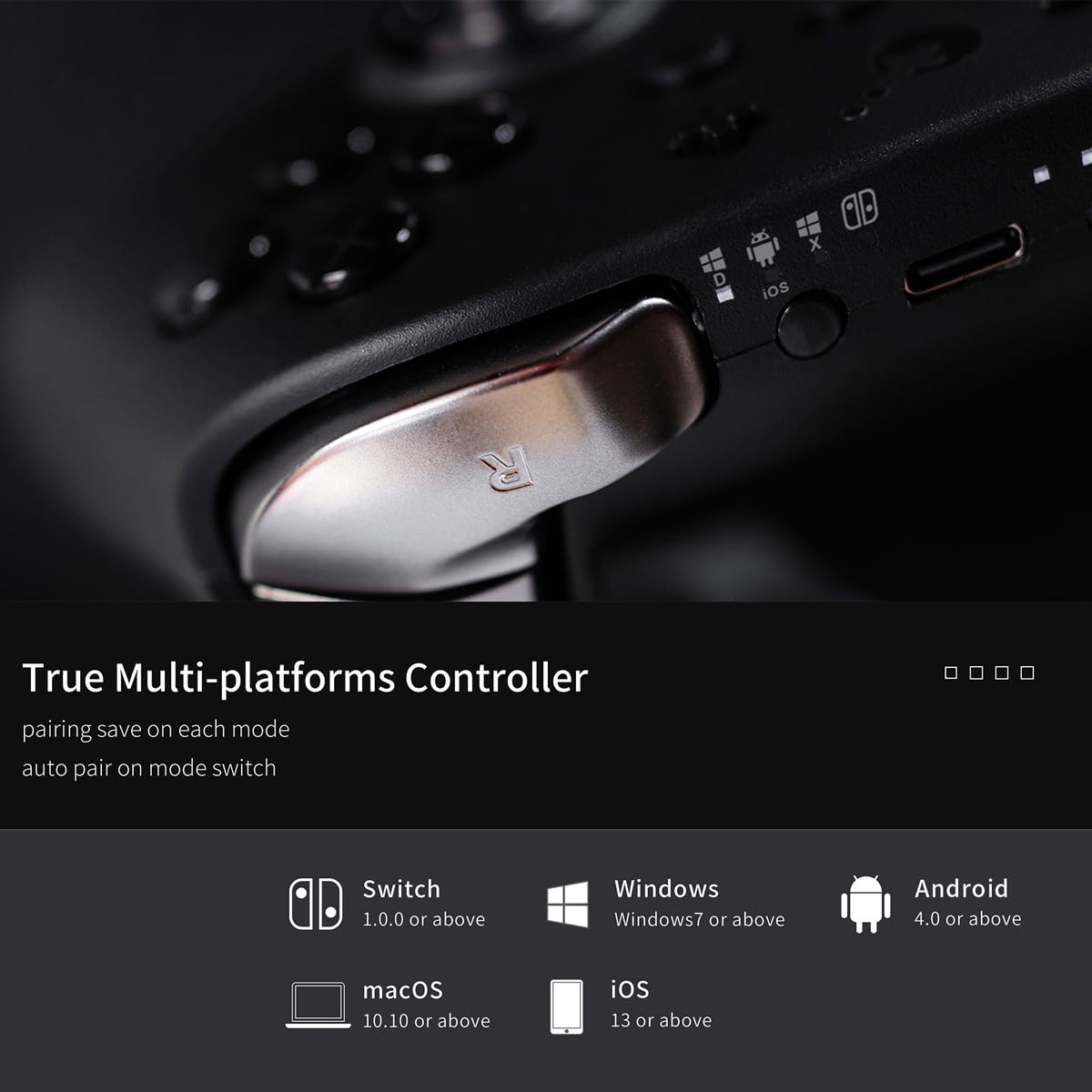
Figure 2.1: Multi-Platform Compatibility

Figure 2.2: Electromagnetic Thumbsticks Technology

Figure 2.3: Hall Effect Analog Triggers
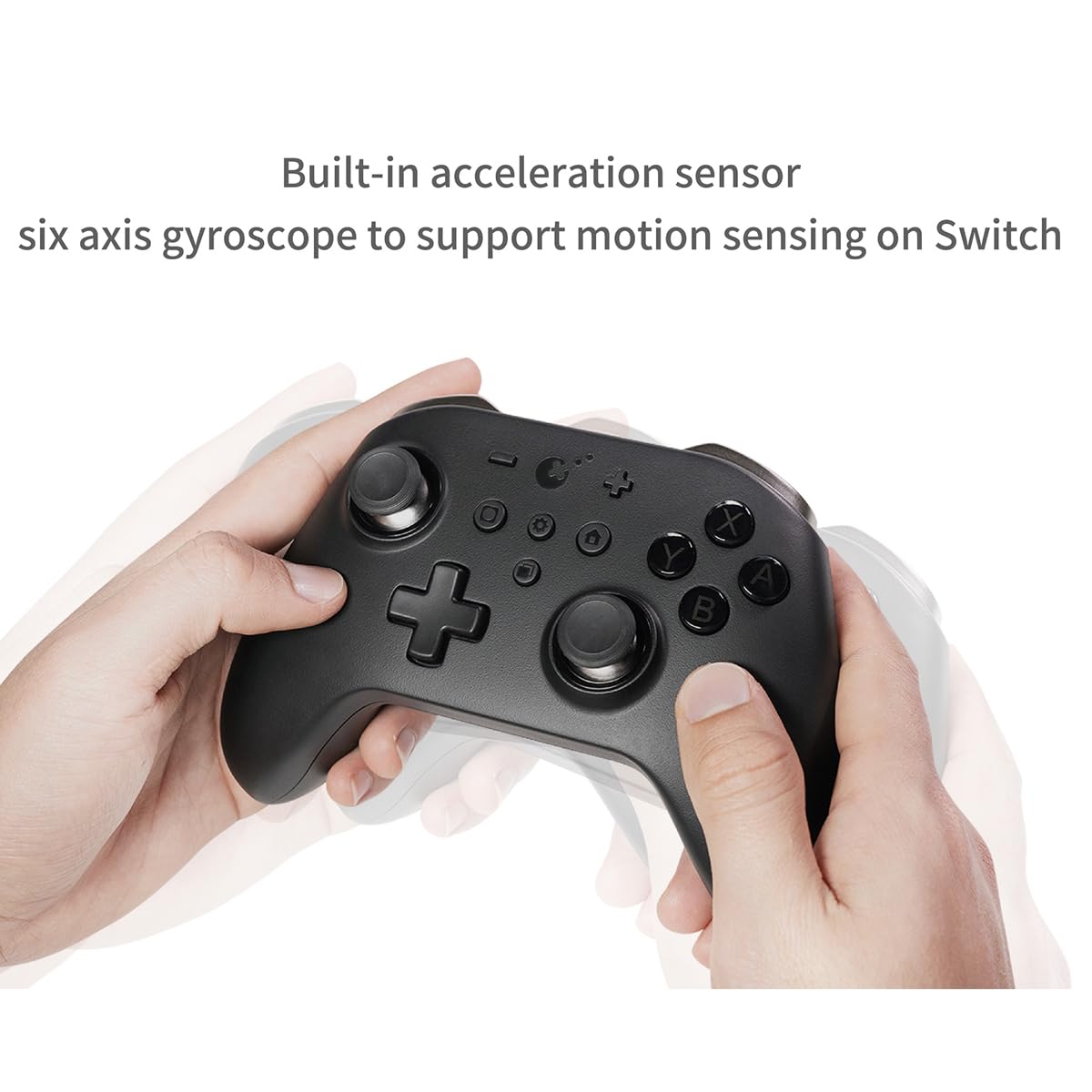
Figure 2.4: Motion Control in Action

Figure 2.5: Amiibo Support

Figure 2.6: Quick Interchangeable Button Layout
Video 2.1: Official GuliKit King Kong 2 Pro Game Controller Overview. This video highlights the key features and design of the controller, including its Hall Effect joysticks and multi-platform compatibility.
3. Setup
3.1 Initial Charge
Before first use, fully charge your GuliKit King Kong 2 Pro controller. Connect the included USB-C cable to the controller's charging port and the other end to a USB power source (e.g., computer, wall adapter). The indicator lights will show charging status and turn off when fully charged.

Figure 3.1: Wired and Wireless Connection Support
3.2 Pairing Instructions
The King Kong 2 Pro controller supports various connection modes. Ensure the controller is sufficiently charged before attempting to pair.
3.2.1 Nintendo Switch / Switch OLED / Switch Lite
- On your Switch, go to 'Controllers' > 'Change Grip/Order'.
- Press and hold the pairing button on the top of the King Kong 2 Pro controller until the indicator lights flash rapidly.
- Once connected, the corresponding player indicator light on the controller will illuminate solid.
- To wake up the Switch console, simply press the Home button on the controller.
3.2.2 Windows PC (Bluetooth)
- On your PC, go to 'Bluetooth & other devices' settings and ensure Bluetooth is ON.
- Select 'Add Bluetooth or other device' > 'Bluetooth'.
- Press and hold the pairing button on the controller until the indicator lights flash rapidly.
- Select 'GuliKit King Kong 2 Pro' from the list of available devices.
- The controller will connect, and the indicator light will become solid.
3.2.3 Android / iOS / MacOS / Steam Deck
- Enable Bluetooth on your device.
- Press and hold the pairing button on the controller until the indicator lights flash rapidly.
- Select 'GuliKit King Kong 2 Pro' from the list of available Bluetooth devices.
- The controller will connect, and the indicator light will become solid.
4. Operating Instructions
4.1 Button Layout
The GuliKit King Kong 2 Pro features a standard controller layout with additional function buttons. Familiarize yourself with the button placement for optimal use.
| Button/Component | Description |
|---|---|
| Left/Right Analog Sticks | Hall Effect joysticks for precise movement and camera control. |
| D-Pad | Directional input. |
| A/B/X/Y Buttons | Action buttons. Layout can be interchanged (Switch/Xbox style). |
| L/R Buttons | Shoulder buttons. |
| ZL/ZR Triggers | Hall Effect analog triggers. |
| Home Button | Powers on/off, wakes up Switch, returns to home screen. |
| +/- Buttons | Start/Select or equivalent. |
| Screenshot Button | Captures screenshots. |
| Star Button | Function button for quick settings. |
| APG Button | Auto-Pilot Gaming macro button. |
4.2 Special Functions
- Turbo Function: Activate rapid fire for specific buttons. Refer to the quick setting guide for button combinations.
- Adjustable Vibration: Customize the intensity of the dual vibration motors for a more immersive experience.
- Interchangeable Buttons Layout: Easily switch between Nintendo (A/B, X/Y) and Xbox (A/B, X/Y) button layouts to suit your gaming preference.
- Stick Sensitivity & Aim Assist: Adjust the sensitivity of the Hall Effect joysticks and enable aim assist for enhanced precision, especially in FPS games.
- Auto-Pilot Gaming (APG): To record a macro, press and hold the APG button, perform your desired sequence of inputs, then release the APG button. To play back the macro, simply press the APG button.
- Switch Wake-up: The controller can wake up your Nintendo Switch console from sleep mode by pressing the Home button.
- Amiibo Support: For Nintendo Switch users, the controller supports Amiibo functionality. Place your Amiibo figure over the NFC detection area (usually around the GuliKit logo) to scan.

Figure 4.1: Dual Vibration Motors

Figure 4.2: Special Motion Sense Aiming Technology

Figure 4.3: Switch Console Wake-up
5. Maintenance
- Cleaning: Use a soft, dry cloth to clean the controller. For stubborn dirt, slightly dampen the cloth with water. Avoid using harsh chemicals or abrasive materials.
- Storage: Store the controller in a cool, dry place away from direct sunlight and extreme temperatures.
- Battery Care: To prolong battery life, avoid fully discharging the controller frequently. Charge it regularly, even if not in use for extended periods.
6. Troubleshooting
| Issue | Possible Solution |
|---|---|
| Controller won't turn on | Ensure the controller is fully charged. Press and hold the Home button for a few seconds. |
| Controller won't pair | Ensure Bluetooth is enabled on your device. Try re-entering pairing mode on the controller. Forget the device on your system and try pairing again. Ensure the controller is not connected to another device. |
| Stick drift / Inaccurate input | The Hall Effect joysticks are designed to prevent drift. If issues occur, try recalibrating the joysticks through the controller's internal settings (refer to GuliKit's official support for specific steps). Ensure firmware is up to date. |
| Lag or disconnection | Ensure the controller is within range of your device. Reduce interference from other wireless devices. Ensure the controller is fully charged. Update controller firmware. |
| Buttons not responding | Check if the button layout has been accidentally changed. Try resetting the controller (refer to GuliKit's official support for specific steps). |
7. Specifications
| Feature | Detail |
|---|---|
| Model Number | NS09 |
| Connectivity | Wireless Bluetooth, Wired (USB-C) |
| Compatibility | Nintendo Switch/Switch OLED/Switch Lite, Windows PC, Android, iOS, MacOS, Steam Deck |
| Joysticks | Hall Effect Electromagnetic Thumbsticks |
| Triggers | Hall Effect Analog Triggers |
| Battery | 1000mAh Lithium Polymer (included) |
| Battery Life | Up to 25 hours (approximate) |
| Motion Sensing | Built-in acceleration sensor, six-axis gyroscope |
| Weight | 1.23 pounds (approx. 558g) |
| Package Dimensions | 7.9 x 6.7 x 3.1 inches |
| First Available Date | April 17, 2024 |
8. Warranty and Support
GuliKit products are designed for quality and durability. For specific warranty information, please refer to the warranty card included with your product or visit the official GuliKit website. For technical support, firmware updates, or further assistance, please visit the GuliKit Official Store on Amazon or their dedicated support channels.