
Introduction
Thank you for choosing the seenda Bluetooth Wireless Mouse. This manual provides essential information for setting up, operating, and maintaining your new mouse. Designed for versatility and comfort, this mouse offers dual-mode connectivity (Bluetooth and 2.4G USB), quiet clicks, smooth tracking, and adjustable DPI settings, making it ideal for various devices and environments.

The seenda Bluetooth Wireless Mouse in pink, showcasing its compact and ergonomic design.
Product Overview
- Multi-Device Connectivity: Seamlessly connect to up to two devices (laptops, tablets, mobile phones) using either Bluetooth or the 2.4G USB receiver. Easily switch between connected devices with a dedicated button.
- Silent & Portable Design: Experience quiet operation with clicks reduced by 95% (≤31dB), ensuring no disturbance in quiet environments. Its compact and lightweight design makes it highly portable for home, office, or travel.
- Extended Battery Life: Powered by two AA batteries (not included), the mouse is designed for up to 24 months of use. A power switch on the bottom allows for easy shutdown to conserve battery.
- 3 Adjustable DPI Values: Customize your cursor sensitivity with three DPI levels (800-1200-1600). The optical sensor ensures smooth tracking on most surfaces.
- Universal Compatibility: Compatible with a wide range of operating systems, including Windows XP, Windows 7/8/10 or higher, Mac OS X 10.10 or higher, and Android 4.4 or higher.
Setup
1. Battery Installation
- Locate the battery compartment on the underside of the mouse.
- Slide open the battery cover.
- Insert two AA batteries (not included), ensuring correct polarity (+/-).
- Close the battery cover securely.

An underside view of the seenda mouse, clearly labeling the battery compartment, the storage slot for the USB receiver, the power switch, and the mode switch button for changing connectivity.
2. 2.4G USB Connection
- Open the battery compartment cover and remove the USB receiver.
- Plug the USB receiver into an available USB port on your computer or laptop.
- Turn on the mouse using the power switch on the bottom.
- The mouse should automatically connect and be ready for use.

This image illustrates the dual-mode connectivity of the seenda mouse, showing it connected to both a laptop using the 2.4G USB receiver and a tablet via Bluetooth.
3. Bluetooth Connection
- Turn on the mouse using the power switch on the bottom.
- Press the mode switch button on the bottom of the mouse to switch to Bluetooth mode (indicated by a specific LED light).
- On your device (laptop, tablet, or phone), go to Bluetooth settings.
- Search for available devices and select "BT5.0 Mouse" or similar from the list.
- Confirm pairing. The mouse should now be connected via Bluetooth.
Operating Instructions
1. DPI Adjustment
The mouse features three adjustable DPI levels: 800, 1200, and 1600. To change the DPI, press the DPI button located on the top of the mouse, just below the scroll wheel. Each press will cycle through the available DPI settings, allowing you to adjust cursor sensitivity to your preference or task requirements.

A close-up of the seenda mouse highlighting its three adjustable DPI settings (800, 1200, and 1600) for precise cursor control.
2. Switching Devices
To switch between devices connected via 2.4G USB and Bluetooth, simply press the mode switch button on the bottom of the mouse. The mouse will toggle between the two connection modes, allowing you to control different devices seamlessly.
3. Quiet Click Feature
The seenda mouse is designed with silent click technology, reducing click noise by 95%. This feature is beneficial in quiet environments such as libraries, offices, or during late-night use, minimizing disturbance to others.
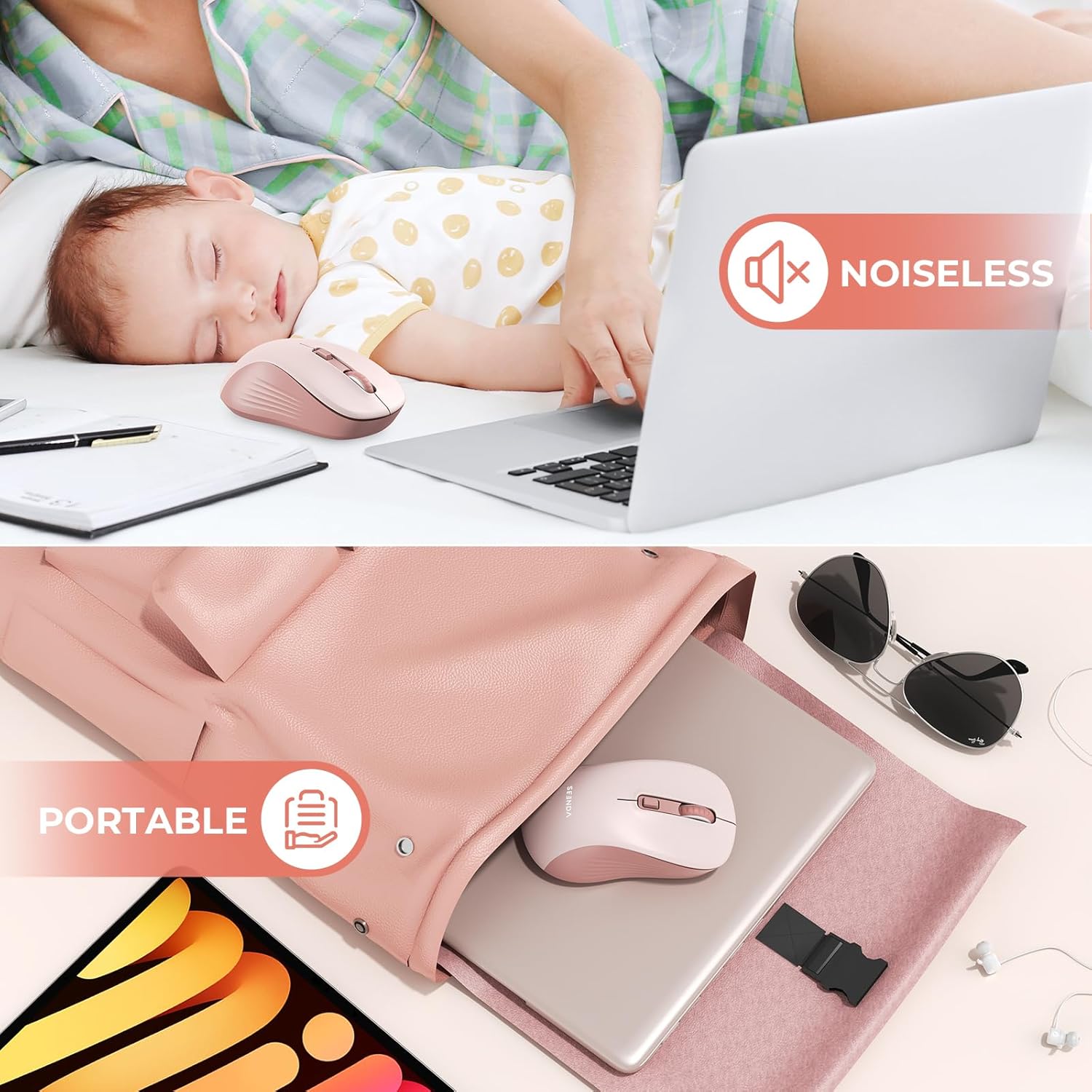
This image demonstrates the silent click feature of the seenda mouse, suitable for quiet environments, and its compact size for easy portability in a bag.
Maintenance
- Cleaning: Use a soft, dry cloth to clean the mouse. Avoid using harsh chemicals or abrasive materials.
- Battery Replacement: Replace batteries when the mouse becomes unresponsive or the indicator light signals low power. Always use new AA batteries.
- Storage: When not in use, especially during travel, turn off the mouse using the power switch to conserve battery life. Store the USB receiver in its dedicated slot within the battery compartment to prevent loss.
Troubleshooting
- Mouse not responding:
- Check if the mouse is powered on.
- Ensure batteries are correctly inserted and not depleted. Replace if necessary.
- For 2.4G mode, ensure the USB receiver is securely plugged into a working USB port.
- For Bluetooth mode, ensure Bluetooth is enabled on your device and the mouse is correctly paired. Try re-pairing if issues persist.
- Intermittent connection:
- Move the mouse closer to the receiver or Bluetooth-enabled device.
- Avoid using the mouse on highly reflective or uneven surfaces.
- Minimize interference from other wireless devices.
- Cursor movement is erratic:
- Clean the optical sensor on the bottom of the mouse.
- Try adjusting the DPI setting to a different level.
Specifications
| Feature | Detail |
|---|---|
| Model Number | seenda Wireless Mouse |
| Connectivity Technology | Bluetooth, 2.4G USB |
| Movement Detection Technology | Optical |
| Adjustable DPI | 800, 1200, 1600 |
| Special Features | Bluetooth and USB dual mode connection, Quiet Clicks, Lightweight |
| Color | Pink |
| Power Source | 2 AA Batteries (not included) |
| Item Weight | 2.39 ounces |
| Package Dimensions | 4.61 x 2.68 x 1.73 inches |
Warranty and Support
The seenda Bluetooth Wireless Mouse comes with a standard manufacturer's warranty. For specific warranty details, including duration and coverage, please refer to the warranty card included in your product packaging or visit the official seenda website. For technical support, troubleshooting assistance, or any product-related inquiries, please contact seenda customer service through their official support channels.


