
1. Introduction
This manual provides detailed instructions for the installation, operation, and maintenance of your ZTUZAUTO Wireless CarPlay/Android Auto Adapter. This device integrates your smartphone's functionalities, such as navigation, communication, and entertainment, directly into your vehicle's display system, enhancing your driving experience.
2. Compatible Models
The ZTUZAUTO Wireless CarPlay/Android Auto Adapter is designed for specific Lexus models equipped with a large touchpad control system. Please verify your vehicle's compatibility before installation.
- Lexus Models: RX, RC, ES, UX, NX, LC, LS
- Model Years: 2016-2022
- Requirement: Vehicle must have a large touchpad central console media system. Small touchpads or knob models are not supported.

This image provides a list of compatible Lexus models (RX, RC, ES, UX, NX, LC, LS) and years (2016-2020) that feature a big touchpad, for which this adapter is designed.
3. Package Contents
Ensure all the following items are included in your package:
- ZTUZAUTO Wireless CarPlay/Android Auto Adapter Unit
- Power Cable
- WiFi Antenna
- LVDS Cable
- Display Adapter Cable
- Installation Manual
- Installation Tool

This image displays the package contents, including the main unit, power cable, WiFi antenna, LVDS cable, display adapter cable, installation manual, and a tool. It also lists important precautions regarding model compatibility and installation.
4. Setup and Installation
The ZTUZAUTO adapter is designed for a plug-and-play installation, requiring no cutting or breaking of your original car's wiring. It integrates with your existing factory screen.
Installation Steps:
- Carefully remove the necessary trim panels and access the back of your car's central console media system.
- Connect the provided cables (power, LVDS, display adapter) to the corresponding ports on the adapter and your vehicle's system. Refer to the included wiring diagram for precise connections.
- Install the WiFi antenna for optimal wireless performance.
- Before fully reassembling the dashboard, test all functions of the module to ensure proper operation.
- Once confirmed, carefully reassemble the dashboard components.

This image highlights the 'Plug and Play' installation process, showing the adapter's wiring connections within the car's central console, emphasizing no cutting or breaking of original wires.
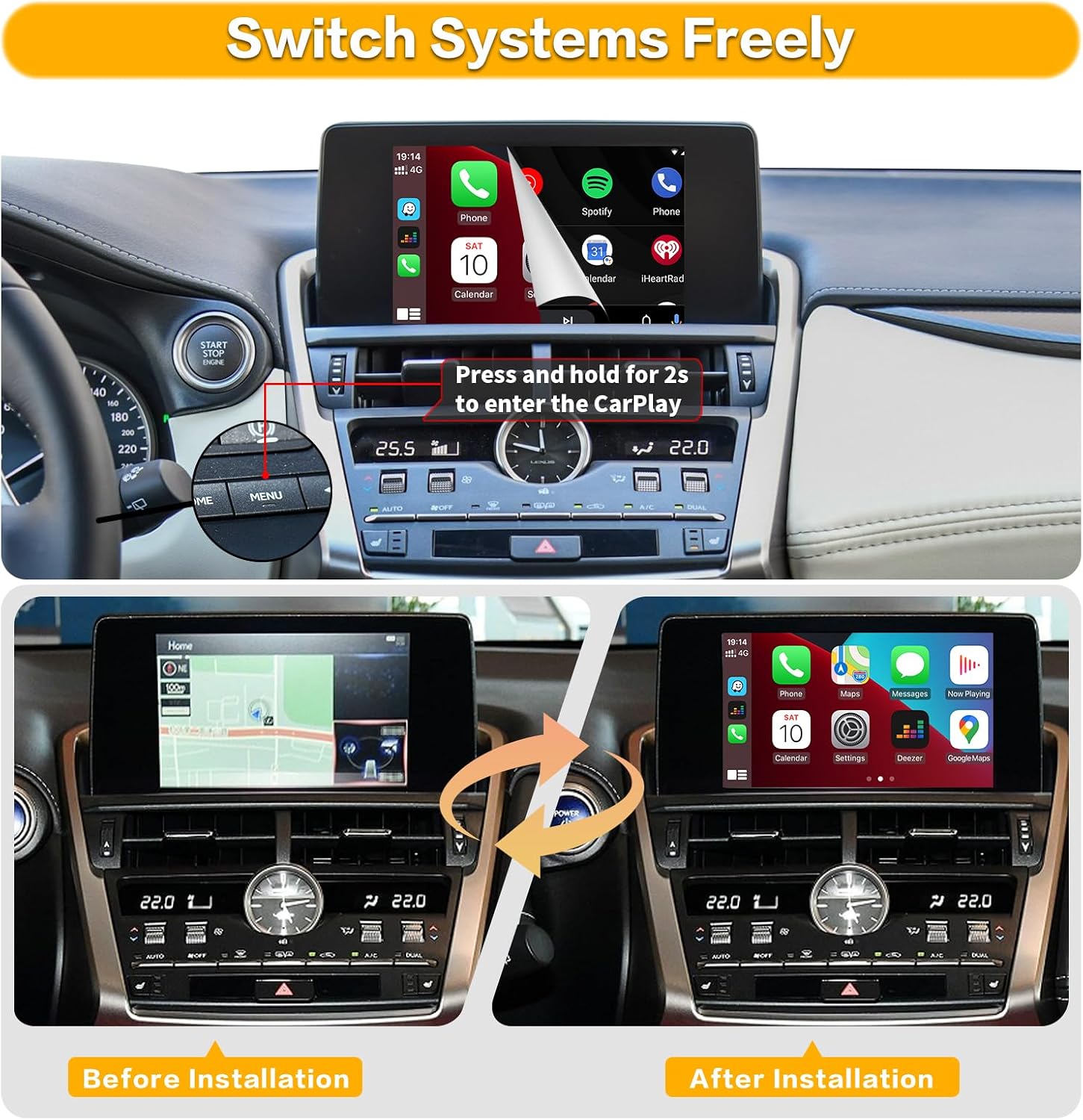
This visual comparison shows the car's display before and after the adapter installation. It also illustrates how to switch between the original car system and the CarPlay interface by pressing and holding a button.
5. Operating Instructions
The adapter supports Wireless Apple CarPlay, Wireless Android Auto, and Mirror Link functions.

A wide shot showing both Wireless CarPlay and Android Auto interfaces simultaneously on a car's central display, set against a scenic background.
5.1. Wireless CarPlay Connection
- Ensure Bluetooth is enabled on your iPhone.
- On your iPhone, go to Settings > Bluetooth and select the device named "ZTUZAUTO Box_XXX" to pair.
- Confirm the pairing request on both your phone and the car screen.
- Once paired, CarPlay will automatically connect.
5.2. Wireless Android Auto Connection
- Ensure Bluetooth is enabled on your Android phone.
- On your Android phone, go to Settings > Bluetooth and select the device named "ZTUZAUTO Box_XXX" to pair.
- Confirm the pairing request on both your phone and the car screen.
- Once paired, Android Auto will automatically connect.
This video demonstrates the step-by-step process of connecting an iPhone for Wireless CarPlay and an Android phone for Wireless Android Auto to the ZTUZAUTO adapter.
5.3. Mirror Link Function
The adapter supports Airplay for iOS devices and AutoLink for Android devices, allowing you to mirror your phone's screen to the car display. This enables viewing content like YouTube, TV news, photos, and navigation directly from your phone.

This image illustrates the main functionalities: Wireless Apple CarPlay, Wireless Android Auto, and Wireless Mirror Link, as they appear on the vehicle's display.
5.4. Intelligent Voice System
Utilize Siri for CarPlay or Google Assistant for Android Auto to control functions hands-free. This includes making calls, sending messages, playing music, and getting navigation directions, allowing you to focus on driving.

Demonstration of the intelligent voice system, showing how Siri for CarPlay and Google Assistant for Android Auto can be used for commands like making calls or playing music.
5.5. Camera Integration
The adapter supports various camera inputs:
- Factory Cameras: Automatically displays the factory reverse camera when shifting into reverse.
- Aftermarket Cameras: Supports aftermarket reverse cameras, 360-degree cameras, and front view camera DVRs with dynamic guidance lines.
5.6. Audio Output Settings (AUX)
To ensure audio output from the CarPlay/Android Auto system, you may need to set your car's multimedia system to the AUX interface. Refer to your car's manual for specific instructions on selecting AUX input.

This image provides detailed instructions for integrating various camera types (reverse, front, 360) and configuring the audio output through the AUX interface for optimal sound with the adapter.
5.7. Switching Between Systems
To switch between the original car system and the CarPlay/Android Auto interface, press and hold the 'MENU' button on your car's central console for approximately 2 seconds.
5.8. Using Original Car Controls
The adapter allows you to retain and use your original car's controls, including steering wheel buttons (e.g., volume, voice assistant) and the central touchpad, to navigate and interact with the CarPlay/Android Auto system.

This image explains how to retain and use the original car's controls, such as steering wheel volume buttons and the central touchpad, to interact with the CarPlay/Android Auto system.
6. Specifications
| Compatible Devices | 360 Camera, Reverse Camera, Smartphone |
| Specific Uses For Product | Camera, Multimedia Integration |
| Connector Type | CAN Power, Antenna, USB Camera, LVDS IN, LVDS OUT |
| Color | Blue |
| Brand | ZTUZAUTO |
| Number of Ports | 1 |
| Input Voltage | 12 Volts |
| Power Plug Type | No Plug |
| Finish | Matte |
| Item Weight | 1156 Grams |
| Package Quantity | 1 |
| Unit Count | 1.0 Count |
| Number of Items | 1 |
| Model Number | 4131b61e-00dd-46c2-93e2-e2beef3f82c8 |
| Manufacturer | ZTUZAUTO |
| Built-In Media | CarPlay |
7. Troubleshooting
If you encounter issues, consider the following:
- No Display/Connection: Ensure all cables are securely connected. Verify your car model and year are compatible, specifically that your vehicle has the large touchpad control system.
- No Audio: Check if your car's multimedia system is set to the correct AUX input. Ensure your phone's volume is up.
- Intermittent Connection: Restart both your smartphone and the car's infotainment system. Ensure there are no other devices interfering with Bluetooth or Wi-Fi signals.
- Functionality Issues: Confirm that your phone's operating system is up to date.
8. Warranty
This product comes with a 1-year manufacturer warranty. Please retain your proof of purchase for warranty claims.
9. Support
For further assistance, technical support, or warranty inquiries, please contact ZTUZAUTO customer service through the retailer where you purchased the product or refer to the contact information provided in your product packaging.