
1. Introduction
The seenda Bluetooth & 2.4G USB Dual Mode Wireless Mouse offers versatile connectivity and ergonomic comfort for various devices. Designed for quiet operation and portability, it features adjustable DPI settings for precise control. This manual provides detailed instructions for setup, operation, and maintenance to ensure optimal performance.

Image 1.1: The seenda mouse offering dual connectivity options to a laptop and a tablet.
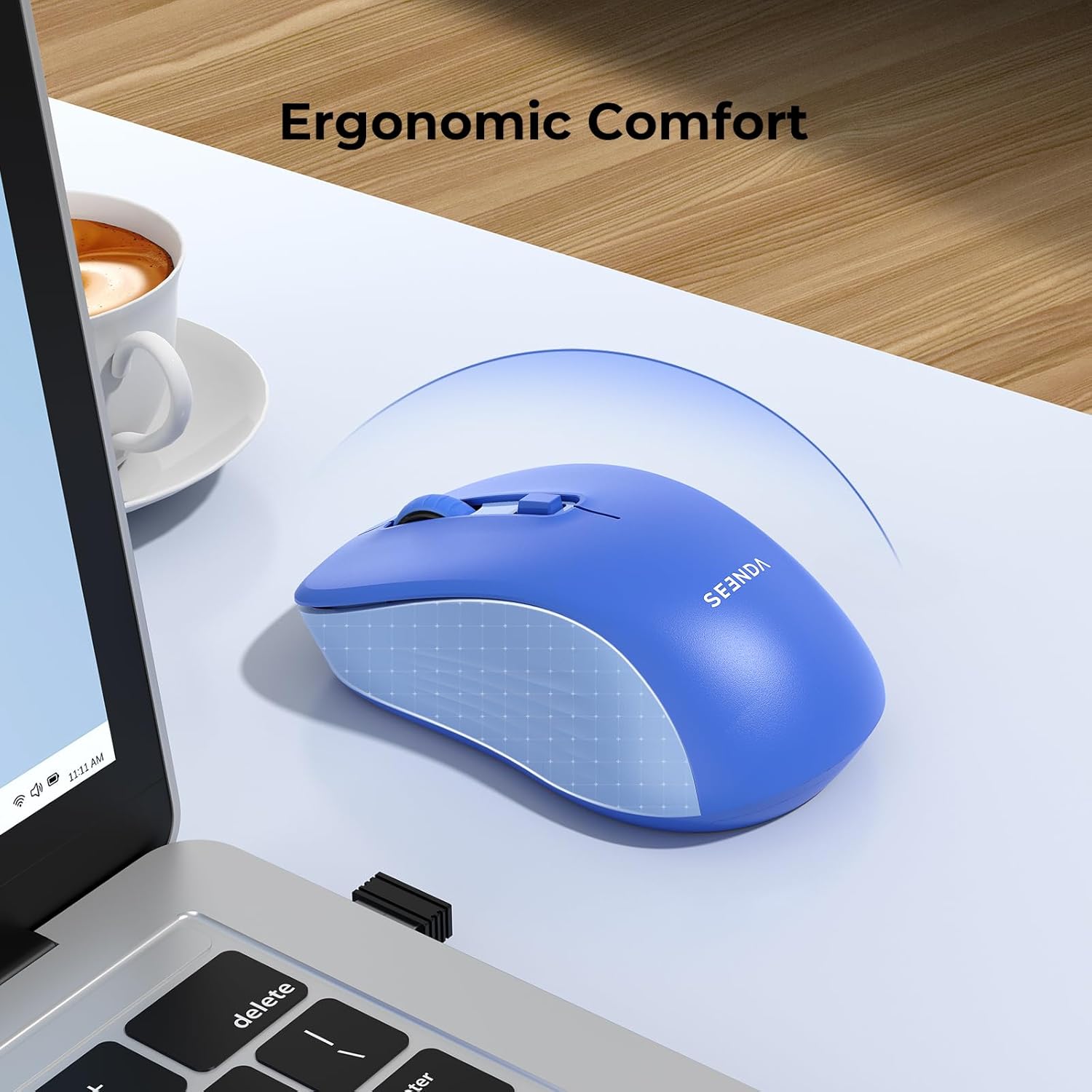
Image 1.2: The ergonomic design of the seenda mouse ensures comfortable use.
2. Package Contents
- seenda Dual Mode Wireless Mouse
- 2.4G USB Receiver (stored inside the mouse)
- User Manual
3. Product Overview
Familiarize yourself with the mouse components:

Image 3.1: Labeled components of the seenda wireless mouse.
- Left Button: Standard left-click function.
- Right Button: Standard right-click function.
- Scroll Wheel: For vertical scrolling and middle-click.
- DPI Button: Adjusts cursor sensitivity (800/1200/1600 DPI).
- Mode Switch Button: Located on the bottom, switches between 2.4G USB and Bluetooth modes.
- Power Switch: On/Off switch to conserve battery.
- Battery Slot: Holds 1 AA battery (not included).
- USB Receiver Storage: Secure compartment for the 2.4G USB receiver.
4. Setup
4.1. Battery Installation
- Open the battery compartment cover on the bottom of the mouse.
- Insert one AA battery (not included) into the compartment, ensuring correct polarity.
- Close the battery compartment cover.
4.2. 2.4G USB Receiver Connection
- Locate the 2.4G USB receiver stored in its compartment on the bottom of the mouse.
- Remove the USB receiver.
- Plug the USB receiver into an available USB port on your computer or laptop.
- Turn on the mouse using the Power Switch.
- The mouse should automatically connect. If not, press the Mode Switch Button on the bottom of the mouse until the indicator light for 2.4G mode is active.
4.3. Bluetooth Connection
The mouse supports Bluetooth 5.2 and Bluetooth 3.0 for wider compatibility.
- Turn on the mouse using the Power Switch.
- Press the Mode Switch Button on the bottom of the mouse to select Bluetooth mode (BT1 or BT2). The corresponding indicator light will blink.
- On your device (laptop, tablet, or smartphone), go to Bluetooth settings.
- Enable Bluetooth and search for new devices.
- Select "BT5.2 Mouse" or "BT3.0 Mouse" from the list of available devices to pair.
- Once connected, the indicator light will stop blinking.
5. Operating Instructions
5.1. Switching Between Devices
The mouse can connect to up to two Bluetooth devices and one 2.4G USB device. Use the Mode Switch Button on the bottom to cycle through the connections:
- Press once to switch between BT1, BT2, and 2.4G modes.
- The corresponding indicator light will show the active mode.
5.2. Adjusting DPI (Cursor Sensitivity)
The mouse features 3 adjustable DPI levels (800-1200-1600) to suit your preference and task requirements.
- Press the DPI Button (located below the scroll wheel) to cycle through the DPI settings.
- Each press will change the sensitivity, allowing for finer control or faster movement.

Image 5.1: The DPI button allows adjustment of cursor sensitivity.
5.3. Quiet Clicks
The mouse is designed with silent click technology, reducing click noise by 95% (≤32dB). This feature makes it ideal for use in quiet environments such as offices, libraries, or shared workspaces.

Image 5.2: The mouse features quiet click buttons for a silent user experience.
5.4. Power Saving
To conserve battery life, the mouse will enter a sleep mode after a period of inactivity. Click any button to wake it up. Always turn off the mouse using the Power Switch when not in use for extended periods.
6. Compatibility
This portable mouse offers broad compatibility:
- 2.4G USB Mode: Compatible with USB-enabled devices running Windows XP, Windows 7/8/10 or higher, Mac OS X 10.10 or higher.
- Bluetooth Mode: Compatible with Bluetooth-enabled devices running Windows 8/10 or higher, Mac OS X 10.10 or higher, and Android 4.5 or higher.
7. Maintenance
- Keep the mouse clean by wiping it with a soft, dry cloth.
- Avoid exposing the mouse to extreme temperatures, direct sunlight, or liquids.
- Store the USB receiver in its designated compartment when not in use to prevent loss.
- Replace the AA battery when the mouse performance degrades or the indicator light suggests low power.
8. Troubleshooting
| Issue | Possible Solution |
|---|---|
| Mouse not responding (2.4G mode) | 1. Ensure the mouse is turned on. 2. Check if the USB receiver is securely plugged into the computer. 3. Try a different USB port. 4. Replace the battery. 5. Press the Mode Switch Button to ensure 2.4G mode is selected. |
| Mouse not responding (Bluetooth mode) | 1. Ensure the mouse is turned on. 2. Check if Bluetooth is enabled on your device. 3. Press the Mode Switch Button to ensure Bluetooth mode (BT1 or BT2) is selected and its indicator is blinking for pairing. 4. Re-pair the mouse in your device's Bluetooth settings. 5. Replace the battery. |
| Cursor movement is erratic or slow | 1. Clean the optical sensor on the bottom of the mouse. 2. Use the mouse on a clean, non-reflective surface. 3. Adjust the DPI setting using the DPI button. 4. Replace the battery. |
| Cannot switch between devices | Ensure the Mode Switch Button is pressed firmly. Verify that devices are properly paired in their respective modes. |
9. Specifications

Image 9.1: Physical dimensions of the seenda wireless mouse.
| Feature | Detail |
|---|---|
| Connectivity Technology | Bluetooth (BT5.2/BT3.0), 2.4G USB Wireless |
| Movement Detection Technology | Optical |
| Adjustable DPI | 800 / 1200 / 1600 |
| Buttons | 5 (Left, Right, Scroll Wheel/Middle Click, DPI, Mode Switch) |
| Power Source | 1 x AA Battery (not included) |
| Battery Life | Up to 24 months (depending on usage) |
| Operating Range | Up to 10 meters |
| Hand Orientation | Right |
| Material | Plastic |
| Color | Blue |
10. Warranty and Support
The seenda Bluetooth & 2.4G USB Dual Mode Wireless Mouse comes with a 12-month warranty from the date of purchase. For technical support, warranty claims, or any questions regarding your product, please contact seenda customer service through the retailer where you purchased the item or visit the official seenda website.


