1. Introduction
This manual provides detailed instructions for the setup, operation, maintenance, and troubleshooting of your keydous NJ98 Wireless Custom Mechanical Keyboard. Please read this manual thoroughly to ensure proper usage and to maximize your keyboard's features.
2. Product Overview
The keydous NJ98 is a 96% layout wireless mechanical keyboard featuring a customizable screen knob, hot-swappable switches, and RGB backlighting. It offers versatile connectivity options and broad compatibility.
Key Features:
- Customizable Screen: A small display that can show time, battery, connection status, Caps Lock, Num Lock, and user-uploaded images (up to 3 GIFs and 5 static images). It also includes a calculator function.
- Hot-Swappable PCB: Allows for easy replacement of 3-pin and 5-pin mechanical switches without soldering.
- PBT Keycaps: Durable keycaps with a fine texture, resistant to oil and fading.
- South-Facing RGB: Customizable RGB backlighting with 16 pre-set or custom static/dynamic light effects.
- Aluminum Alloy Knob: Programmable and replaceable, with default functions for volume control (up, down, mute).
- Triple Connectivity Modes: Supports Wired (USB-C), 2.4GHz Wireless, and Bluetooth 5.0 connections.
- Multi-System Compatibility: Compatible with Windows, Mac/iOS, Android, and Linux operating systems.
- High Capacity Battery: Equipped with an 8000mAh battery for extended wireless use.
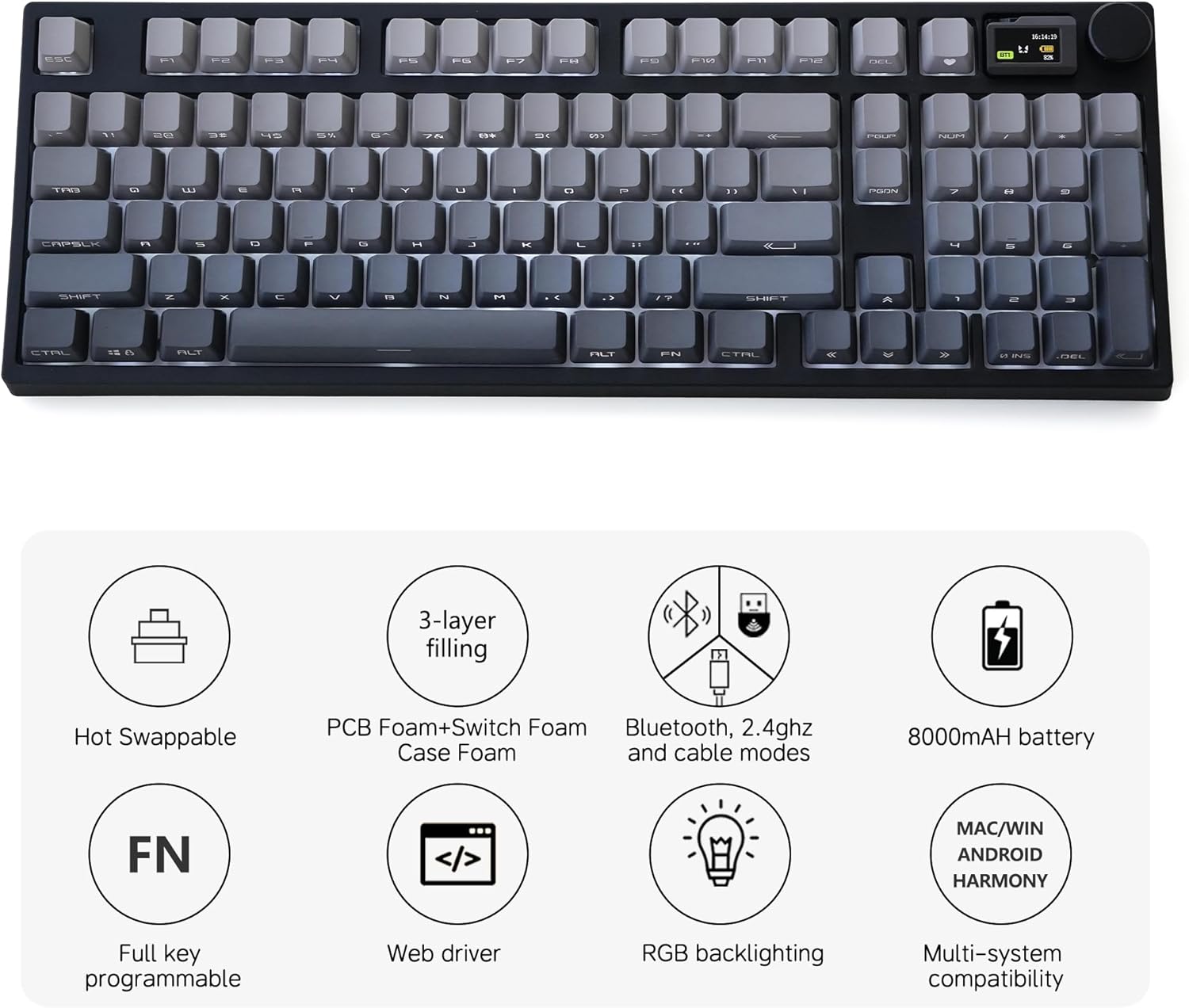
Figure 1: Overview of key features including hot-swappable design, triple connectivity, and RGB backlighting.
3. Setup Instructions
3.1 Connectivity Modes
The NJ98 keyboard supports three connection methods:
- Wired Connection: Connect the keyboard directly to your computer using the provided USB-C cable.
- 2.4GHz Wireless Connection: Insert the 2.4G USB receiver into an available USB port on your computer. The keyboard will automatically connect.
- Bluetooth 5.0 Wireless Connection: The keyboard can connect to up to three Bluetooth devices. Activate Bluetooth pairing mode on the keyboard and select it from your device's Bluetooth settings.
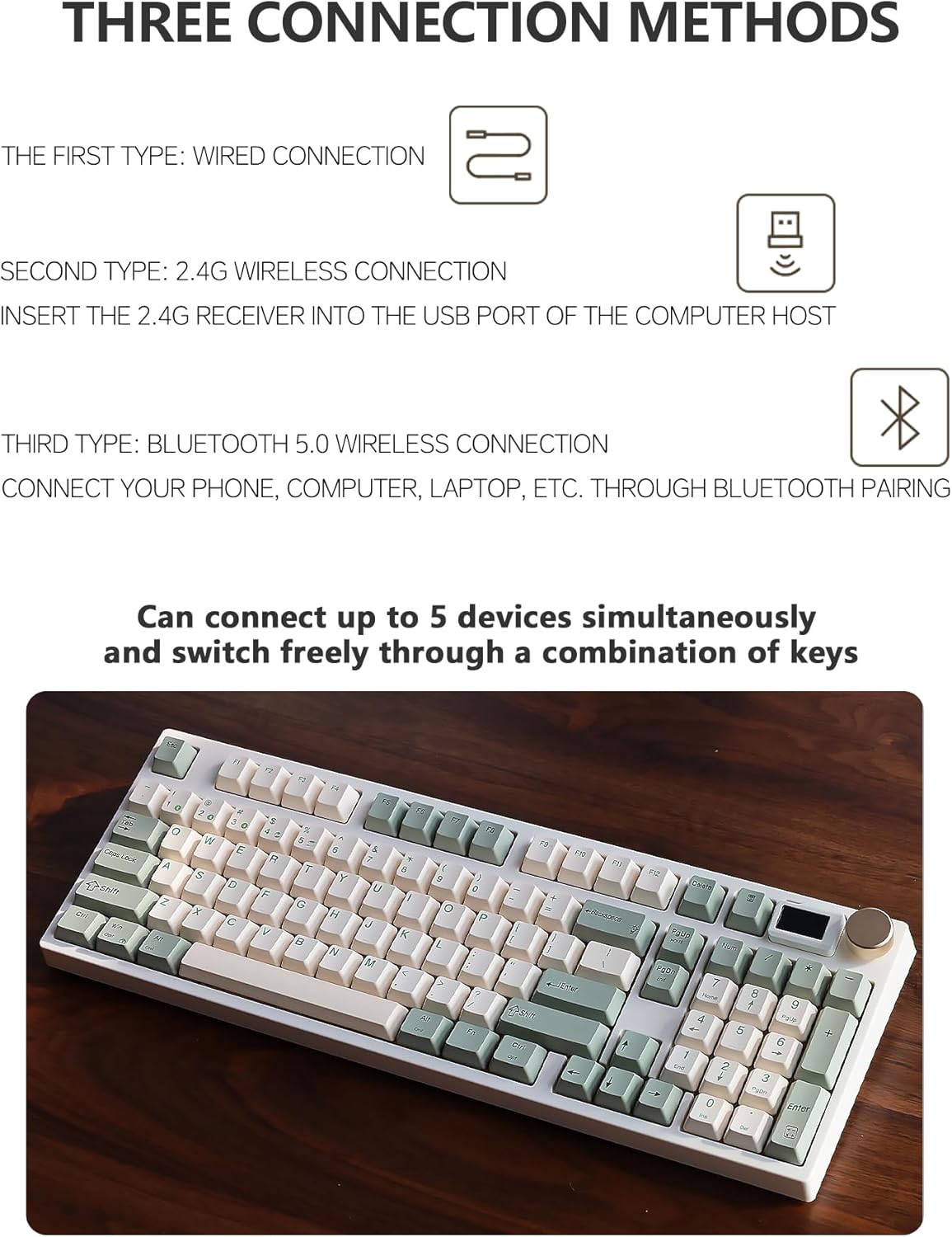
Figure 2: Visual representation of the three available connection methods for the keyboard.
3.2 Initial Charging
Before first use, it is recommended to fully charge the keyboard using the provided USB-C cable. The screen display will indicate charging status and battery level.
3.3 Software and Drivers
For advanced customization, including key remapping, screen content management (images/GIFs), and specific lighting effects, download the official drivers and software from the keydous website. This software is essential for unlocking the full potential of the customizable screen and programmable keys.
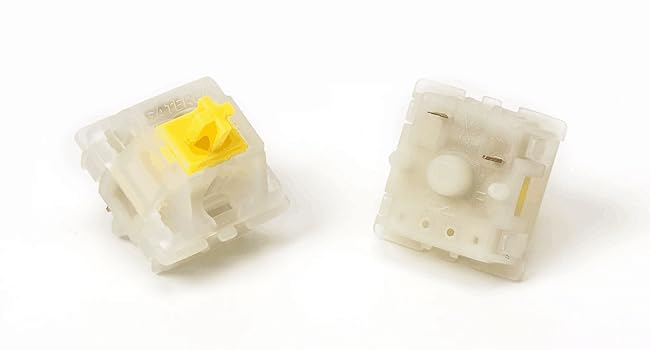
Figure 3: The keyboard is compatible with various operating systems including Windows, Mac/iOS, Android, and Linux.
4. Operating Instructions
4.1 Basic Keyboard Functions
The keyboard operates as a standard 96% mechanical keyboard. Refer to the keyboard layout for key positions. Function keys (F1-F12) can be accessed directly or in combination with the 'Fn' key, depending on the active mode.
4.2 RGB Lighting Control
The keyboard features south-facing RGB backlighting with multiple effects. Use the dedicated function key combinations (often Fn + specific keys) to cycle through lighting modes, adjust brightness, and change speed. Detailed instructions for specific key combinations are available in the software.
Video 1: Demonstration of various RGB lighting effects on the NJ98 keyboard.
4.3 Screen Knob Functions
The screen knob provides quick access to several features:
- Default Display: Shows time, battery percentage, connection mode (2.4G/Bluetooth/Wired), Caps Lock status, and Num Lock status.
- Custom Images/GIFs: Up to 8 images (3 GIF, 5 static) can be uploaded via software and displayed on the screen.
- Calculator: A built-in calculator function can be accessed and operated directly on the screen.
- Volume Control: The knob defaults to adjusting system volume (rotate for up/down, press to mute).
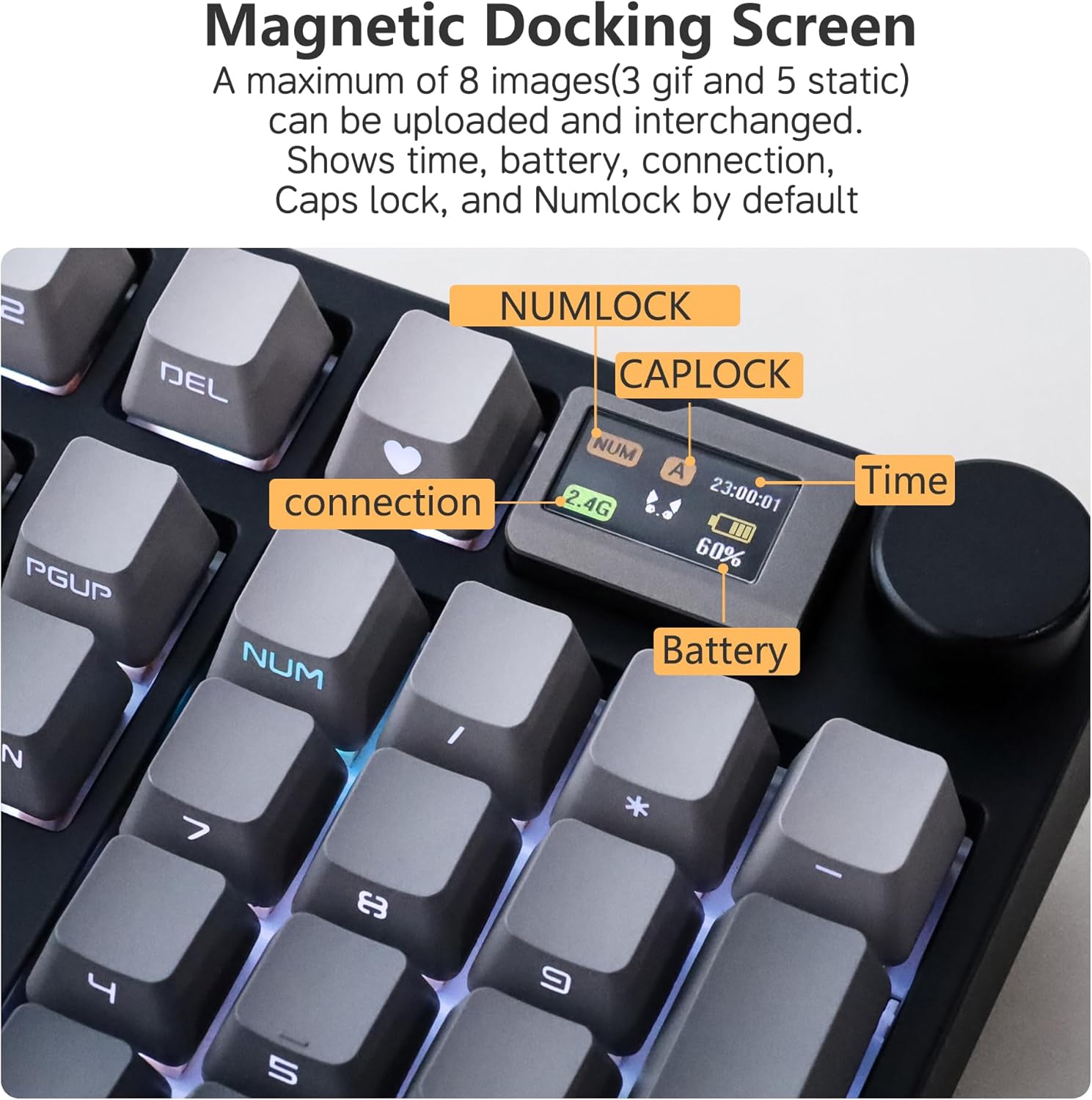
Figure 4: The customizable screen provides essential information at a glance.

Figure 5: The aluminum alloy knob offers convenient volume control and can be programmed for other functions.
4.4 Hot-Swapping Switches
The hot-swappable PCB allows you to change mechanical switches without soldering. Use the included switch puller tool to carefully remove existing switches and insert new compatible 3-pin or 5-pin switches. Ensure the pins are aligned correctly to avoid damage.

Figure 6: The hot-swappable design allows for easy customization of switches.
5. Maintenance
5.1 Cleaning
To clean your keyboard, first disconnect it from power. Use a soft brush or compressed air to remove dust and debris from between the keycaps. For keycap cleaning, remove them using a keycap puller and wipe with a damp cloth. Ensure all components are dry before reassembling and reconnecting the keyboard.
5.2 Keycap and Switch Replacement
The PBT keycaps are durable but can be replaced if desired. Use a keycap puller to gently remove keycaps. When replacing switches, ensure the keyboard is powered off. Use a switch puller to remove the old switch and carefully press the new switch into place, ensuring pins are straight and fully seated.
6. Troubleshooting
- Keyboard not responding: Check the connection (USB cable, 2.4G receiver, or Bluetooth pairing). Ensure the keyboard is charged. Try restarting your computer.
- Wireless connectivity issues: Ensure the 2.4G receiver is securely plugged in or Bluetooth is properly paired. Move the keyboard closer to the receiver/device. Avoid interference from other wireless devices.
- RGB lighting not working: Check lighting settings via function key combinations or the dedicated software. Ensure the keyboard is not in a low-power mode.
- Screen display issues: Ensure the keyboard is powered on and connected. If custom content is not displaying, verify it was uploaded correctly via the software.
- Keys not registering: If a specific key is not working, it may be a faulty switch. Due to the hot-swappable design, you can replace individual switches.
7. Specifications
| Feature | Detail |
|---|---|
| Model Number | NJ98 |
| Connectivity | Wired (USB-C), 2.4GHz Wireless, Bluetooth 5.0 |
| Battery | 8000mAh (2 Lithium Polymer batteries included) |
| Keycaps | PBT Material |
| Switches | Hot-swappable (compatible with 3-pin and 5-pin switches) |
| Backlighting | South-facing RGB |
| Screen | Customizable display with knob |
| Compatibility | Windows, Mac/iOS, Android, Linux |
| Item Weight | 3 pounds |
| Package Dimensions | 16.54 x 4.72 x 2.36 inches |
8. Warranty and Support
For warranty information and technical support, please refer to the official keydous website or contact their customer service. Keep your purchase receipt for warranty claims.


