
CUQI CUQI-XXXX
CUQI Raspberry Pi Display 3.5 Inch Touchscreen User Manual
Model: CUQI-XXXX
Introduction
This manual provides detailed instructions for the assembly, operation, and maintenance of your CUQI 3.5-inch Touchscreen Display with Raspberry Pi 5 Case. Please read this manual thoroughly before beginning installation to ensure proper setup and functionality.

Image: The CUQI 3.5-inch Touchscreen Display and case for Raspberry Pi 5, shown with included fan and heatsinks.
Package Contents
Please verify that all items listed below are included in your package:
- 3.5-inch Touchscreen Display
- Case for Raspberry Pi 5
- Mini Cooling Fan
- Heatsink Set
- Touch Pen (Stylus)
- Screwdriver
- Rubber Feet
- Screws
- Metal Braces / Balance Column
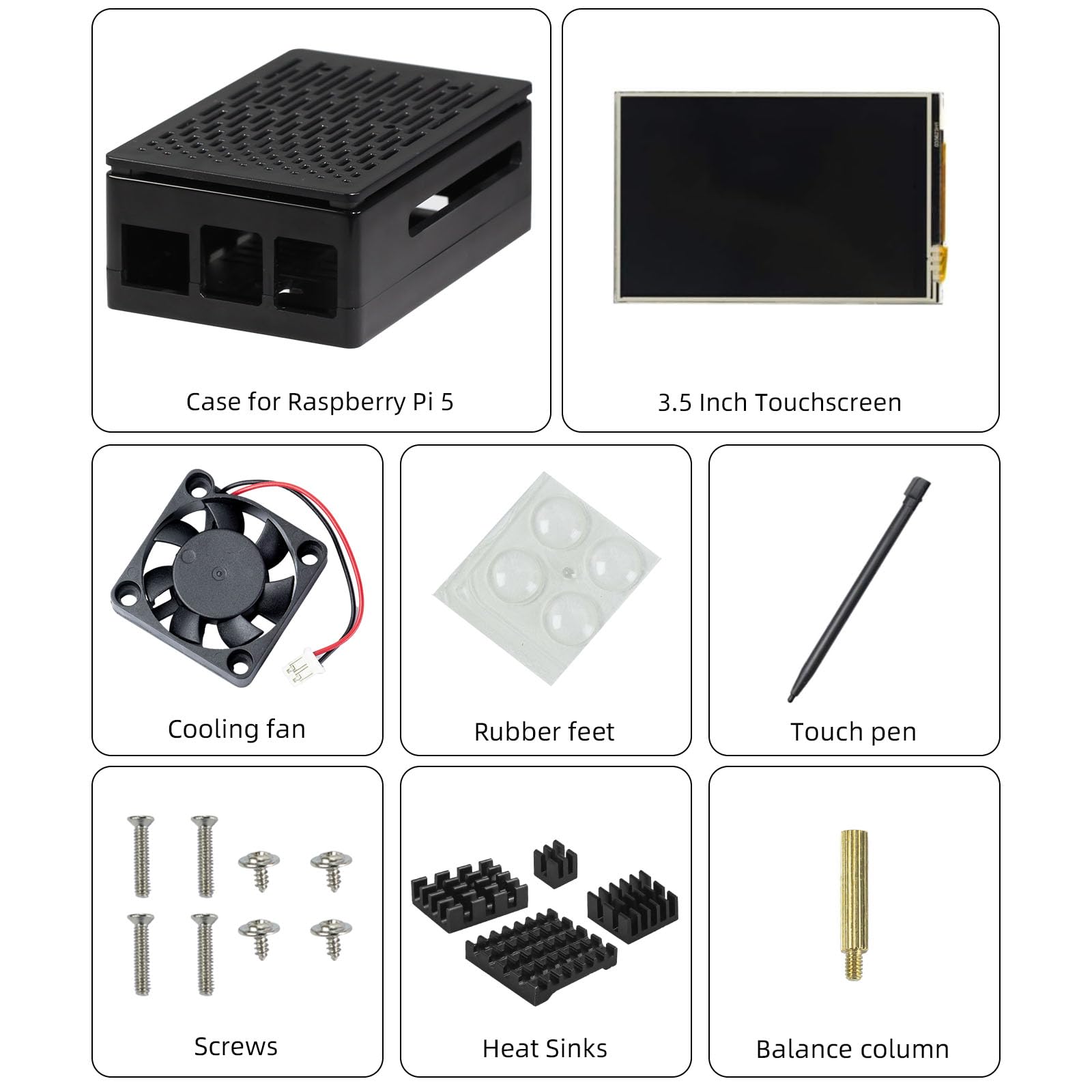
Image: A visual representation of all components included in the CUQI Raspberry Pi Display kit, including the case, touchscreen, cooling fan, rubber feet, touch pen, screws, heatsinks, and balance column.
Setup and Installation
Follow these steps carefully to assemble your CUQI Raspberry Pi Display:
Step 1: Connect the Display to Raspberry Pi
Align the 3.5-inch touchscreen display with the GPIO pins of your Raspberry Pi. Ensure the pins are correctly aligned before gently pressing the display onto the Raspberry Pi. Incorrect alignment can damage the touch function.
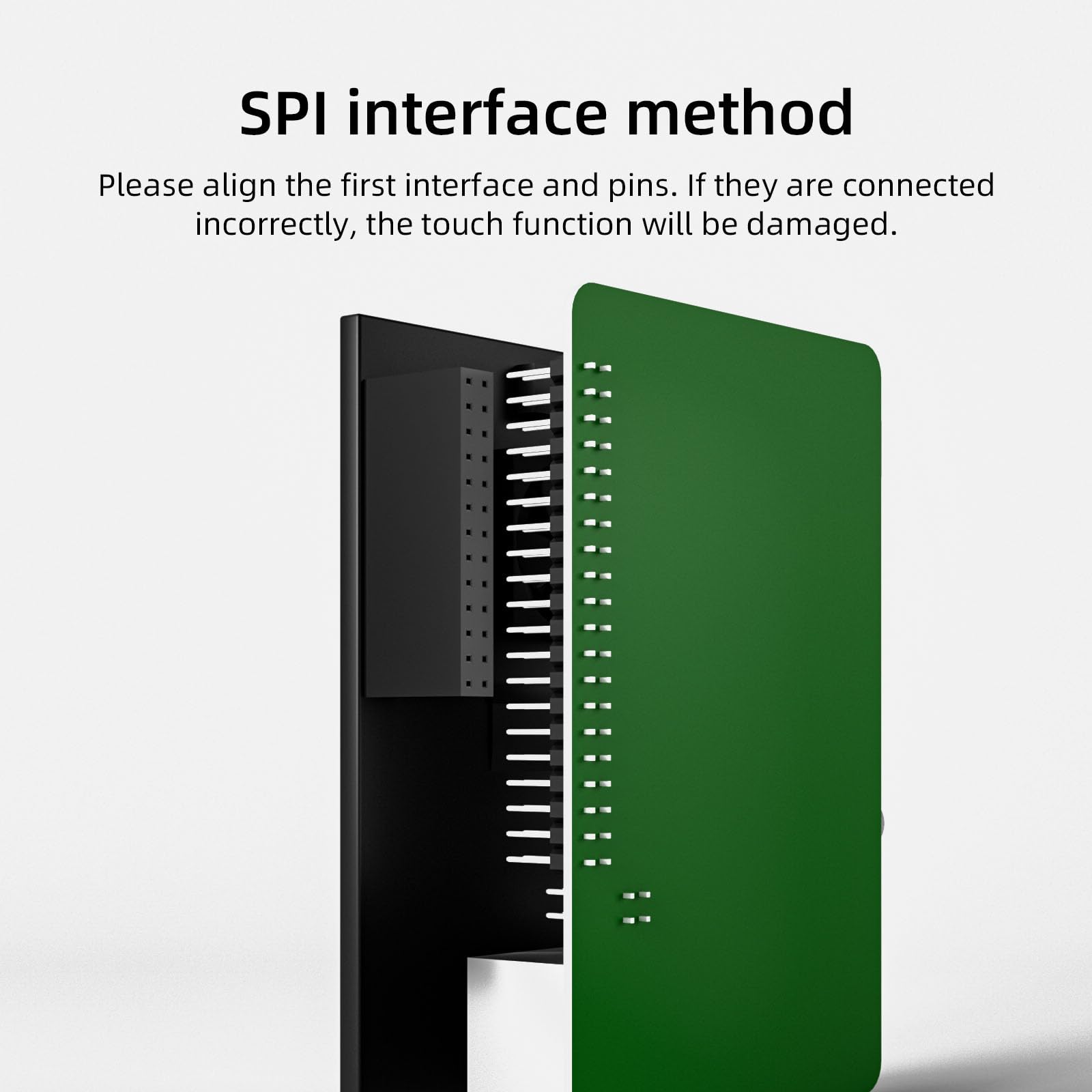
Image: Diagram illustrating the correct alignment of the SPI interface and pins when connecting the display to the Raspberry Pi. Proper alignment is crucial to prevent damage to the touch function.
Step 2: Install Cooling Fan and Heatsinks
Attach the provided heatsinks to the appropriate chips on your Raspberry Pi. Then, install the mini cooling fan onto the designated mounting points on the display or case. Connect the fan's power cable to the Raspberry Pi's fan header.
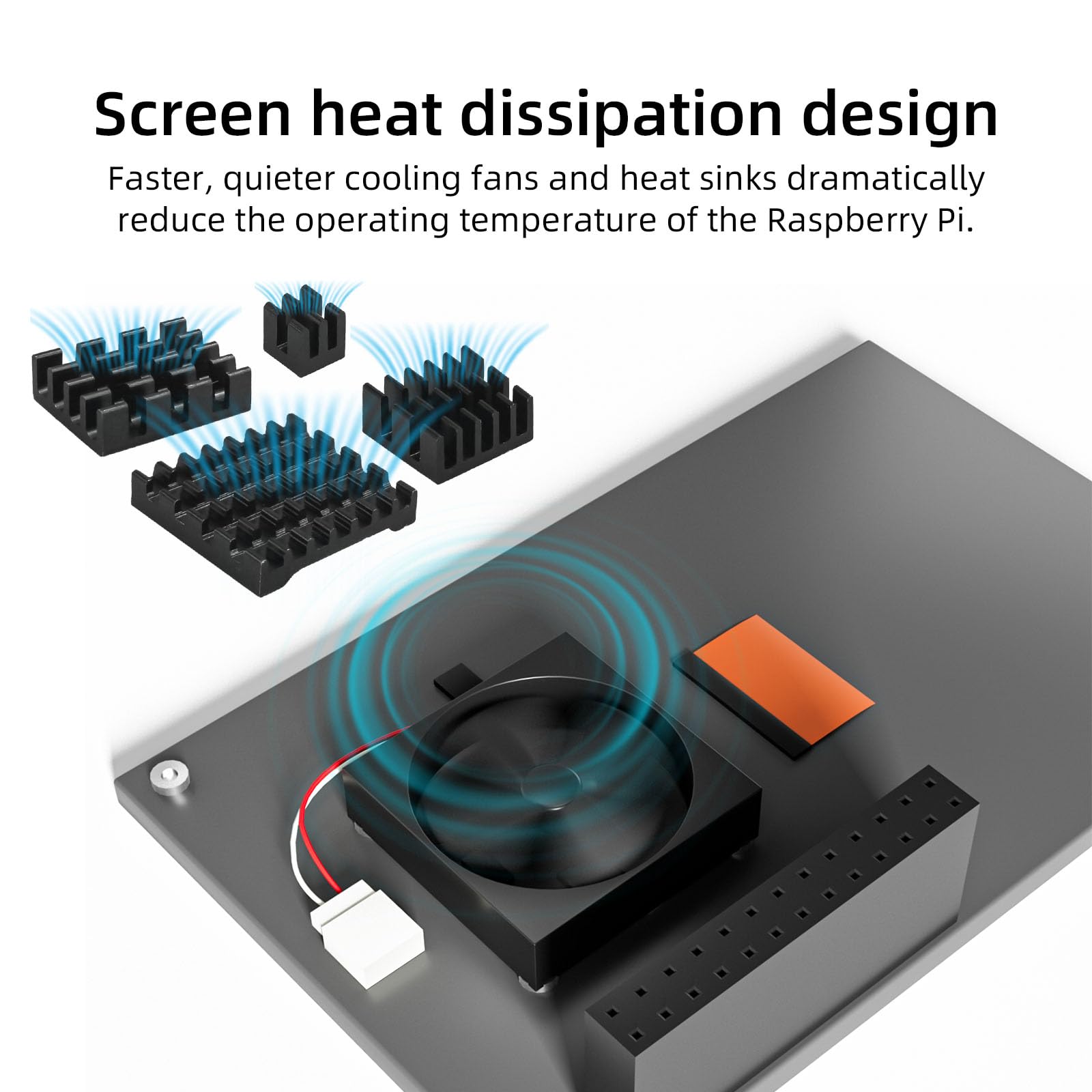
Image: An overhead view showing the placement of the cooling fan and heatsinks on the Raspberry Pi board, designed to reduce operating temperature.
Step 3: Assemble the Case
Carefully place the Raspberry Pi with the attached display, fan, and heatsinks into the bottom part of the Raspberry Pi 5 case. Ensure all ports align with the case openings.
Step 4: Secure the Screen
Use the provided screws and metal braces/balance column to secure the display within the case. This prevents the touchscreen from shifting or falling during use.

Image: A close-up view of the screen screw support point, indicating where the balance column is installed to provide stability for the touchscreen within the case.
Step 5: Attach Rubber Feet
Apply the rubber feet to the four corners on the bottom of the case. These feet provide stability and anti-slip functionality.
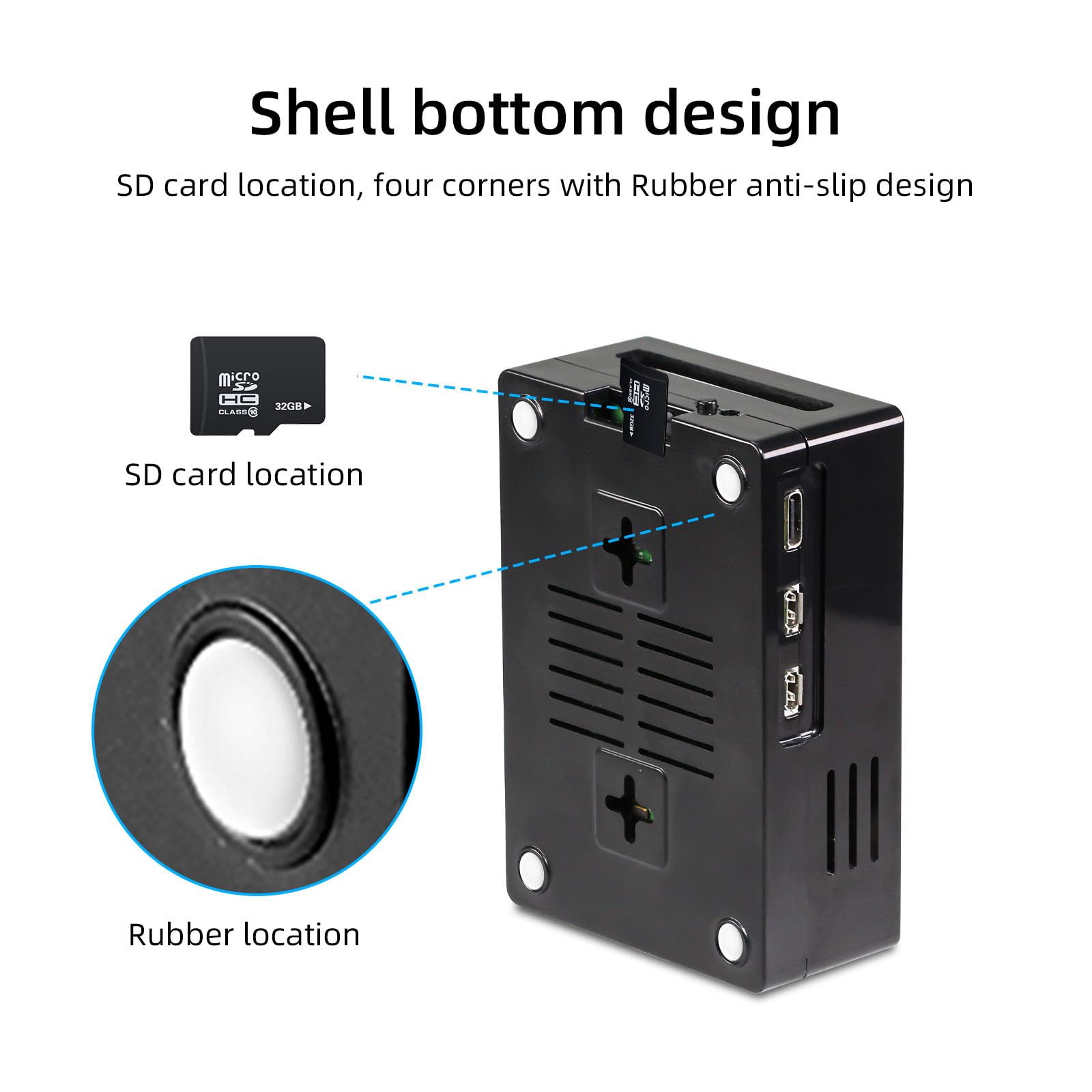
Image: The bottom view of the case, highlighting the SD card slot and the designated locations for the rubber anti-slip feet.
Important Note on SD Card Insertion:
Do not leave an SD card inserted in your Raspberry Pi while assembling it into the case. The design of the case may cause damage to the SD card if it is in place during the final assembly steps.
Operating Instructions
Driver Installation
The display requires specific drivers for proper functionality with your Raspberry Pi operating system. Free driver installation instructions and tutorials are provided in the electronic manual. This display is compatible with Raspbian, Ubuntu, Kali, and RetroPie systems. For systems other than Raspbian, please refer to the detailed electronic manual or contact customer support for assistance.
Touchscreen Usage
Once drivers are installed, the 3.5-inch display will function as a touchscreen. Use the provided touch pen (stylus) for precise input. Note that due to the screen's resolution (480x320), some applications or windows may require adjustment or an external mouse for optimal interaction.
Heat Management
The included mini fan and heatsinks, combined with the case's heat dissipation design, ensure stable operation and prevent overheating of your Raspberry Pi 5, even under high load.

Image: The CUQI Raspberry Pi 5 case featuring strategically designed heat dissipation holes to maintain optimal operating temperature and prevent overheating.
Maintenance
To ensure the longevity of your CUQI Raspberry Pi Display, follow these maintenance guidelines:
- Cleaning: Use a soft, dry, lint-free cloth to clean the display surface. For stubborn smudges, slightly dampen the cloth with water. Avoid harsh chemicals or abrasive materials.
- Dust Removal: Periodically use compressed air to clear dust from the fan and case vents to maintain efficient cooling.
- Storage: When not in use for extended periods, store the device in a cool, dry place away from direct sunlight and extreme temperatures.
Troubleshooting
If you encounter issues with your CUQI Raspberry Pi Display, refer to the following common problems and solutions:
- Screen Not Displaying:
- Ensure the display is correctly seated on the Raspberry Pi's GPIO pins.
- Verify that the necessary drivers are installed for your operating system. Refer to the electronic manual for driver installation steps.
- Check power supply to the Raspberry Pi.
- Touch Function Not Working:
- Confirm that the display's pins are perfectly aligned with the Raspberry Pi's GPIO header. Misalignment can disable touch.
- Reinstall or update the touch drivers.
- Overheating Issues:
- Ensure the mini fan is properly connected and spinning.
- Verify that the heatsinks are securely attached to the Raspberry Pi's chips.
- Ensure case vents are not obstructed.
- SD Card Damage During Assembly:
- Always remove the SD card from the Raspberry Pi before placing it into the case to prevent bending or breaking the card.
- Display Resolution Issues:
- The display has a fixed resolution of 480x320. Some operating system interfaces or applications may not scale perfectly. Adjust display settings within your OS or use an external monitor for initial setup if needed.
For further assistance, please contact CUQI customer support.
Specifications
| Feature | Specification |
|---|---|
| Screen Size | 3.5 Inches |
| Screen Resolution | 480 x 320 Pixels |
| Refresh Rate | 60 FPS |
| Display Type | TFT LCD |
| Touch Type | Resistive Touch |
| Interface | SPI Signal Input (125 MHz) |
| Compatibility | Raspberry Pi 5 (Case only for Pi 5; Display compatible with Pi 4 & Pi 5) |
| Operating Systems Supported | Raspbian, Ubuntu, Kali, RetroPie |
| Included Cooling | Mini Fan, Heatsinks |
| Item Weight | 5.3 ounces |
| Color | Black |
Warranty and Support
CUQI products are designed for reliability and performance. For warranty information, technical support, or any inquiries not covered in this manual, please refer to the contact information provided with your purchase or visit the official CUQI website. Please have your product model number (CUQI-XXXX) and purchase details ready when contacting support.
Related documentsCUQI-XXXX

Ask a question about this manual
Ask about setup, troubleshooting, compatibility, parts, safety, or missing instructions. Manuals+ will review the question and use this page’s manual context to help answer it.