
1. Product Overview
The UGREEN USB C Hub is a versatile 4-in-1 magnetic adapter designed to expand the connectivity of your USB-C enabled devices. It features a magnetic attachment mechanism for secure placement on compatible devices, offering a convenient solution for hands-free operation and enhanced productivity.
This hub integrates essential ports for various needs, including video output, data transfer, and power delivery. Its compact and foldable design ensures portability, making it suitable for use in diverse environments.

2. Key Features
- Magnetic Attachment: Securely attaches to compatible devices for stable use.
- 4-in-1 Connectivity: Equipped with HDMI, USB-C data, USB-A data, and USB-C PD ports.
- 4K@60Hz HDMI Output: Supports high-resolution video output for external displays.
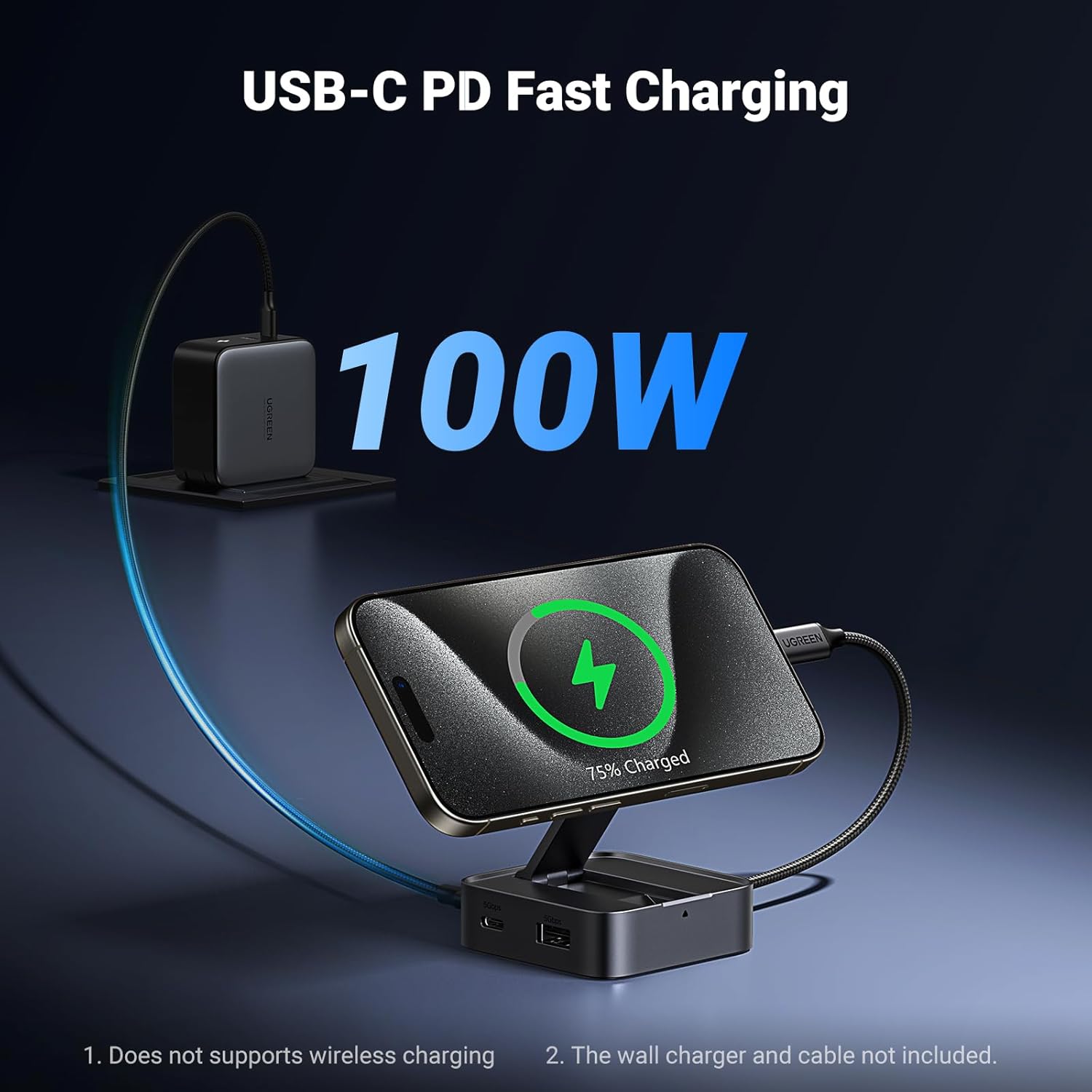
- 100W USB-C Power Delivery: Provides up to 85W pass-through charging for connected devices.
- 5Gbps Data Transfer: Facilitates high-speed data transfer via USB-A and USB-C data ports.
- Foldable & Portable Design: Compact and easy to carry, similar in size to AirPods.

3. Setup Instructions
3.1 Attaching the Hub to Your Device
- Unfold the magnetic stand of the UGREEN USB C Hub.
- Align the magnetic pad of the hub with the back of your compatible device (e.g., iPhone 15 series). The hub will securely attach magnetically.
- Connect the integrated USB-C cable from the hub to the USB-C port on your device.
For non-magnetic devices, ensure the hub is placed on a stable surface and connect the USB-C cable to your device's USB-C port.

3.2 Initial Connection
Once connected, your device should automatically recognize the hub. No additional drivers are typically required for basic functionality.
4. Operating Instructions
4.1 HDMI Video Output
- Connect an HDMI cable (not included) from the hub's HDMI port to an external display (monitor, TV, projector).
- Ensure the external display is set to the correct HDMI input source.
- Your device's screen should mirror or extend to the external display. The hub supports resolutions up to 4K at 60Hz.

4.2 USB Data Transfer
- Connect USB-A peripherals (e.g., flash drives, external hard drives, keyboards, mice) to the USB-A data port.
- Connect USB-C peripherals to the USB-C data port.
- Your device will recognize the connected peripherals, allowing for data transfer at speeds up to 5Gbps.

4.3 USB-C Power Delivery (PD) Charging
- Connect a USB-C power adapter (not included) to the hub's USB-C PD port.
- The hub will pass through up to 85W of power to charge your connected device.
- Ensure your power adapter is capable of delivering sufficient wattage for optimal charging.
Note: The hub itself does not support wireless charging. The wall charger and charging cable for power delivery are not included.
5. Compatibility
The UGREEN USB C Hub is designed for broad compatibility with various USB-C enabled devices.
5.1 Magnetic Devices
- iPhone 15 Series
- iPhone 15 Pro Series
- Future iPhone 16/17 Series (with magnetic capabilities)

5.2 Non-Magnetic Devices
- Samsung Galaxy S24 Ultra
- Google Pixel 7 / 7 Pro
- Other USB-C enabled smartphones and tablets

5.3 Laptops
- MacBook Air / MacBook Pro
- Microsoft Surface Pro
- Dell XPS series
- Lenovo ThinkPad X1 Carbon
- Other USB-C enabled laptops

6. Specifications
| Feature | Detail |
|---|---|
| Model Number | 35590 |
| Product Dimensions | 2.4 x 2.4 x 0.98 inches |
| Item Weight | 7 ounces |
| Brand | UGREEN |
| Color | Black |
| Hardware Interface | USB 3.0 Type C |
| Total USB Ports | 3 (1x USB-C Data, 2x USB-A Data) |
| Total HDMI Ports | 1 |
| HDMI Resolution | Up to 4K@60Hz |
| USB Data Transfer Speed | Up to 5Gbps |
| USB-C PD Charging | 100W (85W pass-through to device) |
7. Troubleshooting
7.1 No Display Output
- Ensure the HDMI cable is securely connected to both the hub and the external display.
- Verify the external display is powered on and set to the correct HDMI input source.
- Check if your device's USB-C port supports video output (DisplayPort Alternate Mode).
- Try restarting your device and reconnecting the hub.
7.2 Charging Issues
- Confirm that the USB-C power adapter connected to the hub's PD port is functional and provides sufficient wattage (e.g., 100W for optimal performance).
- Ensure all cables are properly connected.
- Note that the hub provides pass-through charging; it does not have an internal battery.
7.3 Data Transfer Problems
- Ensure USB devices are properly inserted into the hub's data ports.
- Test the USB device directly with your computer to rule out device malfunction.
- Some high-power USB devices may require external power or a powered USB hub.
7.4 Magnetic Attachment Not Strong Enough
- Ensure your device is compatible with magnetic attachment (e.g., iPhone 15 series).
- If using a case, ensure it is a MagSafe-compatible case or does not interfere with the magnetic connection.
- Avoid using the hub as a stand for heavy tablets or handheld game consoles, as it is not designed for such loads.
8. Maintenance
- Keep the hub clean by wiping it with a soft, dry cloth.
- Avoid exposing the hub to extreme temperatures, humidity, or direct sunlight.
- Do not disassemble the device, as this will void the warranty and may cause damage.
- Store the hub in a cool, dry place when not in use.
9. Warranty and Support
UGREEN products typically come with a limited warranty. Please refer to the warranty card included with your purchase or visit the official UGREEN website for detailed warranty terms and conditions.
For technical support, product inquiries, or warranty claims, please contact UGREEN customer service through their official website or the contact information provided in your product packaging.
Official UGREEN Website: www.ugreen.com