
Introduction
This manual provides detailed instructions for the installation, operation, and maintenance of your MekedeTech Mekede M6 Pro Android 13 Car Radio. This unit is specifically designed for the Toyota Highlander models from 2014 to 2019, offering an enhanced in-car multimedia and navigation experience. Please read this manual thoroughly before installation and use to ensure proper function and safety.
Safety Information
- Ensure the vehicle's engine is off and the parking brake is engaged before beginning installation.
- Disconnect the vehicle's battery to prevent electrical shorts and damage.
- Consult a professional installer if you are unsure about any part of the installation process.
- Do not operate the device in a way that distracts you from driving. Always prioritize road safety.
- Avoid exposing the unit to extreme temperatures, direct sunlight for prolonged periods, or excessive moisture.
Package Contents
Verify that all components are present before proceeding with installation:
- Mekede M6 Pro Android 13 Head Unit
- Vehicle-specific Wiring Harness (Plug & Play for Toyota Highlander 2014-2019)
- Fakra GPS Antenna
- Fakra 4G Antenna
- USB Cables
- Installation Brackets and Screws
- User Manual (this document)
Setup and Installation
The Mekede M6 Pro is designed for a plug-and-play installation in compatible Toyota Highlander models (2014-2019). Follow these general steps:
- Preparation: Disconnect the negative terminal of your vehicle's battery. Remove the factory radio and trim panels carefully.
- Wiring: Connect the provided vehicle-specific wiring harness to the corresponding ports on the new head unit and the vehicle's existing wiring. Ensure all connections are secure.
- Antenna Connection: Connect the Fakra GPS Antenna and Fakra 4G Antenna to their designated ports on the head unit. Route the antennas to a location with clear signal reception, typically on the dashboard or under the windshield.
- Mounting: Secure the new head unit into the dashboard opening using the provided brackets and screws.
- Testing: Before reassembling the trim, reconnect the vehicle battery and power on the unit to test basic functions (power, display, audio, touch response).
- Reassembly: Once confirmed functional, carefully reattach all trim panels.

Image: Comparison of the car dashboard before and after the installation of the MekedeTech M6 Pro car radio, showing the integrated 10-inch screen.
Operating Instructions
Basic Interface and Navigation
The unit features a 10-inch 1280x720 QLED full-fit screen running on Android 13. Navigate through applications and settings using the touch interface. The QLED screen provides clear visibility even in strong light.
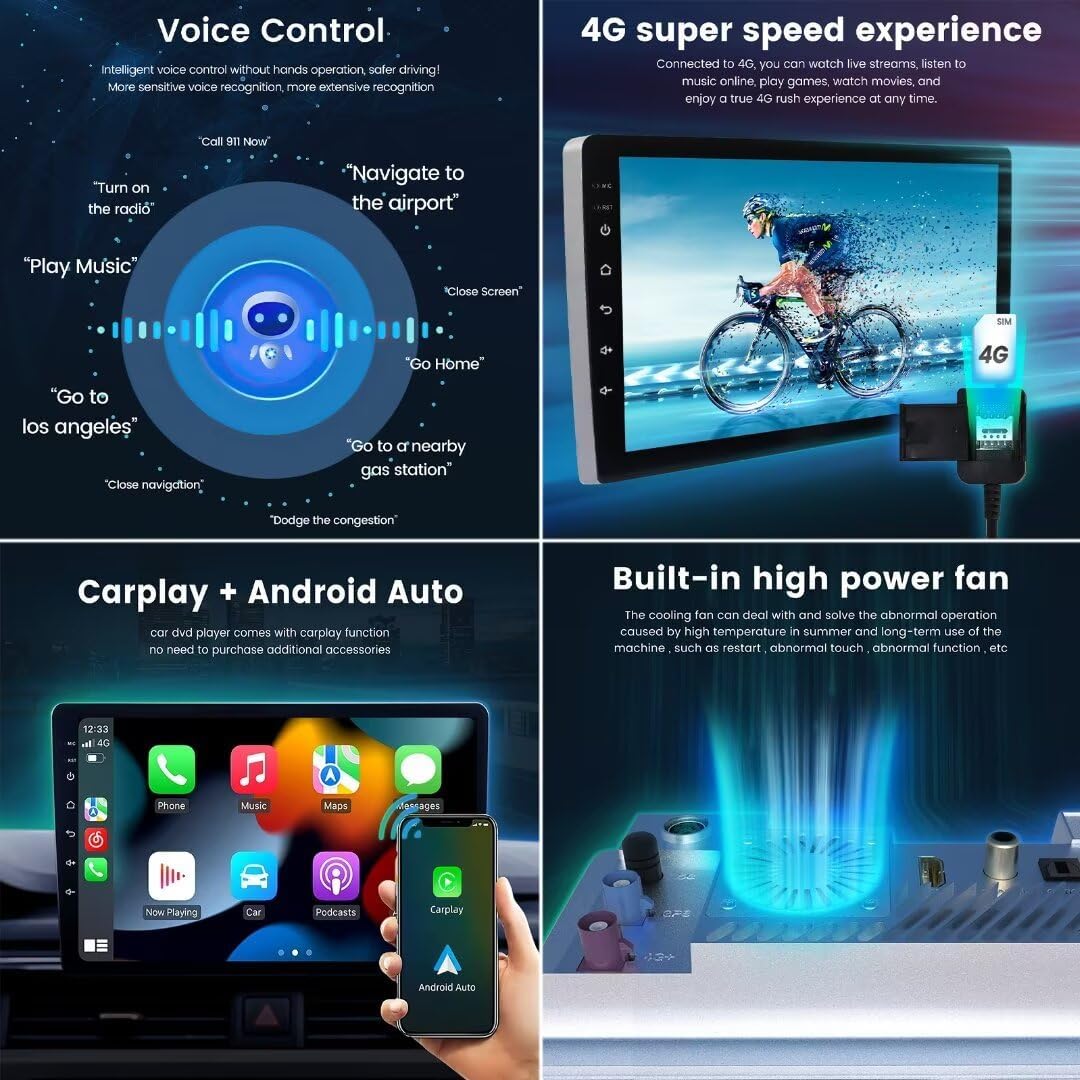
Image: Various user interface (UI) display options (UI08, UI22, UI29, UI34) available on the MekedeTech M6 Pro, alongside the 36-band DSP equalizer settings.
Wireless CarPlay & Android Auto
Connect your smartphone wirelessly to access CarPlay or Android Auto. This allows for seamless integration of navigation, calls, messages, and music directly on the head unit's display without needing a physical cable connection.

Image: Demonstrates intelligent voice control commands, 4G connectivity for high-speed internet, the interface for wireless CarPlay and Android Auto, and the built-in high-power cooling fan.
Bluetooth 5.1 Connectivity
The unit features a Qualcomm 3031 chip for Bluetooth 5.1, providing stable and fast wireless connections for hands-free calling and audio streaming. This ensures low power consumption and strong anti-interference capabilities.

Image: Highlights the upgrade to Bluetooth 5.1, the precision of the 36-band DSP equalizer, and the immersive experience of DTS 4.1/5.1 channel surround sound systems.
Radio and Sound System
Access FM/AM radio with RDS functionality. The integrated DSP (Digital Sound Processor) features a 36-band equalizer for precise audio tuning, along with DTS 4.1/5.1 channel surround sound systems for an immersive audio experience.

Image: Shows the FM/AM RDS radio interface, options to customize main interface icons, the split-screen function displaying two applications simultaneously, and the multi-language support settings.
Voice Control
Utilize intelligent voice control for hands-free operation. Commands such as "Turn on the radio," "Navigate to the airport," or "Play Music" can be used to control various functions, enhancing driving safety and convenience.
GPS Navigation
The unit supports GPS, GLONASS, and BDS for accurate positioning and real-time traffic conditions. The custom Fakra GPS antenna ensures stable signal reception.
Image: Illustrates accurate GPS positioning with support for GLONASS and BDS, and a detailed view of the specially designed M6 Pro motherboard with its various components like the CPU, amplifier, and antennas.
4G LTE and Wi-Fi
With 4G LTE and 5GHz Wi-Fi support, you can enjoy high-speed internet access for online streaming, app downloads, and real-time data. The Fakra 4G antenna ensures reliable connectivity.
Split Screen Functionality
The split-screen feature allows you to run two applications simultaneously, such as navigation and music playback, for enhanced multitasking.
Maintenance
- Screen Cleaning: Use a soft, lint-free cloth slightly dampened with water or a screen cleaner to wipe the display. Avoid abrasive materials or harsh chemicals.
- Software Updates: Periodically check for available software updates to ensure optimal performance and access to new features. Follow the on-screen instructions for any updates.
- General Care: Keep the unit free from dust and debris. Ensure proper ventilation around the unit, especially with the built-in cooling fan.
Troubleshooting
| Problem | Possible Cause | Solution |
|---|---|---|
| Unit does not power on | Loose power connection, blown fuse, vehicle battery issue | Check wiring harness connections. Inspect vehicle fuses. Ensure vehicle battery is charged. |
| No sound output | Speaker wires disconnected, volume too low, audio settings incorrect | Verify speaker wire connections. Increase volume. Check audio output settings in the system menu. |
| GPS signal lost or inaccurate | GPS antenna improperly placed or disconnected | Ensure GPS antenna has a clear view of the sky and is securely connected. |
| Bluetooth connection issues | Device not paired, Bluetooth off, interference | Ensure Bluetooth is enabled on both devices. Re-pair the device. Move away from sources of interference. |
| Touch screen unresponsive | Temporary software glitch, screen protector interference | Restart the unit. Remove any thick screen protectors. |
Specifications
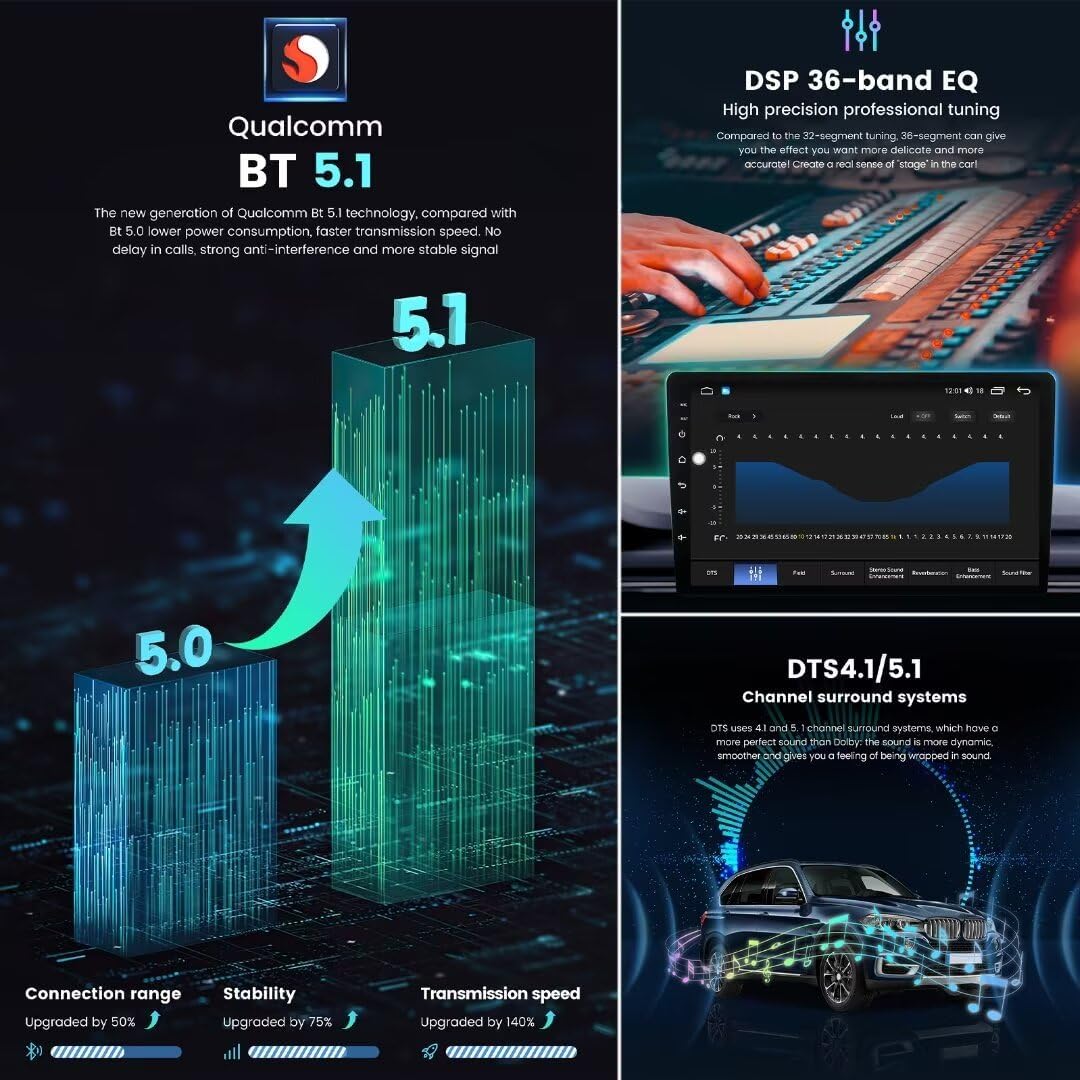
Image: Details the 12NM UIS7862S 2.0GHz 8-core CPU, 1280x720 QLED screen resolution, and the benefits of a full-fit screen design compared to non-full-fit displays.
- Model: M6Pro-10inch-8+256GB-1280*720
- Compatibility: Toyota Highlander 2014-2019
- Operating System: Android 13
- CPU: UIS7862S 2.0GHz Octa-core (2x ARM Cortex A75 + 6x ARM Cortex A55)
- Screen: 10-inch QLED, 1280x720 resolution
- Memory: 8GB RAM + 256GB ROM
- Bluetooth: BT 5.1 (Qualcomm 3031 chip)
- Wi-Fi: 5GHz support
- 4G LTE: Supported (Fakra 4G Antenna included)
- Power Amplifier: TDA7850/7851
- Radio IC: TDA7708 (FM/AM RDS)
- DSP: 36-band Equalizer, DTS 4.1/5.1 Channel Surround System
- Navigation: GPS, GLONASS, BDS (Fakra GPS Antenna included)
- Features: Wireless CarPlay/Android Auto, Voice Control, ADAS DVR support, AHD Rear Camera support, Built-in Cooling Fan, Split Screen, Multiple UI options, Multi-language support.
- Power Source: DC
- Audio Output Mode: Surround Sound
Warranty and Support
Warranty: This product comes with a 1-Year Warranty from the date of purchase. Please retain your proof of purchase for warranty claims. The warranty covers manufacturing defects but does not cover damage caused by improper installation, misuse, accidents, or unauthorized modifications.
Customer Support: For technical assistance, troubleshooting, or warranty inquiries, please contact MekedeTech customer support through the retailer where the product was purchased or visit the official MekedeTech website for contact information.