
UGREEN 45320
Contents
UGREEN USB C to Ethernet Adapter Instruction Manual
Model: 45320
Introduction
This manual provides detailed instructions for the UGREEN USB C to Ethernet Adapter (Model: 45320). Please read this manual thoroughly before using the product to ensure proper operation and to maximize its lifespan. Keep this manual for future reference.

Image: The UGREEN USB C to Ethernet Adapter, showcasing its compact design and multiple ports, including USB-C, USB-A, and RJ45 Ethernet, alongside various cables.
Product Features
- 6-in-1 Connectivity: Features 2x USB-C 3.2 ports, 1x USB-A 3.2 port, 1x USB-A 2.0 port, 1x Gigabit Ethernet port, and 1x USB-C power input port (for adapter only).
- High-Speed Data Transfer: USB 3.2 ports support up to 10Gbps data transfer speed.
- Gigabit Ethernet: Provides stable and fast wired network connection up to 1000Mbps.
- Plug & Play: Driver-free installation for Windows 11/10/8.1/8 and macOS.
- Durable Design: Constructed from high-durability aluminum alloy with a braided USB-C cable.
- Power Supply for Peripherals: Dedicated USB-C power port to power high-power devices connected to the hub (does not charge host device).

Image: A detailed diagram illustrating the various ports on the UGREEN USB C to Ethernet Adapter, including USB-C 3.2, USB-A 3.2, USB-A 2.0, RJ45, and the USB-C power supply port.
Setup Instructions
- Connect to Host Device: Insert the USB-C connector of the UGREEN adapter into an available USB-C port on your laptop, desktop, tablet, or mobile phone.
- Driver Installation (if required):
- For Windows 11/10/8.1/8 and macOS: The adapter is plug and play. No driver installation is required.
- For Windows XP/7/Vista and Linux: A driver installation is required. Please refer to the included user guide for detailed driver installation instructions.
- Connect Peripherals: Plug your USB-A devices (e.g., mouse, keyboard, flash drive, printer) into the USB-A 3.2 or USB-A 2.0 ports. Connect your USB-C devices into the USB-C 3.2 ports.
- Connect to Network: Insert an Ethernet cable into the RJ45 port on the adapter and connect the other end to your router or modem for a wired network connection.
- Powering Peripherals (Optional): If connecting high-power peripherals (e.g., external hard drives), connect a 5V power adapter (not included) to the USB-C power supply port on the UGREEN adapter. This port only powers the adapter and connected peripherals, not the host device.
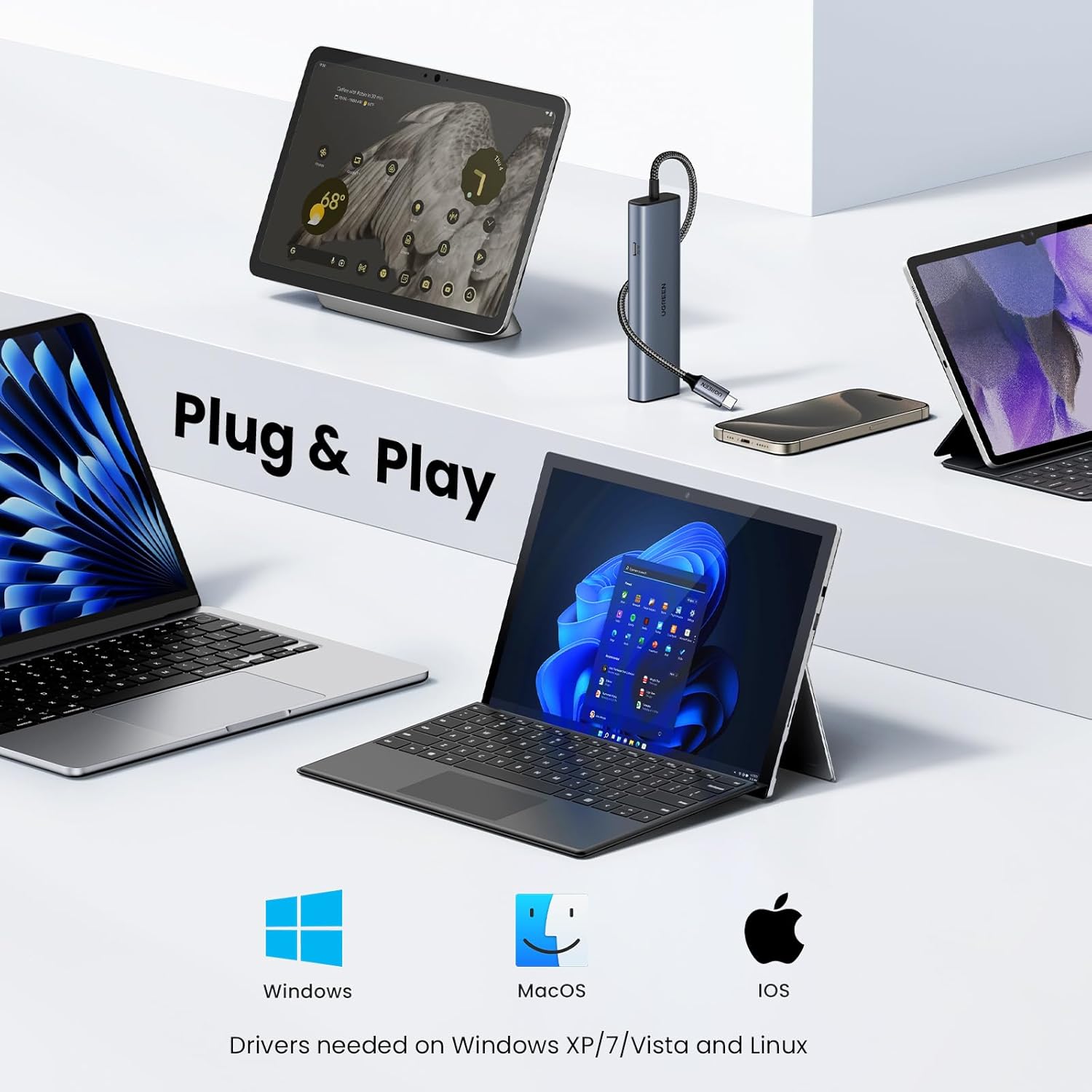
Image: The UGREEN USB C hub connected to various devices, illustrating its plug-and-play functionality across Windows, macOS, and iOS operating systems.
Operating Instructions
Once connected, the adapter will automatically detect and configure the connected devices and network. You can now use your peripherals and enjoy a stable wired network connection.
- Data Transfer: Utilize the USB 3.2 ports for high-speed data transfer with compatible devices. For optimal 10Gbps speed, use a single USB 3.2 port at a time for large file transfers.
- Network Connection: The Gigabit Ethernet port provides a reliable and faster internet connection compared to Wi-Fi, ideal for streaming, gaming, and large downloads.
- Peripheral Use: All connected USB-A and USB-C peripherals will function as if directly connected to your host device.

Image: A comparison showing a laptop connected via wired Ethernet through the UGREEN adapter versus a laptop using Wi-Fi, highlighting the faster and smoother performance of the wired connection.
Maintenance
- Cleaning: Use a soft, dry cloth to clean the adapter. Avoid using liquid cleaners or aerosols.
- Storage: Store the adapter in a cool, dry place away from direct sunlight and extreme temperatures.
- Handling: Avoid dropping or subjecting the adapter to strong impacts. Do not bend the cable excessively.
- Heat Dissipation: The aluminum casing helps dissipate heat. Ensure the adapter is placed in a well-ventilated area during prolonged use, especially when transferring large amounts of data or powering high-demand peripherals, as it may become warm.
Troubleshooting
- Q: Can the USB-C power supply port charge my host device, such as a laptop?
- A: No, the power port is designed only to power the adapter itself and provide stable power to high-power peripherals connected to the adapter. It cannot charge your laptop or other host devices.
- Q: Why can't the data transfer speed reach 10Gbps?
- A: 10Gbps is the maximum transfer speed supported by a single USB 3.2 port. To achieve this speed, please use only one USB 3.2 port for the transfer and avoid using multiple USB ports simultaneously, as this can divide the available bandwidth.
- Q: Why can't I connect to Ethernet?
- A: For Windows 8, 10, 11, macOS 10.10 and above, and Ubuntu 18.04/Android 9.0, the adapter is driver-free. If you are using Windows XP/7/Vista or Linux, you need to install the driver. Please refer to the user guide included in the package for driver installation instructions. Ensure your Ethernet cable is properly connected and functional.
- Q: Why can't I connect to Ethernet after installing the driver?
- A: If you encounter issues after driver installation, check if there is any old driver that conflicts with the newly installed driver. If so, it is recommended to uninstall the old driver and then reinstall the correct driver for the UGREEN adapter.
- Q: Is there a video interface?
- A: No, this adapter does not include any video output ports such as HDMI or DisplayPort.
- Q: Why does the mouse jump after connecting it?
- A: This issue may occur if USB 3.0 (or higher) interfaces interfere with wireless signals. It is recommended to keep the mouse receiver and data transmission interfaces (USB 3.2 ports) separated and not use them next to each other if possible.
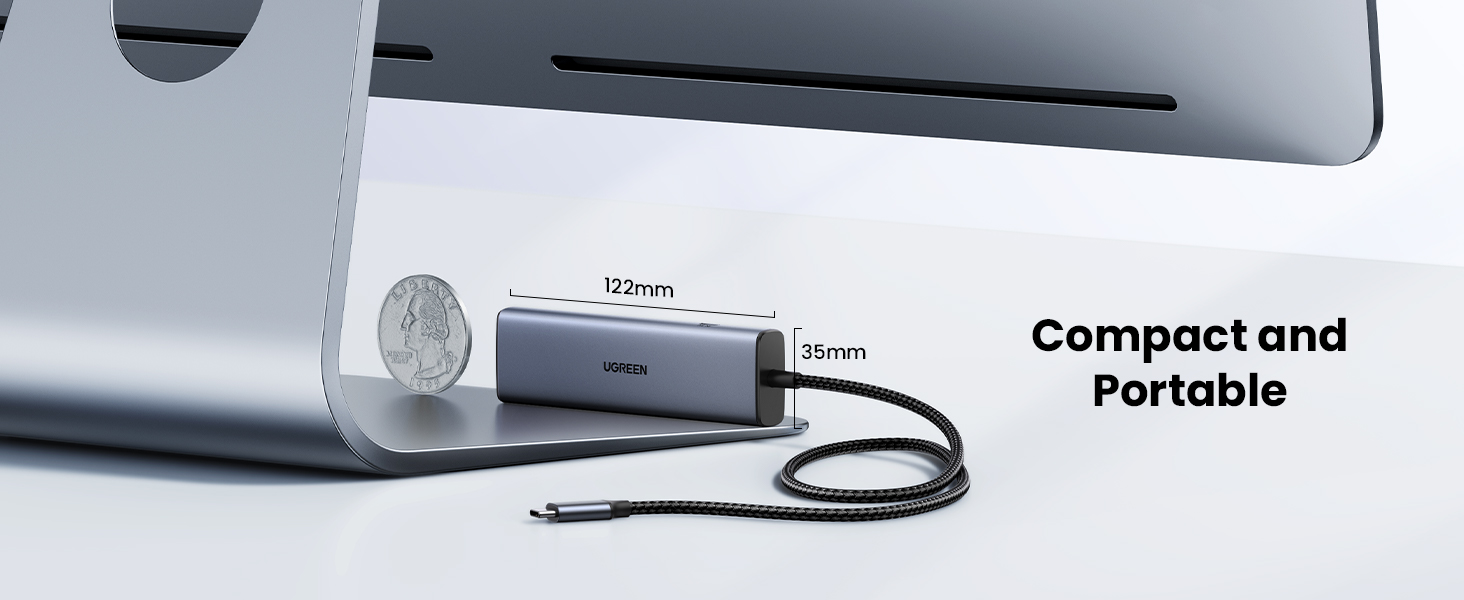
Image: A section from the product's FAQ, providing answers to common user questions regarding power, data transfer, and connectivity.
Specifications
| Feature | Detail |
|---|---|
| Model Number | 45320 |
| Product Dimensions | 1.38 x 0.63 x 4.88 inches |
| Item Weight | 1.76 ounces |
| Color | Space Grey |
| Hardware Interface | USB Type C |
| USB-C 3.2 Ports | 2 (10Gbps data transfer) |
| USB-A 3.2 Port | 1 (10Gbps data transfer) |
| USB-A 2.0 Port | 1 (480Mbps data transfer) |
| Ethernet Port | 1 (Gigabit RJ45, 1000Mbps) |
| Power Port | 1 (USB-C, 5V 3.0A Max, for adapter/peripherals only) |
| Compatible Devices | Devices with a USB-C port (MacBook Pro/Air, Dell XPS, Mac Mini, iPhone 15 series, etc.) |
| Operating Systems | Windows 11/10/8.1/8 (driver-free), macOS (driver-free), Windows XP/7/Vista (driver required), Linux (driver required) |
Warranty and Support
UGREEN products typically come with a manufacturer's warranty. For specific warranty details, product support, or technical assistance, please refer to the warranty card included with your product or visit the official UGREEN website. You can also contact UGREEN customer service directly through their official channels.
For further assistance, please visit the UGREEN Store on Amazon.
Ask a question about this manual
Ask about setup, troubleshooting, compatibility, parts, safety, or missing instructions. Manuals+ will review the question and use this page’s manual context to help answer it.