
1. Important Compatibility Information
This Road Top 12.3-inch Ultra-Narrow CarPlay Touchscreen is specifically designed for Mercedes Benz E Class W212 models manufactured between 2013 and 2015, equipped with the NTG4.5 or NTG4.7 system. It is not compatible with E Coupe cars, NTG4.0, or NTG5.0 systems. Please verify your vehicle's dashboard and original system type before installation.

Image: Visual guide for checking dashboard compatibility and NTG system version (NTG4.5/4.7 vs. NTG4.0/5.0).
2. Package Contents
Ensure all components are present before beginning installation:
- 12.3-inch Car Screen
- Power Cable
- LVDS/USB Cable
- Bracket

Image: Illustration of the product's main components, including the 12.3-inch screen, power cable, LVDS/USB cable, and mounting bracket.
3. Setup and Installation
Installation requires removing the car dashboard to connect wires. Careful attention to cable connections and settings is crucial. It is recommended to confirm all features are working correctly before reassembling the dashboard.
3.1. Language Settings
To change the system language:
- Navigate to Setup.
- Select System.
- Choose Language and select your preferred language.
Video: Demonstrates how to access the language settings within the Linux touchscreen system.
3.2. Firmware Update
Periodically check for firmware updates to ensure optimal performance and access to new features. Updates can typically be found under the System settings.
- Navigate to Setup.
- Select System.
- Choose Firmware Update.
Video: Shows the menu display interface, including options for firmware updates.
4. Operating Instructions
The Road Top touchscreen enhances your driving experience by integrating modern connectivity while preserving original vehicle functionalities.
4.1. System Switching
Easily switch between the new Linux system interface and your original Mercedes Benz OEM system. The new system supports touch control, while the original system is controlled via the factory joystick.
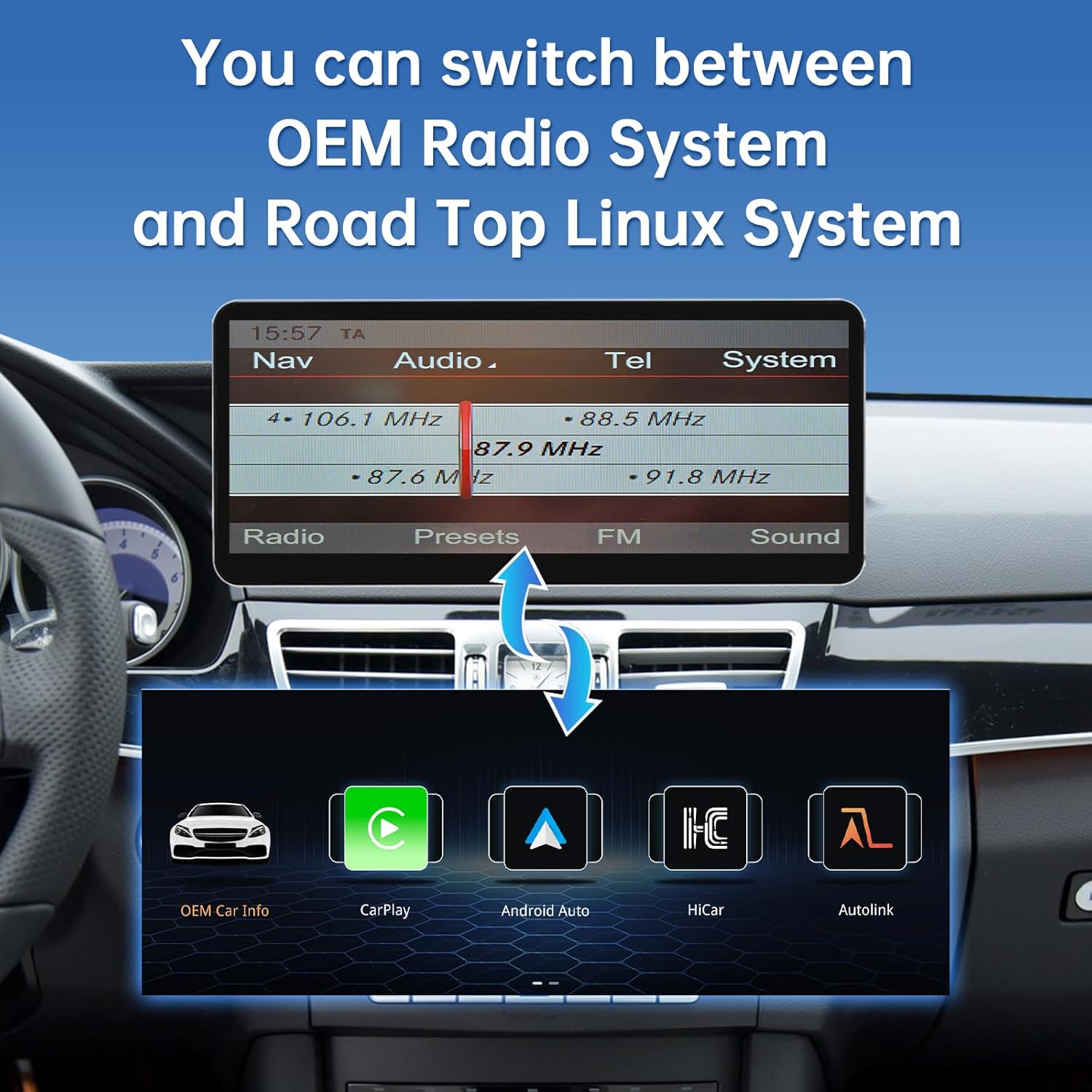
Image: Depicts the interface for switching between the original car system and the new Linux system.
Video: Demonstrates the process of switching between the new Linux system and the original OEM system.
4.2. Wireless CarPlay and Android Auto
The unit supports wireless CarPlay and Android Auto, eliminating the need for additional adapters. Connect your smartphone for navigation, music, calls, and more.

Image: Illustrates the integrated wireless CarPlay and Android Auto functionalities.
Video: Guide on connecting to wireless CarPlay, using a BMW screen as an example. The steps are generally applicable.
4.3. Wireless AirPlay and Mirrorlink
Mirror your iOS or Android phone screen directly onto the car display for enhanced media consumption and app access.
Video: Instructions for connecting to wireless AirPlay, demonstrated on a BMW screen. The connection process is similar for other compatible systems.
4.4. Sound Transmission Methods
The system supports two primary methods for sound transmission:
- AUX Cable Transmission: If your car lacks an "AUX/AMI" port, connect the audio cable to the power cable. If an "AUX/AMI" port is present, disconnect the audio cable on the power cable and connect it to the car's "AUX/AMI" port.
- Bluetooth Transmission: Connect your phone to the car via Bluetooth. Activate the "Use Car's BT Channel" switch in the system settings and set Bluetooth as the sound transmission method.
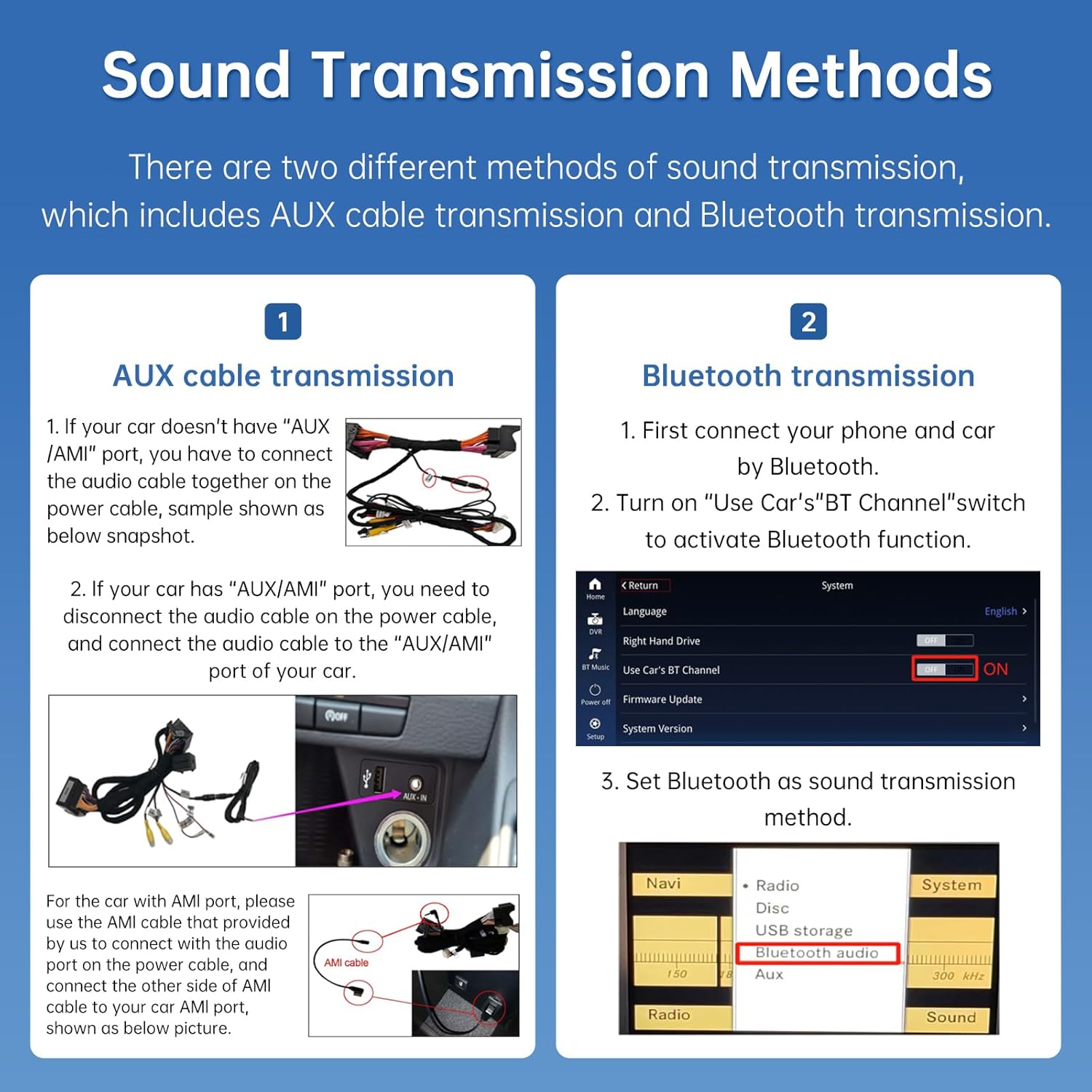
Image: Explains the two methods for transmitting audio to the car's sound system.
4.5. Display Settings
Adjust display parameters for optimal viewing:
- Contrast: Adjust the difference between light and dark areas.
- Chromaticity: Control the intensity and purity of colors.
- Saturation: Modify the vividness of colors.
- Day Dimmer Level: Set screen brightness for daytime driving.
- Night Dimmer Level: Set screen brightness for nighttime driving.

Image: Shows the automatic brightness adjustment function, which intelligently switches based on vehicle headlight status.
4.6. Reverse Camera and Parking Features
The system supports both factory original and aftermarket reverse cameras, including parking radar. It also supports front view camera DVR (CVBS input), but not aftermarket 360 cameras.
Image: Demonstrates the reverse camera functionality with parking assistance.
5. Maintenance
To ensure the longevity and optimal performance of your Road Top touchscreen, follow these maintenance guidelines:
- Cleaning: Use a soft, lint-free cloth to gently wipe the screen. Avoid abrasive cleaners or harsh chemicals that could damage the display.
- Software Updates: Regularly check for and install available firmware updates to benefit from performance improvements and new features.
- Environmental Conditions: Avoid exposing the unit to extreme temperatures or direct sunlight for prolonged periods.
6. Troubleshooting
If you encounter issues, consider the following common solutions:
- No Sound: Verify all audio cable connections (AUX/AMI) and Bluetooth settings. Ensure the "Use Car's BT Channel" is enabled if using Bluetooth for audio.
- Display Issues: Check cable connections to the screen. Adjust display settings like contrast and brightness.
- Connectivity Problems (CarPlay/Android Auto): Ensure Wi-Fi and Bluetooth are enabled on your phone and the screen. Re-pair Bluetooth if necessary.
- General Malfunctions: Many issues can stem from incorrect cable connections or settings. Double-check all wiring according to the installation guide.
For persistent issues, please contact customer support with detailed descriptions, pictures, or videos of the problem.
7. Specifications
| Feature | Detail |
|---|---|
| Brand | Road Top |
| Screen Size | 12.3 Inches |
| Resolution | 1920 x 720 |
| Operating System | Linux System |
| Connectivity Technology | Bluetooth, Wi-Fi |
| Special Features | Wireless Apple CarPlay, Wireless Android Auto, Wireless Mirrorlink, EQ adjustable, Supports original factory camera and aftermarket reverse camera, Day and Night mode, Retains original car radio, amplifier, joystick control. |
| Control Method | Touchscreen, Steering Wheel Control Buttons |
| Compatible Vehicle Type | Mercedes Benz E Class W212 (2013-2015) with NTG4.5/NTG4.7 |
Video: Provides detailed visual information about the 12.3-inch Ultra-Narrow Touchscreen's features and design.

Image: Compares the physical dimensions and bezel thickness of the new 12.3-inch screen with older models.
8. Warranty and Support
Your Road Top 12.3-inch CarPlay Touchscreen comes with a 30-day return and exchange policy and a 1-year warranty.
For any technical or installation questions, please follow these steps to contact Road Top Direct support:
- Locate the "Road Top Direct" store name next to the shopping cart on the product page.
- Click on the "Ask a question" button.
- Provide pictures or videos detailing your technical or installation query.
The support team will respond promptly to assist you.