
1. Setup
The Trueque Wireless Keyboard and Mouse Combo is designed for easy plug-and-play setup. Both devices connect wirelessly using a single USB receiver, eliminating the need for multiple dongles or complex driver installations.
1.1 Connecting the USB Receiver
Locate the USB receiver, which is typically stored in the mouse's battery compartment for safekeeping. Plug this receiver into an available USB-A port on your computer. If your computer only has USB-C ports, use the included Type-C adapter.

Image: The keyboard and mouse combo, showing the compact USB receiver and the Type-C adapter for versatile connectivity.
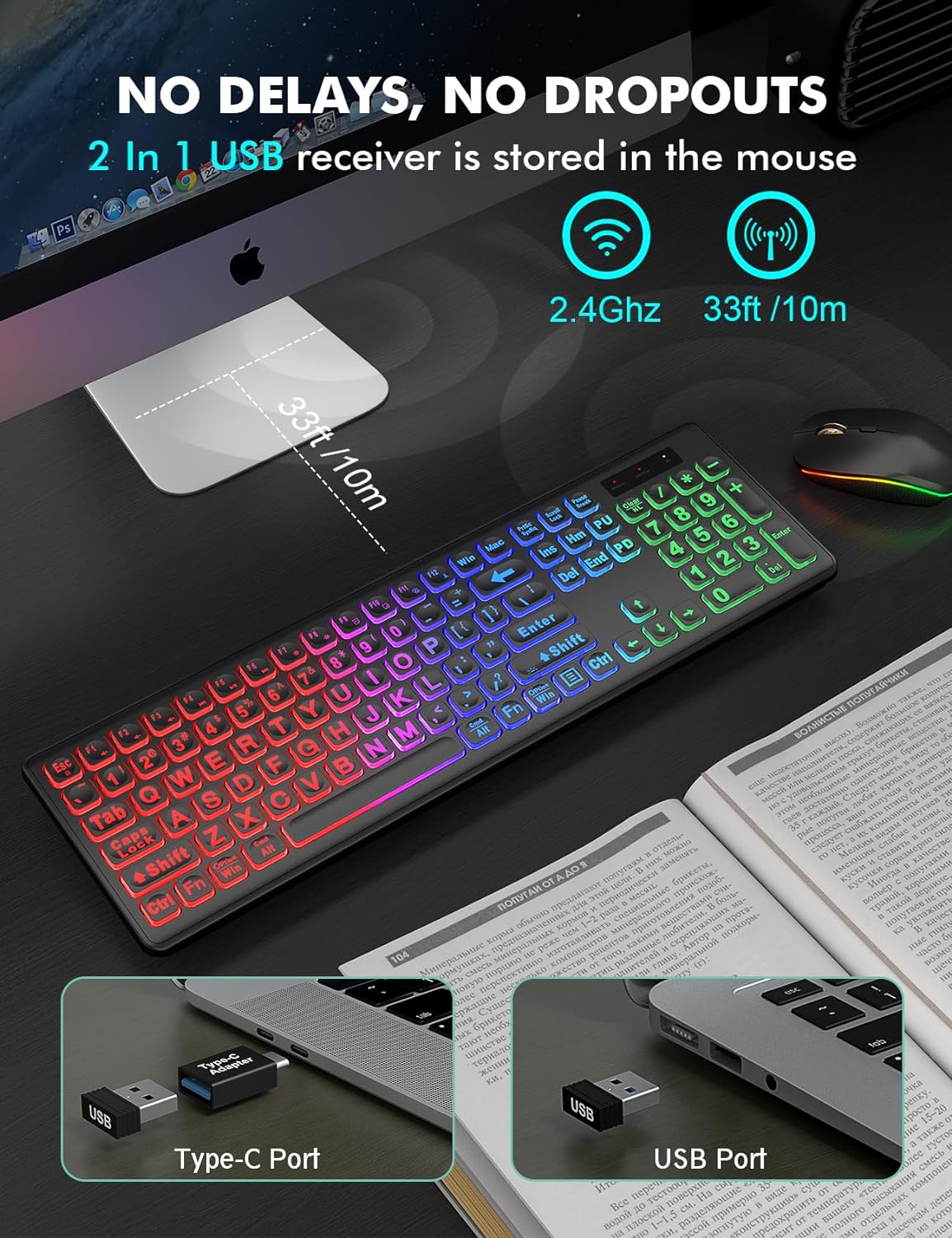
Image: A close-up view of the USB receiver and Type-C adapter, demonstrating how they connect to both standard USB and USB-C ports on a laptop.
1.2 Powering On the Devices
Once the USB receiver is connected, ensure both the keyboard and mouse are powered on using their respective ON/OFF switches. The keyboard's switch is located on the top right edge, and the mouse's switch is on its underside.
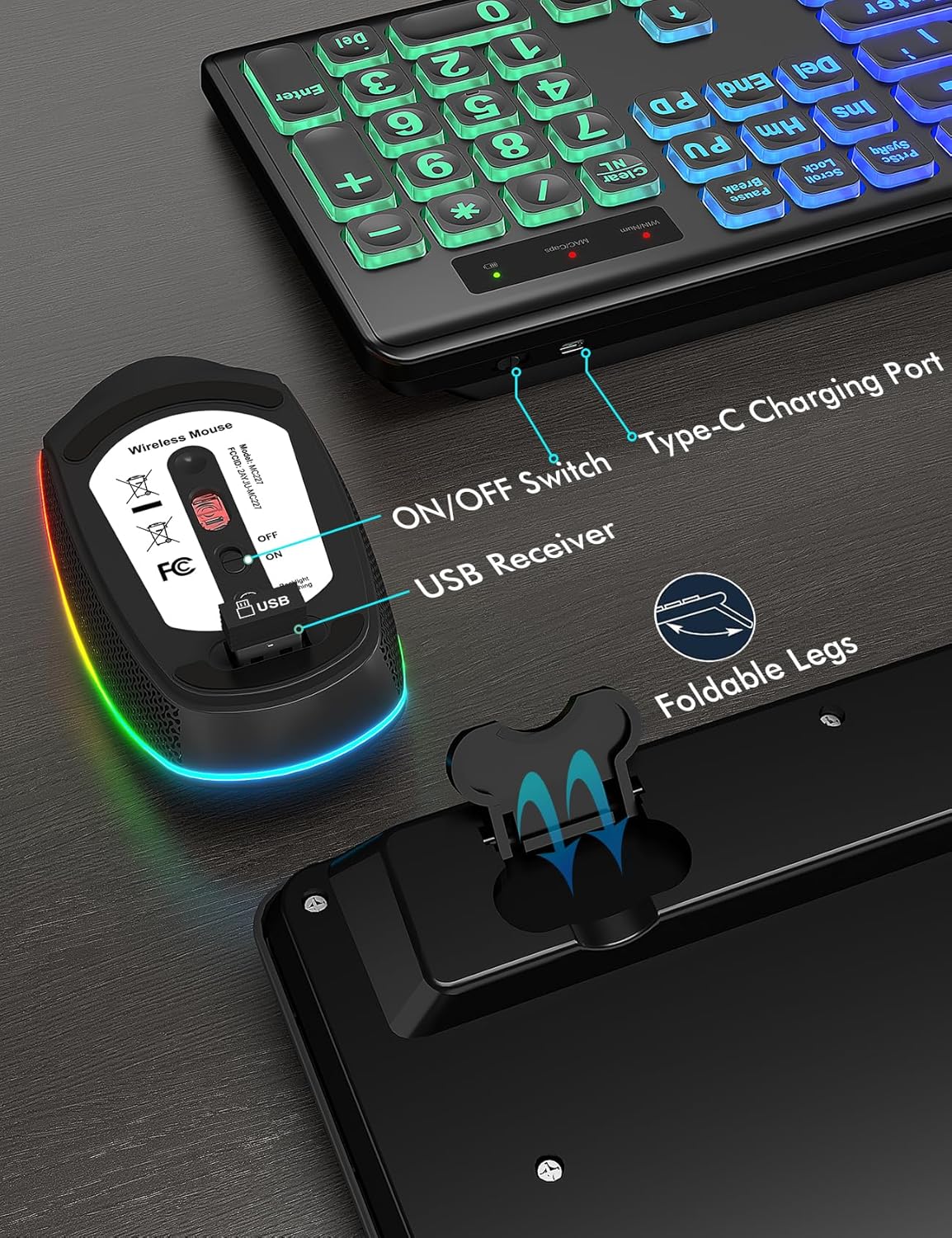
Image: The underside of the wireless mouse, highlighting the ON/OFF switch and the compartment for storing the USB receiver.
1.3 Setup Video Guide
Video: An official product video demonstrating the setup process and key features of the Trueque Backlit Keyboard, including how to connect and power on the device.
2. Operating Instructions
2.1 Keyboard Features
- Large Print Keys: The keyboard features a font size 4X larger than standard keyboards, enhancing visibility and ease of use for individuals with visual impairments or those who prefer larger text.
- RGB Backlighting: Enjoy a vibrant rainbow color backlight with 3 adjustable brightness levels. The light-up keycaps and letters improve visibility in low-light conditions. To adjust brightness or turn the backlight ON/OFF, press the Fn key simultaneously with the Shift key.
- OS Layout Switching: The keyboard supports both Windows and Mac OS layouts. Use the dedicated Win and Mac buttons to switch between operating system modes. This reconfigures the function of certain keys (e.g., Option/Win, Cmd/Alt) to match your system.
- Ergonomic Design: Foldable stands on the underside of the keyboard provide an ergonomic tilt angle for a more comfortable typing position, reducing wrist strain. The volcano-like structure under each key and concave keycaps enhance tactile response and typing comfort.
- Quiet Typing: Both the keyboard and mouse are designed for quiet operation, minimizing noise and preventing disturbance to others in shared environments.

Image: A visual comparison highlighting the significantly larger font size on the Trueque keyboard's keys compared to a standard keyboard.

Image: The keyboard displaying its three adjustable brightness levels for the RGB backlight, from off to brightest.
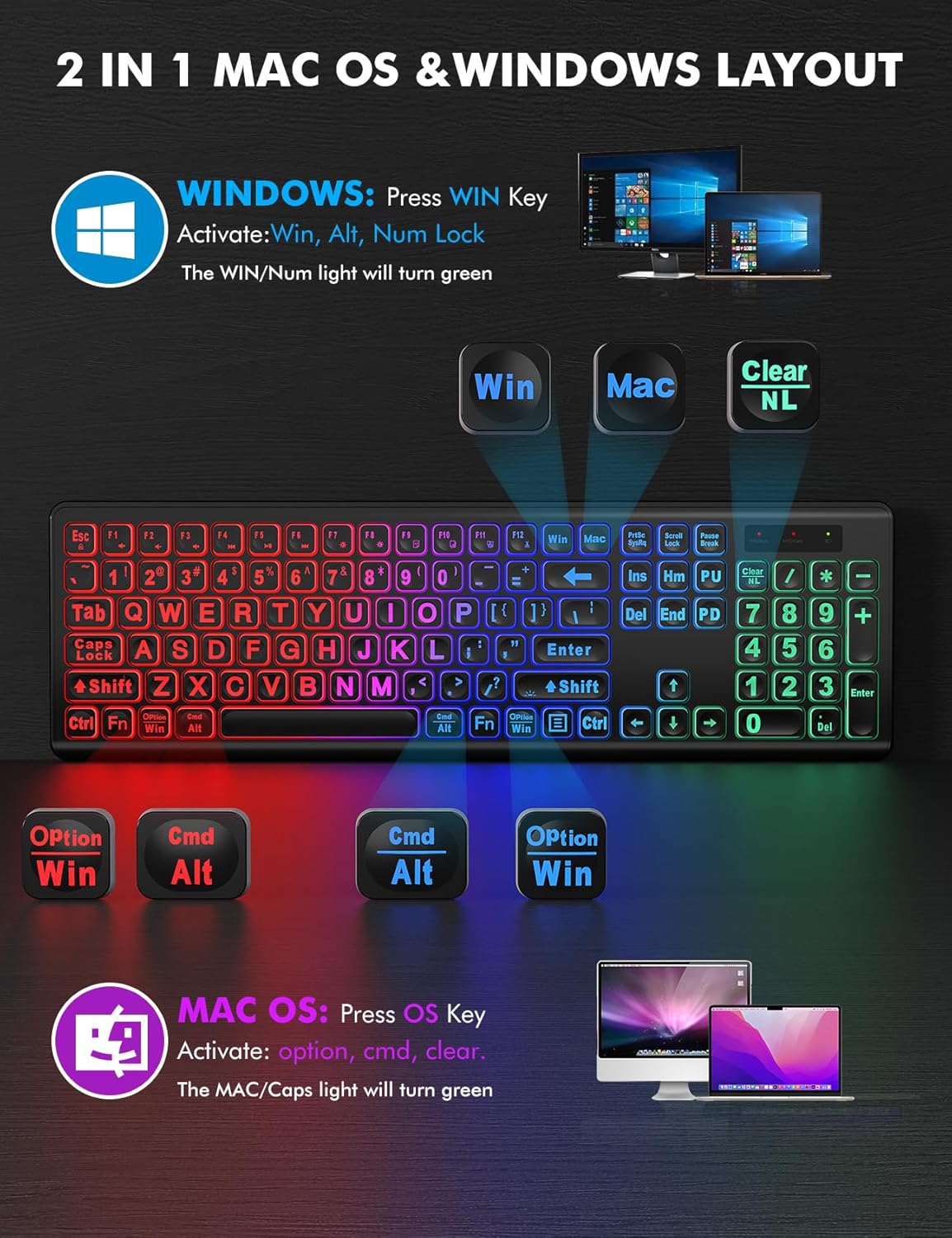
Image: A diagram illustrating how to switch between Windows and Mac OS keyboard layouts using the dedicated function keys.
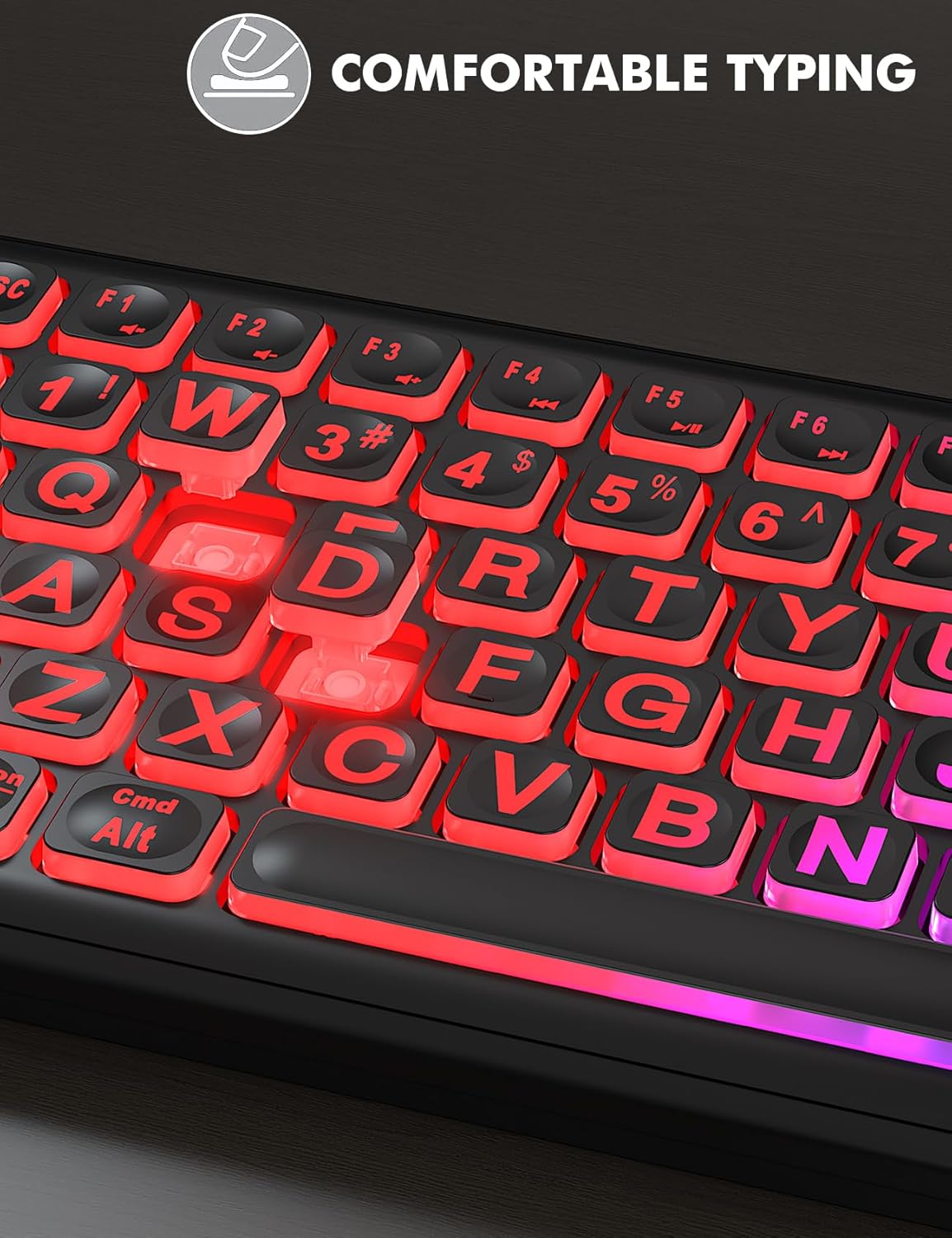
Image: A close-up shot of the keyboard keys, emphasizing the ergonomic design and concave keycaps for comfortable typing.
2.2 Mouse Features
- RGB Lighting Effects: The mouse features 15 switchable lighting effects, allowing for personalization. Long press the