
1. Introduction
This manual provides essential information for the installation, operation, and maintenance of your NZXT C1200 Gold ATX 3.1 Power Supply. Please read this manual thoroughly before installation and retain it for future reference. The NZXT C1200 Gold ATX 3.1 is a fully modular, low-noise power supply designed for high-performance PC gaming systems, offering 1200 Watts of power with 80 PLUS Gold efficiency and a 12V-2x6 connector.

Figure 1: NZXT C1200 Gold ATX 3.1 Power Supply (White)
2. Safety Information
WARNING: Failure to follow these safety instructions may result in electric shock, fire, or damage to the product and connected components.
- Always disconnect the power supply from the AC outlet before installation or maintenance.
- Do not open the power supply unit. High voltages are present inside, and there are no user-serviceable parts. Opening the unit will void the warranty.
- Ensure the power supply is installed in a well-ventilated area, away from heat sources, direct sunlight, and moisture.
- Use only the modular cables provided with this NZXT C1200 Gold ATX 3.1 power supply. Using cables from other power supplies may cause damage.
- Ensure all connectors are securely seated before powering on the system.
- This product is designed for use in desktop personal computers only. Do not use it for any other purpose.
- Keep out of reach of children.
3. Package Contents
Verify that all items are present in the package:
- NZXT C1200 Gold ATX 3.1 Power Supply Unit
- Modular Cable Set (see Figure 2 for details)
- AC Power Cord
- Mounting Screws
- User Manual (this document)

Figure 2: Included Modular Cable Set
4. Product Features
The NZXT C1200 Gold ATX 3.1 Power Supply incorporates several key features for optimal performance and reliability:
- ATX 3.1 Compliance: Designed to meet the ATX 3.1 standard, ensuring stable and efficient power delivery for modern high-performance PC components, with enhanced resistance to power spikes.
- 40 Series Ready: Features a durable, heat-resistant 12V-2x6 connector capable of supplying up to 600 watts to NVIDIA GeForce RTX 40 Series graphics cards.
- High Efficiency, Low Noise: Certified with 80 PLUS Gold Efficiency, Cybenetics Gold Efficiency, and Cybenetics A- Noise Level ratings, indicating high energy efficiency and quiet operation.
- Ultra-Low Noise Fan: Equipped with a 135mm fluid dynamic bearing fan that includes a Zero Fan Mode, allowing for completely silent operation when the power supply is under 50% load.
- High-Quality Construction: Utilizes 100% premium Japanese capacitors, which contribute to improved hold-up time and minimal ripple noise, ensuring reliable and stable power delivery.

Figure 3: Key Features and Certifications
5. Setup and Installation
5.1 Pre-Installation Checklist
- Ensure your computer case supports ATX power supplies and has adequate space for the unit (dimensions: 6.3 x 5.91 x 3.39 inches).
- Gather necessary tools: Phillips head screwdriver.
- Unpack the power supply and all modular cables.
5.2 Physical Installation
- Turn off your computer and disconnect the AC power cord from the wall outlet.
- Open your computer case.
- If replacing an existing power supply, disconnect all cables from the old PSU and remove it from the case.
- Carefully slide the NZXT C1200 Gold ATX 3.1 power supply into the designated PSU bay in your computer case.
- Secure the power supply to the case using the provided mounting screws.

Figure 4: Power Supply Installed in PC Case
5.3 Cable Connections
Connect only the necessary modular cables to the power supply and your components. This helps improve airflow and cable management.
- 24-pin ATX Motherboard Cable: Connect the large 24-pin cable to the corresponding port on your motherboard.
- 8-pin (4+4) CPU Power Cable: Connect the CPU power cable(s) to the CPU power connector(s) on your motherboard. High-end motherboards may require two 8-pin CPU cables.
- PCIe Power Cables (6+2 pin and 12V-2x6):
- For graphics cards requiring 6-pin or 8-pin PCIe connectors, use the provided 8-pin (6+2) PCIe cables.
- For NVIDIA GeForce RTX 40 Series graphics cards, use the dedicated 16-pin (12V-2x6) PCIe cable. Ensure it is fully seated into both the power supply and the graphics card.
- SATA Power Cables: Connect SATA power cables to your storage drives (SSDs, HDDs) and other SATA-powered devices.
- Peripheral Power Cables: Connect peripheral cables for devices such as case fans, fan controllers, or older components requiring Molex connectors.

Figure 5: Modular Cable Connections, including 12V-2x6

Figure 6: 12V-2x6 Cable Connected
After all cables are connected, ensure they are routed neatly to avoid obstructing airflow. Close your computer case.
6. Operating Instructions
6.1 Powering On Your System
- Connect the AC power cord to the power supply's AC inlet and then to a wall outlet.
- Flip the power switch on the back of the power supply to the "ON" (I) position.
- Press the power button on your computer case to start the system.
6.2 Zero Fan Mode
The NZXT C1200 Gold ATX 3.1 features a Zero Fan Mode. When the power supply load is below 50%, the fan will remain off for silent operation. As the load increases above 50%, the fan will automatically activate to maintain optimal temperatures.
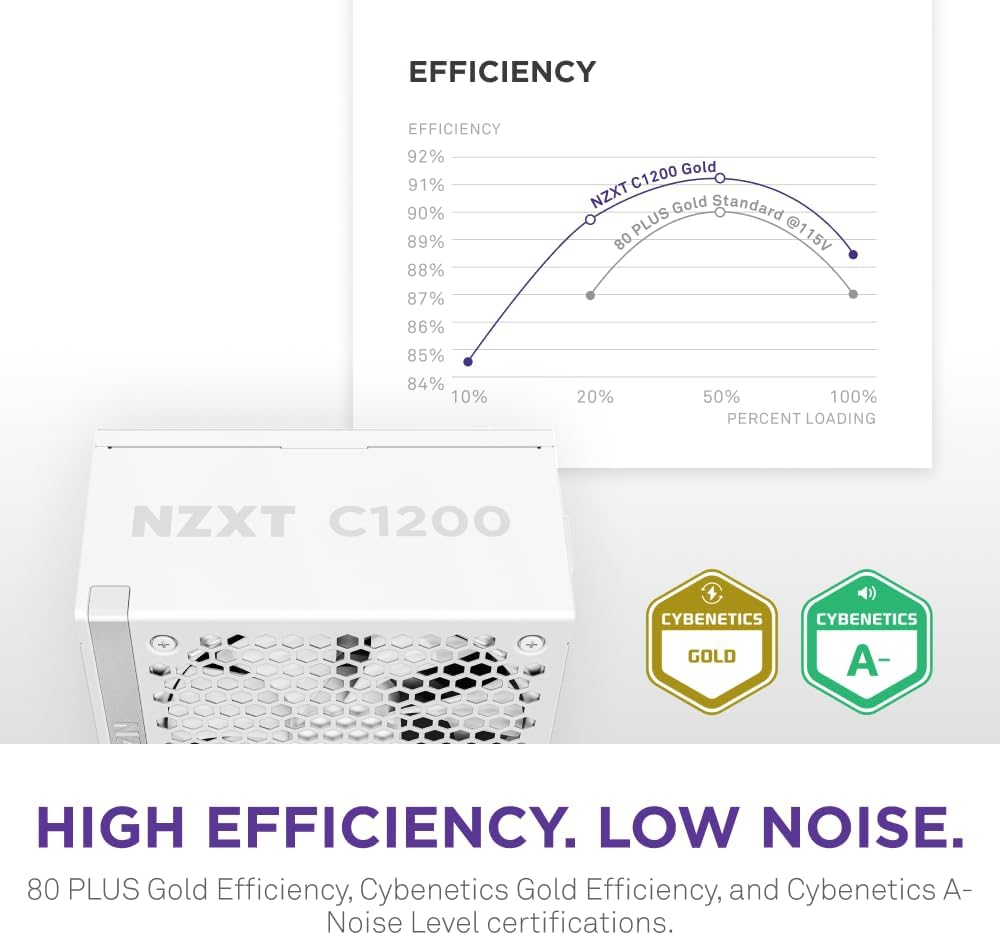
Figure 7: Efficiency and Noise Level Certifications
7. Maintenance
Proper maintenance ensures the longevity and optimal performance of your power supply.
- Dust Cleaning: Periodically clean the exterior of the power supply and its fan grille using compressed air to remove dust buildup. Ensure the system is powered off and unplugged before cleaning. Do not spray liquids directly onto the unit.
- Environmental Conditions: Operate the power supply within its specified temperature and humidity ranges. Avoid extreme temperatures and high humidity environments.
- Cable Management: Ensure cables are not obstructing airflow within the PC case.
8. Troubleshooting
If you encounter issues with your power supply, refer to the following troubleshooting steps:
8.1 No Power to System
- Check AC Power: Ensure the AC power cord is securely connected to both the power supply and the wall outlet. Verify the wall outlet is functional.
- PSU Switch: Confirm the power switch on the back of the power supply is in the "ON" (I) position.
- Internal Connections: Double-check that all modular cables (24-pin ATX, CPU, PCIe) are firmly connected to both the power supply and the respective components.
- Short Circuit: Disconnect all components except the motherboard, CPU, and one stick of RAM. If the system powers on, reconnect components one by one to identify the faulty component.
8.2 System Instability or Random Shutdowns
- Overload: Ensure your system's total power consumption does not exceed the power supply's 1200W capacity. Use a power calculator if unsure.
- Cable Integrity: Verify all power cables are correctly and securely connected. Loose connections can cause instability.
- Ventilation: Ensure adequate airflow within your PC case and that the power supply fan is not obstructed. Overheating can lead to shutdowns.
- Component Check: Test other components (RAM, GPU) if possible, as they can also cause instability.
8.3 Fan Not Spinning
- Zero Fan Mode: The fan may not spin if the power supply load is below 50% (Zero Fan Mode). This is normal operation.
- Dust Buildup: Check for dust accumulation on the fan blades or grille that might impede movement. Clean if necessary (with power off and unplugged).
If issues persist after following these steps, please contact NZXT customer support.
9. Specifications
| Feature | Detail |
|---|---|
| Brand | NZXT |
| Model Name | NZXT C1200 Gold ATX 3.1 |
| Item Model Number | PA-2G2BW-US |
| Output Wattage | 1200 Watts |
| Efficiency Rating | 80 PLUS Gold, Cybenetics Gold |
| ATX Standard | ATX 3.1 |
| Form Factor | ATX |
| Cooling Method | Air (135mm Fluid Dynamic Bearing Fan with Zero Fan Mode) |
| Noise Level | Cybenetics A- |
| Capacitors | 100% Japanese Capacitors |
| Modular | Fully Modular |
| Dimensions (LxWxH) | 6.3 x 5.91 x 3.39 inches (160 x 150 x 86 mm) |
| Item Weight | 8.34 pounds (3.79 Kilograms) |
| Color | White |
| Connector Type | ATX, 12V-2x6 |

Figure 8: Internal Components with Japanese Capacitors
10. Warranty and Support
10.1 Warranty Information
The NZXT C1200 Gold ATX 3.1 Power Supply comes with a 10-year warranty from the date of purchase. This warranty covers defects in materials and workmanship under normal use. Please retain your proof of purchase for warranty claims. The warranty does not cover damage caused by improper installation, accidents, abuse, misuse, natural disasters, or unauthorized modifications.
10.2 Customer Support
For technical assistance, troubleshooting, or warranty inquiries, please visit the official NZXT support website or contact their customer service department.
- NZXT Support Website: www.nzxt.com/support
- Refer to the NZXT website for the most up-to-date contact information and support resources.


