
YanLan G7
YanLan G7 Wired Gaming Mouse User Manual
Model: G7 | Brand: YanLan
Introduction
Thank you for choosing the YanLan G7 Wired Gaming Mouse. This high-performance mouse is designed for precision and comfort, featuring 7 programmable buttons, adjustable DPI settings, and vibrant RGB LED lighting. This manual will guide you through the setup, operation, and maintenance of your new gaming mouse.

Image: The YanLan G7 Wired Gaming Mouse, showcasing its ergonomic design and colorful RGB lighting from a top-down perspective.
1. Setup
The YanLan G7 Wired Gaming Mouse is a plug-and-play device, requiring no additional drivers for basic functionality. Follow these simple steps to get started:
- Connect the USB Cable: Locate an available USB port on your computer (desktop or laptop).
- Plug in the Mouse: Insert the USB connector of the G7 mouse into the USB port.
- System Recognition: Your operating system (Windows, Mac OS) will automatically detect and install the necessary generic drivers. This process usually takes a few seconds.
- Ready for Use: Once recognized, the mouse's LED lighting will illuminate, and it will be ready for immediate use.

Image: The YanLan G7 Wired Gaming Mouse connected to a laptop, illustrating its design with a metal panel and galvanized wings.
2. Operating Instructions
2.1 Button Functions
The G7 mouse features 7 buttons for enhanced control and customization:
- Left Click Button: Standard primary click function.
- Right Click Button: Standard secondary click function.
- Scroll Wheel (Middle Click): For scrolling and middle-click actions.
- DPI Adjustment Button: Cycles through DPI settings (see section 2.2).
- Forward Button: Typically used for navigating forward in web browsers or file explorers.
- Back Button: Typically used for navigating backward in web browsers or file explorers.
- Seventh Button: This button's specific function may vary or be programmable depending on software, if available. Default is often a double-click or macro key.
2.2 DPI Adjustment
The G7 mouse allows you to adjust its sensitivity (DPI - Dots Per Inch) on the fly. This is useful for different tasks, such as precise aiming in games or fast navigation across multiple monitors.
- DPI Levels: The mouse supports four adjustable DPI levels: 1200, 1800, 2400, and 3600 DPI.
- How to Adjust: Press the dedicated DPI Adjustment Button (usually located behind the scroll wheel) to cycle through the available DPI settings. Each press will switch to the next DPI level.
- Visual Indicator: The RGB lighting may change color or pattern to indicate the current DPI setting, though this is not explicitly stated, it is a common feature.
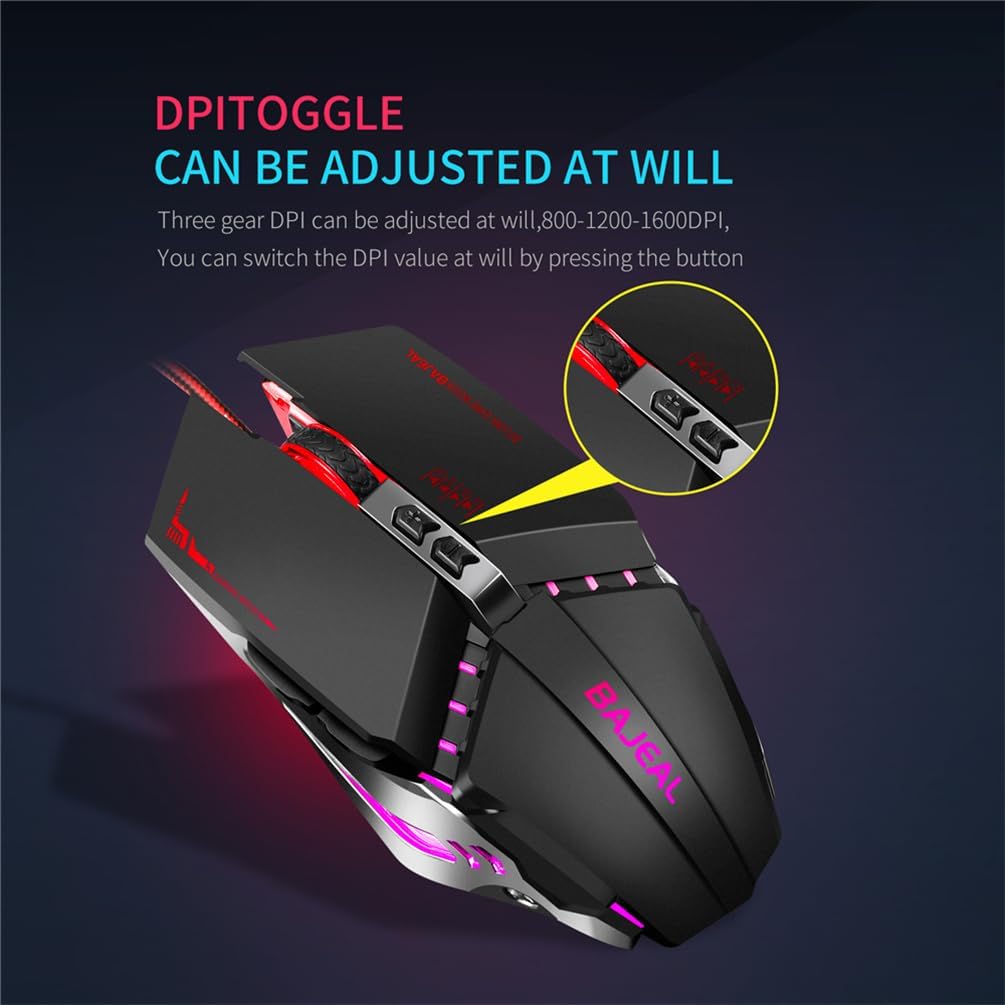
Image: A close-up view of the YanLan G7 Wired Gaming Mouse highlighting the DPI toggle button. Note: The image text indicates 800-1200-1600 DPI, while the product description specifies 1200-1800-2400-3600 DPI.
2.3 RGB LED Lighting
The G7 mouse features dynamic RGB LED lighting, enhancing its aesthetic appeal. The lighting effects are typically pre-programmed and cycle automatically. There are no user-adjustable settings for the RGB lighting directly on the mouse.
3. Maintenance
To ensure the longevity and optimal performance of your YanLan G7 mouse, follow these simple maintenance guidelines:
- Cleaning the Surface: Use a soft, dry, lint-free cloth to wipe the exterior of the mouse. For stubborn dirt, slightly dampen the cloth with water. Avoid harsh chemicals or abrasive cleaners.
- Cleaning the Optical Sensor: Periodically inspect the optical sensor on the underside of the mouse for dust or debris. Use a cotton swab or compressed air to gently clean the sensor area.
- Cable Care: Avoid sharply bending or twisting the USB cable. Store the mouse in a way that prevents the cable from being crimped or damaged.
- Avoid Liquids: Do not expose the mouse to liquids. If liquid spills on the mouse, immediately disconnect it from your computer and allow it to dry completely before reconnecting.
4. Troubleshooting
If you encounter any issues with your YanLan G7 mouse, refer to the following common problems and solutions:
| Problem | Possible Solution |
|---|---|
| Mouse is not responding. |
|
| Cursor movement is erratic or jumpy. |
|
| Buttons are not functioning correctly. |
|
| RGB lighting is not working. |
|
5. Specifications
| Model | G7 |
| Brand | YanLan |
| DPI Settings | 1200 / 1800 / 2400 / 3600 DPI |
| Number of Buttons | 7 |
| Connection Type | Wired USB |
| Cable Length | 1.5 meters |
| Product Weight | 140 grams |
| Color | Black |
| Dimensions (L x W x H) | 130 mm x 76 mm x 42 mm |
| Compatible Systems | Windows XP, Vista, 7, 8, 10, ME, 2000, Mac OS (or latest versions) |
| Special Features | RGB LED Lighting, Ergonomic Design, Durable Micro-switch, Optical Tracking |
6. Warranty and Support
Information regarding product warranty and customer support is not provided in the available product details. Please refer to your purchase documentation or contact the retailer for specific warranty terms and support options.
Ask a question about this manual
Ask about setup, troubleshooting, compatibility, parts, safety, or missing instructions. Manuals+ will review the question and use this page’s manual context to help answer it.