1. Introduction
This manual provides detailed instructions for the Masterbee H30 Kids Digital Camera. Please read this manual thoroughly before using the camera to ensure proper operation and to maximize your child's enjoyment and learning experience. This camera is designed for children aged 3-12 years to explore photography and videography in a fun and safe manner.
2. What's in the Box
- Masterbee H30 Kids Digital Camera
- 32GB SD Card (pre-installed)
- USB Charging Cable
- Lanyard
- High-Quality Silicone Protective Case

Image: Masterbee H30 Kids Digital Camera and its accessories, including the pre-installed 32GB SD card, USB charging cable, and lanyard.
3. Product Features
3.1. High Definition Photo & Video
The camera supports capturing clear 20MP pictures and recording 1080P HD videos, allowing children to document their experiences with good clarity.

Image: A child capturing moments with the camera, highlighting its HD dual lens and digital zoom features.

Image: A child recording a 1080P HD video, demonstrating the camera's video recording capabilities and speed options.
3.2. Dual-Lens & Digital Zoom
Equipped with front and rear dual lenses, the camera facilitates easy selfies. Digital zoom allows for capturing distant subjects.

Image: The camera features both front and rear lenses, enabling children to take photos and selfies easily.

Image: Demonstrates the digital zoom function, allowing for closer capture of subjects.
3.3. Creative Modes & Games
The camera includes multiple frames, color filters, and mirror effects to enhance creativity. Five puzzle games are integrated to develop intelligence and concentration.
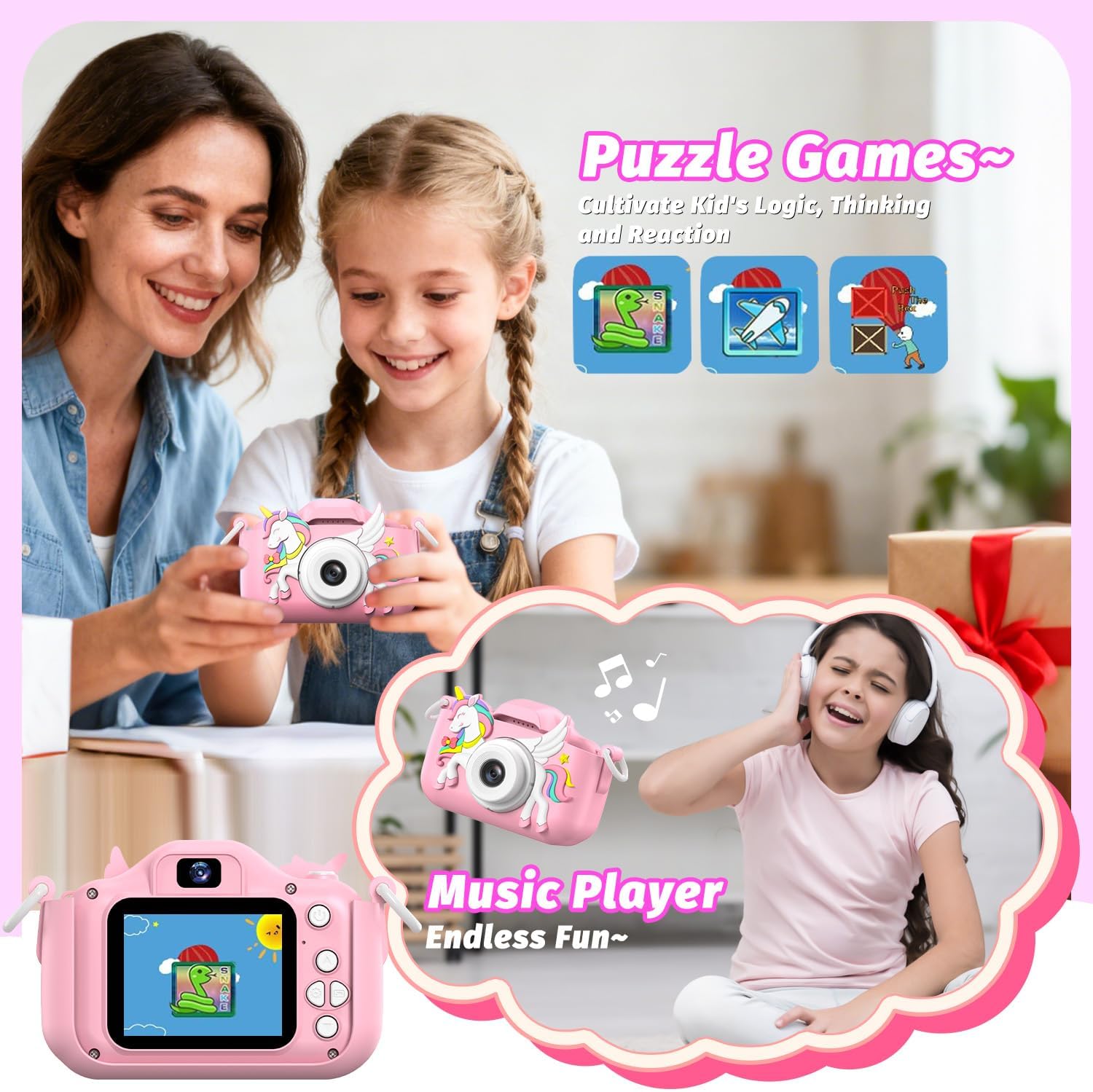
Image: The camera offers a variety of frames, filters, and color effects to personalize photos.

Image: The camera includes built-in puzzle games and a music player for additional entertainment.
3.4. Durable Design & Portability
A high-quality silicone case provides shockproof, anti-drop, and anti-slip protection. Its compact size (4.1x2.1x3 inches, 105g) and included lanyard make it easy for children to carry.

Image: The camera's silicone case provides robust protection against drops and impacts.
3.5. Memory & Battery
Comes with a pre-installed 32GB SD card for extensive storage of photos and videos. Features a built-in rechargeable battery for convenient power.
4. Setup
4.1. Charging the Camera
Before first use, fully charge the camera. Connect the included USB charging cable to the camera's charging port and to a compatible USB power source (e.g., computer, wall adapter). The charging indicator light will illuminate during charging and turn off when fully charged.
4.2. SD Card Installation
The camera comes with a 32GB SD card pre-installed. If you need to remove or replace it, gently push the card into the slot until it clicks, then release to eject. Ensure the camera is powered off before inserting or removing the SD card.
4.3. Attaching the Lanyard
Attach the lanyard to the designated loops on the camera's silicone case. This helps prevent accidental drops and makes the camera easier for children to carry.
5. Operating Instructions
5.1. Power On/Off
- To power on: Press and hold the Power button (usually located on the top or side) for a few seconds until the screen illuminates.
- To power off: Press and hold the Power button again until the screen turns off.
5.2. Menu Navigation
Use the directional buttons (Up, Down, Left, Right) to navigate through the menu options on the screen. Press the 'OK' or 'Shutter' button to select an option.
5.3. Taking Photos
- Switch to Photo Mode from the main menu.
- Frame your shot using the screen.
- Press the 'Shutter' button (usually on top) to take a picture.
- To switch between front and rear cameras: Look for a dedicated button or an option in the photo mode menu.
5.4. Recording Videos
- Switch to Video Mode from the main menu.
- Press the 'Shutter' button to start recording. A timer will appear on the screen.
- Press the 'Shutter' button again to stop recording.
5.5. Using Special Effects
In Photo or Video Mode, use the directional buttons to access options for frames, filters, and mirror effects. Select your desired effect before capturing.
5.6. Playing Games & Music
- From the main menu, select the 'Games' icon to access the built-in puzzle games.
- Select the 'Music' icon to access the music player. You can upload MP3 files to the SD card via a computer for playback.
5.7. Transferring Files to a Computer
Connect the camera to a computer using the USB cable. The camera will appear as a removable disk drive. You can then copy photos and videos from the SD card to your computer.
6. Maintenance
- Cleaning: Use a soft, dry cloth to clean the camera body and screen. Do not use liquid cleaners.
- Lens Care: Keep the lens clean and free from dust or fingerprints. Use a lens cleaning cloth if necessary.
- Battery Care: Avoid fully discharging the battery frequently. Charge regularly to prolong battery life.
- Storage: Store the camera in a cool, dry place away from direct sunlight and extreme temperatures.
7. Troubleshooting
- Camera not turning on: Ensure the battery is charged. Connect to a charger and try again.
- Cannot take photos/videos: Check if the SD card is inserted correctly and has sufficient free space.
- Screen frozen: Try restarting the camera by holding the power button. If unresponsive, allow the battery to fully discharge and then recharge.
- Poor image quality: Ensure the lens is clean. Check lighting conditions.
8. Specifications
| Feature | Specification |
|---|---|
| Model Name | H30 |
| Screen Size | 2 Inches |
| Display Type | IPS |
| Display Resolution Maximum | 1080p |
| Has Color Screen | Yes |
| Flash Memory Type | SD |
| Memory Storage Capacity | 32 GB |
| Recording Capacity | 160 Minutes |
| Effective Still Resolution | 20 MP |
| Total Still Resolution | 20 MP |
| Video Resolution | 1080p |
| Viewfinder | Optical |
| ISO Range | 100-25600 |
| Built-In Media | SD card, lanyard, high-quality silicon case |
| Are Batteries Included | Yes |
| External-Memory Size | 32 GB |
| Item Weight | 105 Grams |
9. Warranty and Support
For warranty information or technical support, please refer to the product packaging or contact Masterbee customer service directly. Keep your purchase receipt for warranty claims.


