
1. Introduction
This manual provides comprehensive instructions for the installation, operation, maintenance, and troubleshooting of the Kiloview D350 9-Channel 4K UHD H.265/H.264 IP to HDMI/SDI Video Decoder. Please read this manual thoroughly before using the device to ensure proper functionality and to prevent damage.
2. Product Overview
2.1 Key Features
- Professional hardware decoding device for up to 9 network video streams simultaneously.
- Synchronized output via 3G-SDI and HDMI interfaces.
- Supports up to 4Kp60 output resolution.
- Built-in LCD screen for real-time IP status and decoding parameter monitoring.
- Dynamic switching, background/LOGO overlay, and custom split display.
- Simultaneous decoding of up to 16 channels of video streams (resolution dependent).
- Customizable multi-output display including grid and Picture-in-Picture (PIP).
- Three output ports: two HDMI 2.0 ports and one 3G-SDI port.
- Capable of independent output, combined multi-channel video flows, or replication of a single flow.
- Full protocol support.
- Low latency and high-quality decoding.
2.2 Package Contents
- Kiloview D350 Video Decoder
- Power Adapter
- User Manual
2.3 Device Layout
Familiarize yourself with the ports and indicators on the Kiloview D350 decoder.

Figure 1: Top view of the Kiloview D350 decoder, showing the integrated LCD screen and control buttons for navigation and status monitoring.

Figure 2: Rear view of the Kiloview D350, highlighting the output interfaces: SDI OUT, LINE OUT (audio), and two HDMI OUT ports (1 and 2).
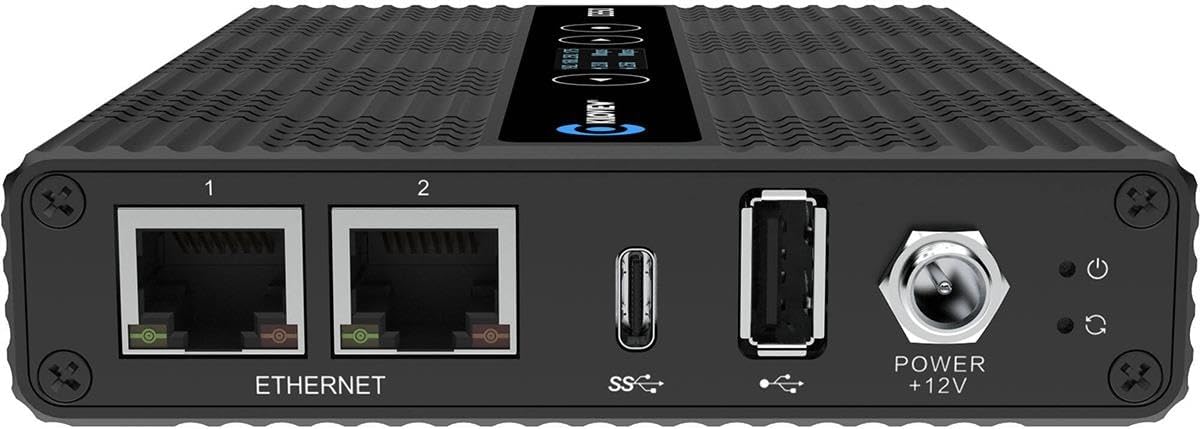
Figure 3: Front view of the Kiloview D350, showing the input and power interfaces: two Ethernet ports (1 and 2), USB-C (SS), USB-A (SS), Power +12V input, and a power button.

Figure 4: Bottom view of the Kiloview D350, displaying product model (D350), 4K H.265 Video Decoder, website (www.kiloview.com), MAC address, and regulatory compliance marks (FCC, CE, RoHS).
3. Setup
Follow these steps to set up your Kiloview D350 decoder.
3.1 Connecting Power
- Connect the provided power adapter to the "POWER +12V" input port on the D350.
- Plug the power adapter into a suitable electrical outlet.
- Press the power button to turn on the device. The LCD screen will illuminate.
3.2 Network Connection
- Connect an Ethernet cable from your network switch or router to either of the "ETHERNET" ports (1 or 2) on the D350.
- Ensure the network connection is active. The corresponding LED indicator on the Ethernet port will show activity.
3.3 Video Output Connection
- HDMI Output: Connect HDMI cables from the "HDMI OUT 1" and/or "HDMI OUT 2" ports to your display devices (monitors, TVs, projectors).
- SDI Output: Connect an SDI cable from the "SDI OUT" port to your SDI-compatible display or recording device.
- Audio Output: If external audio monitoring is required, connect an audio cable to the "LINE OUT" port.

Figure 5: Example setup showing two Kiloview D350 units connected to power, network, and video output devices, illustrating typical deployment.
3.4 Initial Configuration (Web Interface)
The D350 is primarily configured via its web interface. The IP address will be displayed on the built-in LCD screen upon startup. If DHCP is enabled on your network, an IP address will be assigned automatically. If not, a default static IP address may be used (refer to the device's packaging or Kiloview support for default IP if not displayed).
- Note the IP address displayed on the D350's LCD screen.
- Open a web browser on a computer connected to the same network.
- Enter the IP address into the browser's address bar and press Enter.
- Log in using the default credentials (refer to the device's documentation for default username and password).
- Once logged in, you can configure decoding parameters, output settings, and network settings.
4. Operating Instructions
This section details the basic operation of the Kiloview D350.
4.1 Decoding IP Streams
The D350 can decode various IP video streams. Configuration is done through the web interface.
- Access the web interface as described in Section 3.4.
- Navigate to the "Decoding" or "Stream Management" section.
- Add new stream sources by entering the IP address, port, and protocol (e.g., RTMP, RTSP, NDI, SRT, HLS).
- Configure decoding parameters such as resolution, bitrate, and latency settings.
- Assign decoded streams to specific output channels (HDMI 1, HDMI 2, SDI).
4.2 Output Display Modes
The D350 supports flexible output display configurations.
- Single Stream Output: Display one decoded stream on one or more output ports.
- Multi-Channel Grid Display: Combine multiple decoded streams into a grid layout on a single output. The D350 supports customizable grid layouts.
- Picture-in-Picture (PIP): Overlay one decoded stream as a smaller window on top of another main stream.
- Dynamic Switching: Switch between different decoded streams or display layouts on the fly using the web interface or device controls.
- Background/LOGO Overlay: Add custom backgrounds or logos to your output display.
4.3 Real-time Monitoring
The built-in LCD screen provides immediate feedback on the device's status.
- IP Status: View the current IP address and network connection status.
- Decoding Parameters: Monitor active decoding streams, resolution, and bitrate.
- System Status: Check device temperature and other operational metrics.
5. Maintenance
Proper maintenance ensures the longevity and optimal performance of your D350 decoder.
5.1 Cleaning
- Ensure the device is powered off and disconnected from all cables before cleaning.
- Use a soft, dry cloth to wipe the exterior of the device.
- Do not use liquid cleaners, aerosols, or solvents, as these may damage the device.
- Keep ventilation openings clear of dust and debris.
5.2 Firmware Updates
Periodically check the Kiloview official website for firmware updates. Firmware updates can provide new features, performance improvements, and bug fixes.
- Download the latest firmware file from the official Kiloview support page.
- Access the D350's web interface.
- Navigate to the "System Settings" or "Firmware Update" section.
- Follow the on-screen instructions to upload and install the firmware. Do not power off the device during the update process.
6. Troubleshooting
This section addresses common issues you might encounter with the Kiloview D350.
6.1 No Power
- Ensure the power adapter is securely connected to both the D350 and a working power outlet.
- Verify the power button has been pressed.
- Check if the power adapter is functional by testing it with another compatible device if possible.
6.2 No Video Output
- Confirm that HDMI/SDI cables are securely connected to both the D350 and the display device.
- Ensure the display device is powered on and set to the correct input source.
- Verify that streams are actively being decoded and assigned to the correct output ports in the web interface.
- Check the resolution and frame rate settings in the web interface to ensure they are compatible with your display device.
- Try a different HDMI/SDI cable or display device to rule out cable or display issues.
6.3 Network Connection Issues
- Check the Ethernet cable connection to the D350 and your network switch/router.
- Verify that the network LED indicators on the D350's Ethernet port are active.
- Confirm that the D350 has a valid IP address displayed on its LCD screen.
- Ensure your computer is on the same network subnet as the D350 when trying to access the web interface.
- If using a static IP, double-check the settings in the web interface.
6.4 Decoding Errors or Stuttering Video
- Check the network bandwidth. Insufficient bandwidth can cause decoding issues.
- Verify the source stream is stable and healthy.
- Ensure the D350's firmware is up to date.
- Adjust decoding parameters (e.g., buffer size, latency) in the web interface if available.
- Reduce the number of simultaneous streams if the device is decoding near its maximum capacity.
7. Specifications
| Feature | Detail |
|---|---|
| Brand | KILOVIEW |
| Model Number | D350 |
| Decoding Capacity | Up to 9 network video streams simultaneously (up to 16 channels depending on resolution) |
| Output Resolution | Up to 4Kp60 |
| Video Codecs | H.265/H.264 |
| Output Interfaces | 2x HDMI 2.0, 1x 3G-SDI |
| Network Interfaces | 2x Ethernet |
| Other Ports | USB-C (SS), USB-A (SS), Line Out (audio) |
| Dimensions (L x W x H) | 4.13" x 1.1" x 5.51" (10.49 cm x 2.79 cm x 14.00 cm) |
| Item Weight | 1.49 pounds (0.67 kg) |
| Connectivity Technology | HDMI |
| Compatible Devices | Camera, Desktop, Laptop |
8. Warranty and Support
For detailed warranty information and technical support, please refer to the official Kiloview website or contact your authorized dealer. Keep your purchase receipt for warranty claims.
Official Website: www.kiloview.com


