1. Introduction
This manual provides detailed instructions for the installation, operation, and maintenance of your NZXT F280 RGB Core Single-Frame Fan Unit. Please read this manual thoroughly before installation and use to ensure proper functionality and longevity of your product.
The NZXT F280 RGB Core is designed to provide efficient cooling and vibrant RGB lighting for your PC system. Its single-frame design simplifies installation and cable management.
2. Product Features
- ALL-IN-ONE DESIGN: Single-frame unit with integrated fans streamlines installation and lighting control—no need to connect individual fans.
- VERSATILE CONNECTIVITY: Simply connect to an NZXT controller (sold separately) for lighting and speed control via NZXT CAM software. Or, connect to any motherboard's 5V aRGB header using the included splitter cable.
- OPTIMAL PERFORMANCE: Fan blades are designed to boost static pressure to push air through tight spaces while ensuring superior airflow.
- SILENT & DURABLE: Fluid dynamic bearings ensure quiet performance and longevity across an exceptional 60,000 hour lifespan.
- VIBRANT LIGHTING: Eight individually addressable RGB LEDs per fan hub shine through semi-translucent blades for personalized lighting effects.
3. What's in the Box
The NZXT F280 RGB Core package includes:
- 1 x NZXT F280 RGB Core Single-Frame Fan Unit
- Mounting Screws
- 5V aRGB Splitter Cable
- User Manual (this document)

Figure 3.1: NZXT F280 RGB Core Fan Unit and Packaging. The package contains the fan unit, mounting screws, and a 5V aRGB splitter cable.
4. Setup and Installation
Follow these steps for proper installation of your NZXT F280 RGB Core fan unit into your PC case.
4.1. Preparation
- Ensure your PC is powered off and disconnected from the main power supply.
- Open your PC case to access the fan mounting locations.
- Identify suitable mounting points for a 280mm fan unit (e.g., front, top, or bottom of the case, depending on your case's compatibility). Refer to your PC case manual for specific fan mounting options.

Figure 4.1: Fan Compatibility Table for NZXT H-series cases. This table illustrates common mounting locations and sizes for NZXT F-series fans, including the F280, within various NZXT H-series PC cases.
4.2. Mounting the Fan Unit
- Position the NZXT F280 RGB Core fan unit at your desired mounting location.
- Align the screw holes on the fan unit with the corresponding holes on your PC case.
- Secure the fan unit using the provided mounting screws. Tighten them firmly but do not overtighten.

Figure 4.2: Front view of the NZXT F280 RGB Core fan unit. The single-frame design simplifies mounting compared to individual fans.

Figure 4.3: All-in-One Design. This image highlights the streamlined nature of the single-frame unit compared to installing multiple individual fans.
4.3. Connecting the Fan Unit
The NZXT F280 RGB Core fan unit features a single cable for both power and RGB control, simplifying connectivity.
- Locate the integrated cable from the fan unit.
- Option 1 (Recommended for full control): Connect the fan unit's cable to an NZXT RGB & Fan Controller (sold separately). This allows for comprehensive speed and lighting control via NZXT CAM software.
- Option 2 (Basic RGB control): If you do not have an NZXT controller, use the included 5V aRGB splitter cable to connect the fan unit to a compatible 5V Addressable RGB header on your motherboard. This will allow motherboard software to control the RGB lighting.
- Connect the 4-pin PWM connector from the fan unit to an available 4-pin fan header on your motherboard for fan speed control.

Figure 4.4: Versatile Connectivity. The fan unit connects via a single cable, with an included splitter for direct motherboard 5V aRGB connection if an NZXT controller is not used.

Figure 4.5: Effortless Installation. This diagram illustrates the single cable from the fan unit and its various connection points for power and RGB control.
After all connections are made, carefully manage cables to ensure proper airflow and a clean build. Close your PC case.
5. Operating Instructions
Once installed, the NZXT F280 RGB Core fan unit operates automatically based on your system's fan control settings. For advanced control and customization, use the NZXT CAM software.
5.1. Fan Speed Control (PWM)
The fan speed is dynamically adjusted based on PC temperatures for optimal efficiency. This requires a PWM connection to your motherboard or an NZXT controller.
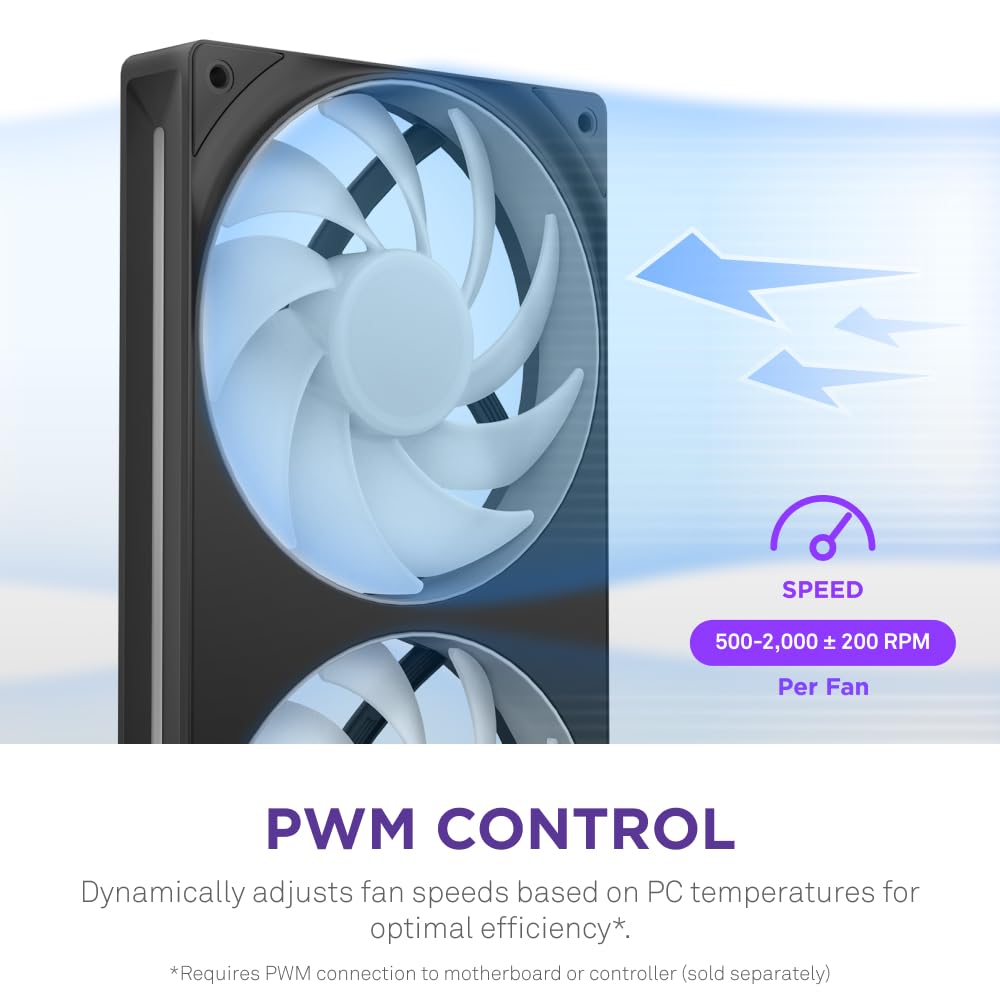
Figure 5.1: PWM Control. The fan speed can be dynamically adjusted between 500-2,000 RPM based on system temperatures.
For manual control or to set custom fan curves, use your motherboard's BIOS settings or the NZXT CAM software if connected to an NZXT controller.
5.2. RGB Lighting Control
The NZXT F280 RGB Core features 8 individually addressable RGB LEDs per fan hub, allowing for personalized lighting effects.

Figure 5.2: Radiant RGB Lighting. The fan unit displays vibrant, customizable RGB lighting through its semi-translucent blades.
If connected to an NZXT RGB & Fan Controller, use the NZXT CAM software to customize lighting effects, colors, and synchronization with other NZXT products.

Figure 5.3: Powered by NZXT CAM. The NZXT CAM software allows for comprehensive control over fan speeds and RGB lighting effects, integrating with other NZXT components.
If connected directly to a motherboard's 5V aRGB header, use your motherboard's proprietary RGB software (e.g., ASUS Aura Sync, MSI Mystic Light, Gigabyte RGB Fusion) to control the lighting.
5.3. Optimal Performance and Silent Operation
The fan blades are engineered for high static pressure and superior airflow, ensuring effective cooling even in restrictive environments. Fluid dynamic bearings contribute to quiet operation and extended lifespan.

Figure 5.4: Optimal Performance. The fan unit is designed for high static pressure (3.2 mm H₂O per fan) and maximum airflow (98.61 CFM per fan).

Figure 5.5: Fluid Dynamic Bearings. These bearings ensure low noise, high rotational stability, and a long lifespan of 60,000 hours.
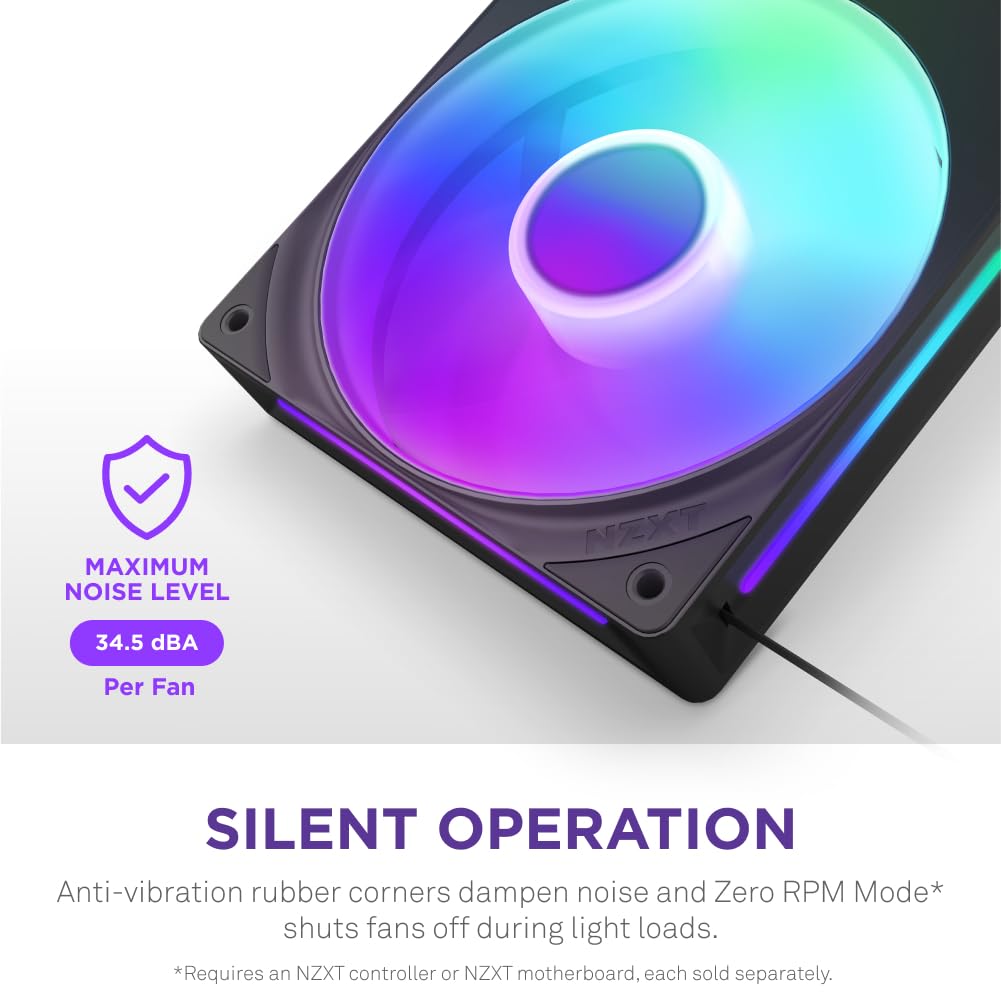
Figure 5.6: Silent Operation. The fan unit maintains a maximum noise level of 34.5 dBA, with anti-vibration rubber corners to dampen noise.
Some NZXT controllers or motherboards may support Zero RPM Mode, which shuts off fans during light loads for completely silent operation.
5.4. Product Overview Video
Video 5.1: NZXT Single Frame Fan Overview. This video provides a visual overview of the NZXT Single Frame Fan series, highlighting its design, simplified setup, and RGB lighting capabilities.
6. Maintenance
Regular maintenance helps ensure optimal performance and extends the lifespan of your NZXT F280 RGB Core fan unit.
- Dust Cleaning: Periodically inspect the fan blades and frame for dust accumulation. Use compressed air or a soft brush to gently remove dust. Ensure the fan is not spinning while cleaning.
- Cable Inspection: Check all connected cables (power, RGB) to ensure they are securely seated and not pinched or damaged.
- Software Updates: If using NZXT CAM software, regularly check for and install updates to ensure compatibility and access to the latest features and performance optimizations.
- Environmental Conditions: Ensure your PC operates in a clean, dry environment with adequate ventilation to prevent excessive dust buildup and maintain optimal operating temperatures.
7. Troubleshooting
If you encounter issues with your NZXT F280 RGB Core fan unit, refer to the following common troubleshooting steps:
7.1. Fan Not Spinning
- Check Power Connection: Ensure the 4-pin PWM connector is securely plugged into the motherboard fan header or NZXT controller.
- BIOS Settings: Verify that the fan header in your motherboard's BIOS is enabled and configured correctly (e.g., not set to "disabled" or "manual 0 RPM").
- NZXT CAM Software: If using an NZXT controller, open NZXT CAM and check if the fan is detected and if its speed profile is set to an active mode (not Zero RPM if you expect it to spin).
- Cable Integrity: Inspect the fan cable for any visible damage or kinks.
7.2. RGB Lighting Not Working or Incorrect
- Check RGB Connection: Ensure the RGB cable is securely connected to the NZXT controller or the 5V aRGB header on your motherboard. Note that this fan uses a 5V aRGB header, not a 12V RGB header.
- Software Control:
- If using NZXT CAM, ensure the fan is detected and lighting effects are configured. Try resetting lighting profiles.
- If using motherboard aRGB software, ensure the correct header is selected and lighting effects are applied. Close any conflicting RGB software.
- Power Cycle: Turn off your PC completely, unplug it from the wall, wait 30 seconds, then plug it back in and restart. This can sometimes reset RGB controllers.
7.3. Excessive Noise
- Check Mounting: Ensure the fan unit is securely mounted and screws are tightened appropriately. Loose mounting can cause vibrations.
- Dust Buildup: Clean the fan blades and motor housing from any dust or debris.
- Fan Speed: If the noise is due to high RPM, adjust the fan speed curve in NZXT CAM or your motherboard's BIOS to a quieter profile.
- Obstructions: Ensure no cables or other components are touching the fan blades.
8. Specifications
| Feature | Specification |
|---|---|
| Model Number | RF-U28HF-B1 |
| Fan Size | 280mm Single-Frame (2 x 140mm fans) |
| Dimensions | 11.02 x 11.02 x 11.02 inches |
| Weight | 15.1 ounces |
| Fan Speed | 500 - 2,000 ± 200 RPM |
| Airflow | Up to 98.61 CFM (per 140mm fan) |
| Static Pressure | Up to 3.2 mm H₂O (per 140mm fan) |
| Noise Level | 34.5 dB (Maximum) |
| Bearing Type | Fluid Dynamic Bearing (FDB) |
| Lifespan | 60,000 hours |
| LEDs | 8 aRGB LEDs per fan hub |
| Power Connector | 8-Pin (integrated) |
| Voltage | 12 Volts |
| Wattage | 7.08 watts |
| Material | Copper (likely referring to motor windings) |
| Manufacturer | NZXT |
| Country of Origin | China |
9. Warranty and Support
NZXT products are designed and manufactured to the highest quality standards. For detailed warranty information, please refer to the official NZXT website or the warranty card included with your product. Keep your proof of purchase for warranty claims.
For technical support, troubleshooting assistance, or to download the latest NZXT CAM software, please visit the official NZXT support website:
You can also contact NZXT customer service directly through their website for further assistance.


