
1. Introduction
Thank you for choosing the Smoostart Multifunction Bluetooth Microchip Scanner, Model W91A. This device is designed for efficient and reliable reading of animal microchips, supporting FDX-B (ISO11784/ISO11785) and EMID formats. It features multiple connectivity options for data transfer and a user-friendly interface.
Important Compatibility Note: This scanner is compatible only with FDX-B (ISO11784/ISO11785) and EMID microchips. It does not read AVID microchips or other formats not explicitly listed. Please verify the microchip format before attempting to scan.

This image highlights the critical compatibility information: the scanner supports FDX-B (ISO11784/ISO11785) and EMID microchips, but not AVID microchips.
2. Product Overview
The Smoostart W91A scanner is a handheld device with a clear display and intuitive controls. It is designed for ease of use in various environments.
2.1 Device Components
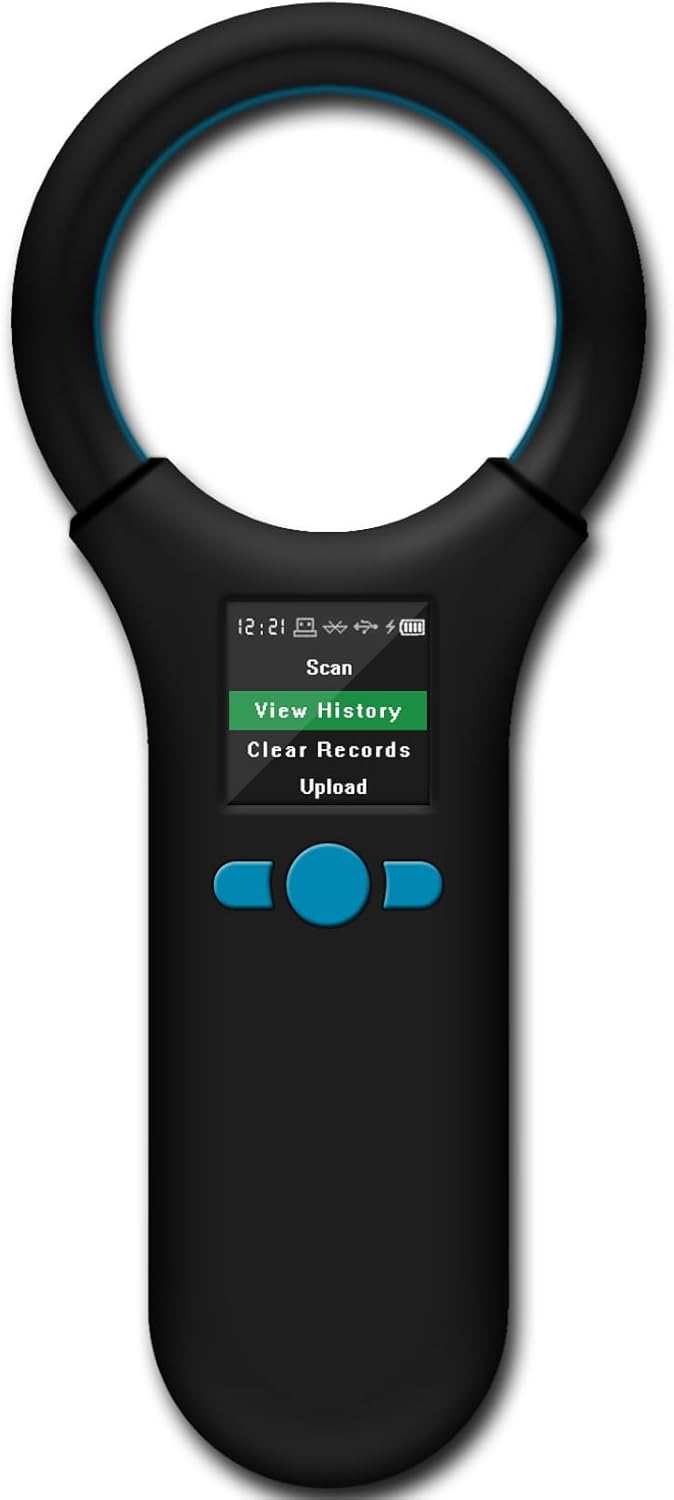
Front view of the Smoostart W91A Microchip Scanner, illustrating its ergonomic design and user interface.
2.2 Menu Structure
The scanner features a multi-level menu system for accessing various functions and settings.

This diagram shows the hierarchical menu structure, including Main Menu, Secondary Menu, and Tertiary Menu options for various settings and functions.
- Main Menu: Scan, View History, Clear Records, Upload, BT Connect, 2.4G Connect, Settings, Shutdown.
- Secondary Menu (Settings): Bluetooth, 2.4G, Date Mode, Prefix Mode, Brightness, Time, Volume, Language, Dormancy, Restore Default, Version, Back.
- Tertiary Menu (Prefix Mode): TimePrefix ON, TimeSuffix ON, Back.
3. Setup
3.1 Charging the Device
- Locate the USB charging port on the scanner.
- Connect the provided USB cable to the scanner and a compatible USB power source (e.g., computer USB port, USB wall adapter).
- The battery indicator on the display will show charging status. Allow the device to fully charge before first use.
3.2 Power On/Off
- To Power On: Press and hold the power button (usually the central button) until the display illuminates.
- To Power Off: Navigate to the Main Menu, select 'Shutdown', and confirm. Alternatively, press and hold the power button for several seconds.
3.3 Initial Settings
Upon first use or after a factory reset, you may need to configure basic settings:
- Navigate to the 'Settings' menu.
- Select 'Language' to choose your preferred language.
- Select 'Time' to calibrate the device's internal clock.
- Adjust 'Brightness' and 'Volume' as desired for optimal use.
4. Operating Instructions
4.1 Scanning Microchips
- Ensure the scanner is powered on.
- From the Main Menu, select 'Scan'.
- Hold the scanner's reading ring close to the area where the microchip is implanted (typically between the shoulder blades or on the neck of an animal).
- Move the scanner slowly and steadily over the area. The device will beep and display the microchip ID when a chip is detected.
- The scanned ID will be automatically saved to the device's history.

This image illustrates the scanner's capability to read FDX-B and EMID microchips, showing a microchip number being displayed after a scan.
4.2 Data Management
- View History: From the Main Menu, select 'View History' to browse previously scanned microchip IDs. The device can store up to 500 records.
- Clear Records: To delete all stored scan data, select 'Clear Records' from the Main Menu and confirm the action.
- Upload Data: The scanner supports uploading data to a PC, cell phone, or PAD.

This image demonstrates the scanner's ability to store up to 500 records and its two communication modes for transferring data to a smartphone or computer.
4.3 Connectivity and Data Upload
The Smoostart W91A offers multiple ways to connect and upload data:

This image illustrates the various data upload methods: USB cable to PC, 2.4G wireless to PC, Bluetooth to tablet, and Bluetooth to cell phone.
- USB Cable: Connect the scanner directly to a computer using the provided USB cable. Select 'Upload' then 'USB' from the scanner's menu. The data will typically appear as text input in an open document or application on your computer.
- 2.4G Wireless: If your package includes a 2.4G receiver, plug it into your computer. Select '2.4G Connect' from the Main Menu, then 'Upload' and '2.4G'.
- Bluetooth:
- Enable Bluetooth on your cell phone or tablet.
- On the scanner, select 'BT Connect' from the Main Menu to make it discoverable.
- Pair the scanner with your device.
- Once connected, select 'Upload' then 'Bluetooth' from the scanner's menu. Data will be transmitted to your paired device.
4.4 Advanced Settings
Within the 'Settings' menu, you can customize various operational parameters:
- Date Mode / Prefix Mode: Configure how date and time information is added to scanned data.
- Dormancy (Sleep Time): Set the inactivity period before the device enters sleep mode to conserve battery.
- Restore Default: Reset all settings to their factory defaults.
5. Maintenance
5.1 Cleaning
- Wipe the device with a soft, dry, lint-free cloth.
- Do not use abrasive cleaners, solvents, or strong chemicals.
- Avoid getting moisture into any openings.
5.2 Storage
- Store the scanner in a cool, dry place, away from direct sunlight and extreme temperatures.
- Keep out of reach of children and pets.
5.3 Battery Care
- Recharge the device regularly, even if not in frequent use, to maintain battery health.
- Avoid fully discharging the battery frequently.
- Do not expose the device to temperatures below 0°C (32°F) or above 45°C (113°F) during charging or storage.
6. Troubleshooting
- Device does not power on:
Ensure the battery is sufficiently charged. Connect the scanner to a power source using the USB cable and allow it to charge for at least 30 minutes before attempting to power on again. - Cannot read microchip:
- Confirm that the microchip is either FDX-B (ISO11784/ISO11785) or EMID format. This scanner does not support AVID microchips.
- Ensure the scanner is held directly over the microchip's location (typically the animal's shoulder blades or neck) and moved slowly.
- Verify the scanner's battery level. Low battery can affect scanning performance.
- Cannot connect via Bluetooth/2.4G/USB or upload data:
- For USB connection, ensure the cable is securely connected to both the scanner and the computer.
- For Bluetooth, ensure Bluetooth is enabled on both the scanner and the receiving device (phone/tablet) and that they are properly paired.
- For 2.4G wireless, ensure the 2.4G receiver (if applicable) is correctly plugged into the computer and the scanner is in 2.4G connect mode.
- Check the 'Data Mode' settings in the scanner's menu to ensure it matches the expected format for your receiving device (e.g., DEC Mode).
- Display is dim or unreadable:
Adjust the 'Brightness' setting in the 'Settings' menu. Ensure the device is not exposed to direct sunlight or extreme glare.
7. Specifications
| Feature | Specification |
|---|---|
| Model Number | W91A |
| Supported Microchip Formats | FDX-B (ISO11784/ISO11785), EMID |
| Data Storage Capacity | Up to 500 records |
| Connectivity Technology | USB Cable, Bluetooth, 2.4G Wireless |
| Compatible Devices | Desktop, Laptop, Smartphone, Tablet |
| Power Source | Built-in High-Capacity Lithium Battery |
| Item Weight | 3.52 ounces (0.1 Kilograms) |
| Item Dimensions (L x W x H) | 7.17 x 3.23 x 1.77 inches (18.2 x 8.2 x 4.5 cm) |
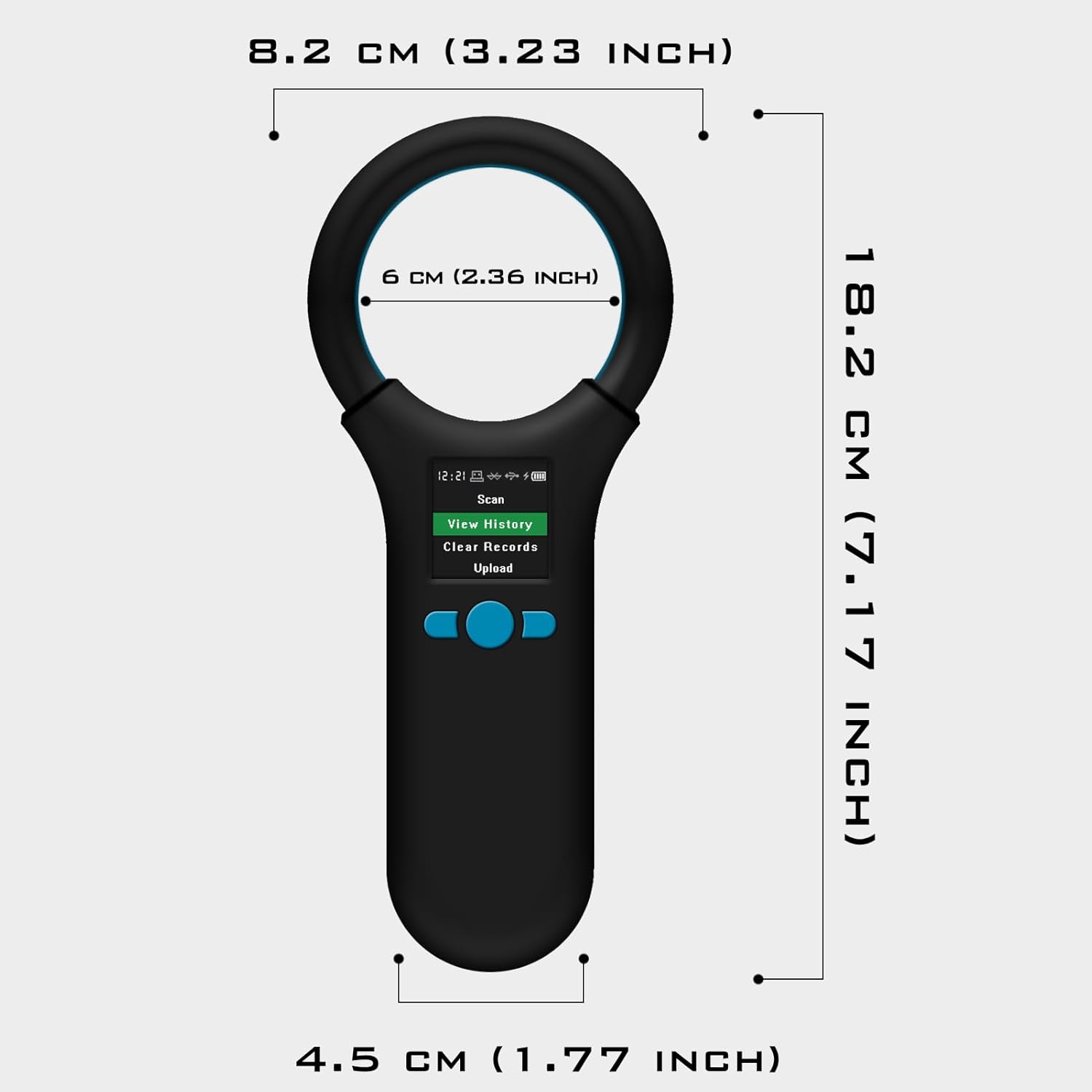
This image provides a visual representation of the scanner's dimensions in both centimeters and inches.
8. Warranty and Support
8.1 Warranty Information
Based on the provided product information, there is no explicit warranty description for this device.
8.2 Customer Support
For further assistance, technical support, or inquiries regarding your Smoostart Multifunction Bluetooth Microchip Scanner, please refer to the official Smoostart brand store or contact their customer service channels.


