
Introduction
The NZXT F360 RGB Core is a 360mm single-frame fan unit designed for efficient PC cooling. It features three integrated 120mm RGB fans, simplifying installation and cable management. This unit provides customizable RGB lighting and is engineered for optimal airflow and static pressure, ensuring quiet and durable operation through fluid dynamic bearings.

Image: The NZXT F360 RGB Core 360mm Single-Frame Fan Unit, showcasing its integrated design and vibrant RGB lighting.
What's in the Box
Verify that all components are present before proceeding with installation:
- NZXT F360 RGB Core 360mm Single-Frame Fan Unit
- Mounting Screws
- 5V aRGB Splitter Cable
Product Features
- All-in-One Design: The single-frame unit integrates three fans, streamlining installation and simplifying lighting control by reducing individual fan connections.
- Versatile Connectivity: Connects to an NZXT controller (sold separately) for lighting and speed control via NZXT CAM software, or directly to any motherboard's 5V aRGB header using the included splitter cable.
- Optimal Performance: Fan blades are specifically designed to enhance static pressure, effectively pushing air through restricted spaces while maintaining superior overall airflow.
- Silent & Durable: Equipped with fluid dynamic bearings, these fans ensure quiet operation and offer an extended lifespan of up to 60,000 hours.
- Vibrant Lighting: Each fan hub features eight individually addressable RGB LEDs, which illuminate through semi-translucent blades for personalized and dynamic lighting effects.
Setup
1. Unpacking
Carefully remove the fan unit and all accessories from the packaging. Inspect for any signs of damage. Retain the packaging for future transport or warranty claims.
2. Installation
- Mounting the Fan Unit: Position the NZXT F360 RGB Core unit in your PC case where a 360mm fan or radiator mount is available. Secure the unit using the provided mounting screws. Typically, only four screws are needed for the entire single-frame unit.
- Connecting Power: Connect the 3-pin power connector from the fan unit to an available fan header on your motherboard or fan controller.
- Connecting RGB Lighting:
- Option A (NZXT Controller): If using an NZXT controller (sold separately), connect the fan unit's RGB cable to the appropriate port on the controller. This allows for control via NZXT CAM software.
- Option B (Motherboard aRGB Header): Use the included 5V aRGB splitter cable to connect the fan unit's RGB cable to a compatible 5V addressable RGB header on your motherboard. Consult your motherboard manual for header location and specifications.
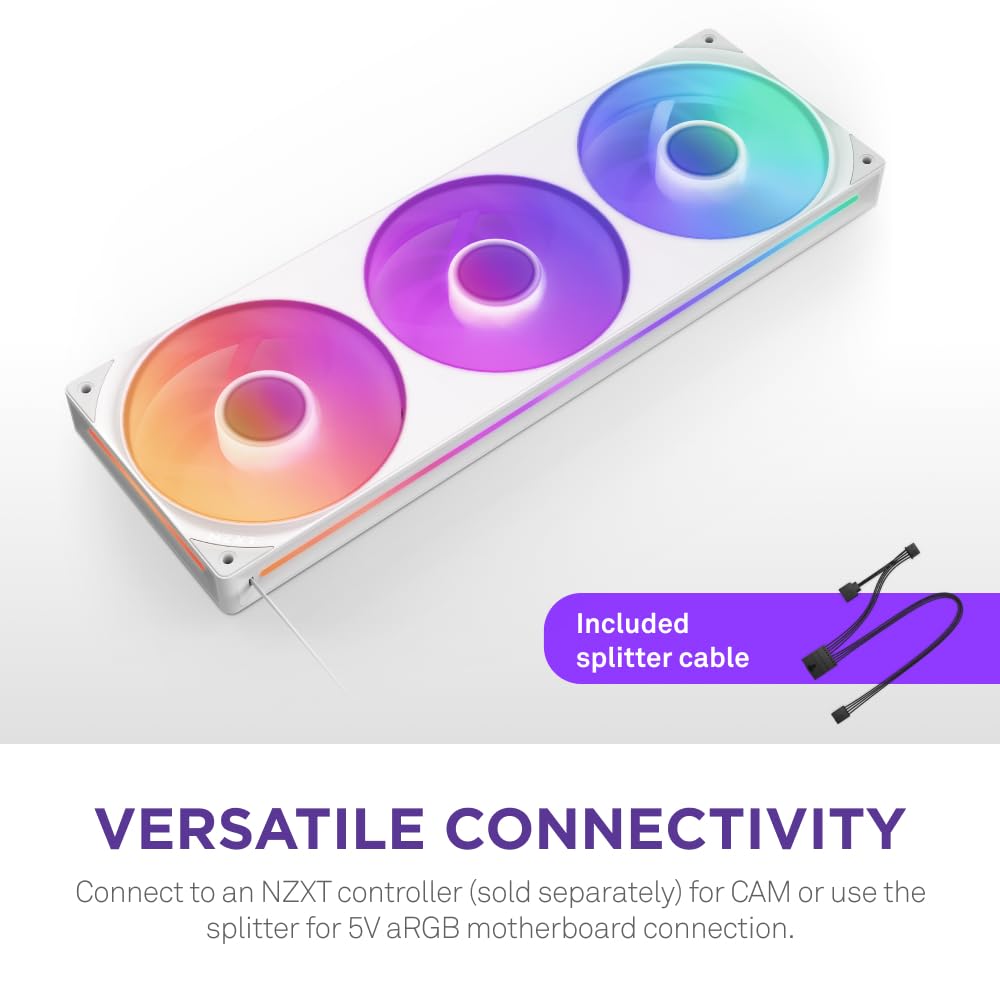
Image: The NZXT F360 RGB Core fan unit with its versatile connectivity options, including the 5V aRGB splitter cable.
Image: Wiring diagram for effortless installation, showing the 5V RGB Extension, 4-pin NZXT RGB Connector, and 4-pin PWM Fan Connector.
Operating
1. Fan Speed Control
The NZXT F360 RGB Core fans support PWM (Pulse Width Modulation) control, allowing dynamic adjustment of fan speeds based on PC temperatures for optimal efficiency. This requires a PWM connection to your motherboard or an NZXT controller (sold separately).

Image: Illustration of airflow and the fan's speed range (500-2400 RPM) for effective cooling.
2. RGB Lighting Control
The vibrant RGB lighting can be customized through:
- NZXT CAM Software: If connected to an NZXT controller, the NZXT CAM software provides comprehensive control over lighting effects, colors, and synchronization with other NZXT products.
- Motherboard RGB Software: If connected to a 5V aRGB header on your motherboard, you can use your motherboard's native RGB control software to manage the lighting.

Image: A PC build featuring NZXT F360 RGB Core fans, demonstrating lighting customization through the NZXT CAM software interface.
Maintenance
1. Cleaning
Regular cleaning helps maintain optimal performance and extends the lifespan of your fan unit. Use a can of compressed air to gently remove dust from the fan blades and frame. Ensure the PC is powered off and unplugged before cleaning. Avoid using liquid cleaners directly on the fan components.
2. Inspection
Periodically check the fan unit for any loose connections or unusual wear. Ensure mounting screws are secure. If you notice any abnormal noises or reduced performance, refer to the troubleshooting section or contact support.
Troubleshooting
- Fan Not Spinning:
- Check if the 3-pin power connector is securely attached to the motherboard or controller.
- Ensure the fan header on the motherboard is enabled in the BIOS/UEFI settings.
- Verify that the power supply unit (PSU) is functioning correctly.
- RGB Lighting Not Working:
- Confirm the RGB cable is correctly connected to either an NZXT controller or a 5V aRGB header on your motherboard.
- Ensure the NZXT CAM software or your motherboard's RGB software is installed and updated.
- Check for any conflicting RGB software running simultaneously.
- Excessive Noise:
- Ensure all mounting screws are tightened appropriately. Over-tightening can sometimes cause vibrations.
- Check for any cables or obstructions touching the fan blades.
- Verify fan speed settings in NZXT CAM or BIOS/UEFI. The unit features anti-vibration rubber corners and fluid dynamic bearings for silent operation (max 30 dBA).

Image: A close-up view of the NZXT F360 RGB Core fan, emphasizing its anti-vibration features and low noise level.
If issues persist, please contact NZXT customer support for further assistance.
Specifications
| Feature | Specification |
|---|---|
| Model Number | RF-U36HF-W1 |
| Brand | NZXT |
| Power Connector Type | 3-Pin |
| Voltage | 12 Volts |
| Wattage | 9.48 watts |
| Cooling Method | Air |
| Compatible Devices | Desktop |
| Noise Level | 30 dB |
| Material | Copper |
| Maximum Rotational Speed | 3600 RPM |
| UPC | 810074844536 |
Warranty and Support
The NZXT F360 RGB Core fan unit typically comes with a 5-year manufacturer's warranty, covering defects in materials and workmanship. For detailed warranty information, technical support, or to register your product, please visit the official NZXT support website:
Please have your product model number (RF-U36HF-W1) and proof of purchase ready when contacting support.