1. Introduction
This manual provides essential information for the proper use and maintenance of your Realme 12 Plus 5G RMX3867 smartphone. Please read this guide thoroughly before operating your device to ensure optimal performance and longevity. Keep this manual for future reference.
2. Packaging List
Upon opening the package, verify that all items listed below are present and in good condition. If any items are missing or damaged, please contact your retailer.

Image: Contents of the Realme 12 Plus 5G RMX3867 retail box. Includes the phone, phone case, quick guide, detachable camera decoration replacement guide, safety guide, screwdriver, two screws, USB cable, and SIM card ejector.
- Realme 12 Plus 5G RMX3867 Smartphone
- Phone Case
- Quick Guide
- Detachable Camera Decoration Replacement Guide
- Safety Guide
- Screwdriver
- Screws (x2)
- USB Cable
- SIM Card Ejector
Note: Some accessories, such as the detachable camera decoration, may come in a separate package or require assembly. Refer to the specific guides provided.

Image: Contents of the Detachable Camera Decoration Protective Cover Set. Includes a packaging box, detachable deco case (x1), two screws, and a phone case (x1).
3. Setup
3.1. SIM Card Installation
- Locate the SIM card tray on the side of your device.
- Insert the provided SIM card ejector tool into the small hole next to the tray.
- Gently push until the tray pops out.
- Place your Nano-SIM card(s) into the tray with the gold contacts facing down. Ensure the card is correctly oriented according to the tray's diagram.
- Carefully reinsert the tray into the phone until it clicks into place.

Image: Bottom view of the Realme 12 Plus 5G RMX3867, showing the USB-C port, speaker grille, microphone, and SIM card tray slot.
3.2. Powering On/Off
- To Power On: Press and hold the Power button (located on the right side of the device) until the realme logo appears.
- To Power Off: Press and hold the Power button until the power options menu appears. Tap "Power off" and confirm.
- To Restart: Press and hold the Power button until the power options menu appears. Tap "Restart" and confirm.

Image: Side view of the Realme 12 Plus 5G RMX3867, highlighting the power button and volume rocker on the right edge of the device.
3.3. Initial Setup
The first time you power on your device, you will be guided through the initial setup process. This includes:
- Selecting your language.
- Connecting to a Wi-Fi network.
- Setting up your Google account.
- Configuring screen lock (PIN, pattern, password, fingerprint, face unlock).
- Transferring data from an old device (optional).
4. Operating Your Device
4.1. Basic Navigation
- Touch Gestures: Your device supports various touch gestures for navigation, including tap, swipe, pinch-to-zoom, and long press.
- Home Screen: The central hub for your apps and widgets. Swipe left or right to access additional screens.
- Notification Panel: Swipe down from the top of the screen to access notifications and quick settings.
- App Drawer: Swipe up from the bottom of the screen to view all installed applications.

Image: Front view of the Realme 12 Plus 5G RMX3867, displaying its large screen with a punch-hole camera cutout at the top center.
4.2. Camera Functions
The Realme 12 Plus 5G RMX3867 features a powerful 200MP main camera. To access the camera, tap the Camera icon on your home screen or app drawer.
- Photo Modes: Switch between various modes like Photo, Portrait, Night, Pro, and more.
- Video Recording: Record high-quality videos. Adjust resolution and frame rate in settings.
- Settings: Access camera settings to customize features such as HDR, AI enhancements, and grid lines.
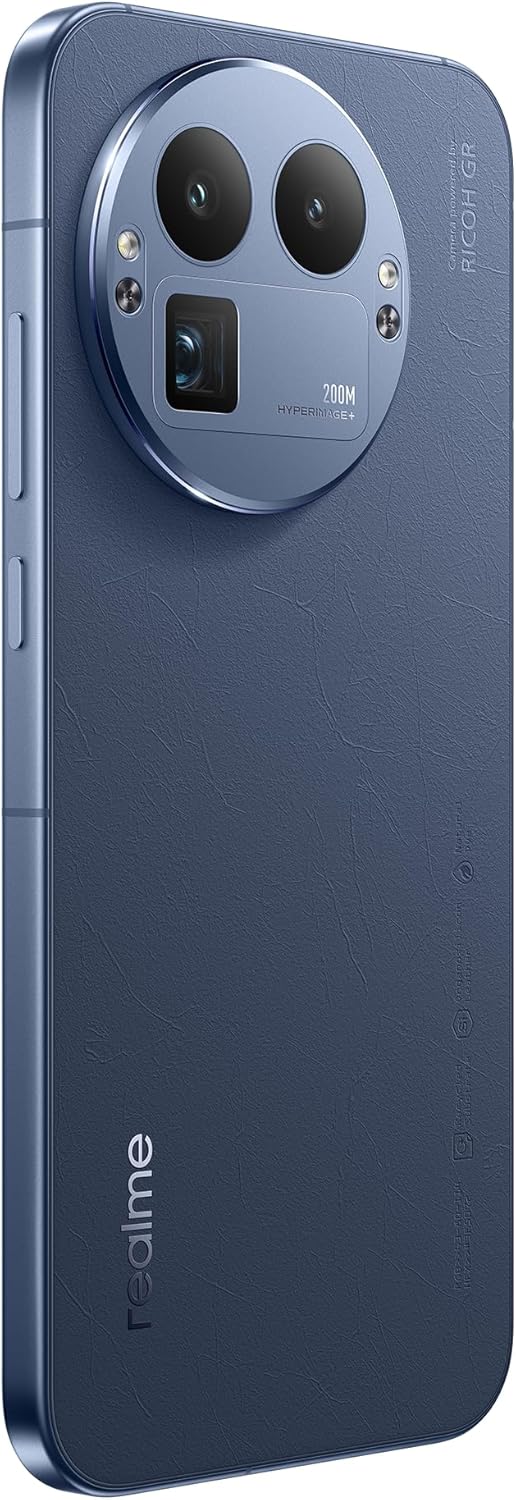
Image: Rear view of the Realme 12 Plus 5G RMX3867, showcasing the prominent circular camera module with multiple lenses and a "200M HYPERIMAGE+" label.
4.3. Connectivity
- 5G Network: Your device supports 5G connectivity for faster mobile data speeds. Ensure your SIM card and plan support 5G.
- Wi-Fi: Connect to wireless networks for internet access. Go to Settings > Wi-Fi to manage connections.
- Bluetooth: Pair with Bluetooth devices like headphones, speakers, or car systems. Go to Settings > Bluetooth.
- USB-C: Use the USB-C port for charging and data transfer.
4.4. Security Features
- Fingerprint Sensor: Unlock your device quickly and securely using the in-display fingerprint sensor. Register your fingerprints in Settings > Security & Privacy > Fingerprint.
- Face Unlock: Use facial recognition to unlock your phone. Set up Face Unlock in Settings > Security & Privacy > Face.
- Screen Lock: Choose from PIN, pattern, or password for basic screen security.
5. Maintenance
5.1. Cleaning Your Device
- Use a soft, lint-free cloth to wipe the screen and body of the phone.
- Avoid using harsh chemicals, abrasive materials, or aerosol sprays.
- For stubborn smudges, slightly dampen the cloth with water or a screen cleaner specifically designed for electronics.
5.2. Software Updates
Regularly check for and install software updates to ensure your device has the latest features, security patches, and performance improvements. Go to Settings > About device > Up to date to check for updates.
5.3. Battery Care
- Avoid extreme temperatures, as they can degrade battery life.
- Use only the original charger and cable or certified compatible accessories.
- Do not let the battery drain completely frequently. It is generally recommended to keep the battery level between 20% and 80%.
6. Troubleshooting
6.1. Common Issues and Solutions
| Issue | Solution |
|---|---|
| Device not turning on | Ensure the battery is charged. Press and hold the Power button for at least 10-15 seconds. |
| Apps crashing or freezing | Close the app and reopen it. Clear the app's cache (Settings > Apps > [App Name] > Storage > Clear cache). Restart the device. |
| Poor battery life | Check background app usage. Reduce screen brightness. Disable unnecessary features like GPS or Bluetooth when not in use. |
| Cannot connect to Wi-Fi | Restart your router and phone. Forget the network and reconnect. Ensure Wi-Fi is enabled on your device. |
6.2. Factory Reset
If you encounter persistent issues, a factory reset may resolve them. Warning: A factory reset will erase all data on your phone. Back up important data before proceeding.
- Go to Settings > System > Reset options.
- Tap "Erase all data (factory reset)".
- Confirm your decision and enter your PIN/password if prompted.
- The device will restart and begin the reset process.
7. Specifications
Below are the key technical specifications for the Realme 12 Plus 5G RMX3867:
| Feature | Detail |
|---|---|
| Brand | realme |
| Model Name | Realme 12 Plus 5G (RMX3867) |
| Operating System | Android |
| Memory Storage Capacity | 256 GB |
| RAM Memory Installed Size | 12 GB |
| CPU Model | Snapdragon |
| CPU Speed | 1200 MHz |
| Screen Size | 6.4 Inches |
| Display Type | AMOLED |
| Resolution | 1440 x 2560 |
| Effective Video Resolution | 200 MP |
| Cellular Technology | 5G |
| Battery Capacity | 7000 Milliamp Hours |
| Battery Average Life | 21 Hours |
| Human Interface Input | Touchscreen |
| Item Model Number | GT 8 Pro (Note: Product title is Realme 12 Plus 5G RMX3867) |
Note: Some specifications may vary slightly based on region or specific product variant. The model number in the product title is RMX3867, while some specifications list 'GT 8 Pro'. Please refer to your device's packaging for the most accurate model information.
8. Warranty and Support
Your Realme 12 Plus 5G RMX3867 device comes with a limited warranty. Please refer to the warranty card included in your product packaging for detailed terms and conditions, including warranty period and coverage.
For technical support, service, or further inquiries, please visit the official realme support website or contact their customer service. Contact information can typically be found on the realme official website or in the "Safety Guide" included with your device.
Keep your proof of purchase for warranty claims.


