
Introduction
Thank you for choosing the Jugeman Smartwatch. This device is designed to enhance your daily life by providing convenient access to notifications, health tracking, and communication features directly from your wrist. This manual will guide you through the setup, operation, and maintenance of your new smartwatch to ensure optimal performance and longevity.
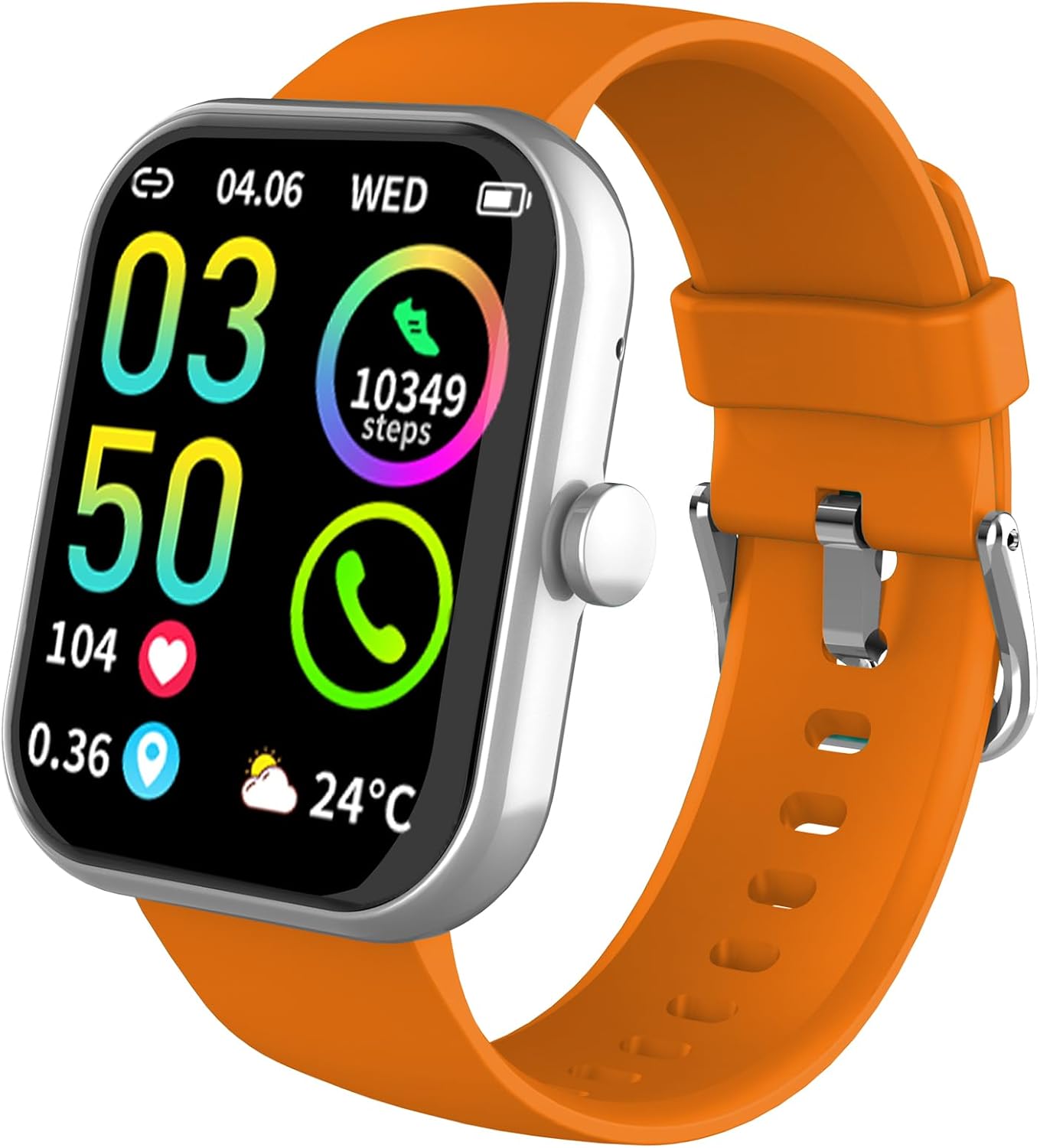
Image: The Jugeman Smartwatch, featuring a vibrant orange strap and a clear display showing various health and time metrics.
Setup
1. What's in the Box
- Jugeman Smartwatch (Model P99 / Y66)
- Charging Cable
- User Manual (this document)
2. Charging the Smartwatch
Before first use, fully charge your smartwatch. Connect the magnetic charging cable to the charging points on the back of the watch and plug the USB end into a standard USB power adapter (not included) or a computer USB port. The watch display will indicate charging status.
- Charging Time: Approximately 2-3 hours for a full charge.
- Battery Life: Varies based on usage, typically several days.
3. App Installation and Pairing
To unlock the full potential of your smartwatch, download the companion application on your smartphone.
- Download the App: Scan the QR code provided in the watch's initial setup screen or search for the "Jugeman Smart" app (or similar name, check watch screen for exact name) in your smartphone's app store (Google Play Store for Android, Apple App Store for iOS).
- Enable Bluetooth: Ensure Bluetooth is enabled on your smartphone.
- Open the App: Launch the installed app and follow the on-screen instructions to create an account or log in.
- Pair the Device: In the app, navigate to the "Device" or "Add Device" section. The app will search for available smartwatches. Select "Jugeman P99" or "Y66" from the list.
- Confirm Pairing: A pairing request may appear on both your phone and the watch. Confirm the pairing on both devices.
- Bluetooth Call Functionality: For call features, you may need to connect the watch's secondary Bluetooth signal (often named "Jugeman-Call" or similar) in your phone's Bluetooth settings after the initial app pairing.

Image: A promotional image showing three color variants of the Jugeman Smartwatch, highlighting the brand's design.
Operating Your Smartwatch
1. Basic Navigation
- Touch Screen: Swipe left/right, up/down to navigate through menus and features. Tap to select.
- Side Button(s): Typically, one button serves as a power on/off, back, or home button. Refer to the on-screen prompts for specific functions.
- Wake Screen: Raise your wrist or press the side button to wake the screen.
2. Bluetooth Call Functionality
Once connected via Bluetooth, you can make and receive calls directly from your watch.
- Making Calls: Access the dial pad or contact list on the watch to initiate a call.
- Receiving Calls: When a call comes in, the watch will vibrate and display the caller ID. Tap to answer or decline.
- Audio: The watch uses its built-in microphone and speaker for calls.
3. Smart Notifications
Receive notifications from your smartphone apps directly on your wrist.
- Ensure notification permissions are enabled for the app on your smartphone.
- Supported apps include WhatsApp, Facebook, Instagram, Twitter, SMS, and more.
4. Sports Modes and Activity Tracking
The smartwatch supports over 113 sports modes and tracks various fitness metrics.
- Sports Modes: Select your activity (e.g., running, cycling, walking) to track specific data like duration, calories burned, and heart rate during exercise.
- Pedometer: Automatically tracks your daily steps, distance, and calories.
- Health Monitoring:
- Heart Rate: Monitors your heart rate throughout the day.
- Sleep Tracking: Analyzes your sleep patterns (deep sleep, light sleep, wake-up times).

Image: A woman using the Jugeman Smartwatch during a treadmill workout, demonstrating its fitness tracking capabilities.

Image: A woman sleeping with the Jugeman Smartwatch on her wrist, indicating its ability to monitor sleep patterns.

Image: A woman engaged in a resistance band workout, with the Jugeman Smartwatch visible on her wrist, tracking her activity.

Image: A man running outdoors, showcasing the Jugeman Smartwatch as a companion for outdoor sports and fitness tracking.
5. Custom Watch Faces
Personalize your smartwatch with a variety of watch faces.
- The companion app offers over 220 customizable watch faces.
- You can also upload your own photos to create unique watch faces.
Maintenance
1. Cleaning Your Smartwatch
Regular cleaning helps maintain the device's appearance and functionality.
- Wipe the screen and body with a soft, lint-free cloth.
- For stubborn spots, slightly dampen the cloth with water. Avoid harsh chemicals.
- Clean the charging contacts periodically to ensure good connection.
2. Water Resistance (IP68)
The Jugeman Smartwatch is IP68 waterproof, meaning it is resistant to dust and can withstand immersion in water up to 1.5 meters for up to 30 minutes.
- Suitable for daily use, hand washing, and light rain.
- Not recommended for: Hot showers, saunas, diving, or prolonged immersion in water. Avoid contact with hot water or steam.
- Dry the watch thoroughly after exposure to water.
3. Battery Care
- Avoid fully discharging the battery frequently.
- Do not expose the watch to extreme temperatures (hot or cold), as this can affect battery life.
- If storing the watch for an extended period, charge it to about 50% to preserve battery health.
Troubleshooting
1. Watch Not Turning On
- Ensure the watch is fully charged. Connect it to the charger for at least 30 minutes.
- Press and hold the side button for 10-15 seconds to attempt a forced restart.
2. Unable to Pair with Smartphone
- Ensure Bluetooth is enabled on your phone and the watch.
- Make sure the watch is within the Bluetooth range of your phone (typically 10 meters).
- Restart both your phone and the smartwatch.
- Clear the Bluetooth cache on your phone (if applicable).
- Try unpairing and re-pairing the device through the app.
- Ensure the app has necessary permissions (location, Bluetooth, notifications).
3. Notifications Not Appearing
- Verify that the watch is successfully paired with the app.
- Check notification settings within the companion app to ensure desired apps are enabled.
- Ensure notification access is granted to the app in your phone's system settings.
- Make sure your phone's notifications are not muted or in "Do Not Disturb" mode.
4. Inaccurate Health Data
- Ensure the watch is worn snugly on your wrist, about one finger's width above the wrist bone.
- Clean the sensor on the back of the watch.
- Avoid excessive movement during measurements (e.g., heart rate).
5. Resetting the Smartwatch
If issues persist, you may need to perform a factory reset. This will erase all data on the watch and restore it to its original settings.
- Navigate to "Settings" on your smartwatch.
- Look for "System," "Reset," or "Factory Reset" option.
- Confirm the reset.
- You will need to re-pair the watch with your smartphone after a reset.
Specifications
| Feature | Detail |
|---|---|
| Brand | Jugeman |
| Model Name | Y66 |
| Model Number | P99 |
| Screen Size | 1.95 Inches (approx. 5 cm) |
| Connectivity | Bluetooth |
| Special Features | Activity Tracker, Bluetooth Calls, Smart Notifications, Health Monitoring (Heart Rate, Sleep), Custom Watch Faces |
| Compatible Devices | Smartphone |
| Battery Type | Lithium-polymer |
| Rechargeable Battery | Yes |
| Internal Storage | 1 GB |
| GPS | No GPS |
| Water Resistance | IP68 |
Warranty and Support
Jugeman products are manufactured to high quality standards. For information regarding warranty coverage, technical support, or service inquiries, please refer to the warranty card included with your product or visit the official Jugeman website. Please retain your proof of purchase for warranty claims.
For further assistance, please contact Jugeman customer support through the contact information provided on the official website or within the companion application.
