
1. Introduction
This manual provides comprehensive instructions for the safe and efficient use of your NEC VKT16XZG5 laptop. Please read this manual thoroughly before using the product and retain it for future reference. This laptop is equipped with Windows 11, an Intel Core i5-8th Generation processor, and solid-state drive (SSD) storage, designed for general computing tasks.
2. Safety Information
Observe the following safety precautions to prevent damage to the laptop or injury to yourself.
- Do not expose the laptop to extreme temperatures, direct sunlight, or high humidity.
- Avoid placing heavy objects on the laptop.
- Keep liquids away from the laptop to prevent electrical shock or damage.
- Use only the provided AC adapter or a compatible replacement.
- Do not attempt to disassemble or repair the laptop yourself. Refer to qualified service personnel.
- Ensure proper ventilation to prevent overheating. Do not block air vents.
3. Package Contents
Verify that all items are present in the package:
- NEC VKT16XZG5 Laptop
- AC Adapter
- Security Zero License Card
- 64GB USB Recovery Storage
- Digital Recovery Manual (pre-saved on the laptop)

Image: 64GB USB Recovery Storage device. This USB drive contains essential recovery files for your laptop.

Image: ZERO Security software box. A license card for this security software is included.
4. Product Overview
Familiarize yourself with the components of your NEC VKT16XZG5 laptop.
4.1 Top View (Keyboard and Touchpad)

Image: Top view of the NEC VKT16XZG5 laptop. This image highlights the Japanese keyboard layout and the integrated touchpad for navigation.
- Keyboard: Standard Japanese layout for text input.
- Touchpad: For cursor control and gesture input.
- Power Button: Located above the keyboard, typically on the right side.
4.2 Exterior Design and Durability
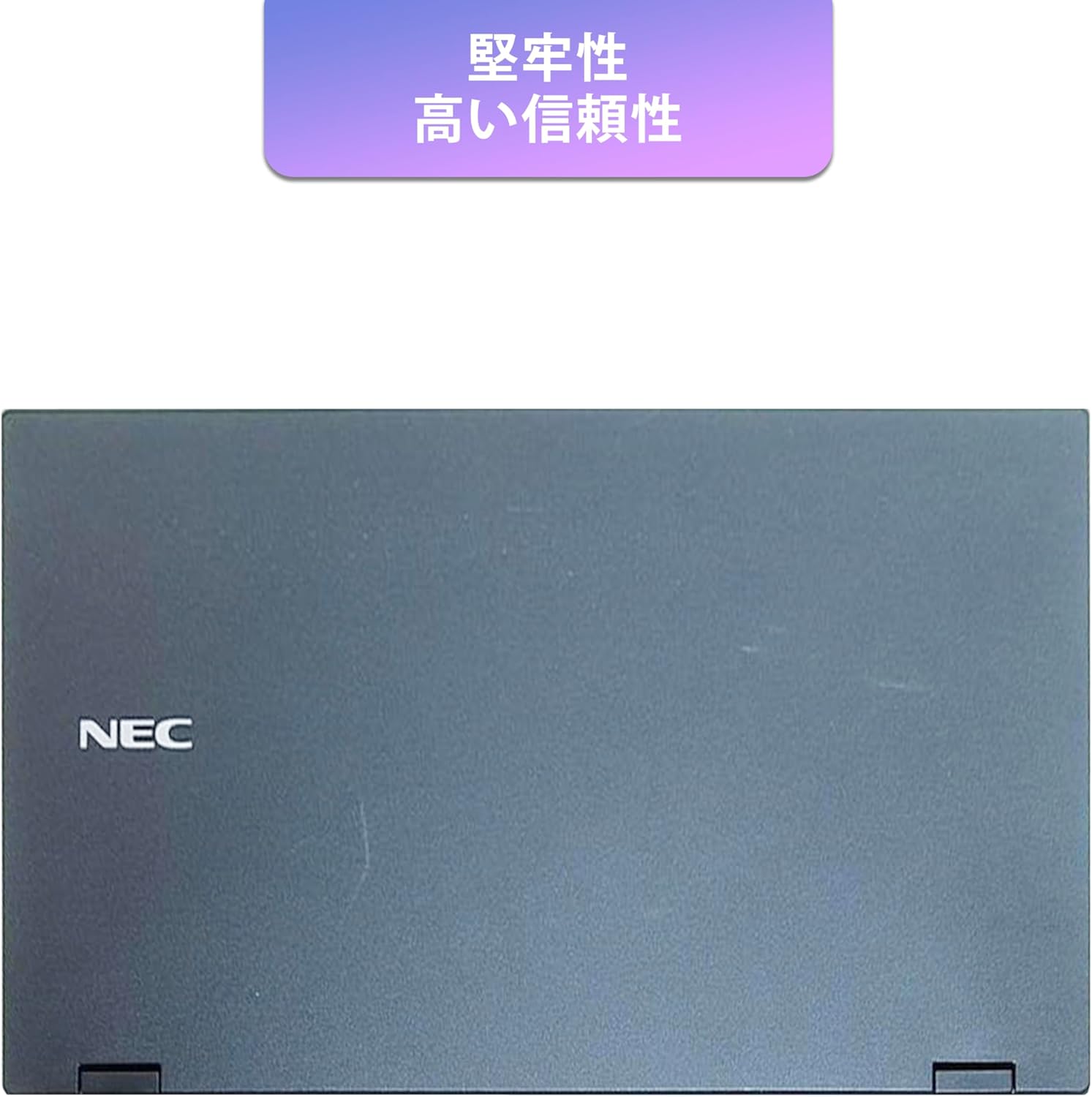
Image: Closed NEC VKT16XZG5 laptop, top casing. The design emphasizes durability and high reliability.
The laptop features a robust casing designed for durability and reliable performance.
4.3 Integrated Camera and Battery Life

Image: Side view of the open NEC VKT16XZG5 laptop. This view indicates the presence of an integrated camera and highlights the laptop's long battery life capability.
- Integrated Camera: Located at the top center of the display for video conferencing and other applications.
- Battery: Designed for extended usage on a single charge.
4.4 Performance Features

Image: Side view of the open NEC VKT16XZG5 laptop. This image emphasizes the Intel Core i5-8th Generation processor and the high-speed SSD for enhanced performance.
- CPU: Intel Core i5-8th Generation processor for efficient multitasking.
- SSD: High-speed Solid State Drive for faster boot times and application loading.
5. Setup
Follow these steps for initial setup of your laptop:
- Unpack: Carefully remove the laptop and all accessories from the packaging.
- Connect Power: Plug the AC adapter into the laptop's power port and then into a wall outlet.
- Initial Power On: Open the laptop lid and press the power button. The laptop will begin the Windows 11 setup process.
- Windows Setup: Follow the on-screen prompts to configure Windows 11, including language, region, network connection, and user account creation.
- WPS Office Activation: Your laptop comes with WPS Office pre-installed. Use the provided license card to activate the software upon first use.
- Security Software Installation: Install the included ZERO Security software using the license card for protection against malware.

Image: Laptop screen displaying information about the WPS Office 2 license card. This indicates that WPS Office is ready for use immediately after activation.
6. Operating Instructions
This section covers basic operation of your NEC VKT16XZG5 laptop.
6.1 Power On/Off
- Power On: Press the power button.
- Shut Down: Click the Start button in Windows, then select Power > Shut down.
- Restart: Click the Start button, then select Power > Restart.
- Sleep: Close the lid or click the Start button, then select Power > Sleep.
6.2 Using the Keyboard and Touchpad
- Keyboard: Type text and use function keys (Fn) for special commands (e.g., volume, brightness).
- Touchpad: Move your finger across the surface to control the cursor. Tap to click, use two fingers to scroll.
6.3 Connecting to Wi-Fi
- Click the Wi-Fi icon in the taskbar.
- Select your desired network from the list.
- Enter the network security key (password) if prompted.
- Click "Connect".
6.4 Using the DVD-ROM Drive
- Press the eject button on the drive to open the tray.
- Place a DVD or CD onto the tray, ensuring it is seated correctly.
- Gently push the tray back into the laptop.
- The disc content should appear in File Explorer.
7. Maintenance
Proper maintenance ensures the longevity and performance of your laptop.
- Cleaning: Use a soft, lint-free cloth to clean the screen and exterior. For stubborn marks, dampen the cloth slightly with water or a screen cleaner. Avoid harsh chemicals.
- Battery Care: To maximize battery life, avoid fully discharging the battery frequently. Store the laptop in a cool, dry place if not used for extended periods.
- Software Updates: Regularly check for and install Windows updates and driver updates to ensure system stability and security.
- Recovery Function: Your laptop includes a recovery area and a 64GB USB recovery storage. In case of system issues, refer to the digital recovery manual saved on your laptop for instructions on how to restore the system.

Image: Laptop screen displaying information about the recovery area, large capacity USB storage for recovery, and the performance benefits of the high-speed SSD.
8. Troubleshooting
This section addresses common issues you might encounter.
| Problem | Possible Solution |
|---|---|
| Laptop does not power on. | Ensure the AC adapter is securely connected to both the laptop and a working power outlet. Check if the power outlet is functional. Try charging the battery for a while before attempting to power on again. |
| No Wi-Fi connection. | Check if Wi-Fi is enabled in Windows settings. Ensure your router is working correctly. Try restarting the laptop and the router. Verify the Wi-Fi password. |
| Laptop is running slow. | Close unnecessary applications. Check for background processes consuming high resources (Task Manager). Ensure Windows and drivers are up to date. Run a virus scan using the ZERO Security software. |
| Keyboard or touchpad not responding. | Restart the laptop. Check for any physical obstructions. Ensure drivers are updated. |
9. Specifications
Detailed technical specifications for the NEC VKT16XZG5 laptop.
| Feature | Specification |
|---|---|
| Brand | NEC |
| Model Name | VKT16XZG5 |
| Screen Size | 15.6 inches |
| Display Type | LED |
| Max Display Resolution | 1366x768 pixels |
| Hard Disk Capacity | 256 GB (SSD) |
| CPU Model | Intel Core i5-8th Generation |
| CPU Speed | 1.6 GHz (Max 3.9 GHz) |
| Processor Count | 4 |
| Installed RAM Memory Size | 8 GB / 16 GB |
| RAM Memory Technology | DDR4 |
| Operating System | Windows 11 |
| Graphics Coprocessor | Intel UHD Graphics 620 |
| Optical Storage Device | DVD-ROM |
| Wireless Type | Bluetooth, Wireless LAN |
| Communication Interface | USB |
| Item Dimensions (LxWxH) | 37.6 x 25.4 x 2.5 cm |
| Keyboard Description | JP (Japanese) |
| Included Components | AC Adapter, Security Zero License Card, 64GB USB Recovery Storage |
| Battery Type | Lithium Ion |
| Battery Watt Hours | 45 Watt Hours |
| Release Year/Model Year | 2019 |
10. Warranty and Support
Your NEC VKT16XZG5 laptop comes with a warranty to ensure your peace of mind.
- Warranty Period: 6 months of free repair service from the date of purchase.
- Replacement Policy: If a repair is not possible, the product will be replaced with an equivalent item.
- For technical support or warranty claims, please refer to the contact information provided at the point of purchase or on the official NEC support website.