
Introduction
Thank you for choosing the SQQBZZ 11.5-inch Portable DVD Player. This device is designed to provide portable entertainment with a 9.5-inch swivel HD screen, suitable for various environments including travel and home use. This manual provides essential information for the safe and efficient operation of your DVD player.
Package Contents
Please verify that all items listed below are included in your package:
- 1 x 11.5-inch Portable DVD Player
- 1 x Remote Control
- 1 x Power Adapter (AC)
- 1 x Car Charger
- 1 x 3-in-1 AV Cable
- 1 x User's Guide (this manual)

Figure 1: Package Contents. The image displays the portable DVD player, remote control, AC power adapter, car charger, and AV cable, which are all included in the product package.
Product Overview
Familiarize yourself with the various ports and controls of your portable DVD player.

Figure 2: Side Panel Ports. This image highlights the USB port, SD card slot, earphone port, AV OUT, AV IN, ON/OFF switch, and DC IN power port located on the side of the DVD player.
- USB Port: For connecting USB flash drives to play media files.
- SD Card Slot: For inserting SD cards to play media files.
- Earphone Port (3.5mm): For connecting headphones for private listening.
- AV OUT: Audio/Video output for connecting to an external display (e.g., TV, projector).
- AV IN: Audio/Video input for connecting external devices (e.g., another DVD player).
- ON/OFF Switch: Main power switch for the device.
- DC IN: Power input port for connecting the AC adapter or car charger.
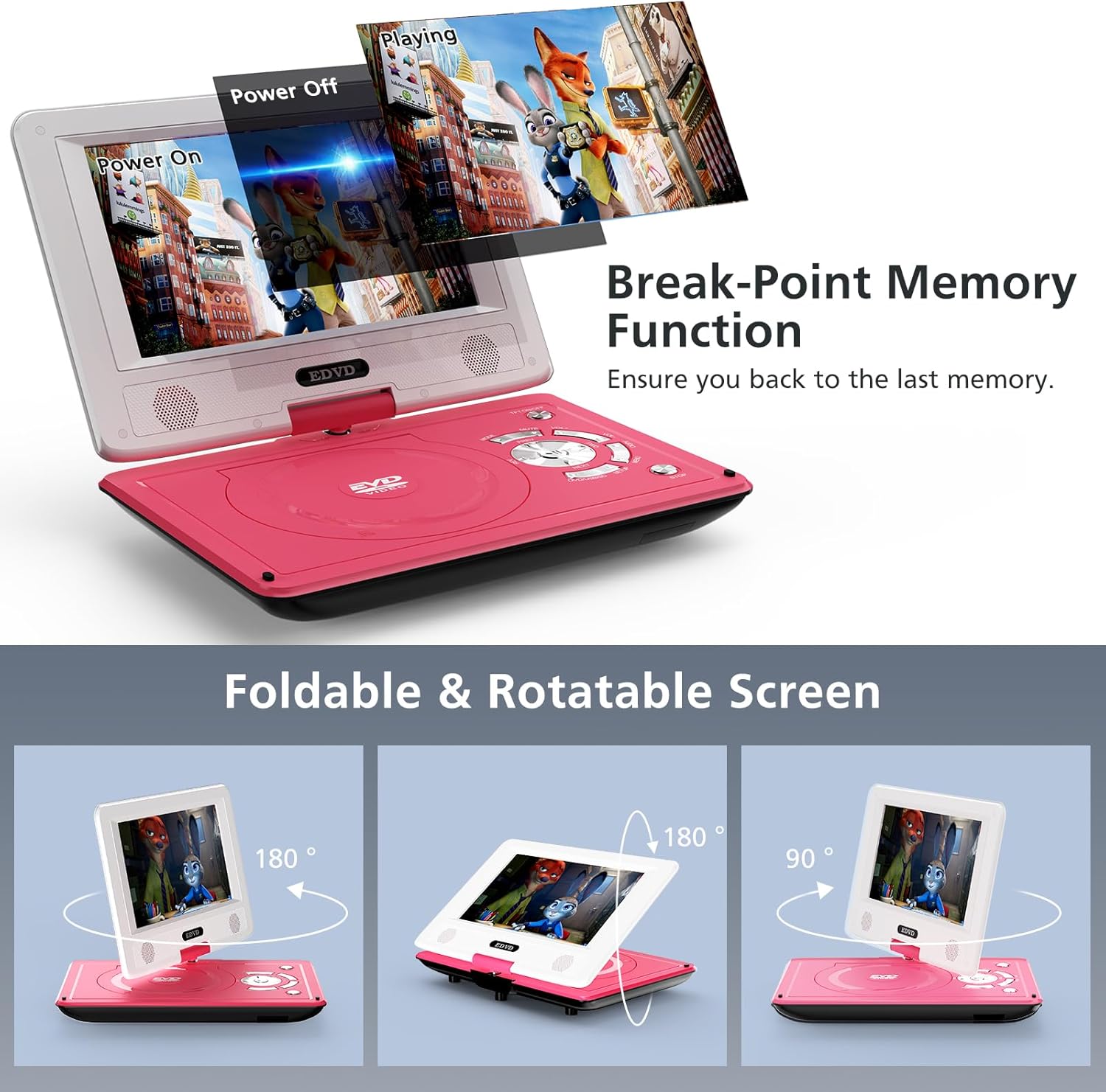
Figure 3: Foldable and Rotatable Screen. The screen can rotate 270 degrees and flip 180 degrees, allowing for various viewing angles or folding into a tablet-like form factor.
The player features a 9.5-inch HD swivel screen that can rotate 270° and flip 180°, providing flexible viewing options. It also includes a break-point memory function, allowing playback to resume from where it was last stopped.
Setup
- Unpack: Carefully remove all components from the packaging.
- Charge Battery: Before first use, fully charge the internal battery using the provided AC power adapter. Connect the adapter to the DC IN port and a power outlet. The charging indicator light will typically show red while charging and turn green when fully charged.
- Power On: Slide the ON/OFF switch to the "ON" position. Then, press the power button on the player or remote control to turn on the device.
Operating Instructions
Playing DVDs/CDs
- Open Disc Tray: Gently press the "OPEN" button or latch to open the disc compartment.
- Insert Disc: Place a compatible DVD or CD onto the spindle with the label side facing up. Ensure the disc is securely seated.
- Close Disc Tray: Close the disc compartment until it clicks shut.
- Automatic Playback: The player will automatically detect and begin playing the disc. If a menu appears, use the directional buttons on the player or remote to navigate and select your desired option.
- Supported Formats: The player supports DVD, CD, DVD±R, CD-R(RW), SVCD-R(RW), DVD±RW, VCD. Blu-ray discs are not supported.

Figure 4: Disc Insertion and Supported Formats. The player supports various DVD and CD formats, and is region-free. The disc tray opens by pressing the 'OPEN' button.
Playing Media from USB/SD Card
- Insert Storage Device: Insert a USB flash drive into the USB port or an SD card into the SD card slot.
- Select Source: Use the "MODE" button on the player or remote to switch to USB or SD mode.
- Browse Files: Navigate through your files using the directional buttons and select the desired media file (VOB, AVI, MPEG, MP3, WMA, JPEG).
- Start Playback: Press the "PLAY" button to begin playback.
- Compatibility Note: Only supports 720*480 resolution video files and 2650*1440 resolution image files. Does not support 1080P, 4K, or Blu-ray content.
Sync Screen to TV / External Display
To view content on a larger screen:
- Connect AV Cable: Use the provided 3-in-1 AV cable. Connect one end to the AV OUT ports on the portable DVD player (Yellow for Video, White for Left Audio, Red for Right Audio).
- Connect to TV: Connect the other end of the AV cable to the corresponding AV IN ports on your television or projector.
- Select TV Input: On your TV, select the correct AV input source. The content from your portable DVD player will now be displayed on the external screen.

Figure 5: Sync Screen to TV. The portable DVD player can be connected to a television using the AV cable to display content on a larger screen.
Charging and Battery
The portable DVD player is equipped with a built-in Lithium Polymer battery, offering 4-6 hours of continuous playback.
- AC Adapter: Use the certified AC power adapter for charging at home or any standard power outlet.
- Car Charger: Use the high-quality car charger for convenient charging during car trips.
- Battery Indicator: Monitor the battery icon on the screen to check the charge level.
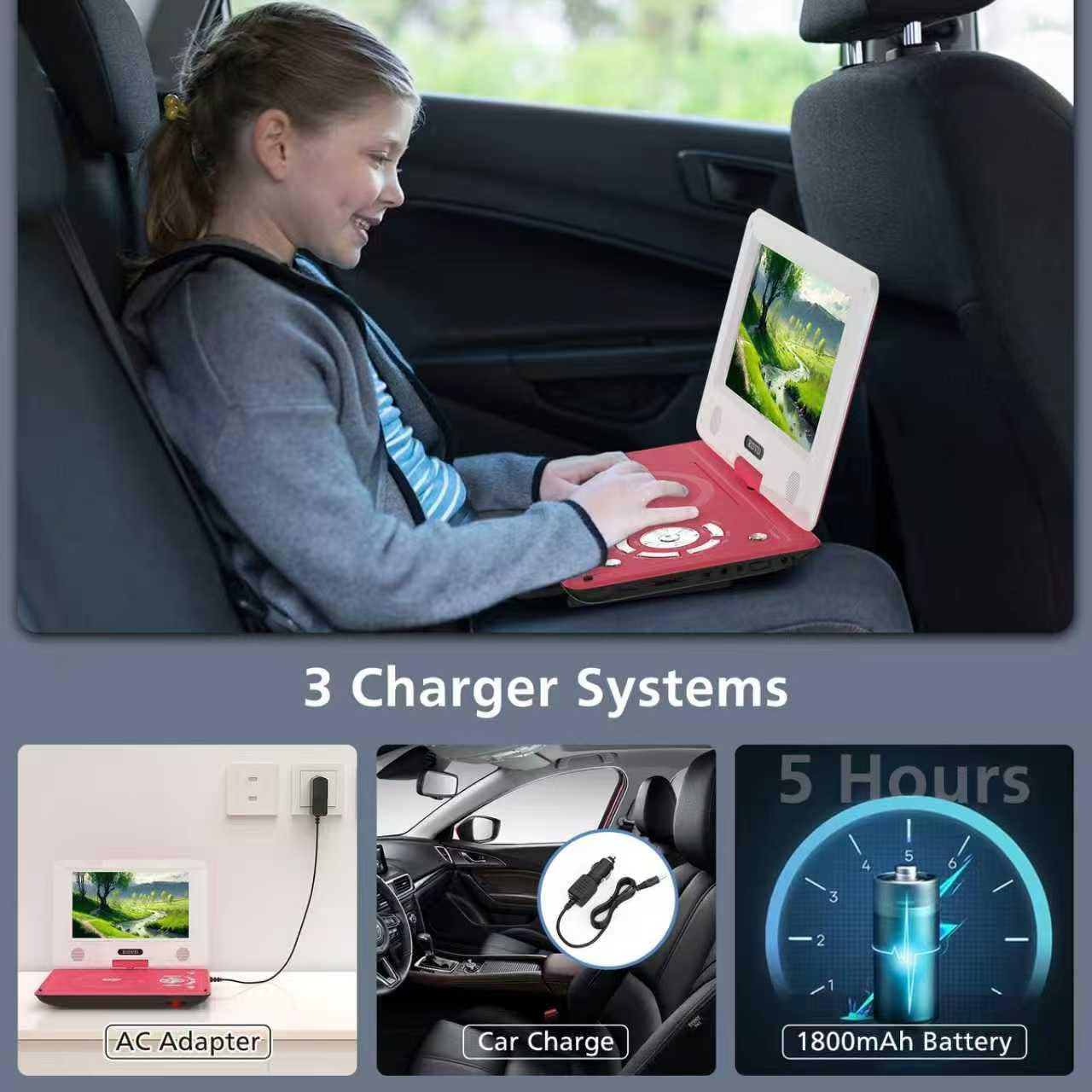
Figure 6: Multiple Charging Options. The portable DVD player can be charged via an AC adapter for home use or a car charger for on-the-go power, providing approximately 4-6 hours of battery life.
Maintenance
- Cleaning: Use a soft, dry cloth to clean the screen and exterior of the player. Do not use liquid cleaners or abrasive materials.
- Disc Care: Handle discs by their edges. Store them in their cases to prevent scratches. Clean dirty discs with a soft, lint-free cloth, wiping from the center outwards.
- Storage: When not in use for extended periods, store the player in a cool, dry place away from direct sunlight and extreme temperatures.
- Battery Longevity: To prolong battery life, avoid fully discharging the battery frequently. Charge it regularly, even if not in active use.
Troubleshooting
| Problem | Possible Cause | Solution |
|---|---|---|
| Player does not power on. | Battery is depleted; ON/OFF switch is off. | Charge the battery. Ensure the ON/OFF switch is in the "ON" position. |
| No disc detected. | Disc is dirty, scratched, or incompatible. | Clean the disc. Try a different, compatible disc. Ensure disc is inserted correctly. |
| No picture on TV when connected. | Incorrect AV cable connection; wrong TV input selected. | Verify AV cable connections (color-coded). Select the correct AV input on your TV. |
| No sound. | Volume too low; Mute function active; faulty headphones/speakers. | Increase volume. Deactivate Mute. Test with different headphones or check built-in speakers. |
| USB/SD card not recognized. | Incompatible file format; card/drive not properly inserted; corrupted files. | Ensure files are supported (VOB, AVI, MPEG, MP3, WMA, JPEG). Reinsert the device. Try a different USB/SD card. |
Specifications
| Screen Size | 9.5 Inches |
| Display Type | LCD |
| Supported Media Types | CD, DVD, DVD +R(-R), SVCD, VCD, CD-R(RW), DVD±RW |
| Supported Digital Media | USB, SD Card (up to 32GB) |
| Supported File Formats | VOB, AVI, MPEG, MP3, WMA, JPEG |
| Video Resolution Support | Up to 720*480 (Does not support 1080P, 4K) |
| Image Resolution Support | Up to 2650*1440 |
| Battery Type | 1 Lithium Polymer battery (included) |
| Battery Life | 4-6 Hours (continuous playback) |
| Weight | 2.97 pounds |
| Dimensions | 15.63 x 9.29 x 3.31 inches (Package) |
Warranty and Support
Your SQQBZZ Portable DVD Player comes with a 12-MONTH Warranty. For any questions or assistance, please contact our customer support team. We offer 24-HOUR Friendly Customer Support.
Contact information for support can typically be found on the product packaging or the official SQQBZZ website.
Official Product Video
Video 1: SQQBZZ 11.5-inch Portable DVD Player Overview. This video provides a visual demonstration of the portable DVD player's features, including its design, ports, and functionality, highlighting its suitability for car and kids' use.