
1. Introduction
Thank you for choosing the SQQBZZ 11.5-inch Portable DVD Player. This device is designed to provide portable entertainment with its 9.5-inch swivel HD screen, long-lasting battery, and support for various media formats. This manual provides essential information for setting up, operating, and maintaining your new DVD player.

Figure 1: SQQBZZ 11.5-inch Portable DVD Player with remote.
2. What's in the Box?
Please check the package contents upon unboxing:
- Portable DVD Player *1
- Remote Control *1
- Power Adapter *1
- Car Charger *1
- AV Cable *1
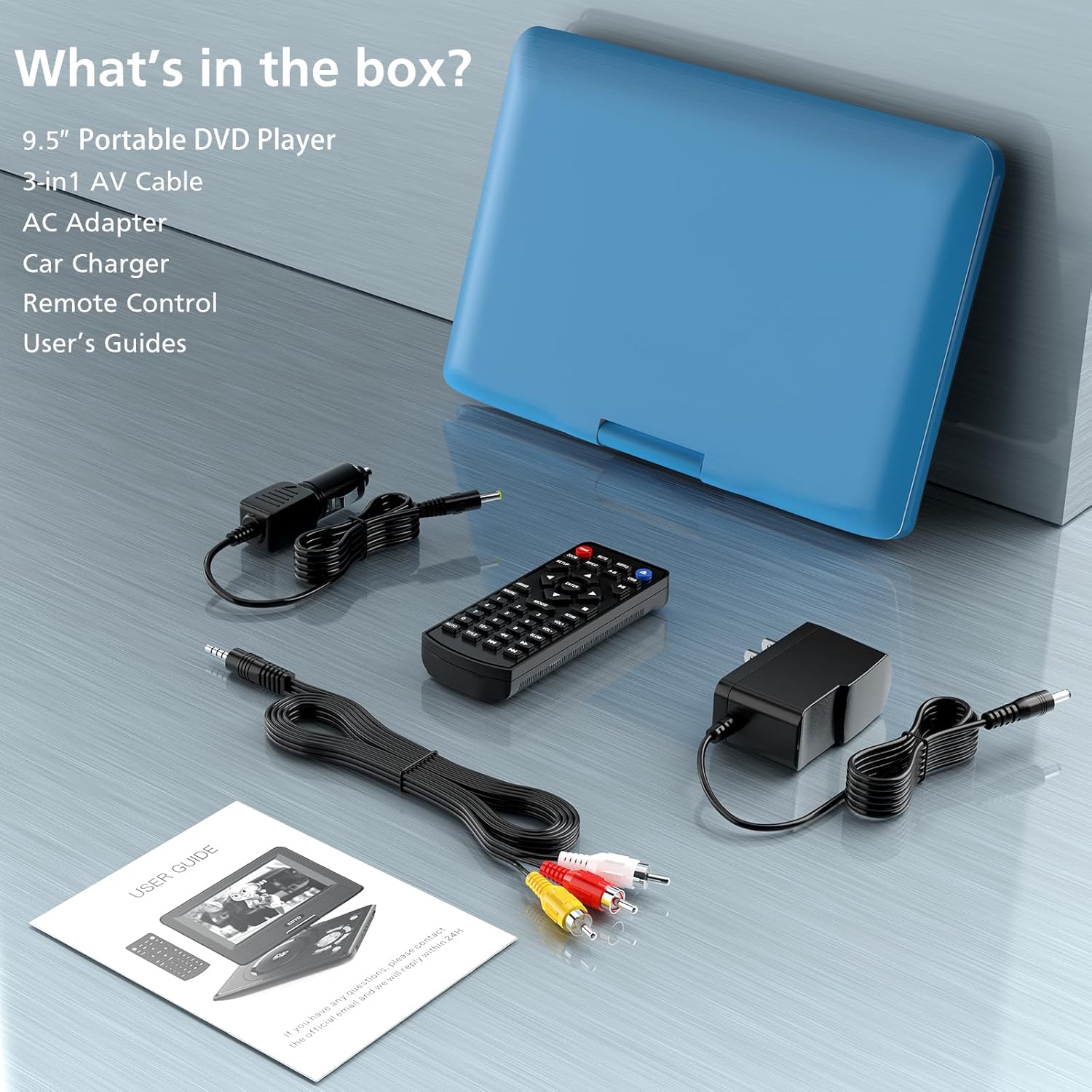
Figure 2: Package contents of the portable DVD player.
3. Product Overview
3.1 Key Features
- Portable Design: Compact and easy to carry, ideal for travel.
- Swivel HD Screen: 9.5-inch (800*480 resolution) screen with 270° rotation and 180° flip for optimal viewing angles.
- Extended Battery Life: Built-in battery provides 4-6 hours of continuous playback.
- Enhanced Audio: Equipped with two high-power speakers and a 3.5mm earphone jack.
- Multi-Format Support: Plays DVD, CD, DVD ±R, CD -R(RW), SVCD -R(RW), DVD ±RW, VCD (excluding Blu-ray). Supports media files via USB and SD Card (up to 32G) including VOB, AVI, MPEG, MP3, WMA, JPEG.
- Region-Free Playback: Compatible with discs from all regions.
- Sync Screen Function: Connects to TV or projector via AV cable for a larger display.
- Break-Point Memory: Resumes playback from where you left off.
3.2 Device Ports and Controls
Familiarize yourself with the various ports and controls on your portable DVD player:
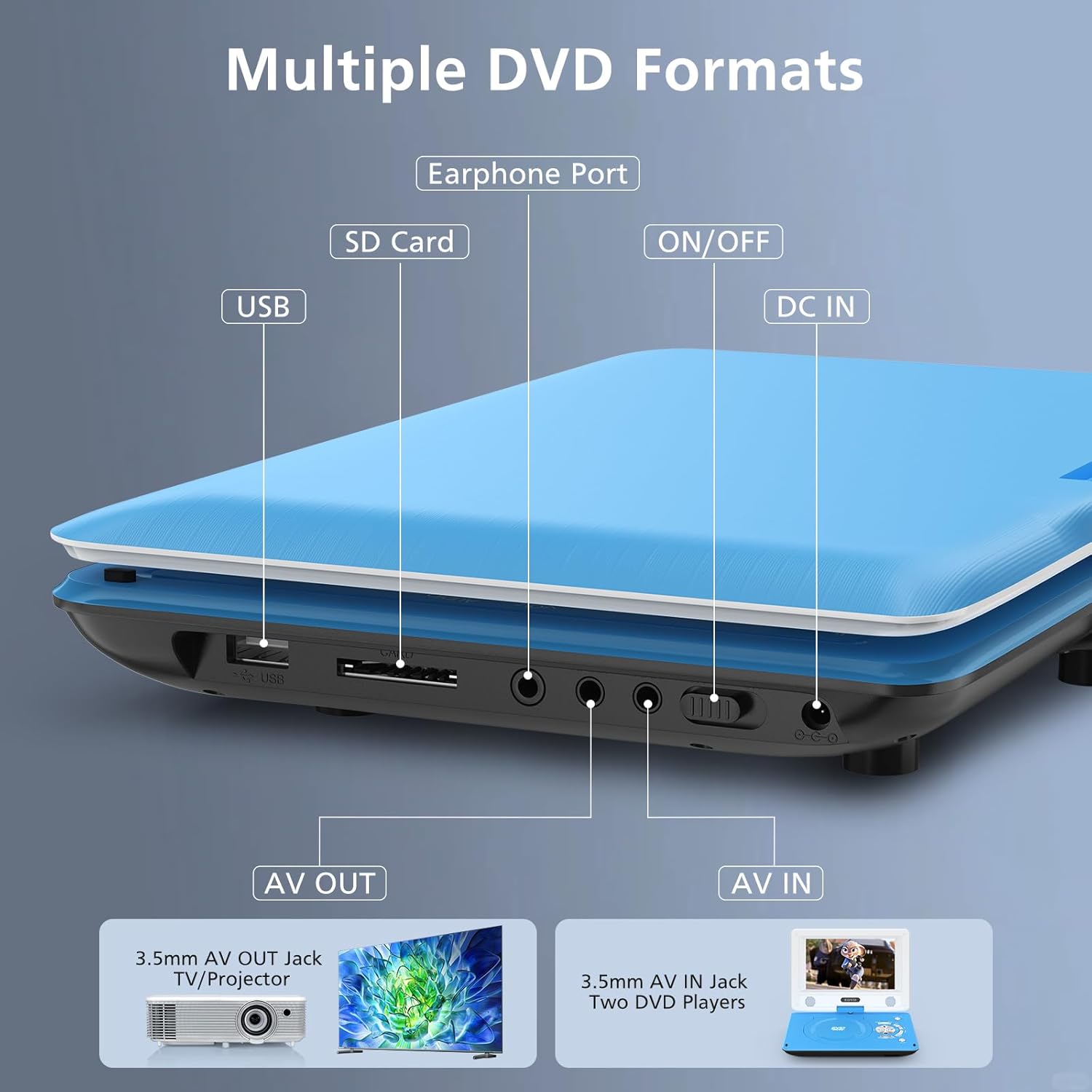
Figure 3: Side ports of the DVD player.
- USB Port: For connecting USB drives to play media files.
- SD Card Slot: For inserting SD cards (up to 32GB) to play media files.
- Earphone Port: 3.5mm jack for connecting headphones.
- AV OUT: For connecting to a TV or projector to output video and audio.
- AV IN: For connecting an external video source.
- ON/OFF Switch: Power switch for the device.
- DC IN: Power input for the AC adapter or car charger.
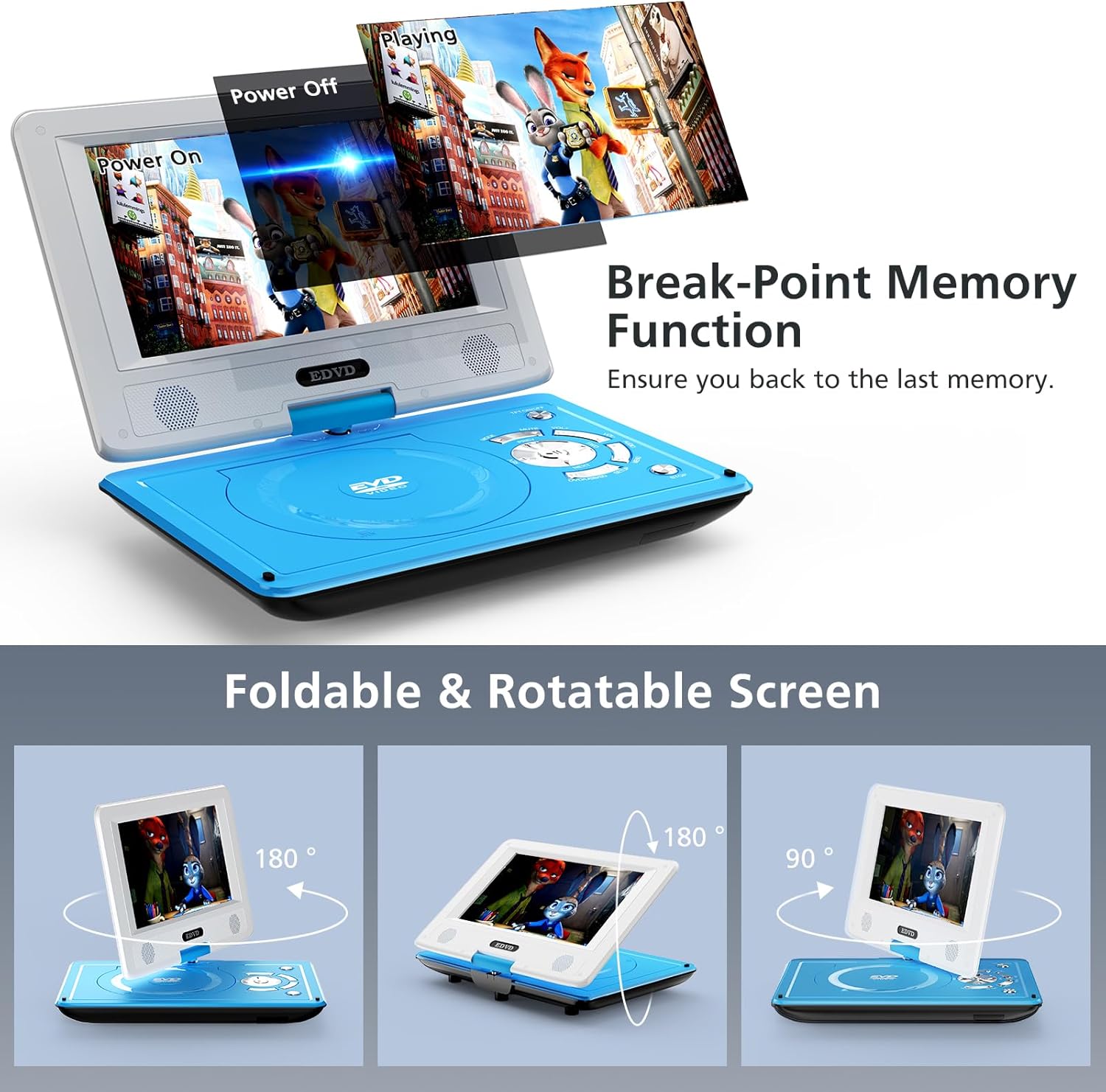
Figure 4: Screen rotation and folding capabilities.
4. Setup
4.1 Charging the Battery
Before first use, fully charge the built-in Lithium Polymer battery. The player can be charged using the included AC power adapter or car charger.
- Connect the AC power adapter to the DC IN port on the player and plug it into a wall outlet.
- For in-car charging, connect the car charger to the DC IN port and plug it into your vehicle's cigarette lighter socket.
- The charging indicator light will typically show red while charging and turn green when fully charged.
A full charge provides approximately 4-6 hours of playback time.
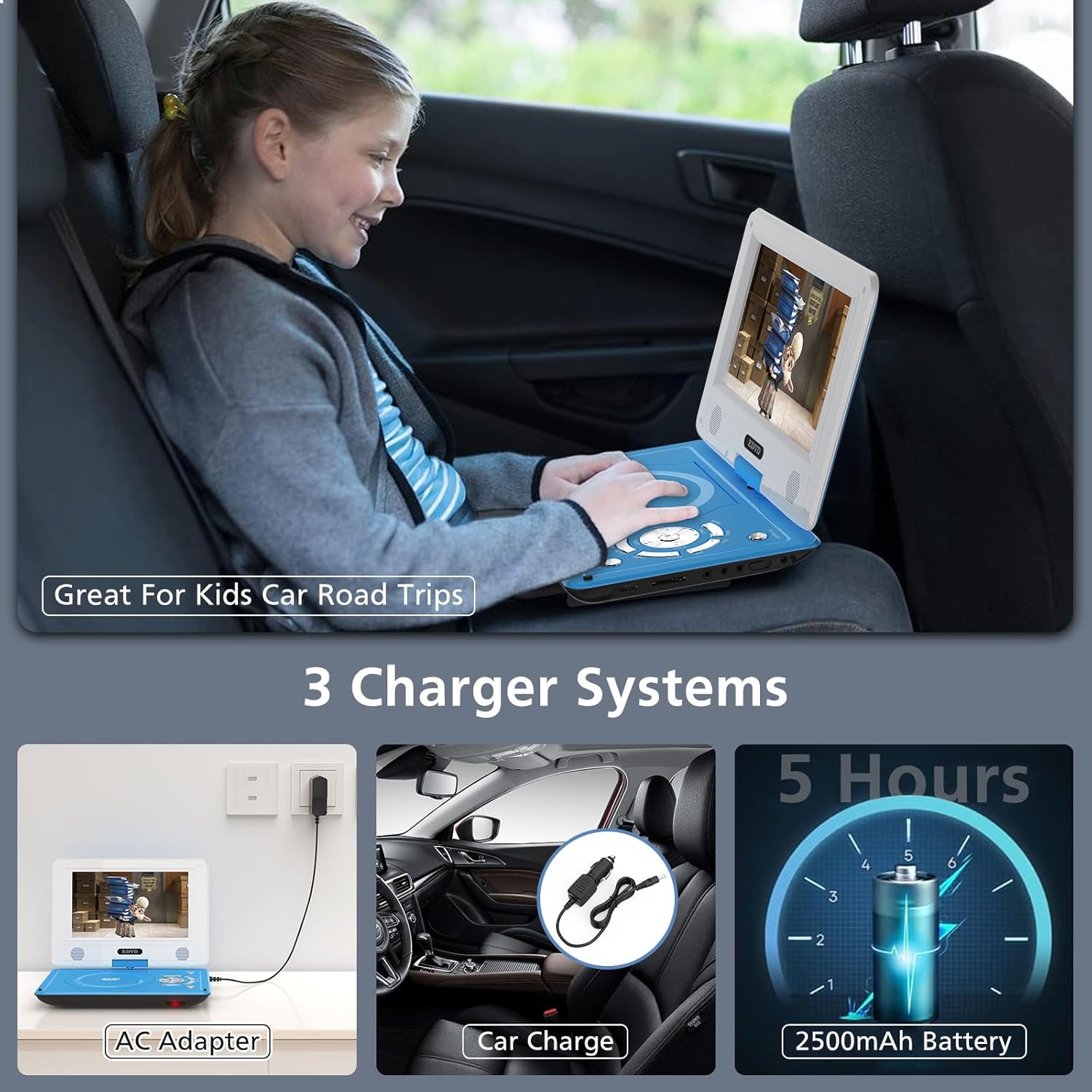
Figure 5: Charging options for the portable DVD player.
4.2 Powering On/Off
- Locate the ON/OFF switch on the side of the player.
- Slide the switch to the "ON" position.
- Press the power button on the top of the player to turn on the screen.
- To power off, press the power button again, then slide the ON/OFF switch to the "OFF" position.
4.3 Connecting to a TV or Projector (Sync Screen)
You can connect your portable DVD player to a larger display using the included AV cable.
- Ensure both the DVD player and the TV/projector are turned off.
- Connect one end of the AV cable (3.5mm jack) to the AV OUT port on the DVD player.
- Connect the RCA plugs (Yellow for Video, Red for Right Audio, White for Left Audio) to the corresponding AV IN ports on your TV or projector.
- Turn on the TV/projector and select the correct AV input source.
- Turn on the portable DVD player. The content from the DVD player should now be displayed on the external screen.

Figure 6: Connecting the DVD player to a TV.
5. Operating Instructions
5.1 Playing a DVD/CD
- Gently press the "OPEN" button or tab to open the disc cover.
- Place the DVD or CD onto the disc spindle with the label side facing up. Ensure the disc is securely seated.
- Close the disc cover firmly until it clicks.
- The player will automatically detect and begin playing the disc. If not, press the "Play" button.

Figure 7: Inserting a DVD and media card slots.
5.2 Using USB Drive or SD Card
The player supports media files from USB drives and SD cards up to 32GB.
- Insert your USB drive into the USB port or your SD card into the SD card slot.
- Use the "DVD/USB/SD" button to switch to the appropriate input source.
- Navigate through your files using the directional buttons and select your desired media.
5.3 Screen Adjustment
The 9.5-inch screen can be rotated 270° and flipped 180° for versatile viewing angles, including tablet mode or for mounting on a car headrest.
Figure 8: Flexible screen positioning.
5.4 Break-Point Memory Function
The player features a break-point memory function, allowing you to resume playback from where you last stopped a DVD. This is particularly useful for interrupted viewing sessions.
Figure 9: Break-point memory in action.
5.5 Supported Formats
The player supports a wide range of disc and digital media formats:
- Disc Formats: DVD, CD, DVD ±R, CD -R(RW), SVCD -R(RW), DVD ±RW, VCD (Note: Blu-ray discs are not supported).
- Video Formats: VOB, AVI, MPEG, MP3, WMA, JPEG (Note: Only supports 720*480 resolution video files. Does not support 1080P or 4K video.)
- Image Formats: JPEG (Note: Only supports 2650*1440 resolution image files.)
6. Maintenance
6.1 Cleaning the Device
- Use a soft, dry cloth to clean the exterior of the player.
- For the screen, use a soft, lint-free cloth specifically designed for electronics screens. Do not use abrasive cleaners or solvents.
- Keep the disc tray and lens free from dust and debris. Use a specialized DVD lens cleaner if necessary.
6.2 Battery Care
- To prolong battery life, avoid fully discharging the battery frequently.
- If storing the player for an extended period, charge the battery to about 50% and store it in a cool, dry place.
- Avoid exposing the player to extreme temperatures.
7. Troubleshooting
| Problem | Possible Cause | Solution |
|---|---|---|
| Player does not power on. | Battery is depleted; ON/OFF switch is off; power button not pressed. | Charge the battery; ensure ON/OFF switch is in "ON" position; press the power button. |
| Disc does not play or skips. | Disc is dirty, scratched, or inserted incorrectly; unsupported disc format. | Clean the disc; ensure disc is inserted correctly; check if the disc format is supported (refer to Section 5.5). |
| No sound. | Volume is too low or muted; external speakers/headphones not connected properly. | Increase volume; check mute setting; ensure audio connections are secure. |
| No picture on external TV/projector. | Incorrect AV input selected on TV; AV cable not connected properly. | Select the correct AV input on your TV/projector; ensure AV cable is securely connected to both devices. |
| USB/SD card not recognized. | Unsupported file format; card/drive not inserted correctly; capacity exceeds 32GB. | Check file formats (refer to Section 5.5); reinsert card/drive; ensure capacity is within limits. |
8. Specifications
- Product Dimensions: 16 x 9 x 3 inches
- Item Weight: 2.99 pounds
- Screen Size: 9.5 Inches
- Display Type: LCD
- Battery: 1 Lithium Polymer battery (included), 4-6 hours playback
- Media Type: CD, DVD, DVD +R(-R), SVCD, VCD
- Supported Digital Media: USB, SD Card (up to 32GB)
- Video Resolution Support: 720*480 (does not support 1080P, 4K)
- Image Resolution Support: 2650*1440
- Manufacturer: SQQBZZ
9. Warranty and Support
Your SQQBZZ Portable DVD Player comes with a 12-MONTH Warranty. For any questions or support needs, please contact our customer service. We offer 24-HOUR friendly customer support.
For further assistance, please refer to the contact information provided with your purchase or visit the official SQQBZZ website.
10. Official Product Video
Video: SQQBZZ 11.5" Portable DVD Player with 9.5" Swivel Screen. This video provides a visual overview of the product's features and functionality.