
1. Product Overview
The Huawei H155-381 5G CPE 5 Router is a high-performance wireless gateway designed to provide fast and reliable internet connectivity using 5G and Wi-Fi 6 technologies. It features a NanoSIM card slot for mobile broadband access and RJ45 ports for wired connections.
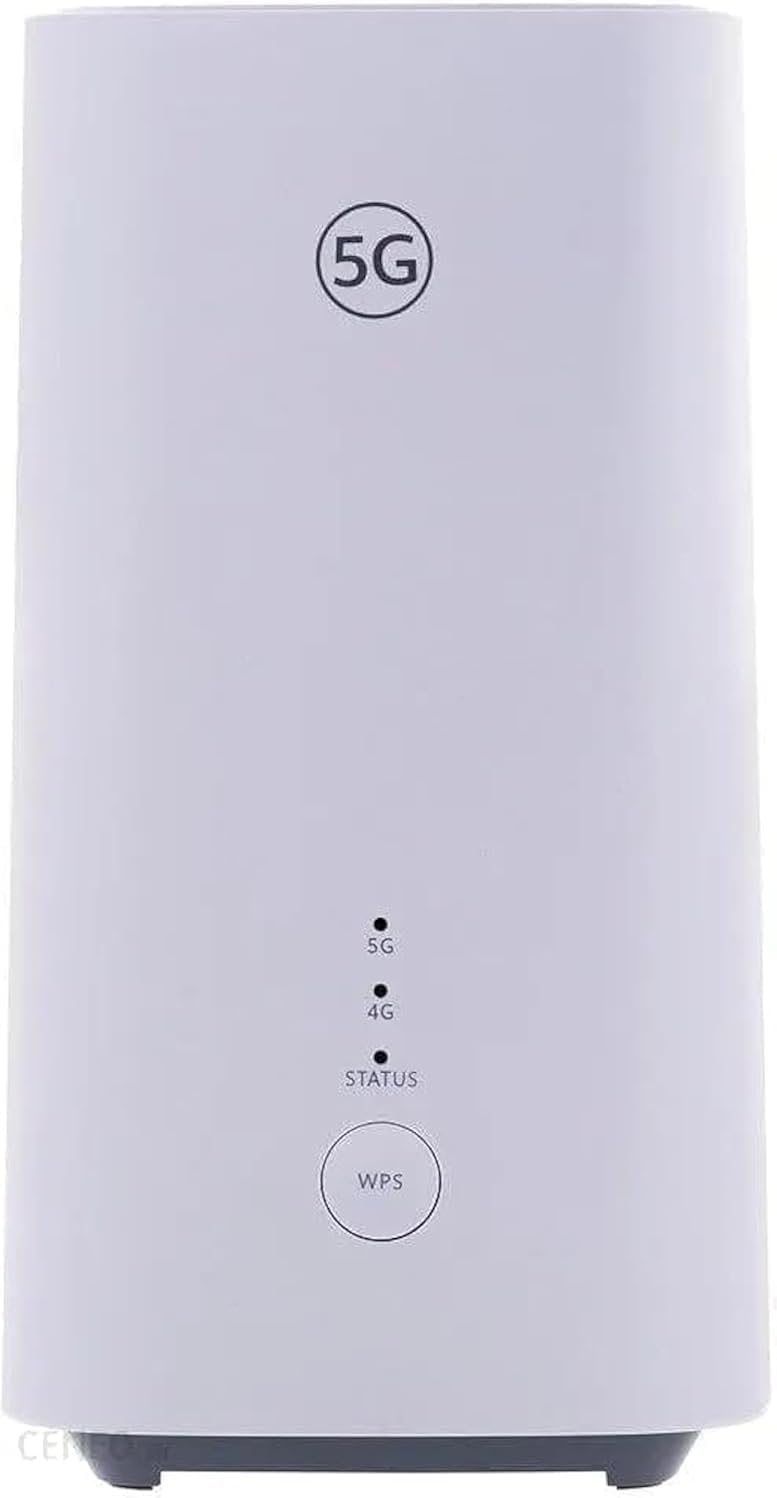
Figure 1.1: Front view of the Huawei H155-381 5G CPE 5 Router, showing the 5G logo, LED indicators for 5G, 4G, and Status, and the WPS button.
2. Setup Guide
2.1 Package Contents
Before you begin, ensure all items are present in the package:
- Huawei H155-381 5G CPE 5 Router
- Power Adapter
- Ethernet Cable
2.2 Inserting the Nano-SIM Card
The router uses a Nano-SIM card for cellular connectivity. Follow these steps to insert the SIM card:
- Locate the SIM card slot at the bottom of the router.
- Gently push the SIM card tray to eject it.
- Place your Nano-SIM card into the tray with the gold contacts facing down and the notched corner aligned correctly.
- Carefully reinsert the tray into the slot until it clicks into place.

Figure 2.1: Bottom view of the router, highlighting the Nano SIM card slot and reset button.
2.3 Connecting Power and Ethernet
Connect the router to a power source and optionally to wired devices:
- Connect the power adapter to the router's power port (labeled 'POWER') and then plug it into a wall outlet.
- For wired connections, use an Ethernet cable to connect your computer or other network devices to the LAN ports (labeled 'LAN1' or 'LAN2/WAN') on the back of the router.
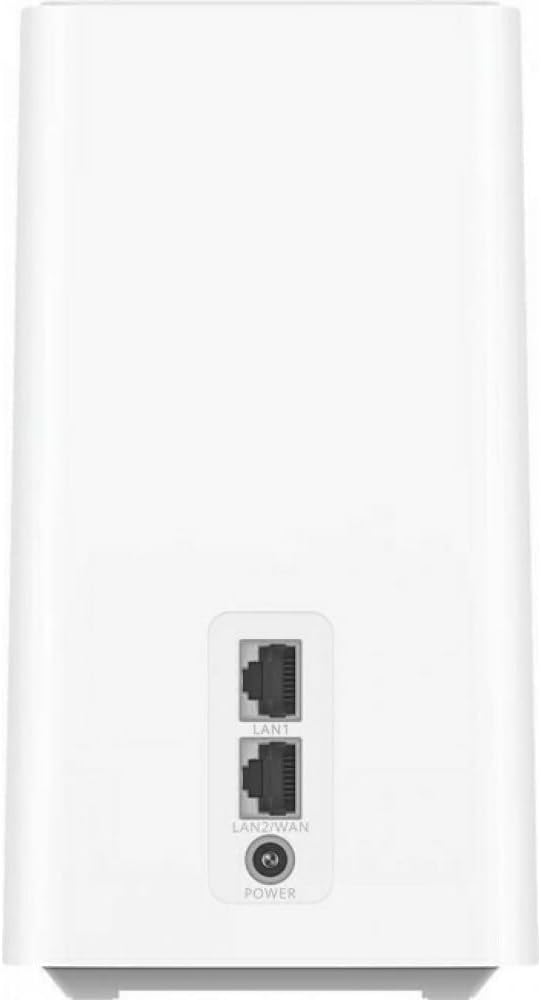
Figure 2.2: Rear view of the router, showing the LAN1, LAN2/WAN ports, and the power input.
3. Operating Instructions
3.1 Powering On and Off
Once connected to power, the router will automatically power on. To power off, simply disconnect the power adapter. There is no dedicated power button.
3.2 Understanding LED Indicators
The front panel of the router features several LED indicators that provide information about its status:
- 5G LED: Indicates 5G network status.
- 4G LED: Indicates 4G network status.
- STATUS LED: Indicates the overall operational status of the router. Refer to the router's full manual for detailed LED behavior (e.g., solid, blinking, color).
3.3 Connecting to Wi-Fi
To connect devices to the router's Wi-Fi network:
- Locate the Wi-Fi network name (SSID) and password on the label at the bottom of the router.
- On your device (smartphone, laptop, tablet), search for available Wi-Fi networks.
- Select the router's SSID and enter the Wi-Fi password when prompted.
3.4 Managing with AI Life App
The Huawei AI Life App allows for easy management of your CPE and router settings. Download the app from your device's app store and follow the in-app instructions to connect and manage your router.

Figure 3.1: The AI Life App provides a user-friendly interface for managing your router's settings and monitoring its status.
4. Maintenance
4.1 General Care and Cleaning
To ensure optimal performance and longevity of your router:
- Keep the router in a well-ventilated area, away from direct sunlight, heat sources, and moisture.
- Clean the exterior with a soft, dry cloth. Do not use liquid cleaners or aerosols.
- Avoid blocking the ventilation holes.
4.2 Firmware Updates
Periodically check for firmware updates through the router's web management interface or the AI Life App. Keeping the firmware updated ensures the best performance, security, and access to new features.
4.3 Factory Reset
If you encounter persistent issues or wish to restore the router to its default settings, you can perform a factory reset. Locate the reset button (often a small pinhole) at the bottom of the router (refer to Figure 2.1). Use a paperclip or similar pointed object to press and hold the button for approximately 5-10 seconds until the indicators change, then release. This will erase all custom settings.
5. Troubleshooting
This section addresses common issues you might encounter with your Huawei H155-381 5G CPE 5 Router.
5.1 No Internet Connection
- Check SIM Card: Ensure the Nano-SIM card is correctly inserted and active.
- Network Signal: Verify the 5G/4G LED indicators. If they are off or red, there might be no signal or a network issue. Try relocating the router to an area with better signal reception.
- Power: Ensure the router is properly powered on and the power adapter is securely connected.
- Data Plan: Confirm your mobile data plan is active and has available data.
5.2 Weak Wi-Fi Signal or Slow Speeds
- Router Placement: Place the router in a central location, away from obstacles like thick walls, metal objects, and other electronic devices that may cause interference.
- Interference: Other Wi-Fi networks or devices operating on similar frequencies (2.4GHz or 5GHz) can cause interference. Try changing the Wi-Fi channel in the router settings.
- Distance: The further your device is from the router, the weaker the signal. Consider using Wi-Fi extenders for larger areas.
- Connected Devices: Too many devices connected simultaneously can impact performance.
5.3 Cannot Access Router Management Page
- IP Address: Ensure you are using the correct IP address (e.g., 192.168.8.1) in your web browser.
- Connection: Verify your device is connected to the router's Wi-Fi or via an Ethernet cable.
- Browser Cache: Clear your browser's cache and cookies, or try a different browser.
- Firewall/Antivirus: Temporarily disable any firewall or antivirus software that might be blocking access.
6. Technical Specifications
| Feature | Specification |
|---|---|
| Model Name | H155-381 |
| 5G Network Support | NSA and SA modes; Bands: n1/3/5/7/20/28/71 TDD /38/40/41/77/78/79 |
| 4G Network Support | Bands: B1/3/5/7/8/18/19/20/26/28/32/34/38/39/40/41/42/43 |
| Wi-Fi Standard | Wi-Fi 6 AX3000 (802.11a/b/g/n/ac/ax) |
| Wi-Fi Frequency Bands | 2.4GHz and 5GHz (Dual-Band) |
| Maximum Connected Users | Up to 128 |
| Ethernet Ports | RJ45 (LAN1, LAN2/WAN) |
| SIM Card Type | NanoSIM |
| Antenna | 11dBi high gain 5G NR internal antenna |
| Dimensions (L x W x H) | 9.9 x 10.7 x 21.5 cm |
| Weight | 918 g |
| Operating System | RouterOS |
| Special Features | Beamforming, LED Indicator, DDNS, Built-in L2TP/PPTP VPN Client |
7. Warranty and Support
7.1 Warranty Information
Your Huawei H155-381 5G CPE 5 Router comes with a standard manufacturer's warranty. Please refer to the warranty card included in your product packaging or visit the official Huawei website for detailed warranty terms and conditions specific to your region.
7.2 Customer Support
For technical assistance, troubleshooting, or product inquiries, please contact Huawei customer support through their official website or the contact information provided in your product documentation. Ensure you have your product model number (H155-381) and serial number ready when seeking support.


