1. Introduction
This manual provides detailed instructions for the setup, operation, and maintenance of your X88 H96 MAX M3 Android 13.0 TV Stick. Please read this manual thoroughly before using the device to ensure proper functionality and to avoid damage.
The H96 MAX M3 is a compact smart TV dongle designed to transform your television into a smart entertainment hub. Featuring Android 13.0, a Rockchip RK3528 Quad-Core 64bit processor, 2GB DDR4 RAM, and 16GB ROM, it supports 8K video decoding, WiFi 6, and Bluetooth 5.0 for a seamless streaming experience.
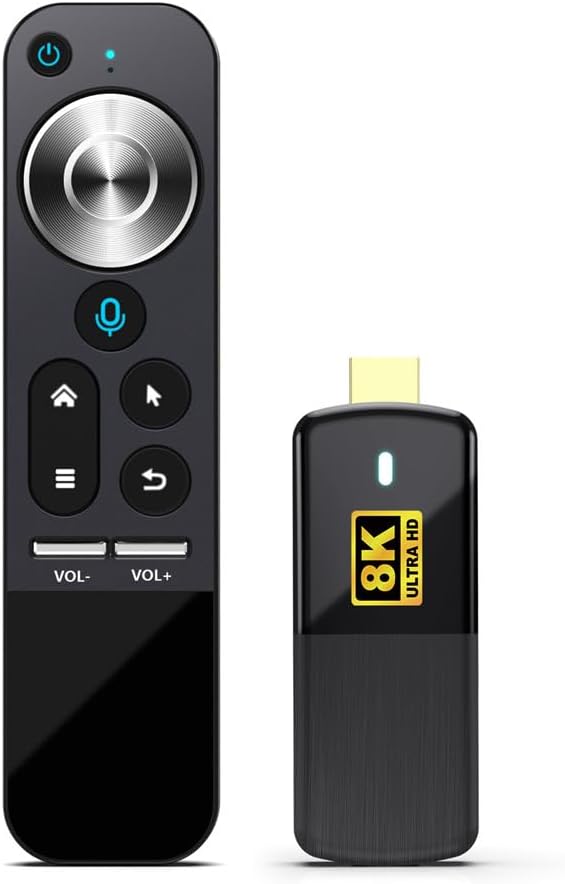
Image 1.1: The H96 MAX M3 TV Stick and its accompanying remote control.
2. Package Contents
Please check the package for the following items:
- X88 H96 MAX M3 Android 13.0 TV Stick
- Remote Control (2.4G Voice Remote)
- HDMI Extension Cable (if included)
- USB Power Cable
- User Manual

Image 2.1: The H96 MAX M3 TV Stick, remote control, and product packaging.
3. Product Overview
The H96 MAX M3 TV Stick is designed for ease of use and high performance. Key features include:
- Operating System: Android 13.0
- Processor: Rockchip RK3528 Quad-Core 64bit
- Memory: 2GB DDR4 RAM
- Storage: 16GB ROM
- Video Output: Supports up to 8K Ultra HD resolution
- Connectivity: Dual-band WiFi 6 (2.4G/5.8G), Bluetooth 5.0
- Special Features: HDR10+, Miracast, Voice Remote Control

Image 3.1: Diagram illustrating the Rockchip 3528 CPU, including Quad-core ARM Cortex-A53, Mali-450 GPU, 2GB RAM, and 16GB ROM.
4. Setup
Follow these steps to set up your H96 MAX M3 TV Stick:
- Connect to TV: Plug the H96 MAX M3 TV Stick directly into an available HDMI port on your television. If space is limited, use the provided HDMI extension cable.
- Connect Power: Connect the USB power cable to the TV Stick and then to a suitable USB power adapter (not always included, check package) or a powered USB port on your TV. Ensure the device receives stable power.
- Select Input: Turn on your TV and use the TV remote to select the correct HDMI input source to which the TV Stick is connected.
- Initial Boot-up: The device will power on automatically and display the boot-up screen. Follow the on-screen instructions for initial setup, including language selection and network connection.
- Connect to Internet: During the initial setup, you will be prompted to connect to a Wi-Fi network. Select your network and enter the password. The device supports WiFi 6 for faster speeds.
- Remote Control Setup: The 2.4G voice remote control is typically pre-paired. If not, follow any on-screen instructions or refer to the remote control section for pairing details.

Image 4.1: Visual guide showing three steps for setup: 1. Connect TV Box to TV, 2. Connect to internet, 3. Start streaming.
5. Operating Instructions
5.1 Navigating the Interface
The H96 MAX M3 runs on Android 13.0, offering a user-friendly interface. Use the remote control to navigate through menus and select applications.
- Directional Pad: Use the circular pad for up, down, left, and right navigation.
- OK Button: Press the center button to confirm selections.
- Back Button: Returns to the previous screen.
- Home Button: Returns to the main home screen.
- Menu Button: Accesses context-sensitive menus or options.

Image 5.1: The H96 MAX M3 TV Stick displaying its Android 13.0 home screen with various applications.
5.2 Voice Control
The included remote control features a built-in microphone for voice commands. Press the microphone button on the remote and speak clearly to search for content, open applications, or control playback.

Image 5.2: A hand holding the 2.4G Voice Remote Control, demonstrating its use with a television displaying YouTube content.
5.3 Application Management
You can download and install applications from the Google Play Store. To install, navigate to the Play Store app, search for your desired application, and select 'Install'. To uninstall, go to Settings > Apps, select the app, and choose 'Uninstall'.
5.4 Screen Mirroring (Miracast, Airplay, DLNA)
The device supports various screen mirroring protocols, allowing you to cast content from compatible smartphones, tablets, or computers to your TV.
- Miracast: For Android devices.
- Airplay: For Apple iOS devices.
- DLNA: For sharing media across a home network.
Access these features through the 'Miracast' or 'Screen Mirroring' application on the TV Stick's home screen or app drawer.

Image 5.3: Visual representation of multi-screen interaction features including Airplay, DLNA, and Miracast, alongside a 3D content viewing experience.
5.5 8K Video Decoding
The H96 MAX M3 supports 8K video decoding, providing high-resolution playback for compatible content. Ensure your television supports 8K resolution to fully utilize this feature.
Image 5.4: An image indicating support for 8K Ultra HD video decoding, depicted with a colorful parrot.
6. Maintenance
6.1 Cleaning
To clean the device, gently wipe the exterior with a soft, dry cloth. Do not use liquid cleaners or abrasive materials, as they may damage the device.
6.2 Software Updates
Periodically check for software updates to ensure optimal performance and access to the latest features. Navigate to Settings > About > System Update to check for and install available updates.
6.3 Storage Management
To manage internal storage, go to Settings > Storage. You can view storage usage and clear cached data or uninstall unused applications to free up space.
7. Troubleshooting
If you encounter issues with your H96 MAX M3 TV Stick, refer to the following common problems and solutions:
- No Power:
- Ensure the USB power cable is securely connected to the device and a working power source.
- Try a different USB power adapter or USB port.
- No Signal on TV:
- Verify the TV Stick is fully inserted into the HDMI port.
- Check that your TV is set to the correct HDMI input source.
- Try a different HDMI port on your TV.
- Wi-Fi Connection Issues:
- Ensure your Wi-Fi router is on and functioning correctly.
- Re-enter the Wi-Fi password in Settings > Network & Internet.
- Move the TV Stick closer to your Wi-Fi router or reduce interference from other devices.
- Remote Control Not Responding:
- Check and replace the batteries in the remote control.
- Ensure there are no obstructions between the remote and the TV Stick.
- If the remote is a 2.4G wireless type, ensure its USB receiver (if external) is properly connected to the TV Stick.
- System Lag or Freezing:
- Close unused applications running in the background.
- Clear cached data from applications in Settings > Apps.
- Restart the device by unplugging and re-plugging the power cable.
- Factory Reset: If problems persist, you may need to perform a factory reset. Go to Settings > System > Reset options > Erase all data (factory reset). Warning: This will delete all data and installed applications from the device.
8. Specifications
| Feature | Specification |
|---|---|
| Brand Name | X88 |
| Model Number | H96MAX-M3 |
| Operating System | Android 13.0 |
| Processor | RK3528 Quad-Core 64bit (ARM Cortex-A53) |
| GPU | Mali-450 |
| RAM | 2GB DDR4 |
| ROM | 16GB |
| Connectivity Technology | WIFI6, BT5.0, USB |
| Wi-Fi | Dual 2.4G/5.8G WiFi 6 |
| Bluetooth | BT5.0 |
| Video Output Resolution | 8096x4160 (8K) |
| Video Codec Support | VP9, H.265, H.264, VC-1, MPEG-1, MPEG-2, MPEG-4, VP6, VP8 |
| Special Features | Miracast, HDR10+ |
| Product Dimensions | 3.85 x 1.45 x 0.51 inches |
| Item Weight | 6 ounces |
| UPC | 749727784717 |
9. Warranty Information
For detailed warranty information, please refer to the product packaging or the official X88 manufacturer's website. Warranty terms and conditions may vary by region and retailer.
10. Support
If you require further assistance or have questions not covered in this manual, please contact customer support through the X88 manufacturer's official website or the retailer from whom you purchased the product.


