
1. Introduction
This manual provides essential information for setting up, operating, maintaining, and troubleshooting your Alienware X16 R2 Gaming Laptop. Designed for high-performance gaming and demanding tasks, this laptop combines advanced hardware with a sleek design.
The Alienware X16 R2 features a 16-inch QHD+ 240Hz 3ms display, an Intel Core Ultra 7-155H processor, 16GB LPDDR5X RAM, a 1TB SSD, and an NVIDIA GeForce RTX 4070 8GB GDDR6 graphics card, running on Windows 11 Home.
2. What's in the Box
Verify that all items are present in your product packaging:
- Alienware x16 R2 Laptop
- 360-Watt Adapter
- Power Cord
- Documentation (this manual and other guides)
3. Setup
3.1 Initial Power-On
- Unpack the laptop and all accessories.
- Connect the 360-Watt adapter to the laptop's power/DC-in port and then to a power outlet.
- Open the laptop lid and press the power button (often integrated with the Alienware logo) to turn on the device.
- Follow the on-screen instructions to complete the Windows 11 Home setup.
3.2 Connecting Peripherals
Utilize the various ports on your laptop to connect external devices:
- USB-A Ports: For standard USB devices like mice, keyboards, or external drives.
- USB-C / Power Delivery Ports: For modern USB-C devices, data transfer, and power delivery.
- HDMI / DisplayPort: For connecting external monitors or projectors.
- Micro SD Card Slot: For reading and writing data to Micro SD cards.
- Headset Jack: For connecting headphones or a headset with a microphone.

Figure 3.2.1: Rear Ports Overview
4. Operating Instructions
4.1 Keyboard and Touchpad
The Alienware X16 R2 features a backlit keyboard and a responsive touchpad. The keyboard includes a numerical keypad for enhanced productivity. Customize keyboard lighting effects through the Alienware Command Center.

Figure 4.1.1: AlienFX Lighting on Rear Edge
4.2 Display Settings
The 16-inch QHD+ display offers a 240Hz refresh rate and 3ms response time, enhanced by 100% DCI-P3 color gamut, ComfortView Plus, NVIDIA G-SYNC, and Advanced Optimus technologies for an immersive visual experience. Adjust display settings via Windows Display Settings or NVIDIA Control Panel.
4.3 Audio and Camera
The laptop is equipped with a 1080p at 30fps FHD RGB+IR camera with dual-array microphones for clear video conferencing and facial recognition. Audio is delivered through two 2W tweeter speakers and four 3W woofer speakers. Adjust audio settings through Windows Sound Settings.

Figure 4.3.1: FHD HDR IR Camera Location
4.4 Alienware Command Center
The Alienware Command Center software allows for customization of performance presets, fan speeds, and AlienFX lighting effects. This tool provides granular control over your gaming experience.

Figure 4.4.1: Alienware Command Center Interface
5. Key Features and Components
5.1 Processor and Memory
The laptop is powered by an Intel Core Ultra 7-155H processor with 16 cores and 24MB cache, capable of reaching 4.8GHz. It includes 16GB of LPDDR5x integrated memory for efficient multitasking and gaming.

Figure 5.1.1: Intel Core Ultra Processor
5.2 Graphics
Equipped with an NVIDIA GeForce RTX 4070 graphics card with 8GB GDDR6 memory, the Alienware X16 R2 delivers high-fidelity visuals and supports advanced features like ray tracing and DLSS 3 for enhanced gaming performance.
Video 5.2.1: NVIDIA GeForce RTX 40 Series Overview. This video demonstrates the performance capabilities of NVIDIA's RTX 40 series graphics cards, including features like DLSS 3 for improved frame rates and visual quality in games.

Figure 5.2.2: NVIDIA Ada Lovelace Architecture for RTX 40 Series
5.3 Storage
The laptop includes a 1TB M.2 PCIe NVMe Solid State Drive (SSD), providing fast boot times and rapid data access for applications and games.
5.4 Advanced Cooling System
The Alienware Cryo-tech™ cooling technology is designed to maximize performance by efficiently expelling warm air through side vents and drawing in cooler air from the top of the keyboard. This system includes six laser-welded flat end heat pipes to maintain optimal operating temperatures.

Figure 5.4.1: Alienware Cryo-tech Cooling System
6. Maintenance
6.1 Cleaning
- Use a soft, lint-free cloth to clean the screen and exterior surfaces.
- Avoid using harsh chemicals or abrasive materials.
- Use compressed air to clear dust from ventilation grilles periodically.
6.2 Software Updates
Regularly update your Windows operating system, drivers (especially graphics drivers), and Alienware Command Center software to ensure optimal performance and security. These updates often include performance enhancements and bug fixes.
6.3 Battery Care
To prolong battery life, avoid consistently discharging the battery completely or keeping it at 100% charge for extended periods. For long-term storage, charge the battery to about 50%.
7. Troubleshooting
7.1 Power Issues
- Laptop not turning on: Ensure the power adapter is securely connected to both the laptop and a working power outlet. Check the power indicator light on the adapter.
- Battery not charging: Verify the power adapter is functioning correctly. Try restarting the laptop. If the issue persists, contact support.
7.2 Display Problems
- No display: Connect an external monitor to check if the issue is with the laptop's internal display. If the external monitor works, the internal display or its connection may be faulty.
- Flickering or distorted image: Update your graphics drivers. Reduce the display refresh rate in Windows settings to see if it resolves the issue.
7.3 Performance Issues
- Slow performance: Close unnecessary background applications. Check for malware. Ensure sufficient free space on your SSD.
- Overheating: Ensure ventilation grilles are clear of obstructions. Use Alienware Command Center to monitor temperatures and adjust fan profiles.
8. Specifications
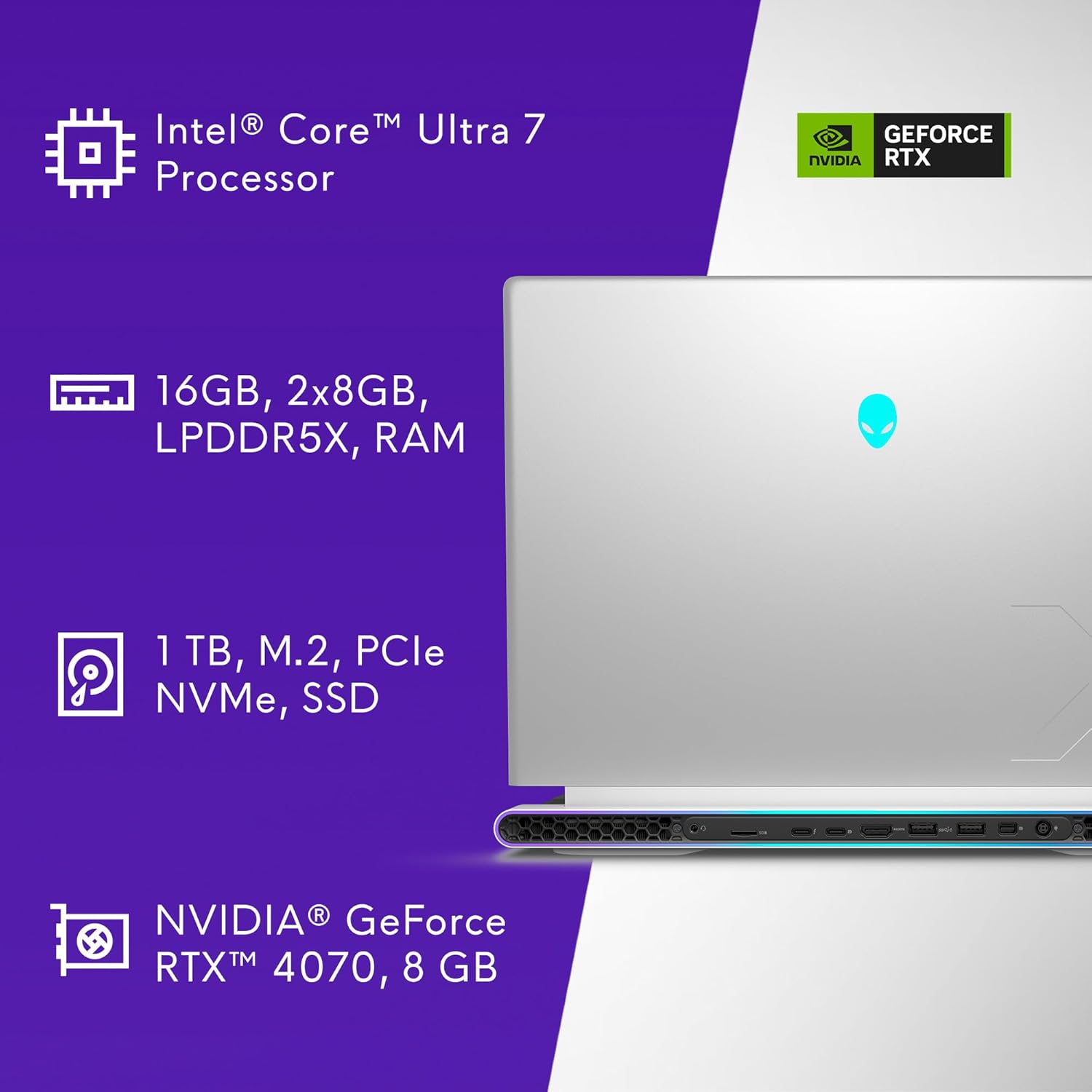
Figure 8.1.1: Key Specifications Overview
| Feature | Specification |
|---|---|
| Model Number | AW16R2-7988SLV-PUS |
| Display Size | 16 Inches |
| Screen Resolution | 2560 x 1600 pixels (QHD+) |
| Refresh Rate | 240Hz |
| Response Time | 3ms |
| Processor | Intel Core Ultra 7-155H (16 Cores, 4.8 GHz) |
| RAM | 16 GB LPDDR5X (7467 MHz) |
| Storage | 1 TB SSD (M.2 PCIe NVMe) |
| Graphics Coprocessor | NVIDIA GeForce RTX 4070 |
| Graphics Card RAM | 8 GB GDDR6 |
| Operating System | Windows 11 Home |
| Wireless Connectivity | Bluetooth |
| Camera | 1080p at 30fps, FHD RGB+IR camera |
| Audio | 2x 2W Tweeter, 4x 3W Woofer |
| Dimensions (LxWxH) | 11.42 x 14.36 x 0.73 inches |
| Item Weight | 6 pounds |
| Color | Lunar Silver |
9. Warranty and Support
Your Alienware X16 R2 Gaming Laptop includes 1 Year Onsite Service. This service provides support at your home, office, or chosen location if an issue covered by the Limited Hardware Warranty cannot be resolved remotely.

Figure 9.1.1: Premium Support Services
For further assistance, refer to the official Alienware support website or contact their customer service.
Video 9.2.1: Alienware m16 R2 Overview. This video provides a general overview of the Alienware m16 R2, showcasing its design and features, which are similar to the X16 R2 model.


