
Introduction
This manual provides detailed instructions for the installation, operation, and maintenance of your Sonew 8MP 4K Triple Lens Varifocal Security Camera. Please read this manual thoroughly before using the product to ensure proper functionality and safety. This camera is designed for both outdoor and indoor surveillance, featuring 8MP 4K resolution, triple lenses for comprehensive coverage, full-color night vision, and advanced motion detection capabilities.
Setup
1. Unboxing and Package Contents
Carefully unpack all items and verify against the package list. Ensure all components are present and undamaged.
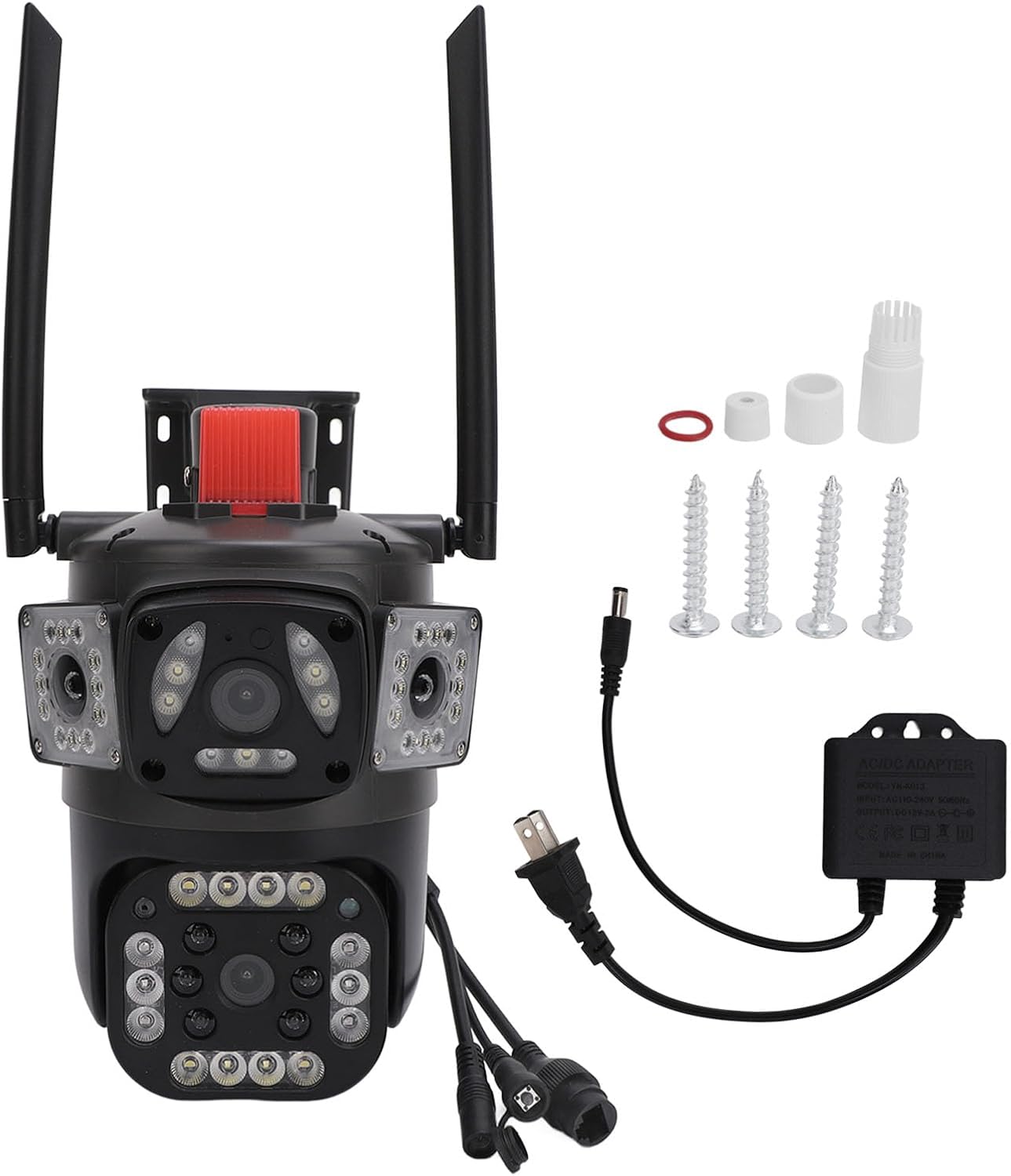
Image 1.1: Sonew 8MP 4K Triple Lens Security Camera with included accessories, including power adapter, screws, and interface covers.
The package typically includes: 1 x Triple Lens Camera, 1 x Power Supply, 4 x Screws, 4 x Expansion Plugs, 3 x Interface Covers, 1 x Sealing, and 1 x English User Manual.
2. Power Connection
Connect the camera to the provided power supply. The camera will perform a self-check upon power-up.

Image 2.1: Close-up view of the camera's power input and network interface ports, showing the connections for power and wired network.
Ensure the power connection is secure. For wired network connection, connect an Ethernet cable to the camera's network port and to your router.
Video 2.1: This video demonstrates the unboxing and initial setup process for a similar security camera, including connecting the power and network cables. It provides a visual guide to help users get started with their device.
3. SD Card Installation (Optional)
The camera supports local storage via a Micro SD card (up to 128GB, not included). Locate the SD card slot, typically under a protective cover, and insert the card. Ensure the camera is powered off before inserting or removing the SD card.
Video 3.1: This video provides an unboxing and full setup guide for a security camera, which includes instructions on how to install the SD card for local storage. While the camera model may vary, the SD card installation steps are generally similar.
4. App Download and Wi-Fi Configuration
Download the recommended mobile application (e.g., O-KAM Pro or iCSee, as suggested by related videos) from your smartphone's app store. Follow the in-app instructions to register an account and add your camera. The camera supports 2.4G Wi-Fi connectivity.
Video 4.1: This video demonstrates the process of setting up an outdoor camera, including app download and Wi-Fi configuration. The steps shown are applicable to many Wi-Fi enabled security cameras.
Video 4.2: This video illustrates the installation and app connection process for a dual-lens security camera. The principles of connecting to the app and configuring Wi-Fi are similar for the triple-lens model.
5. Physical Installation
Choose a suitable location for your camera, ensuring it has a clear view of the area you wish to monitor and is within Wi-Fi range. Use the provided mounting accessories to securely attach the camera to a wall or ceiling. The camera's robust ABS engineering plastic construction makes it suitable for various environments.

Image 5.1: The camera features three lenses: two fixed viewing positions and one translation tilt rotating monitoring position for comprehensive coverage.
Operating Instructions
1. Live View and Multi-Lens Monitoring
Access the live feed through the mobile application. The triple-lens design allows for simultaneous monitoring of different areas, often displayed as multiple screens within the app. One lens typically offers a fixed, wide view, while others can be adjusted.

Image 1.1: The mobile application interface showing three simultaneous views from the camera's multiple lenses, providing comprehensive monitoring.
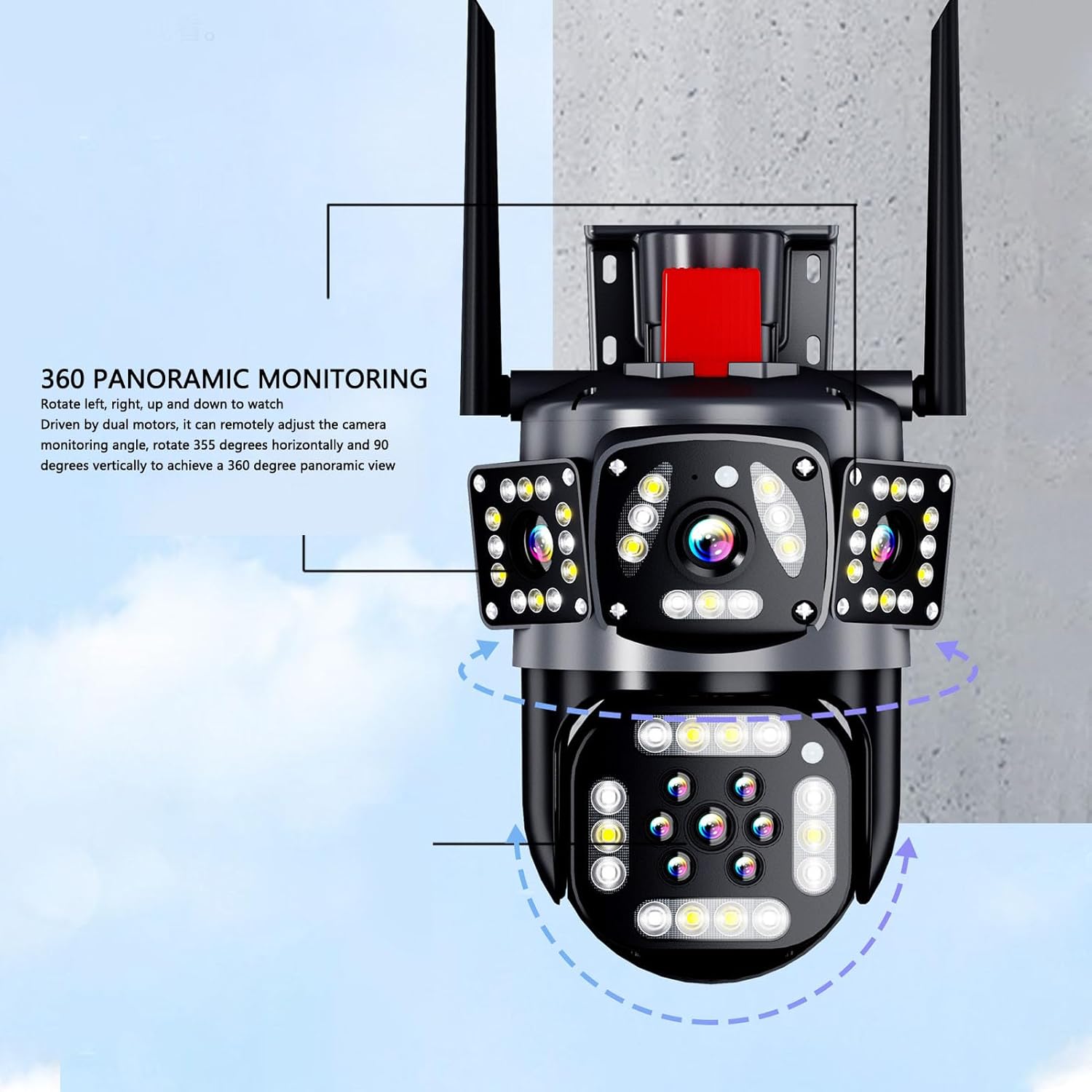
Image 1.2: Illustration of the camera's 360 panoramic monitoring capability, driven by dual motors for 355-degree horizontal and 90-degree vertical rotation.
2. Motion Detection and Alerts
The camera features advanced AI motion detection to identify humanoid movements. When motion is detected, the camera sends real-time alerts to your mobile device. You can configure activity zones to reduce unnecessary notifications.

Image 2.1: The camera's motion detection feature capturing a person and displaying the live feed on a mobile device, indicating an alert.
Video 2.2: This video demonstrates how to set up motion detection zones, allowing users to define specific areas for alerts and reduce false alarms from irrelevant movements.
3. Full Color Night Vision
The camera provides ultra-clear night vision. When triggered by motion, it can activate white light for enhanced visibility and full-color night vision, ensuring clear images even in low-light conditions.

Image 3.1: The camera's intelligent full-color night vision feature, showing activated warm light and infrared light for clear visibility in dark environments.
4. Two-Way Audio
Utilize the two-way audio feature to communicate with individuals near the camera. This is useful for giving instructions to delivery personnel or deterring intruders.
Video 4.1: This video demonstrates the two-way audio function of a security camera, showing how users can communicate through the device from their mobile phone.
5. Sharing Access
The mobile application allows you to share camera access with family members or trusted individuals, enabling multiple users to view the live feed and receive alerts simultaneously.

Image 5.1: The mobile application interface illustrating the "One Click to Share with Family" feature, allowing multiple people to watch online remotely.
Maintenance
1. Cleaning
Regularly clean the camera lenses and housing with a soft, damp cloth to ensure optimal image clarity. Avoid using harsh chemicals or abrasive materials that could damage the camera's surface or lenses.
2. Weather Resistance
The camera is constructed with premium ABS engineering plastic, making it waterproof, sun-proof, and dustproof. While designed for outdoor use, ensure proper installation to prevent water accumulation around connections.
3. Firmware Updates
Check the mobile application periodically for available firmware updates. Keeping your camera's firmware up-to-date ensures access to the latest features, security enhancements, and performance improvements.
Troubleshooting
- No Power: Ensure the power adapter is securely connected to both the camera and a working power outlet. Verify the power outlet is functional.
- Wi-Fi Connection Issues:
- Ensure the camera is within range of your 2.4GHz Wi-Fi network.
- Verify the Wi-Fi password entered in the app is correct.
- Restart your router and the camera, then attempt to reconnect.
- If issues persist, try resetting the camera to factory defaults (see below) and reconfiguring.
- Poor Image Quality:
- Check your internet connection speed. A slow connection can affect streaming quality.
- Clean the camera lenses to remove any dust or smudges.
- Ensure there are no obstructions blocking the camera's view.
- Motion Detection Not Working:
- Verify that motion detection is enabled in the app settings.
- Adjust the detection sensitivity and activity zones as needed.
- Ensure the camera's view is not obstructed.
- Camera Reset: If you encounter persistent issues, you may need to reset the camera. Locate the reset button (often a small pinhole) on the camera body. Use a pin or paperclip to press and hold the button for approximately 4 seconds until you hear a voice prompt indicating a reset.
Specifications
| Feature | Detail |
|---|---|
| Item Type | Triple Lens Camera |
| Material | ABS Engineering Plastic |
| Voltage | 110-240V |
| Power Supply | Wired Network |
| Pixels | 8MP |
| Night Vision Type | Dual Light Full Color |
| Resolution | 2960 x 1655 (4K) |
| Image Sensor | CMOS |
| Horizontal Resolution | 4k |
| Lens | Approx. 3.6mm / 0.1in |
| Storage | Cloud and Local Storage Card (Maximum 128GB, Storage card not included) |
| Package Dimensions | 9.84 x 7.48 x 6.69 inches |
| Item Weight | 1.75 pounds |
| Item Model Number | Sonewbd1hfp98no-11 |
| Date First Available | April 12, 2024 |
| Manufacturer | Sonew |
Warranty and Support
For warranty information and technical support, please refer to the product packaging or contact Sonew customer service directly. Keep your purchase receipt as proof of purchase for any warranty claims.