1. Introduction
Thank you for choosing the birdsnap® MON Smart Bird Feeder with Camera. This device allows you to observe and interact with wild birds in your backyard from anywhere, providing real-time video, AI-powered bird identification, and convenient features for both you and your feathered visitors. This manual will guide you through the installation, operation, and maintenance of your new bird feeder.

Image: The birdsnap® MON Smart Bird Feeder, featuring its green roof, clear seed compartment, integrated camera, and a bird perched on the feeder.
2. What's In The Box
Please check the contents of your package to ensure all items are present:
- Bird Feeder Unit
- Detachable Camera
- 32GB Storage Card (pre-installed or separate)
- Fruit Fork
- Mounting Kit (includes Mounting Bracket, Strap, Hose Clip, Mounting Screws, Anchors, Drilling Template)
- Perch Screws & Perch
- Ejector Pin
- Adapter & Screws
- Anti-ant Cup
- Mounting Screw
- M5 Screws for DIY
- Type C Power Cable
- User Manual

Image: A visual representation of all components included in the birdsnap® MON package, such as the camera, feeder, mounting hardware, and accessories.
3. Setup Guide
3.1 Camera Charging and Installation
- Before first use, fully charge the detachable camera using the provided Type C power cable. The charging port is typically located on the back or bottom of the camera unit.
- Once charged, insert the 32GB storage card into the camera's designated slot if not already pre-installed.
- Securely attach the camera to the bird feeder unit. The camera is magnetic for easy attachment and removal.

Image: The detachable camera unit being charged via its Type C port, alongside the main feeder body.
3.2 Mounting the Bird Feeder
The birdsnap® MON feeder offers multiple mounting options:
- Wall Mount: Use the mounting bracket and screws to secure the feeder to a wall.
- Tree Mount: Utilize the provided strap to attach the feeder securely around a tree trunk.
- Fence Mount: Attach the feeder to a fence post using the mounting bracket and screws.
- Pole Mount: Use the hose clip to secure the feeder to a pole.
Ensure the chosen location has stable 2.4GHz Wi-Fi coverage for optimal camera performance. Position the feeder in an area where birds are likely to visit and where you have a clear view.

Image: Various mounting configurations for the bird feeder, including attachment to a fence, wall, tree, and pole.
3.3 App Installation and Wi-Fi Connection
- Download the VicoHome app from your smartphone's app store (iOS or Android).
- Follow the in-app instructions to create an account and add your new bird feeder camera.
- Ensure your Wi-Fi network is 2.4GHz. The camera does not support 5GHz Wi-Fi.
- During setup, the app will guide you through connecting the camera to your home Wi-Fi network.
4. Operating Instructions
4.1 Real-Time Bird Watching and Notifications
Once connected, the camera will automatically detect birds and send instant notifications to your phone. Open the VicoHome app to view live 2K HD video of your feathered visitors.

Image: A smartphone displaying a real-time notification from the VicoHome app, indicating motion detection by the camera, with a live view of a bird on the feeder.
4.2 AI Bird Identification
The birdsnap® MON features advanced AI technology capable of identifying over 10,000 bird species. When a bird is detected, the app can provide information about the identified species (subscription may be required for full access to detailed insights).

Image: A smartphone screen demonstrating the AI bird identification feature, showing a detected bird and providing information about its species.
4.3 Recording and Storage
The feeder comes with a 32GB storage card, allowing you to save thousands of video clips and photos. Cloud storage options may also be available through the app for additional backup and access.

Image: A smartphone displaying a filmstrip of recorded bird videos and photos, emphasizing the free storage capability with the included 32GB card.
4.4 Night Vision and Squirrel Deterrent
The camera features color night vision for clear viewing even in low-light conditions. An audible alarm function can be activated via the app to deter unwanted visitors like squirrels.

Image: The bird feeder demonstrating its full-color night vision capability and an illustration of its sound alarm feature effectively deterring a squirrel.
4.5 Sharing Moments
The VicoHome app allows you to easily share captured photos and videos of birds with family and friends, fostering a shared birdwatching experience.

Image: Multiple individuals simultaneously viewing live or recorded bird feeder footage on their smartphones, illustrating the sharing feature.
4.6 Refilling Food and DIY Add-ons
The feeder has a 1L capacity container and is designed for easy refilling. Simply open the top cover to add birdseed. The feeder also supports DIY add-ons like the fruit fork for offering different types of food.

Image: Instructions demonstrating the easy-fill mechanism for birdseed and the attachment points for DIY add-ons like fruit holders.

Image: The bird feeder with a fruit fork attached, illustrating how to use additional DIY accessories to attract a wider variety of bird species.
4.7 Anti-Ant Bracket
The feeder includes an anti-ant cup designed to prevent ants from reaching the birdseed. Fill the cup with water to create a barrier.

Image: A close-up view of the anti-ant bracket, demonstrating its design to prevent ants from accessing the feeder.
5. Maintenance
5.1 Cleaning the Feeder
Regular cleaning is essential to prevent mold and bacterial growth, ensuring a healthy environment for birds. The feeder's design allows for easy disassembly and cleaning. Use mild soap and water, and ensure all parts are thoroughly dry before reassembly.
5.2 Camera Care
The camera is detachable for easy charging and cleaning. Wipe the lens gently with a soft cloth. The feeder unit is IP65 weatherproof, designed to withstand outdoor elements.
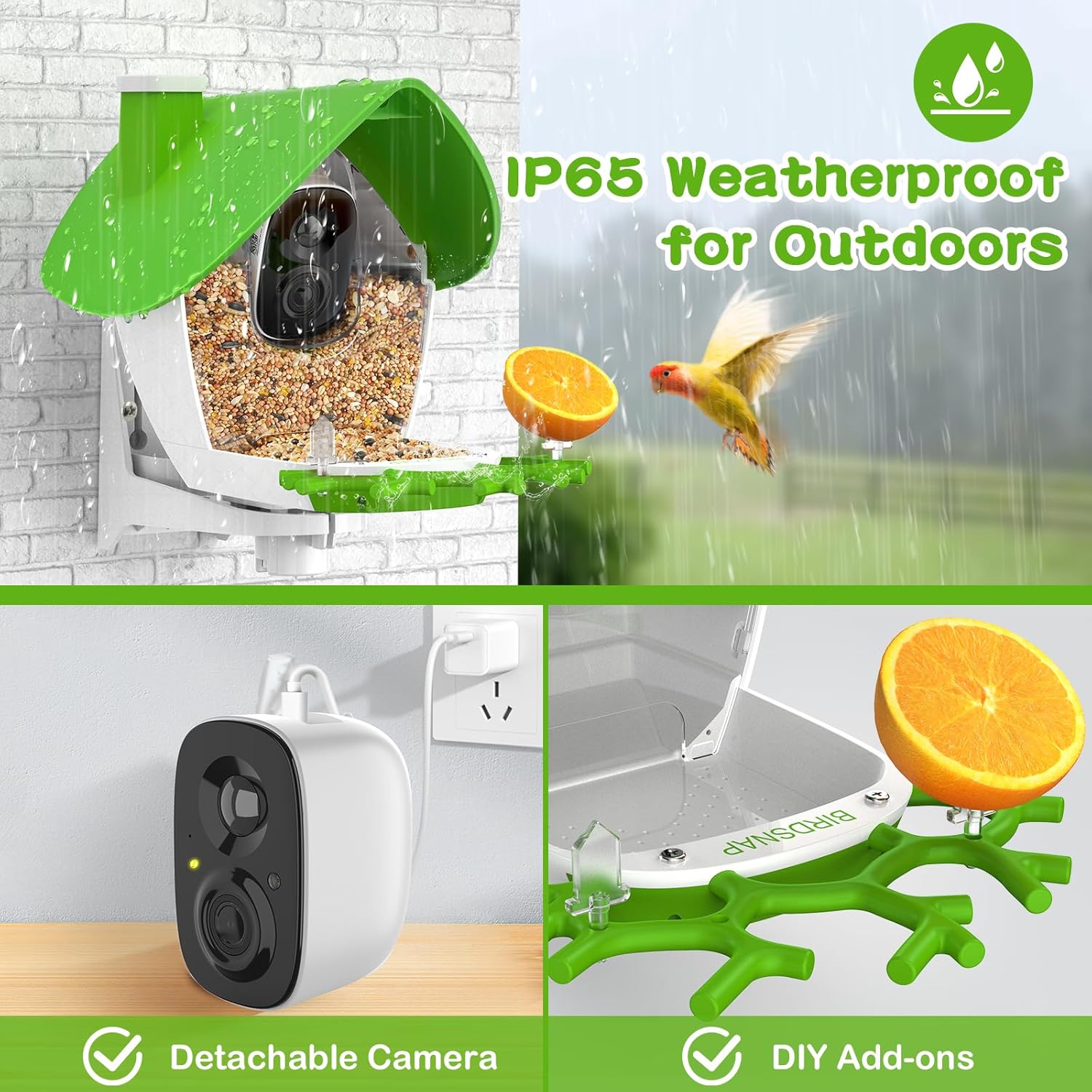
Image: The bird feeder highlighting its IP65 weatherproof rating for outdoor use, and the detachable camera for easy maintenance.

Image: The bird feeder demonstrating its IP65 weatherproof capability, shown enduring light rain in an outdoor setting.
6. Troubleshooting
- No Power/Camera Not Turning On: Ensure the camera is fully charged. Check the charging cable and adapter.
- Cannot Connect to Wi-Fi: Verify your Wi-Fi network is 2.4GHz (5GHz is not supported). Ensure the feeder is within range of your router. Restart your router and the camera.
- Poor Video Quality/Lag: Check your Wi-Fi signal strength. Move the feeder closer to the router if possible. Ensure the camera lens is clean.
- No Bird Detections/Notifications: Check camera settings in the app to ensure motion detection is enabled. Adjust sensitivity if needed. Ensure the camera's view is clear of obstructions.
- Squirrels Still Accessing Feeder: Ensure the anti-ant cup is filled with water. Utilize the audible alarm feature in the app. Consider repositioning the feeder.
- App Issues: Ensure the VicoHome app is updated to the latest version. Try restarting the app or your phone.
7. Specifications
| Feature | Specification |
|---|---|
| Brand | birdsnap |
| Model Number | Smart Bird Feeder with Camera |
| Target Species | Cardinal (and other wild birds) |
| Recommended Uses | Seed |
| Material | ABC+PC |
| Special Features | Easy-Refill Top, Weatherproof (IP65), Detachable Camera, AI Bird Identification, Color Night Vision, Audible Alarm |
| Mounting Type | Wall/Tree/Fence/Pole Mount |
| Product Dimensions | 6.69"L x 5.9"W x 7.87"H |
| Power Source | Battery Powered |
| Included Components | 32GB Storage Card, Bird Feeder Camera, Fruit Fork, Mounting Kit, User Manual |
| Capacity | 1 Liters |
| Color | Green |
| Item Weight | 3.43 Pounds |
8. Important Information & Safety Guidelines
- Always follow the instructions provided with the product.
- Keep the feeder clean and dry to prevent mold and bacterial growth.
- Do not place the feeder near power lines or other potential hazards.
- Avoid using food that may be harmful to birds, such as salt, chocolate, or caffeine.
- Always supervise children when they are near the feeder.
- Consult local regulations regarding the feeding of wildlife in your area.
9. Warranty and Support
For any questions, technical support, or warranty inquiries, please contact birdsnap customer service:
Email: birdsnap@outlook.com


