
Introduction
This document provides comprehensive instructions for the VAIO Pro PG11 (VJPG11C11N) laptop. It covers initial setup, operational guidance, maintenance procedures, and troubleshooting steps. The VAIO Pro PG11 is a lightweight and high-performance business-oriented laptop, featuring an Intel 8th generation Core i5 processor, 8GB RAM, and a 256GB SSD, running Windows 11 Pro. Please note: This product is a refurbished item. While it operates normally, some units may exhibit minor cosmetic imperfections such as scratches, dullness, paint peeling, or pressure marks on the LCD screen. These are typical for refurbished products and do not affect functionality.
Product Overview
The VAIO Pro PG11 is designed for productivity and portability. Key features include a 13.3-inch Full HD display, a backlit keyboard, and a comprehensive set of connectivity options.
Key Components
- Display: 13.3-inch (1920x1080) Full HD LCD.
- Processor: Intel 8th Generation Core i5-8250U (4 cores, 8 threads, 1.6-3.4GHz).
- Memory: 8GB RAM.
- Storage: 256GB SSD.
- Operating System: Windows 11 Pro (64-bit).
- Connectivity: Wi-Fi (802.11bgn), Bluetooth, Wired LAN port, 3x USB 3.0 ports, HDMI, D-SUB15 (VGA).
- Additional Features: Backlit keyboard, WEB camera, Fingerprint sensor.
- Weight: Approximately 1.07 kg.
Visual Reference
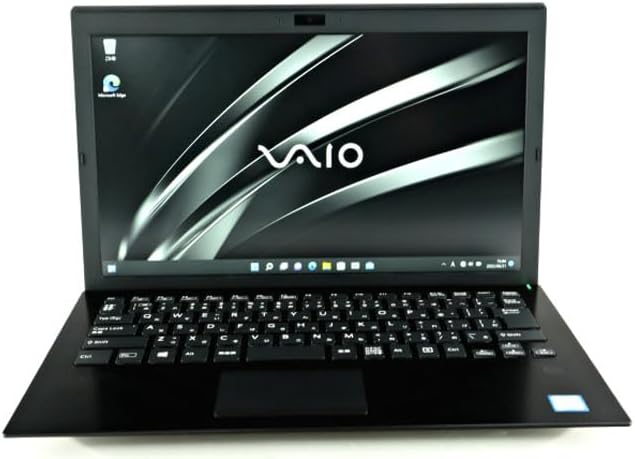


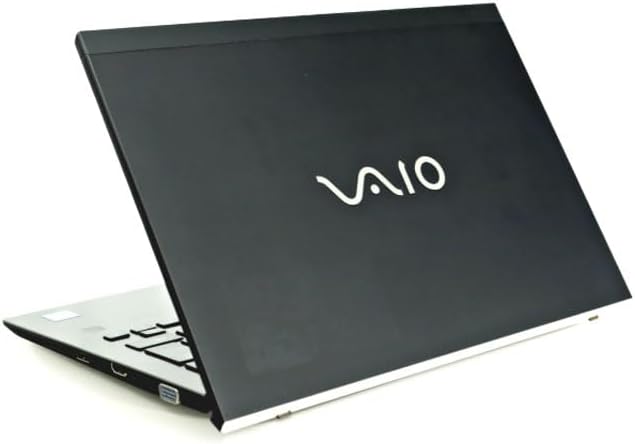
Setup
- Unpacking: Carefully remove the laptop and all accessories from the packaging. Ensure all components are present.
- Power Connection: Connect the AC adapter to the laptop's power input port and then plug it into a wall outlet. It is recommended to fully charge the battery before initial use.
- Initial Power On: Open the laptop lid and press the power button. The system will guide you through the Windows 11 Pro setup process. Follow the on-screen instructions to configure language, region, network, and user accounts.
- Network Connection: During setup, you will be prompted to connect to a Wi-Fi network. Select your network and enter the password. Alternatively, connect an Ethernet cable to the LAN port for a wired connection.
- Updates: After initial setup, connect to the internet and allow Windows Update to download and install any pending operating system and driver updates. This ensures system stability and security.
Operating Instructions
Keyboard and Touchpad
- Keyboard: The laptop features a full-sized backlit keyboard. The backlight can typically be toggled using a function key combination (e.g., Fn + Fx key).
- Touchpad: Use the touchpad for cursor control and multi-touch gestures. Tap to click, use two fingers to scroll, and pinch to zoom.
- Fingerprint Sensor: For enhanced security, configure the integrated fingerprint sensor through Windows Hello settings.
Connecting Peripherals
- USB Devices: Connect USB devices such as external drives, mice, or keyboards to the three USB 3.0 ports.
- External Displays: Use the HDMI port or the D-SUB15 (VGA) port to connect an external monitor or projector. Press Windows key + P to manage display modes.
- Audio: Connect headphones or external speakers to the 3.5mm audio jack.
- Wireless Devices: Utilize Bluetooth for connecting wireless headphones, mice, or other compatible devices. Ensure Bluetooth is enabled in Windows settings.
Power Management
- Sleep Mode: Close the lid or press the power button briefly to put the laptop into sleep mode.
- Shut Down: To turn off the laptop, go to Start > Power > Shut down.
- Restart: To restart the laptop, go to Start > Power > Restart.
Maintenance
- Cleaning:
- Screen: Use a soft, lint-free cloth slightly dampened with water or a screen cleaner. Avoid harsh chemicals.
- Keyboard and Chassis: Use a soft cloth to wipe surfaces. A can of compressed air can remove dust from between keys.
- Battery Care:
- Avoid extreme temperatures.
- Do not fully discharge the battery frequently.
- For long-term storage, charge the battery to about 50-70%.
- Software Updates: Regularly check for and install Windows updates and driver updates from the VAIO support website to maintain system security and performance.
- Data Backup: Periodically back up important data to an external drive or cloud storage to prevent data loss.
Troubleshooting
| Problem | Possible Cause / Solution |
|---|---|
| Laptop does not power on. | Ensure the AC adapter is securely connected and the power outlet is functional. Check if the battery is completely drained. |
| No display on screen. | Check if the laptop is powered on. Try connecting an external monitor to verify if the issue is with the laptop's internal display. Adjust display brightness. |
| Wi-Fi connection issues. | Verify Wi-Fi is enabled in Windows settings. Restart your router and the laptop. Check for updated network drivers. |
| Keyboard or touchpad unresponsive. | Restart the laptop. Ensure no external devices are interfering. Check for driver updates for the keyboard and touchpad. |
| System is slow or unresponsive. | Close unnecessary applications. Check Task Manager for high resource usage. Ensure sufficient free space on the SSD. Run a malware scan. |
| LCD screen has pressure marks. | As noted in the product description, some units may exhibit pressure marks on the LCD screen. This is a characteristic of certain refurbished units and does not affect normal operation. |
Specifications
| Feature | Detail |
|---|---|
| Brand | VAIO |
| Manufacturer | Vaio |
| Series | VAIO PRO PG11 |
| Product Weight | 997.9 g |
| Battery | 1 Lithium Ion battery (35 Watt-hours, 4 cells) |
| Model Number | VJPG11C11N |
| Color | Black |
| Form Factor | PC |
| Screen Size | 13.3 inches |
| Resolution | 1920x1080 Pixels (Full HD) |
| CPU Brand | Intel |
| CPU Type | Core i5 8250U |
| CPU Speed | 1.6 GHz |
| Processor Socket | BGA 1356 |
| Processor Count | 1 |
| RAM Size | 8 GB |
| Memory Type | LPDDR3, DDR3 SDRAM |
| Maximum Memory Supported | 8 GB |
| HDD Capacity | 256 GB |
| Hard Disk Type | SSD (Solid State) |
| Graphics Accelerator | Intel UHD Graphics 620 |
| GPU Brand | Intel |
| Graphics Card Type | Integrated |
| VRAM Type | Shared |
| Graphics Card Interface | Integrated |
| Communication Format | Wi-Fi, Bluetooth |
| Wireless Type | 802.11bgn |
| USB 3.0 Ports | 3 |
| HDMI Ports | 1 |
| LAN Ports | 1 |
| Optical Drive Type | None |
| Operating System | Windows 11 Pro |
| First Available Date | 2024/4/12 |
Warranty and Support
This product is offered as a refurbished item. Specific warranty terms and support details are typically provided by the seller at the time of purchase. Please refer to your purchase documentation or contact the seller directly for information regarding warranty coverage, return policies, and technical support for your VAIO Pro PG11 (VJPG11C11N) laptop.
For general VAIO product information and drivers, you may visit the official VAIO support website. However, for issues specific to your refurbished unit, the seller is your primary point of contact.