
Introduction
Thank you for choosing Wisoqu DLP Link 3D Glasses. These active shutter glasses are designed to provide an immersive 3D viewing experience with compatible DLP Link projectors. This manual provides essential information for the proper setup, operation, and maintenance of your 3D glasses.

Figure 1: Front view of the Wisoqu DLP Link 3D Glasses.
The glasses feature a lightweight design for comfortable extended wear and utilize 144Hz ultra-fast refresh rate technology for high-definition, ghost-free, and flicker-free 3D visuals.
Product Overview
Package Contents
- Wisoqu DLP Link 3D Glasses (2 pairs)
- USB Charging Cable (2 pieces)
- Cleaning Cloth (2 pieces)

Figure 2: Package contents of the Wisoqu DLP Link 3D Glasses.
Key Features
- DLP Link Synchronization: Utilizes DLP Link technology for seamless synchronization with compatible projectors.
- 144Hz Refresh Rate: Provides an ultra-fast refresh rate for smooth and clear 3D images.
- Active Shutter Technology: Delivers high-definition 3D viewing without ghosting or flickering.
- Lightweight Design: Ensures comfort during prolonged use.
- Left/Right Eye Rotation: Allows for easy flipping of eye views if the 3D effect is not initially synchronized.
Setup
Charging the Glasses
Before first use, fully charge the 3D glasses. Connect the provided USB charging cable to the charging port on the glasses and to a standard USB power source (e.g., computer USB port, USB wall adapter).

Figure 3: USB charging cable.
The indicator light on the glasses will typically show red during charging and turn off or change color when fully charged. Charging time may vary.
Operating Instructions
Powering On/Off
- To power on, press the power button located on the side of the glasses. The indicator light will flash.
- To power off, press and hold the power button until the indicator light turns off.
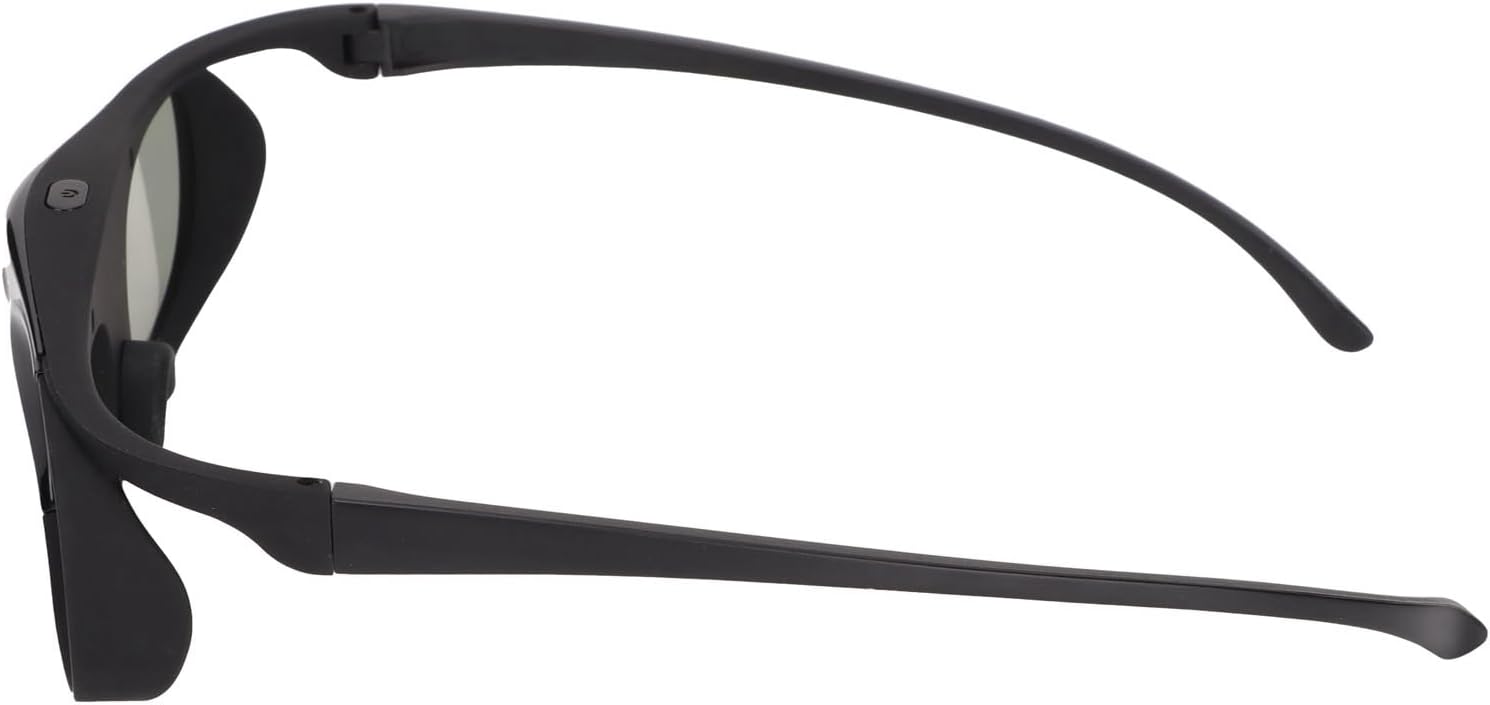
Figure 4: Location of the power button on the glasses.
Synchronization with DLP Link Projector
Ensure your DLP Link projector is set to output 3D content. Once the glasses are powered on and within range of the projector, they should automatically synchronize with the DLP Link signal. The indicator light will typically turn solid blue or green once synchronized.
Left and Right Eye Rotation
If you wear the 3D glasses and do not perceive a proper 3D effect, it may be due to inverted left and right eye views. To correct this, simply press the power button again (a quick press, not a long press to power off). This action will flip the left and right eye views, allowing for proper synchronization and 3D perception.
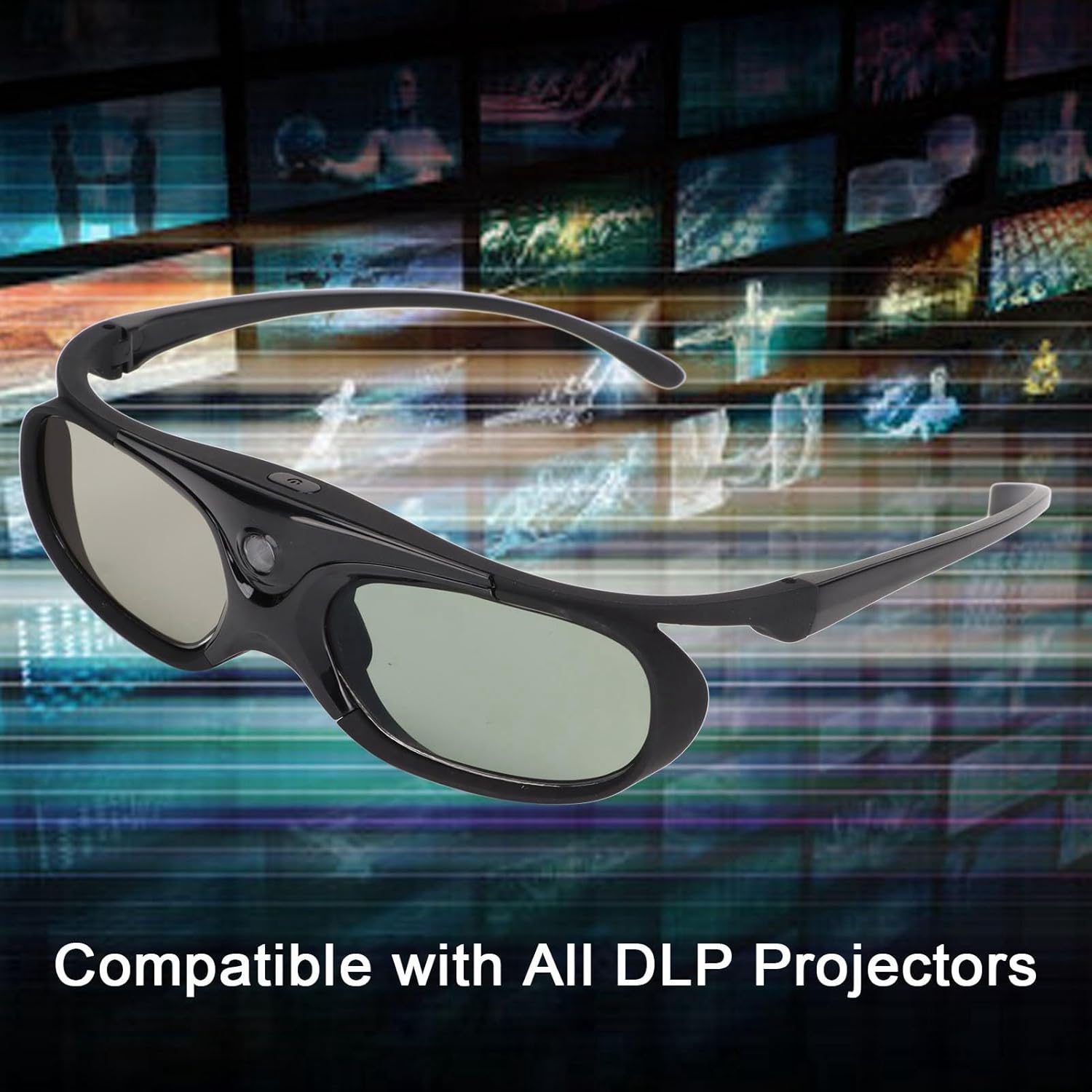
Figure 5: Glasses in use with a 3D display.
Maintenance
Cleaning
Use the provided cleaning cloth to gently wipe the lenses and frame of the glasses. Avoid using abrasive materials, alcohol, or chemical cleaners, as these can damage the lenses and coatings.

Figure 6: Cleaning the glasses with the provided cloth.
Storage
Store the glasses in a clean, dry place away from direct sunlight and extreme temperatures. Keep them in their protective packaging or a soft pouch when not in use to prevent scratches.
Battery Care
To prolong battery life, avoid fully discharging the glasses frequently. If storing for an extended period, charge the battery to approximately 50% every few months.
Troubleshooting
- No 3D Effect:
- Ensure the glasses are powered on and fully charged.
- Verify that your projector is a DLP Link compatible model and is outputting a 3D signal.
- Press the power button once to perform a left/right eye rotation.
- Ensure there are no obstructions between the glasses and the projector's 3D emitter.
- Glasses Not Charging:
- Check the USB cable connection at both ends.
- Try a different USB power source.
- Ensure the charging port on the glasses is clean and free of debris.
- Flickering or Ghosting:
- Ensure the glasses are fully charged.
- Verify that the projector's 3D settings are correctly configured.
- Check for strong ambient light sources that might interfere with the 3D signal.
Specifications
| Brand | Wisoqu |
| Model Number | Wisoqurc97zp0ud5 |
| Synchronization Method | DLP Link |
| Refresh Rate | 144Hz |
| Compatibility | Compatible with all DLP Link projectors (e.g., Optoma, Acer, BenQ, ViewSonic, Dell, Vivitek, InFocus, NEC, etc.). Not compatible with ordinary projectors, 3D TVs, or other non-DLP Link devices. |
| Item Weight | 9.1 ounces |
| Package Dimensions | 7.09 x 4.72 x 2.76 inches |
Warranty and Support
For warranty information and technical support, please refer to the documentation provided with your purchase or contact Wisoqu customer service directly. Keep your purchase receipt for warranty claims.