
1. Introduction
This manual provides detailed instructions for the installation, operation, and maintenance of your GekoGear Orbit C100 7-inch Portable Infotainment Display. Please read this manual thoroughly before using the device to ensure proper functionality and safety. The Orbit C100 is designed to enhance your driving experience by integrating wireless Apple CarPlay and Android Auto into your vehicle.
2. Safety Information
- Do not operate the device in a manner that distracts you from driving. Always prioritize road safety.
- Ensure the device is securely mounted and does not obstruct your view or interfere with vehicle controls.
- Avoid exposing the device to extreme temperatures, direct sunlight for prolonged periods, or moisture.
- Do not attempt to disassemble or repair the device yourself. Refer to qualified service personnel.
- Use only the provided power cable and accessories to prevent damage or malfunction.
3. Package Contents
Verify that all items are present in the package:
- GekoGear Orbit C100 7-inch Portable Infotainment Display
- Power Cable
- Adhesive Sticker (for dashboard mounting)
- Suction Cup Mount (for windshield mounting)
- Quick-Start Guide
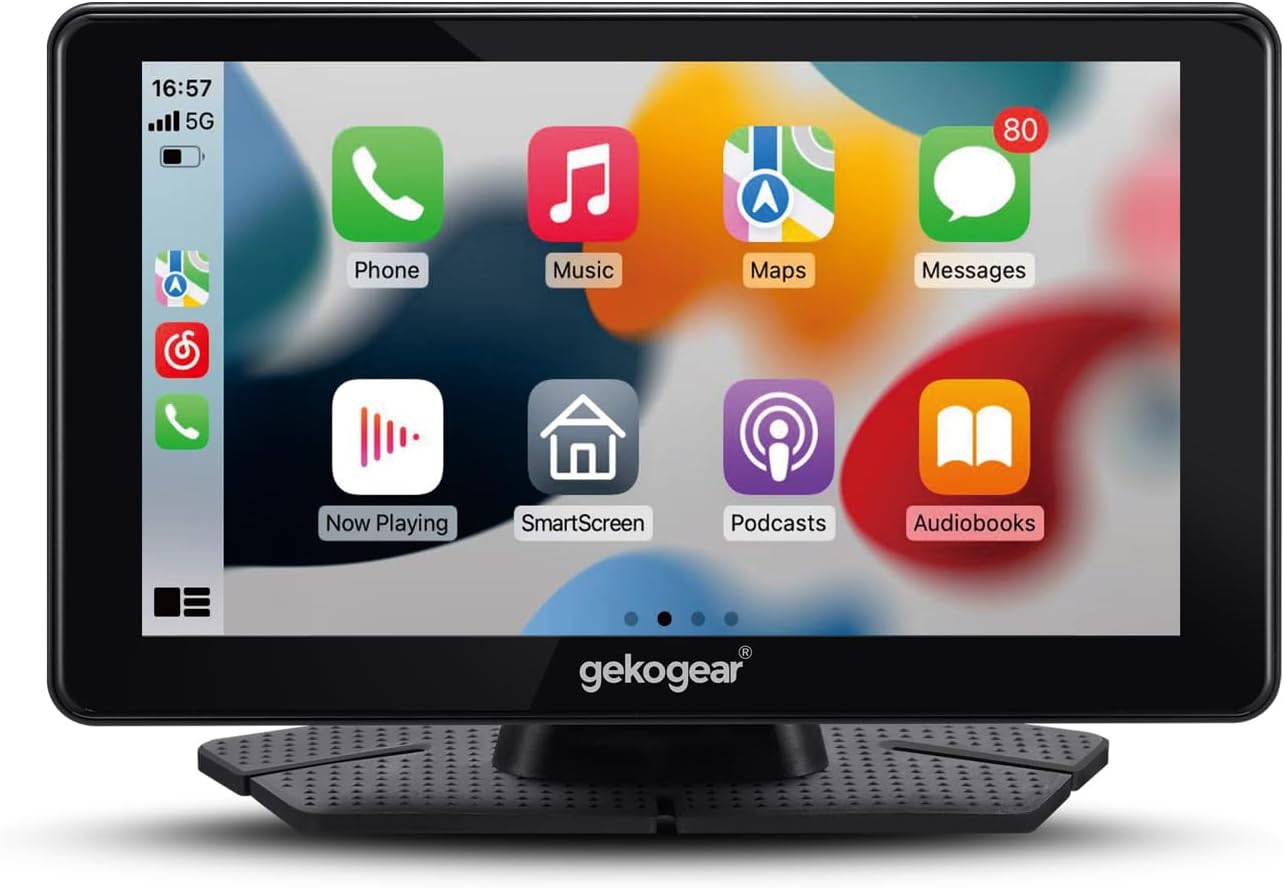
Image 1: GekoGear Orbit C100 Portable Infotainment Display. This image shows the front view of the device with the Apple CarPlay interface displayed on its screen, featuring icons for Phone, Music, Maps, Messages, Now Playing, SmartScreen, Podcasts, and Audiobooks.
4. Product Overview
The GekoGear Orbit C100 features a 7-inch IPS touchscreen display with a resolution of 1024 x 600. It includes a 1.5-watt built-in speaker and offers multiple audio output options. The device supports wireless Apple CarPlay and Android Auto via Bluetooth and Wi-Fi connectivity.
4.1 Key Features
- 7-inch IPS Display: Vibrant touchscreen for clear visuals and responsive control.
- Wireless CarPlay & Android Auto: Seamless integration with your smartphone for navigation, music, and communication.
- Multiple Audio Outputs: Stream audio to your car's stereo via 3.5mm AUX, FM transmitter, or use the built-in speaker.
- Hands-Free Operation: Supports voice commands for safer driving.
- Dual Mounting Options: Includes both a windshield suction mount and an adhesive dashboard pad.

Image 2: GekoGear Orbit C100 in a vehicle. This image illustrates the device mounted on a car dashboard, displaying its main interface with options for CarPlay, Android Auto, PhoneLink, and FM Transmit. Icons above the device highlight its features: 7" IPS display, built-in speaker, FM/AUX, Bluetooth, Wireless connectivity, and USB power.
5. Setup
5.1 Mounting the Device
The Orbit C100 offers two primary mounting methods:
- Windshield Suction Mount:
- Clean the desired area on your windshield.
- Attach the suction cup mount to the back of the Orbit C100.
- Press the suction cup firmly against the windshield and engage the locking lever.
- Adjust the viewing angle as needed.
- Dashboard Adhesive Pad:
- Clean and dry the desired area on your dashboard.
- Peel the protective film from the adhesive pad and firmly press it onto the dashboard.
- Attach the device to the adhesive pad.
- Ensure the mount is stable before driving.
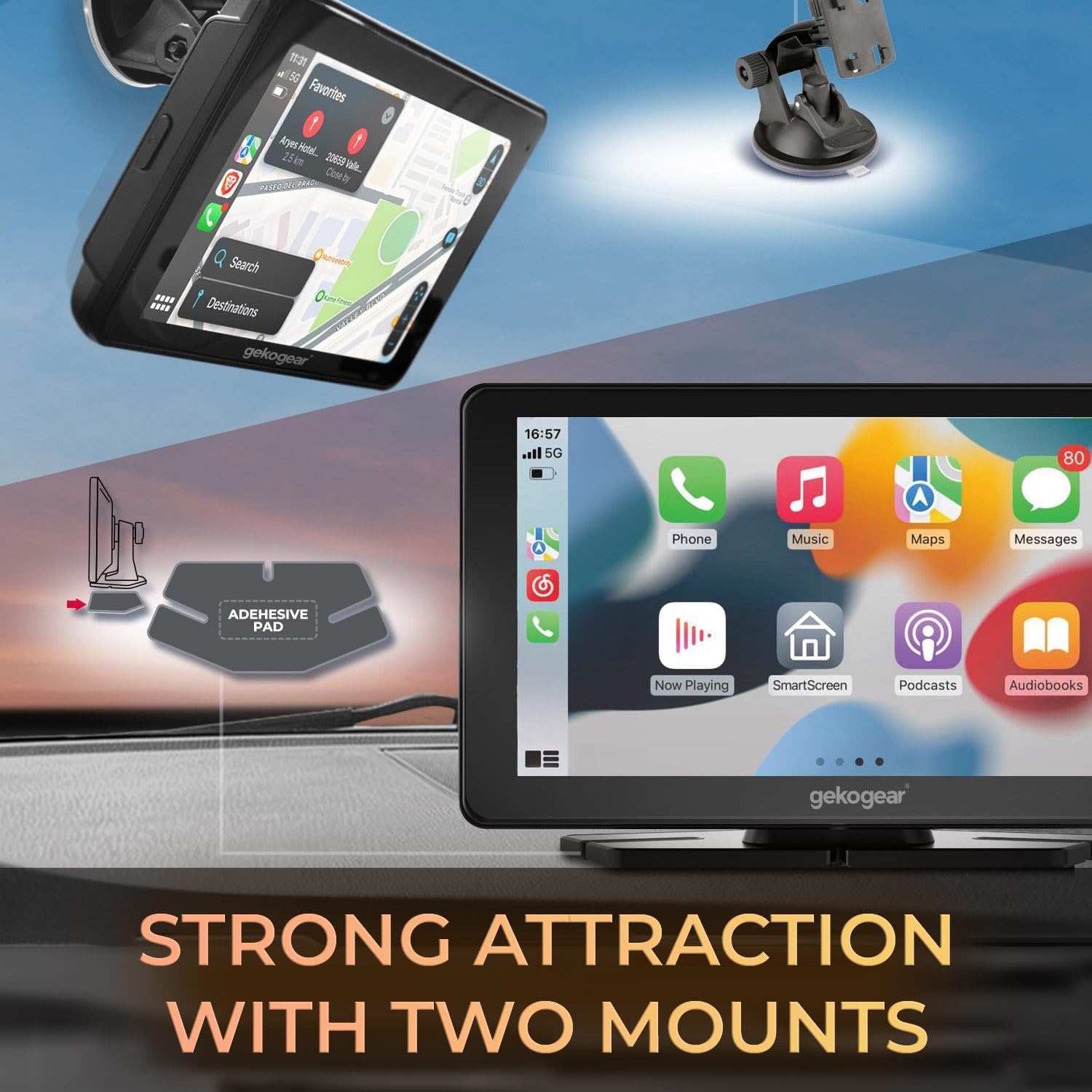
Image 3: Mounting options for the GekoGear Orbit C100. This image displays the portable infotainment display along with its two included mounting accessories: a windshield suction cup mount and an adhesive pad for dashboard installation.
5.2 Powering On the Device
Connect the provided power cable to the Orbit C100 and plug the other end into your vehicle's 12V power outlet (cigarette lighter socket). The device will power on automatically when the vehicle's ignition is turned on.
6. Operating Instructions
6.1 Connecting to Apple CarPlay / Android Auto
The Orbit C100 supports wireless Apple CarPlay and Android Auto. Follow these steps to connect your smartphone:
- Ensure Bluetooth and Wi-Fi are enabled on your smartphone.
- On the Orbit C100, navigate to the CarPlay or Android Auto option.
- On your smartphone, search for and pair with the Orbit C100 via Bluetooth.
- Once paired, the device will prompt you to connect via Wi-Fi for the full CarPlay/Android Auto experience. Confirm the connection.
- Your smartphone's interface will now be mirrored on the Orbit C100 display, allowing access to navigation, music, calls, and messages.
Note: For certain mirroring functions, a USB cable connection between your smartphone and the Orbit C100 may be required.

Image 4: Apple CarPlay and Android Auto compatibility. This image shows two GekoGear Orbit C100 units, one displaying the Apple CarPlay interface and the other the Android Auto interface, highlighting the device's wireless connectivity with both platforms.
6.2 Audio Output Options
You can output audio from the Orbit C100 to your car's stereo system using one of the following methods:
- 3.5mm AUX Jack: Connect an AUX cable from the Orbit C100's AUX output to your car's AUX input.
- Built-in FM Transmitter: Select an unused FM frequency on the Orbit C100 and tune your car's radio to the same frequency.
- Built-in Speaker: The device has its own 1.5-watt speaker for direct audio output.
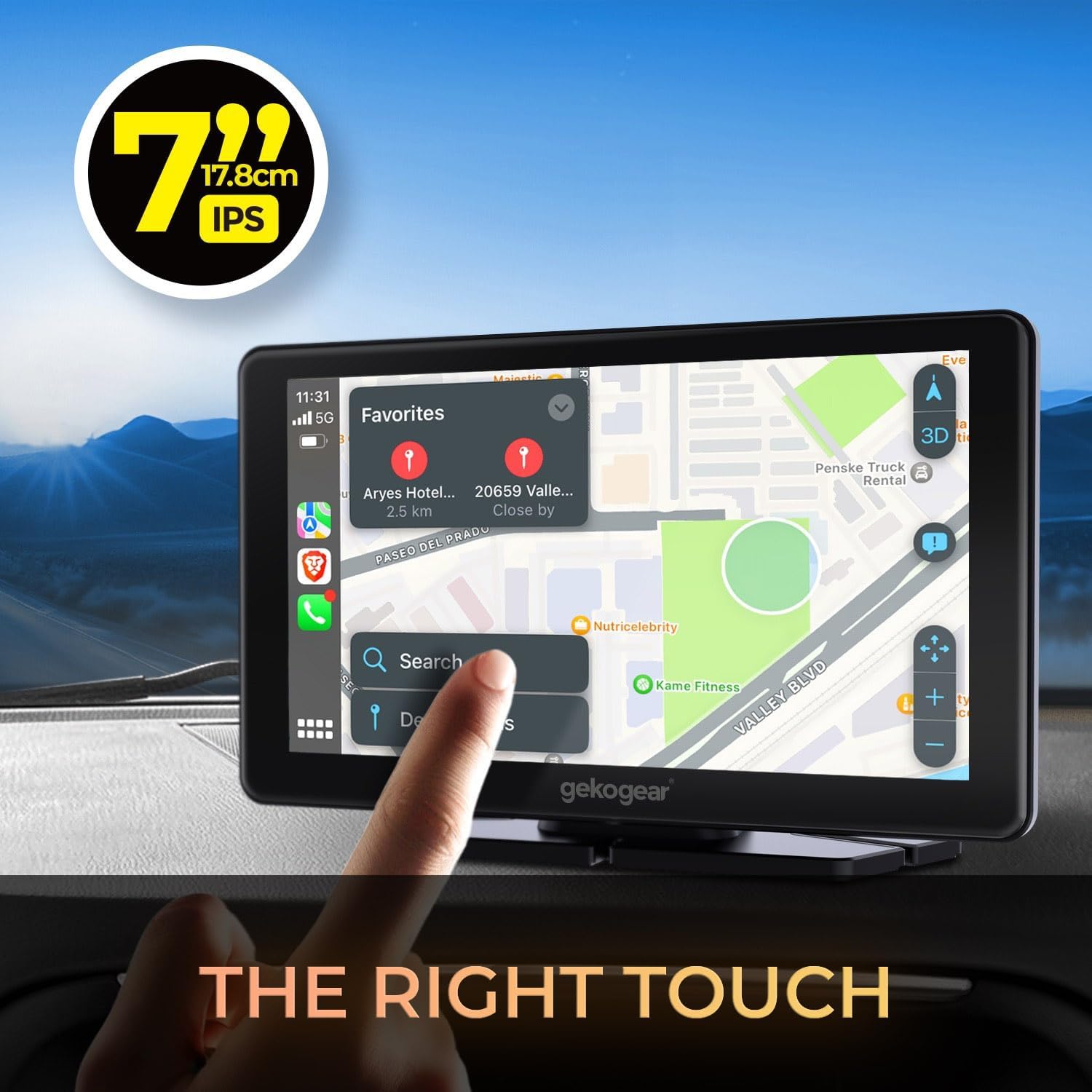
Image 5: Audio output methods. This image highlights the three ways to output audio from the GekoGear Orbit C100: via a 3.5mm AUX cable, through its wireless FM transmitter, or using its built-in speaker.
6.3 Touchscreen Operation
The 7-inch IPS display is fully touch-sensitive. Use gestures such as tap, swipe, and pinch-to-zoom to navigate menus, select applications, and control media playback. The anti-glare coating helps maintain visibility in various lighting conditions.

Image 6: Touchscreen interaction. This image shows a finger interacting with the 7-inch IPS touchscreen of the GekoGear Orbit C100, which is displaying a navigation map, demonstrating its touch functionality.
6.4 Hands-Free Calling and Voice Commands
When connected to Apple CarPlay or Android Auto, you can utilize your smartphone's voice assistant (Siri or Google Assistant) for hands-free control. This allows you to make calls, send messages, get directions, and control music using voice commands, enhancing safety while driving.

Image 7: Hands-free calling and voice commands. This image depicts a driver using voice commands with the GekoGear Orbit C100, which is displaying a phone call interface, illustrating its hands-free communication capabilities.
7. Maintenance
- Cleaning: Use a soft, dry, lint-free cloth to clean the screen and exterior of the device. Do not use abrasive cleaners or solvents.
- Storage: If storing the device for an extended period, disconnect it from power and store it in a cool, dry place.
- Cable Care: Regularly inspect power and audio cables for any signs of wear or damage. Replace damaged cables immediately.
8. Troubleshooting
| Problem | Possible Cause | Solution |
|---|---|---|
| Device does not power on. | No power from vehicle's 12V outlet; faulty power cable. | Check vehicle's 12V outlet for power. Ensure power cable is securely connected. Try a different 12V outlet if available. |
| Cannot connect to CarPlay/Android Auto wirelessly. | Bluetooth/Wi-Fi not enabled on phone; incorrect pairing; interference. | Ensure Bluetooth and Wi-Fi are active on your phone. Forget previous pairings and re-pair. Move phone closer to the device. |
| No audio output to car stereo. | Incorrect audio output setting; AUX cable not connected; FM frequency interference. | Verify the selected audio output method (AUX, FM, Built-in Speaker). Ensure AUX cable is fully inserted. Adjust FM frequency to a clear channel. |
| Touchscreen is unresponsive. | Temporary software glitch; screen obstruction. | Restart the device by disconnecting and reconnecting power. Ensure the screen is clean and free of debris. |
9. Specifications
| Feature | Detail |
|---|---|
| Model Name | Orbit C100 |
| Brand | Adesso (GekoGear) |
| Screen Size | 7 Inches |
| Display Type | IPS Touchscreen |
| Connectivity | Wireless Apple CarPlay, Wireless Android Auto, Bluetooth, Wi-Fi, USB |
| Audio Output | 3.5mm AUX, FM Transmitter, Built-in 1.5W Speaker |
| Human Interface Input | Touchscreen |
| Mounting Type | Dashboard Mount, Windshield Suction Mount |
| Product Dimensions | 7 x 7 x 7 inches |
| Item Weight | 2.25 pounds |
10. Warranty and Support
The GekoGear Orbit C100 comes with a standard manufacturer's warranty. For specific warranty terms and conditions, please refer to the warranty card included in your package or visit the official Adesso website. For technical support, troubleshooting assistance, or to inquire about replacement parts, please contact Adesso customer service.
Adesso Customer Service: Please refer to the contact information provided in your quick-start guide or on the official Adesso website.
