
PRITOM A523
PRITOM 10.1 inch Android 13 Tablet User Manual
Model: A523
Introduction
Welcome to the user manual for your new PRITOM 10.1 inch Android 13 Tablet. This tablet is designed to provide a high-performance and versatile computing experience, featuring an Octa-core processor, 8GB RAM, 64GB ROM (expandable up to 512GB), and a 6000mAh battery. With its HD IPS touch screen, 5G/2.4G WiFi6, and Bluetooth 5.0, it is ideal for entertainment, productivity, and communication. This manual will guide you through the setup, operation, and maintenance of your device to ensure optimal performance and longevity.
What's in the Box
Please check the contents of your package. If any items are missing or damaged, contact customer support.
- PRITOM 10.1 inch Android 13 Tablet
- Charger and Cable
- Folio Case
- User Manual (this document)
Product Overview

This image displays the sleek design of the PRITOM tablet, highlighting its vibrant screen and the Android 13 operating system. The tablet features a large display suitable for various multimedia and productivity tasks.

This visual summary highlights the core specifications of the tablet, including its memory, storage, battery capacity, display technology, and connectivity options, emphasizing its high performance and modern features.
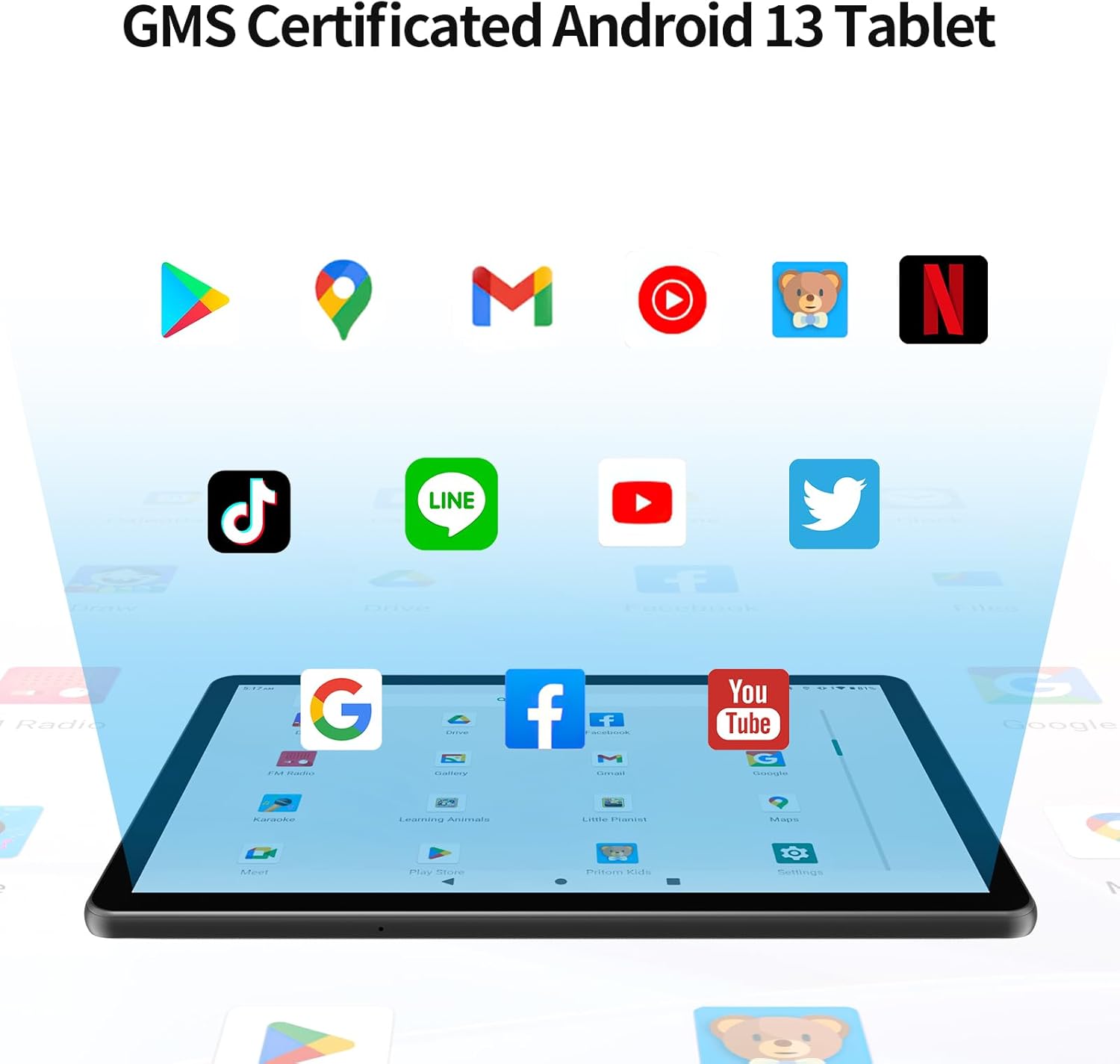
This image confirms the tablet's Google certification, ensuring users can download and utilize a wide range of popular applications from the Google Play Store, enhancing its versatility for both work and entertainment.
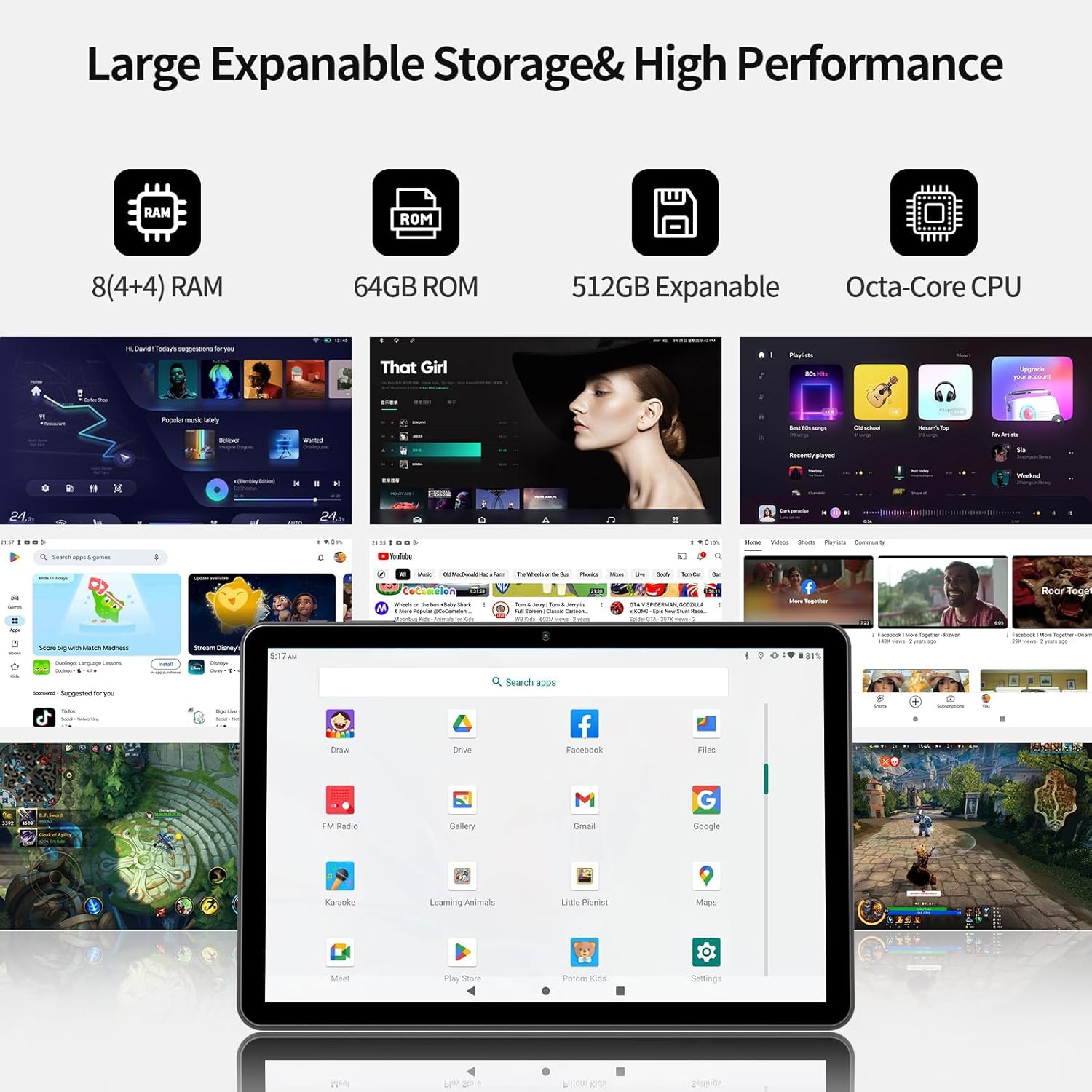
This image highlights the tablet's robust internal storage and expandable memory capabilities, coupled with its powerful processor and ample RAM, demonstrating its ability to handle demanding applications and store extensive media libraries.
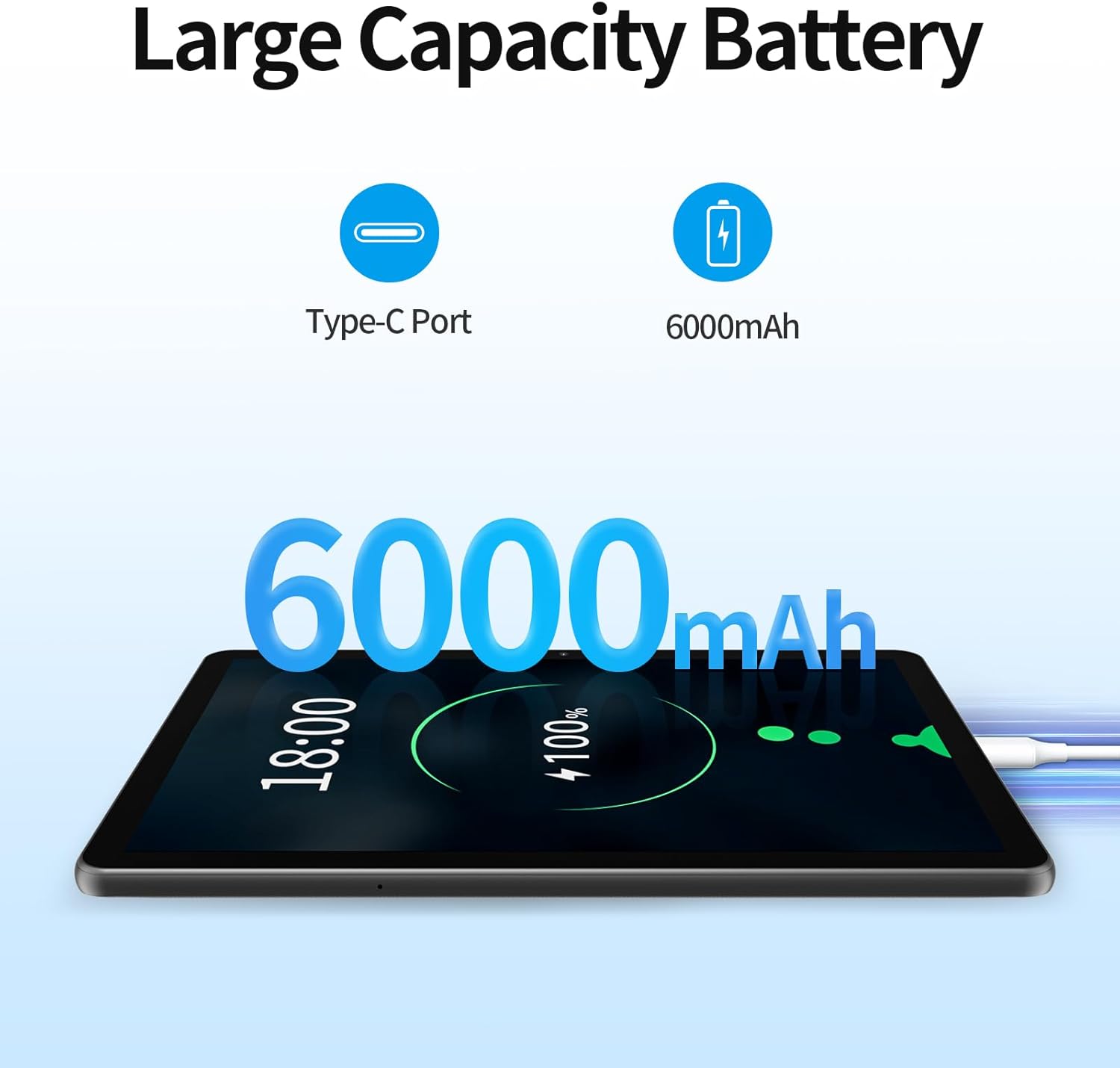
This image emphasizes the tablet's long-lasting 6000mAh battery, providing extended usage times for various activities, and its convenient Type-C charging port for modern connectivity.

This diagram provides a clear guide to the physical layout of the tablet, identifying all essential buttons, ports, and camera locations for easy user reference and interaction.
Setup
1. Charging the Tablet
Before first use, fully charge your tablet using the provided charger and cable. Connect the Type-C cable to the tablet's Type-C port and the other end to the power adapter, then plug the adapter into a wall outlet. The charging indicator will show the charging status.
2. Powering On/Off
- To power on: Press and hold the Power button (located on the top edge) until the PRITOM logo appears on the screen.
- To power off: Press and hold the Power button until a power-off menu appears. Select "Power off" to shut down the device.
3. Initial Setup Wizard
Upon first power-on, the tablet will guide you through an initial setup process:
- Language Selection: Choose your preferred language.
- Wi-Fi Connection: Select your Wi-Fi network from the list and enter the password. A stable internet connection is recommended for setup.
- Google Account: Sign in with your existing Google account or create a new one. This is essential for accessing the Google Play Store, Gmail, and other Google services.
- Date & Time: Set the correct date and time, or allow the tablet to set it automatically via the network.
- Security: Set up a screen lock (PIN, pattern, or password) for device security.
- Follow any remaining on-screen prompts to complete the setup.
4. Inserting a MicroSD Card (Optional)
To expand storage, insert a MicroSD card (up to 1TB, not included) into the TF Card slot. Ensure the tablet is powered off before inserting or removing the card.
Operating Instructions
Basic Navigation
- Touch: Tap an icon or option to select it.
- Touch & Hold: Press and hold an item to access context menus or drag items.
- Swipe: Slide your finger across the screen to scroll or navigate between screens.
- Pinch: Use two fingers to zoom in or out on images or web pages.
Home Screen
The home screen is your central hub. You can customize it with app shortcuts, widgets, and wallpapers. Swipe left or right to access additional home screens.
Notifications and Quick Settings
Swipe down from the top of the screen to access the notification panel and quick settings toggles (Wi-Fi, Bluetooth, Brightness, etc.).
App Management
- Opening Apps: Tap an app icon on the home screen or in the app drawer.
- Closing Apps: Swipe up from the bottom of the screen and swipe the app card upwards to close it.
- Split Screen: Android 13 supports split screen. Open a recent app, tap its icon at the top of the preview, and select "Split top" or "Split screen" to use two apps simultaneously.
- Widgets: Touch and hold an empty space on the home screen, then select "Widgets" to add interactive app components.
Connectivity
- Wi-Fi: Go to Settings > Network & internet > Internet to connect to or manage Wi-Fi networks.
- Bluetooth: Go to Settings > Connected devices > Connection preferences > Bluetooth to pair with Bluetooth devices like headphones or speakers.
Maintenance
Cleaning Your Tablet
Use a soft, lint-free cloth to clean the screen and body of the tablet. For stubborn smudges, slightly dampen the cloth with water or a screen cleaner. Avoid using harsh chemicals or abrasive materials.
Battery Care
- Avoid extreme temperatures, as they can degrade battery life.
- Do not let the battery completely drain frequently. Charge it before it reaches very low levels.
- Use only the provided charger and cable to prevent damage.
Software Updates
Regularly check for system updates to ensure your tablet has the latest features, security patches, and performance improvements. Go to Settings > System > System update.
Storage Management
Periodically review your installed apps and files. Uninstall unused apps and delete unnecessary files to free up storage space and maintain optimal performance. You can check storage usage in Settings > Storage.
Troubleshooting
| Problem | Solution |
|---|---|
| Tablet won't turn on | Ensure the battery is charged. Connect the charger and wait a few minutes before attempting to power on again. If it still doesn't turn on, try holding the power button for 10-15 seconds. |
| Wi-Fi connection issues | Check if Wi-Fi is enabled in Quick Settings or Settings > Network & internet. Restart your Wi-Fi router. Forget the network and reconnect. Ensure you are within range of the Wi-Fi signal. |
| Slow performance | Close unused apps running in the background. Clear app caches (Settings > Apps > [App Name] > Storage & cache > Clear cache). Free up storage space. Restart the tablet. |
| Apps crashing or freezing | Force stop the app (Settings > Apps > [App Name] > Force stop). Clear the app's cache and data. Update the app from the Google Play Store. Reinstall the app. |
| Screen not responding | Restart the tablet by holding the power button. Ensure the screen is clean and free of debris. |
Specifications
| Feature | Detail |
|---|---|
| Model Name | Touch10 plus |
| Item Model Number | A523 |
| Operating System | Android 13 |
| Processor | Octa-Core (2 GHz) |
| RAM | 8GB (4GB+4GB expansion) |
| Internal Storage (ROM) | 64GB |
| Expandable Storage | Up to 1TB via Micro SD card (not included) |
| Screen Size | 10.1 Inches |
| Screen Resolution | 1280 x 800 Pixels (IPS Display) |
| Battery Capacity | 6000mAh Lithium Polymer |
| Average Battery Life | Up to 7 hours (mixed usage) |
| Wireless Connectivity | 5G/2.4G WiFi6 (802.11ax), Bluetooth 5.0 |
| Cameras | Front: 2.0 MP, Rear: 8.0 MP |
| Color | Gray |
| Item Weight | 2.12 pounds |
| Product Dimensions (LxWxH) | 9.6 x 0.28 x 6.3 inches |
Warranty and Support
Your PRITOM tablet comes with a standard manufacturer's warranty. Please refer to the warranty card included in your package for specific terms and conditions. For technical support, troubleshooting assistance, or warranty claims, please contact PRITOM customer service through the contact information provided on the official PRITOM website or your purchase platform. You can also visit the PRITOM Store on Amazon for more information: PRITOM Official Store.
Ask a question about this manual
Ask about setup, troubleshooting, compatibility, parts, safety, or missing instructions. Manuals+ will review the question and use this page’s manual context to help answer it.