
Introduction
This manual provides essential information for setting up, operating, and maintaining your ALLDOCUBE iPlay60 Lite 11-inch tablet. Please read it carefully to ensure optimal performance and longevity of your device.

The ALLDOCUBE iPlay60 Lite tablet, highlighting its key features including the 11-inch display, Android 14 operating system, 12GB RAM + 128GB ROM, 8000mAh battery, T606 CPU, and Widevine L1 certification.
Setup Guide
1. Package Contents
Before starting, ensure all items are present in the package:
- ALLDOCUBE iPlay60 Lite Tablet
- USB Type-C Cable
- SIM Card Pin
- Power Adapter (5V/2A)
- User Manual

Illustration of the tablet and its accessories, including the USB Type-C cable, SIM card pin, and power adapter.
2. Initial Charge
Connect the tablet to the power adapter using the provided USB Type-C cable and charge it fully before first use. The charging port is located on the side of the device.
3. SIM/MicroSD Card Installation
- Locate the SIM/MicroSD card slot on the side of the tablet.
- Insert the SIM card pin into the small hole next to the tray to eject it.
- Place your Nano-SIM card(s) and/or MicroSD card into the tray, ensuring correct orientation. The tablet supports dual SIM (SIM2 shares slot with MicroSD).
- Gently push the tray back into the slot until it clicks into place.

Detailed view of the SIM and MicroSD card slot, illustrating the proper insertion of cards.
4. Initial Power On and Android 14 Setup
Press and hold the power button until the ALLDOCUBE logo appears. Follow the on-screen prompts to complete the initial setup of Android 14, including language selection, Wi-Fi connection, and Google account setup.
Operating Instructions
1. Basic Navigation and Android 14 Features
Your tablet runs on Android 14, offering enhanced privacy, security, and customization options. Navigate using touch gestures. Swipe up from the bottom for the app drawer, swipe down from the top for notifications and quick settings.
Screen Split
To use two apps simultaneously, activate the screen split feature. This allows for efficient multitasking, such as watching a video while browsing the web.
Three-Finger Screenshot
Capture screenshots quickly by swiping down on the screen with three fingers.
Privacy Protection & Parental Controls
Android 14 provides robust privacy controls, allowing you to manage app permissions and data usage. Parental controls enable guardians to set usage limits and monitor activity for children.

Visual representation of Android 14's privacy settings, parental control options, and the convenient three-finger screenshot function.
2. Connectivity
Wi-Fi (2.4GHz/5GHz)
Connect to stable and high-speed internet using dual-band Wi-Fi. Go to Settings > Network & internet > Wi-Fi to select and connect to your preferred network.
4G LTE & VoLTE Calls
With a compatible SIM card, enjoy 4G LTE connectivity for internet access and VoLTE for high-quality voice calls. This allows for seamless communication and mobile data usage both at home and on the go.
Bluetooth 5.0
Pair your tablet with wireless accessories like headphones or speakers via Bluetooth 5.0 for convenient and stable connections. Go to Settings > Connected devices > Bluetooth.
GPS/Beidou/Glonass Navigation
The built-in GPS functionality supports multiple satellite systems (GPS, Beidou, Glonass), making your tablet ideal for in-car navigation and location-based services.

The tablet's versatile connectivity options, including Wi-Fi, GPS for navigation, and Bluetooth for connecting peripherals.
3. Multimedia and Display
11-inch HD Display with Widevine L1
The 11-inch in-cell display with 1280x800 resolution provides a clear viewing experience. With Widevine L1 support, you can enjoy full HD 1080P video playback from streaming services like Netflix, Hulu, Prime Video, and Disney+ without compromising video quality.

The tablet's display showing high-quality video streaming, emphasizing its Widevine L1 certification for premium content.
Display Modes
Customize your viewing experience with various display modes:
- Eye Protection Mode: Reduces blue light to prevent eye strain.
- Night Mode: Darkens the interface for comfortable viewing in low light.
- Reading Mode: Optimizes the screen for reading text.
- Color Temperature Adjustment: Fine-tune the display's color balance to your preference.

Different display modes available on the tablet, designed to enhance user comfort and adapt to various viewing conditions.
4. Camera Usage
The tablet features a 5MP front camera and a 13MP rear camera. Open the Camera app to take photos or record videos. The rear camera supports auto-focus.
5. Battery Management
The 8000mAh large capacity battery provides extended usage. To optimize battery life, adjust screen brightness, close unused apps, and enable power-saving modes when needed. Avoid prolonged use at maximum brightness to protect your eyesight.

Visual representation of the tablet's 8000mAh battery life, indicating approximate usage durations for different activities.
6. Storage Management
The tablet comes with 12GB RAM (4GB physical + 8GB virtual) and 128GB ROM. You can expand storage up to 512GB using a MicroSD card. Regularly manage your files and uninstall unused apps to maintain optimal performance.
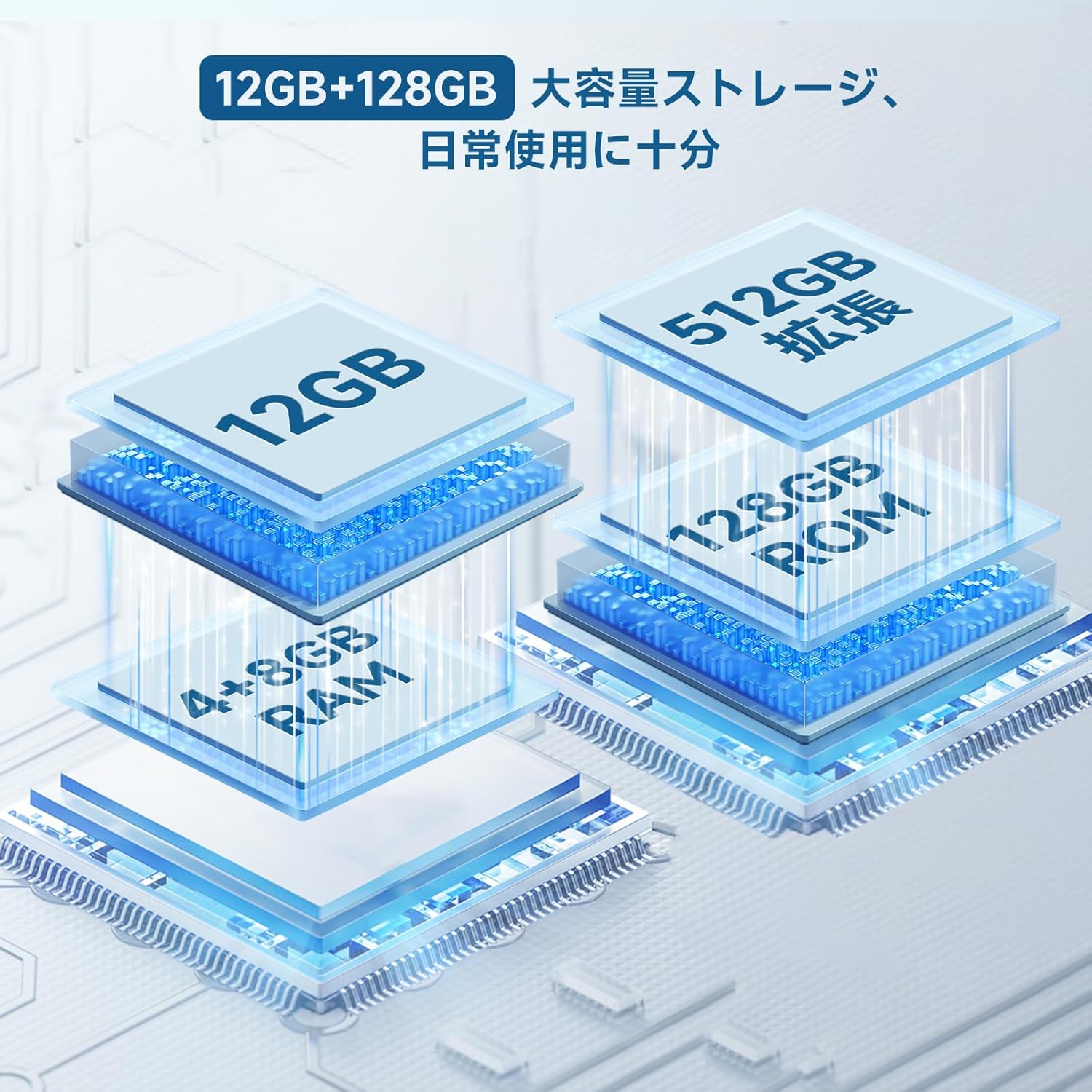
A visual breakdown of the tablet's memory and storage capabilities, including RAM, internal storage, and MicroSD expansion.
Maintenance
1. Cleaning
Use a soft, lint-free cloth to clean the screen and body of the tablet. Avoid using harsh chemicals or abrasive materials that could damage the device.
2. Software Updates
Regularly check for and install system updates to ensure your tablet has the latest features, security patches, and performance improvements. Go to Settings > System > System update.
3. Storage Optimization
To maintain smooth operation, periodically clear cache data, delete unnecessary files, and uninstall apps you no longer use. Consider moving large media files to a MicroSD card or cloud storage.
Troubleshooting
Common Issues and Solutions
| Issue | Possible Solution |
|---|---|
| Tablet does not power on | Ensure the battery is charged. Press and hold the power button for 10-15 seconds to force a restart. |
| Apps are slow or unresponsive | Close background apps. Clear app cache. Restart the tablet. Check for system updates. |
| Wi-Fi/4G connection issues | Toggle Wi-Fi/4G off and on. Restart your router/modem. Ensure SIM card is correctly inserted and activated. |
| Screen rotation not working | Check if auto-rotate is enabled in quick settings. Restart the tablet. |
| Poor video quality on streaming services | Ensure you have a stable internet connection. Verify the streaming service supports Widevine L1 and that your subscription allows HD streaming. |
Specifications
Here are the detailed specifications for the ALLDOCUBE iPlay60 Lite tablet:
| Feature | Detail |
|---|---|
| Brand | ALLDOCUBE |
| Model Name | iPlay60 Lite |
| Operating System | Android 14 |
| Processor | Unisoc T606 Octa-core (2x A75@1.6GHz, 6x A55@1.6GHz) |
| GPU | ARM Mali-G57 |
| RAM | 12GB (4GB physical + 8GB virtual) |
| Internal Storage | 128GB ROM |
| Expandable Storage | MicroSD up to 512GB |
| Screen Size | 11 inches |
| Display Type | LCD In-cell |
| Resolution | 1280x800 pixels |
| Touch | 10-point touch |
| Brightness | 350 cd/m² |
| Front Camera | 5MP |
| Rear Camera | 13MP (with auto-focus) |
| Battery | 8000mAh Lithium Polymer (30.4 Wh) |
| Charging Port | USB Type-C |
| Wi-Fi | 2.4GHz/5GHz Dual-band |
| Cellular Technology | 4G LTE (Dual SIM, SIM2 shares with MicroSD) |
| Bluetooth | Bluetooth 5.0 |
| Navigation | GPS/Beidou/Glonass |
| Sensors | Gravity, Light, Hall |
| Dimensions | 25.7 x 16.8 x 8.4 cm |
| Color | Gray |
Warranty and Support
1. Warranty Information
The ALLDOCUBE iPlay60 Lite tablet comes with a 1-year warranty from the date of purchase. This warranty covers manufacturing defects and malfunctions under normal use. Please retain your proof of purchase for warranty claims.
2. Customer Support
For technical assistance, troubleshooting, or warranty inquiries, please contact ALLDOCUBE customer support through their official channels. You can find more information on the ALLDOCUBE official website or by contacting their official LINE account: @175lhsbh.

ALLDOCUBE provides one year of after-sales support, ensuring quality and assistance for all products.


