
Logitech G 920-012423
Logitech G515 Wireless Gaming Keyboard TKL User Manual
Model: 920-012423
1. Introduction
The Logitech G515 LIGHTSPEED TKL Gaming Keyboard is designed for competitive gaming, offering a low-profile, sleek design with advanced performance features. It provides versatile connectivity options and customizable lighting and controls.
This manual provides detailed instructions for setting up, operating, maintaining, and troubleshooting your Logitech G515 keyboard.

This image displays the Logitech G515 LIGHTSPEED TKL Wireless Gaming Keyboard, highlighting its compact tenkeyless design and vibrant LIGHTSYNC RGB backlighting.
2. Key Features
- Tri-mode Connectivity: Supports LIGHTSPEED wireless, Bluetooth, and wired USB data mode for flexible usage.
- Low-Profile GL Mechanical Switches: Factory-lubed for faster actuation and quieter operation, available in tactile and linear options.
- Double-Shot PBT Keycaps: Engineered for durability and a premium feel, with an anti-oil design.
- LIGHTSYNC RGB: Customizable lighting with approximately 16.8 million colors, theme creation, and synchronization with other Logitech G gear via G HUB software.
- KEYCONTROL Technology: Allows full customization and remapping of any key for personalized control.
- Ultra-Slim Design: A 22 mm height and tenkeyless layout for ergonomic comfort and a flat aesthetic.
- Long Battery Life: Up to 36 hours of continuous wireless play (battery life varies with usage conditions).
- Sound Dampening Construction: Foam layer absorbs noise for a quieter gaming environment.
3. Setup Guide
3.1. What's in the Box
Before you begin, ensure all components are present:
- Logitech G515 LIGHTSPEED TKL Keyboard
- USB-A to USB-C Charging and Data Cable
- USB Wireless Receiver
- USB Extender
This image displays the Logitech G515 LIGHTSPEED TKL keyboard along with its accessories: a USB-A to USB-C charging and data cable, a USB wireless receiver, and a USB extender. These are the essential items included in the product packaging.
3.2. Initial Connection
The G515 keyboard offers three connectivity modes: LIGHTSPEED wireless, Bluetooth, and wired USB.
3.2.1. LIGHTSPEED Wireless Connection
- Insert the USB Wireless Receiver into an available USB-A port on your computer. For optimal signal, use the included USB Extender to position the receiver closer to the keyboard.
- Turn on the keyboard using the power switch located on the top edge.
- Press the LIGHTSPEED hotkey (usually indicated by a lightning bolt icon) on the keyboard to activate LIGHTSPEED mode. The indicator light should turn blue.
- Your keyboard should now be connected. You can pair compatible Logitech G mice using the same USB receiver for 2:1 pairing.

This image highlights the LIGHTSPEED wireless connectivity feature of the G515 keyboard, showing the dedicated hotkey and the compact USB wireless receiver. The receiver enables a high-speed, low-latency connection for gaming.
3.2.2. Bluetooth Connection
- Turn on the keyboard.
- Press and hold the Bluetooth hotkey (usually indicated by a Bluetooth symbol) until the indicator light blinks rapidly, indicating pairing mode.
- On your device (PC, laptop, etc.), navigate to Bluetooth settings and select "Logitech G515 TKL" from the list of available devices to pair.
- The indicator light will turn solid when successfully paired.
3.2.3. Wired Connection
- Connect the USB-C end of the charging and data cable to the keyboard's USB-C port.
- Connect the USB-A end of the cable to an available USB-A port on your computer.
- The keyboard will automatically switch to wired data mode and begin charging.
4. Operating Instructions
4.1. G HUB Software Installation
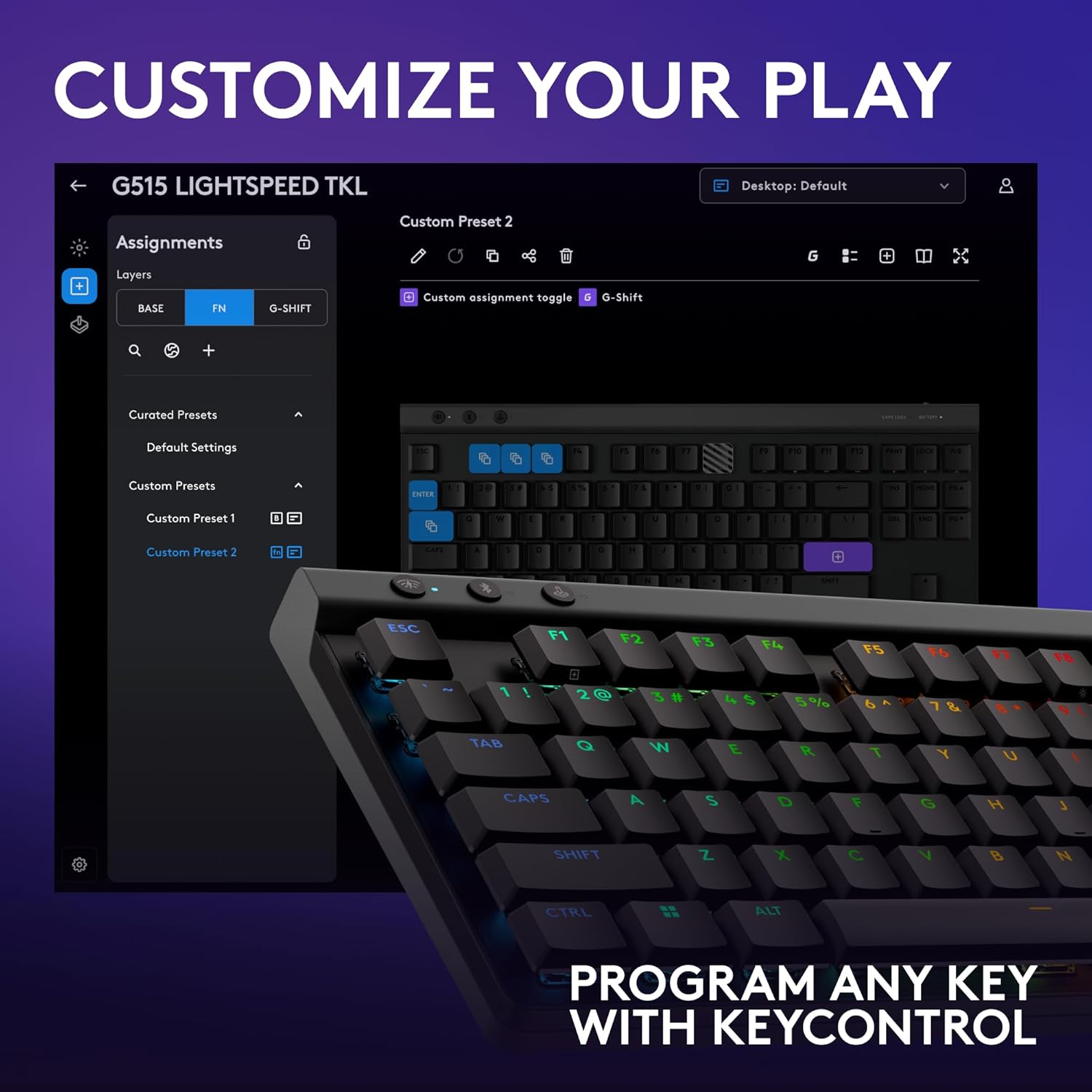
To unlock the full potential of your Logitech G515 keyboard, including LIGHTSYNC RGB customization and KEYCONTROL technology, download and install the Logitech G HUB software.
- Visit the official Logitech G website: www.logitechg.com/ghub
- Download the G HUB installer for your operating system.
- Follow the on-screen instructions to complete the installation.

This image illustrates the customization capabilities offered by the Logitech G HUB software. It shows the software interface with various options for personalizing keyboard settings, including key assignments and lighting effects, demonstrating the "KEYCONTROL" technology.
4.2. LIGHTSYNC RGB Customization
With G HUB, you can customize the RGB lighting of your keyboard:
- Open Logitech G HUB.
- Select your G515 keyboard from the device list.
- Navigate to the "LIGHTSYNC" tab.
- Choose from various lighting effects, create custom animations, or synchronize lighting with other Logitech G devices.

This image provides an overhead view of a gaming setup, prominently featuring the Logitech G515 TKL keyboard. The keyboard's LIGHTSYNC RGB lighting is active, displaying a spectrum of colors, highlighting its customizable illumination feature.
4.3. KEYCONTROL Technology
KEYCONTROL allows you to remap any key on your keyboard to perform different functions, macros, or system commands.
- In G HUB, select your G515 keyboard.
- Go to the "Assignments" tab.
- Drag and drop commands, macros, or system actions onto desired keys.
- Save your profiles for different games or applications.
4.4. Battery Management
The G515 TKL keyboard features a rechargeable Lithium Polymer battery. To charge, connect the keyboard via the USB-C cable to your computer or a USB power adapter.
- The battery indicator LED (located near the top right) will show charging status.
- A full charge provides up to 36 hours of continuous use, though this can vary based on RGB lighting intensity and usage patterns.
5. Maintenance
5.1. Cleaning the Keyboard
- Disconnect the keyboard from your computer before cleaning.
- Use a soft, lint-free cloth slightly dampened with water or a mild cleaning solution to wipe down the keycaps and chassis.
- For stubborn dirt or debris between keys, use compressed air.
- Avoid using harsh chemicals, abrasive cleaners, or solvents, as these can damage the keyboard's finish and keycap legends.
5.2. Keycap Care
The double-shot PBT keycaps are designed for durability and resistance to oil. To maintain their condition:
- Regularly wipe them to prevent oil buildup.
- Avoid excessive force when cleaning or removing keycaps.
6. Troubleshooting
| Problem | Possible Cause | Solution |
|---|---|---|
| Keyboard not responding (Wireless) | Low battery; Receiver not connected; Incorrect mode selected; Interference. |
|
| Keyboard not responding (Wired) | Cable not connected properly; Faulty USB port. |
|
| RGB lighting not working or incorrect | G HUB software issue; Lighting profile not active; Low battery. |
|
| Keys not registering or double-typing | Debris under keycap; Software conflict; Firmware issue. |
|
If problems persist after attempting these solutions, please refer to the Warranty and Support section for further assistance.
7. Technical Specifications
| Feature | Detail |
|---|---|
| Model Number | 920-012423 |
| Connectivity | LIGHTSPEED Wireless, Bluetooth, USB-C Wired |
| Switch Type | Low-Profile GL Mechanical (Tactile Brown) |
| Keycaps | Double-Shot PBT |
| Backlighting | LIGHTSYNC RGB (~16.8 million colors) |
| Battery Life | Up to 36 hours (with RGB on, varies with usage) |
| Dimensions (LxWxH) | 15.2 x 5.9 x 0.9 inches (38.6 x 15 x 2.3 cm) |
| Weight | 5.3 ounces (150 grams) |
| Compatible Devices | PC, Laptop |
| Hardware Platform | PC |
8. Warranty and Support
Logitech G products are backed by a limited hardware warranty. For specific warranty details and duration, please refer to the warranty information included with your product or visit the official Logitech G support website.
For technical support, FAQs, and driver downloads, please visit:
When contacting support, please have your product model number (920-012423) and purchase information readily available.
9. Official Product Videos
Below are official product videos from the manufacturer, providing additional visual guidance and information about the Logitech G515 TKL keyboard.
Logitech G515 Product Video
This video provides an overview of the Logitech G515 TKL keyboard, showcasing its design, features, and functionality from the manufacturer's perspective.
Related documents920-012423



Ask a question about this manual
Ask about setup, troubleshooting, compatibility, parts, safety, or missing instructions. Manuals+ will review the question and use this page’s manual context to help answer it.