
1. Product Overview
The GMKtec M3 Mini PC is a compact and powerful desktop computer designed for various computing tasks, from daily work to multimedia and light gaming. It features an Intel 12th Generation Core i5-12450H processor, ample memory, and fast storage, all within a small form factor.

Figure 1: GMKtec M3 Mini PC, a compact desktop computer.
Key Features:
- Processor: Intel Core i5-12450H (8 Cores, 12 Threads, up to 4.4 GHz, 12MB Cache)
- Memory: 32GB DDR4 Dual-Channel RAM (2x 16GB)
- Storage: 1TB M.2 2280 NVMe SSD (PCIe 3.0), expandable with M.2 2242 SATA up to 2TB
- Graphics: Intel Iris Xe Graphics G7 96EU, supporting 4K UHD triple display output
- Connectivity: 2.5Gbps RJ45 Ethernet, WiFi 6 (2.4G+5G), Bluetooth 5.2
- Operating System: Windows 11 Pro (compatible with Ubuntu and Linux)
- Compact Design: Lightweight and small footprint (5.2 x 4.92 x 2.28 inches)
Video 1: An overview of the GMKtec M3 Mini PC, highlighting its features and compact design.
2. Setup Guide
2.1. Package Contents
Before starting, ensure all items are present in the box:
- 1 x GMKtec Nucbox M3 Intel Core i5-12450H Mini PC Computer
- 1 x Power Adapter
- 1 x VESA Mount with Screws
- 1 x HDMI Cable
- 1 x User Manual

Figure 2: All components included in the GMKtec M3 Mini PC package.
2.2. Initial Connection
- Connect Power: Plug the power adapter into the DC IN port on the back of the Mini PC and then into a power outlet.
- Connect Display: Use the provided HDMI cable to connect your monitor to one of the HDMI ports on the Mini PC. For triple display, use the additional HDMI port and the USB Type-C port (with a compatible DisplayPort adapter if needed).
- Connect Peripherals: Connect your USB keyboard and mouse to the available USB ports.
- Network Connection (Optional): For a wired connection, connect an Ethernet cable to the RJ45 2.5G port. For wireless, ensure WiFi is enabled (see Operating section).
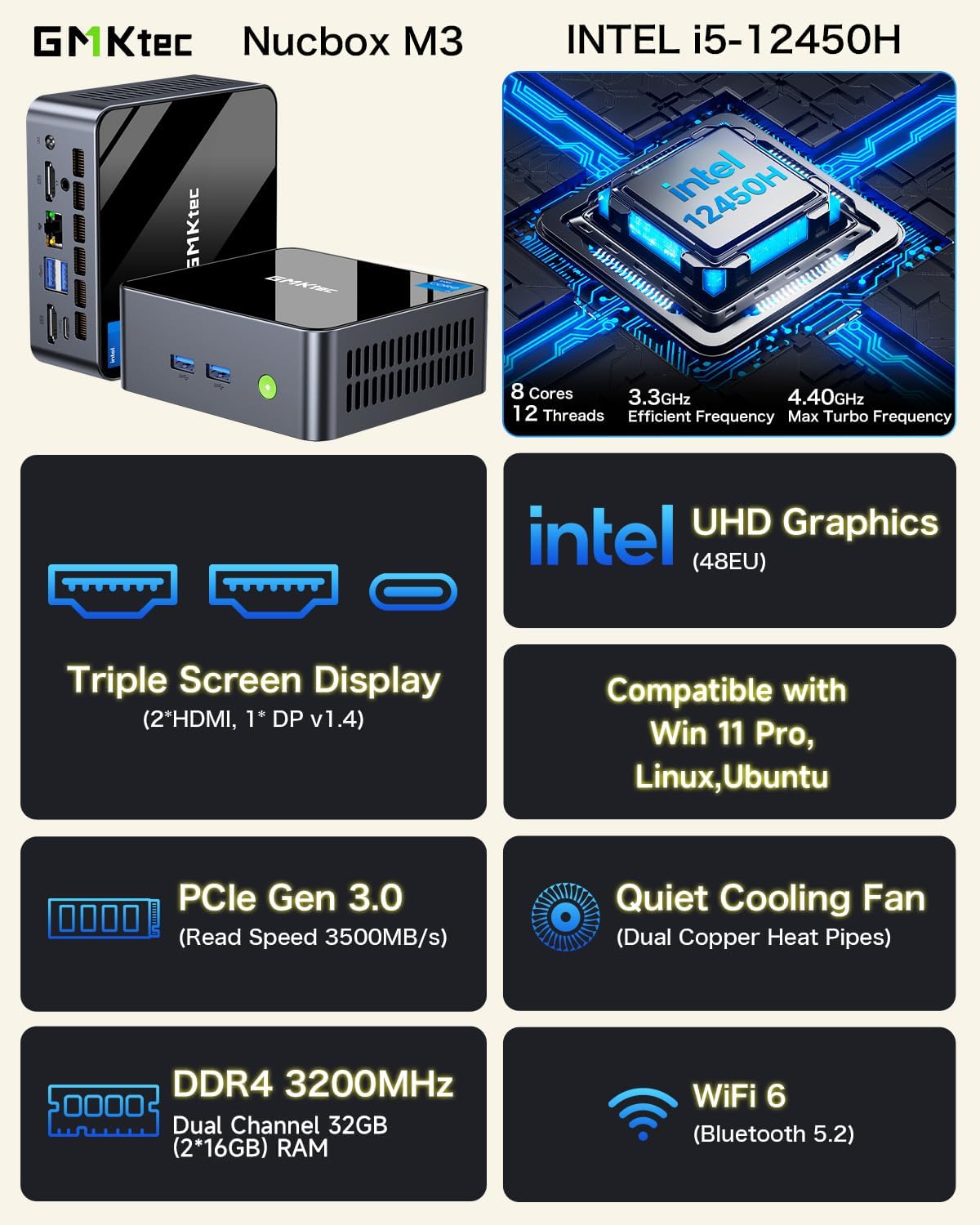
Figure 3: Rear view of the GMKtec M3 Mini PC, showing the various ports for connectivity.
2.3. VESA Mount Installation
The GMKtec M3 Mini PC can be mounted to the back of a monitor or under a desk using the included VESA mount.
- Attach the VESA mount bracket to your monitor's VESA holes or desired surface using the provided screws.
- Align the Mini PC with the mounted bracket and slide it into place, ensuring it is securely fastened.

Figure 4: The GMKtec M3 Mini PC with its VESA mount, allowing for discreet installation.
3. Operating Instructions
3.1. Power On/Off
- Power On: Press the green power button located on the front of the Mini PC.
- Power Off: Use the standard Windows shutdown procedure. Alternatively, press and hold the power button for a few seconds for a forced shutdown (not recommended for regular use).
3.2. Display Configuration
The Mini PC supports up to three 4K displays simultaneously via its two HDMI 2.0 ports and one USB Type-C port (which supports DisplayPort 1.4).
- Connect your displays to the available video output ports.
- In Windows, navigate to Display Settings to arrange and configure your multiple monitors.
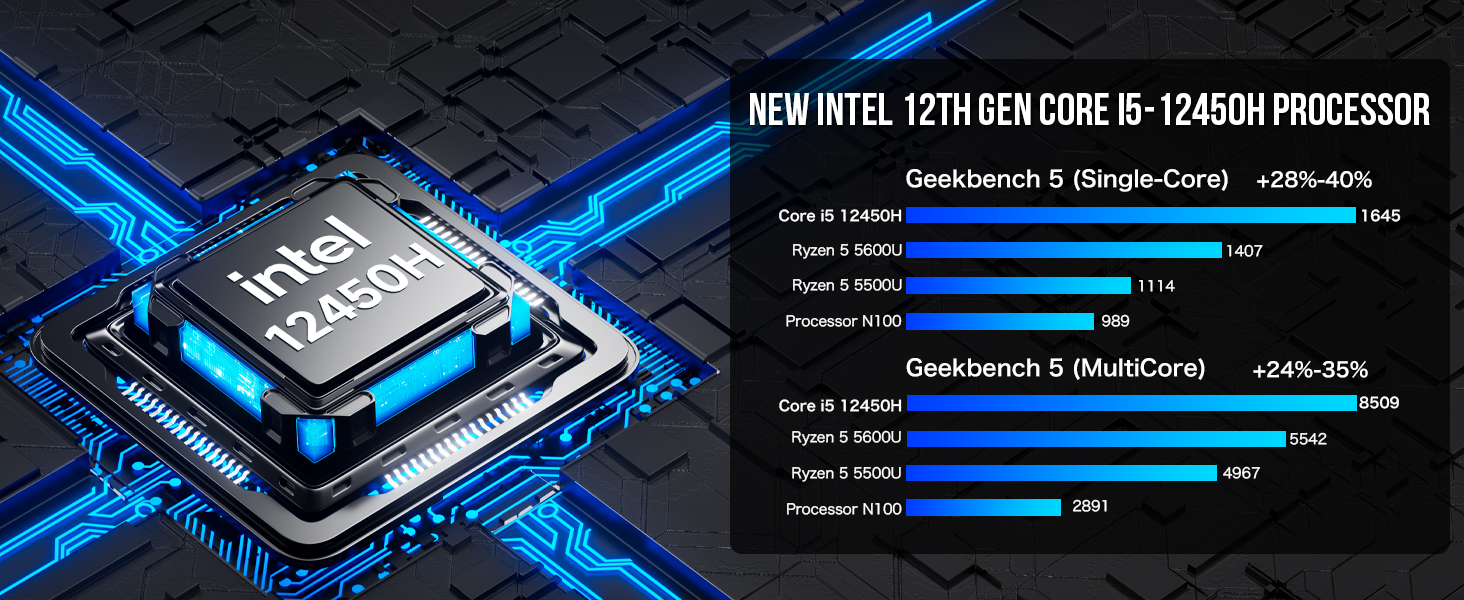
Figure 5: The GMKtec M3 Mini PC connected to three monitors for a triple display setup.
3.3. Network and Bluetooth
- WiFi 6: The Mini PC features dual-band WiFi 6 for fast and stable wireless connectivity. Connect to your preferred network via Windows network settings.
- 2.5G Ethernet: For a high-speed wired connection, plug an Ethernet cable into the RJ45 port.
- Bluetooth 5.2: Pair Bluetooth devices (e.g., headphones, keyboards) through Windows Bluetooth settings.

Figure 6: Illustration of the GMKtec M3 Mini PC's WiFi 6 capabilities for high-speed wireless connections.
3.4. BIOS Settings
Access the BIOS Setup Utility by pressing the appropriate key (usually DEL or F2) during startup. The BIOS offers comprehensive settings, including power limits for the CPU.
- Power Limit Select: Options include Quiet (20W), Balance (35W), and High Performance (45W). Adjusting this can impact performance and thermal output.
- Secure Boot: Can be enabled/disabled as needed for specific software or operating systems.
Video 2: A guide to navigating the BIOS settings of the GMKtec M3 Mini PC to optimize performance.
4. Maintenance
4.1. Storage Expansion
The GMKtec M3 Mini PC allows for storage expansion:
- The device comes with a 1TB M.2 2280 NVMe SSD.
- An additional M.2 2242 SATA slot is available for expansion, supporting up to 2TB.
To install an additional M.2 2242 SATA SSD:
- Power off the Mini PC and disconnect all cables.
- Carefully remove the bottom cover by unscrewing the retaining screws.
- Locate the M.2 2242 SATA slot and insert the new SSD.
- Secure the SSD with the provided screw (if applicable) and reattach the bottom cover.

Figure 7: An exploded view of the GMKtec M3 Mini PC, showing internal components including RAM and SSD slots.
4.2. Cleaning
Regularly clean the exterior of the Mini PC with a soft, dry cloth. Ensure ventilation vents are free from dust to maintain optimal cooling performance.
5. Troubleshooting
- No Power: Check if the power adapter is securely connected to both the Mini PC and the power outlet. Ensure the power outlet is functional.
- No Display: Verify that the HDMI/Type-C cables are correctly connected to both the Mini PC and the monitor. Try a different cable or monitor if possible. Ensure the monitor is set to the correct input source.
- No Internet Connection: For wired connections, check the Ethernet cable and router. For WiFi, ensure the WiFi adapter is enabled in Windows settings and you are connected to the correct network.
- Slow Performance: Close unnecessary applications. Check for background updates. Ensure the Mini PC has adequate ventilation. Consider adjusting power limits in BIOS for higher performance if thermals allow.
6. Specifications
| Feature | Specification |
|---|---|
| Processor | Intel Core i5-12450H (up to 4.4 GHz) |
| RAM | 32GB DDR4 (Dual-Channel) |
| Storage | 1TB M.2 NVMe SSD (PCIe 3.0), M.2 2242 SATA expandable to 2TB |
| Graphics | Intel Iris Xe Graphics G7 96EU |
| Video Output | 2x HDMI (4K@60Hz), 1x USB Type-C (4K@60Hz, DP/DATA) |
| Ethernet | RJ45 2.5G |
| Wireless | WiFi 6 (2.4G+5G), Bluetooth 5.2 |
| USB Ports | 2x USB 3.2 (front), 1x USB 3.2 (rear), 1x USB 2.0 (rear), 1x USB Type-C (rear) |
| Audio Port | 3.5mm CTIA Audio Jack |
| Operating System | Windows 11 Pro |
| Dimensions (LxWxH) | 5.2 x 4.92 x 2.28 inches |
| Weight | 3.28 pounds |
7. Warranty and Support
GMKtec offers comprehensive support for its products:
- Warranty: A 1-year limited warranty covers defects due to design and workmanship, starting from the date of purchase.
- After-Sales Support: Contact the professional after-sales team via email at support@gmktec.com for 24/7 customer support.
- Amazon Support: For issues related to your purchase, log in to your Amazon account, go to 'Your Orders', and select 'Ask Product Question'.


