
1. Introduction
This ABLEWE USB 3.0 to HDMI adapter is designed to connect a USB-equipped device, such as a laptop or desktop computer, to an HDMI-equipped display, including monitors, projectors, and televisions. It facilitates multi-monitor setups and expands your digital workspace for enhanced productivity or entertainment.
2. Product Overview
The ABLEWE USB to HDMI adapter features a 24K gold-plated USB 3.0 port and an integrated high-quality chip, ensuring stable performance and extended product lifespan. It supports video resolutions up to 1080P and 3D display capabilities. When connected to a USB 3.0 port, it can project at 1920x1080P@60Hz. The adapter cable length is 10.0 cm.

Figure 2.1: The ABLEWE USB to HDMI Adapter, showcasing its compact design.

Figure 2.2: Internal view of the ABLEWE USB to HDMI adapter, highlighting its performance chip for stable video transmission.
3. Setup Instructions
3.1 Driver Installation
This adapter requires specific driver installation for full functionality. It is not a plug-and-play device. Please download the latest drivers from the official ABLEWE website or use any included installation media. Follow the on-screen instructions to complete the driver installation before connecting the device.
3.2 Connecting the Adapter
- Connect the USB-A end of the ABLEWE adapter to an available USB 3.0 or USB 2.0 port on your computer. For optimal performance, a USB 3.0 port is recommended.
- Connect an HDMI cable (not included) from the HDMI output port of the ABLEWE adapter to the HDMI input port on your display device (monitor, projector, or TV).
- Power on your computer and the connected display device.
- Once the drivers are installed and connections are secure, your computer should detect the external display. You may need to adjust display settings in your operating system.

Figure 3.1: Universal compatibility of the adapter with Windows and Mac operating systems, and various source (desktop, laptop) and target (HDTV, monitor, projector) devices. Note: Linux and 64-bit XP are not supported.
4. Operating Instructions
4.1 Display Modes
The adapter supports two primary display modes:
- Extend Mode: This mode allows you to display different content on each screen, effectively extending your desktop workspace. It is ideal for multitasking, allowing you to work on multiple applications simultaneously across different displays.
- Mirror Mode: In this mode, your computer's screen is duplicated onto the external display. This provides a larger visual experience, suitable for presentations, sharing content with an audience, or watching videos on a bigger screen.

Figure 4.1: Demonstrates the difference between Extend Mode (showing different content on two screens) and Mirror Mode (duplicating content to a larger screen).
4.2 Supported Resolutions and Audio
The adapter supports various resolutions, including 1080P (1920x1080@60Hz), 720P@60Hz, and 480P@60Hz. It also supports 3D display. Utilizing digital audio/video interface technology, the adapter enables simultaneous audio and video transmission, allowing audio to be output through the connected HDMI display.

Figure 4.2: A family enjoying a film on a large screen, illustrating the adapter's capability to project content for an immersive viewing experience.
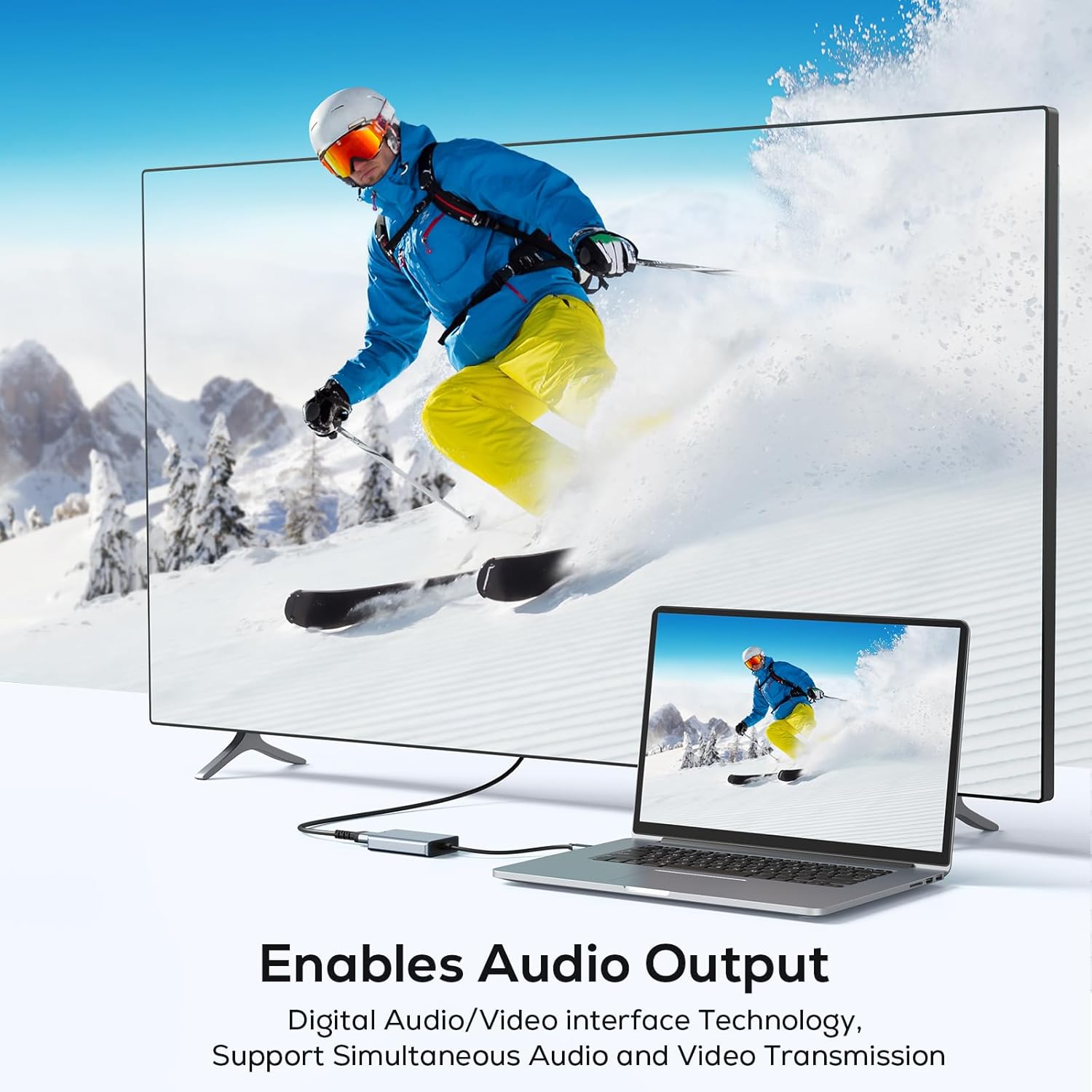
Figure 4.3: A laptop connected to a large television via the adapter, demonstrating its ability to transmit both audio and video simultaneously.
5. Maintenance
- Keep the adapter in a dry environment and avoid exposure to extreme temperatures, humidity, or direct sunlight.
- Do not bend or twist the cable excessively to prevent internal damage to the wiring.
- Clean the connectors periodically with a dry, lint-free cloth to ensure optimal signal transmission.
- Avoid dropping or subjecting the adapter to strong impacts.
6. Troubleshooting
6.1 No Display or Signal
- Ensure the adapter is securely connected to both your computer's USB port and the display's HDMI port.
- Verify that the correct input source (e.g., HDMI 1, HDMI 2) is selected on your display device.
- Confirm that the necessary drivers for the adapter are correctly installed on your computer. This adapter requires specific drivers and is not plug-and-play.
- Try connecting the adapter to a different USB port on your computer, especially a USB 3.0 port if available.
6.2 Low Resolution or Poor Quality
- Ensure you are using a USB 3.0 port on your computer for optimal performance (up to 1920x1080P@60Hz). USB 2.0 ports may support lower resolutions.
- Check your computer's display settings to ensure the correct resolution and refresh rate are selected for the external display.
- Verify that your HDMI cable is not damaged and supports the desired resolution.
6.3 No Audio Output
- Verify that the audio output settings on your computer are configured to send audio through the HDMI output.
- Ensure the connected display device has working speakers or is connected to an external audio system.
- Check the volume levels on both your computer and the display device.
7. Specifications
| Brand | ABLEWE |
| Model | usb2hdmi-DE-FBA |
| Compatible Devices | Monitor, Desktop Computer, Laptop, Projector |
| Number of Products | 1 |
| Batteries Included/Required | No |
| Number of Ports | 2 (1x USB-A Input, 1x HDMI Output) |
| Package Dimensions | 14.1 x 8.6 x 1.9 cm |
| Weight | 110 g |
| Connector Type | HDMI, USB Type A |
| Color | Gray |
| Specific Uses | Gaming, Home theater, Video conferencing, Presentations |
8. Warranty Information
No specific warranty information is provided within the product details. For details regarding warranty terms and conditions, please refer to the retailer where the product was purchased or visit the official ABLEWE website.
9. Support
For technical support, driver downloads, or further assistance, please visit the official ABLEWE website. Specific contact details for customer service are not provided in this manual.