
1. Introduction
Thank you for choosing the NHOPEEW 1 Din Bluetooth Car Radio. This manual provides detailed instructions for installation, operation, and maintenance of your new car stereo. Please read this manual thoroughly before use to ensure proper functionality and to maximize your user experience.
2. What's in the Box
Carefully unpack your NHOPEEW car radio and check for the following items:
- Car Stereo Unit
- Backup Camera (if included in your package)
- Power Cable
- Horn Cable
- User Manual (this document)
- Mounting Bracket

Image: NHOPEEW 1 Din Car Radio dimensions and included accessories.
3. Setup and Installation
Proper installation is crucial for optimal performance. If you are unsure about any steps, it is recommended to seek professional assistance.
3.1 Wiring Diagram
Refer to the following diagram for correct wiring connections. Ensure all connections are secure to prevent malfunctions.

Image: Detailed wiring diagram for the NHOPEEW 1 Din Car Radio.
- Yellow (B+): Connect to the car's constant 12V power supply.
- Red (ACC): Connect to the car's ignition switch (switched 12V).
- Black (GND): Connect to the car's chassis ground.
- Blue (ANT): Connect to the automatic antenna control wire (if applicable).
- Speaker Wires: Connect to your car's speakers according to the color codes (e.g., White/White-Black for Front Left, Gray/Gray-Black for Front Right, Green/Green-Black for Rear Left, Purple/Purple-Black for Rear Right).
- RCA OUT: For connecting external amplifiers.
- USB Port: For USB media playback and charging.
- AUX IN: For connecting external audio devices.
4. Operating Instructions
4.1 Power On/Off and Basic Controls
Press the PWR/MOD button to turn the unit on or off. Rotate the volume knob to adjust the audio level. Press the MOD button to cycle through different modes (FM, Bluetooth, USB, TF, AUX).
4.2 Bluetooth Connectivity (Dual BT 5.1 Function)
The car radio features dual Bluetooth 5.1, allowing connection with two mobile phones simultaneously for enhanced functionality.
- Turn on the car radio and enable Bluetooth on your mobile device.
- Search for available Bluetooth devices and select "NHOPEEW" (or similar name) to pair.
- Once paired, you can make hands-free calls, download your phonebook, and stream music wirelessly.

Image: Bluetooth connectivity features for hands-free calls and music streaming.
4.3 Media Playback (USB, TF Card, AUX)
The unit supports multiple audio formats including MP3, WMA, WAV, and FLAC.
- USB Playback: Insert a USB drive into the USB port. The unit will automatically switch to USB mode and begin playing compatible audio files.
- TF Card Playback: Insert a TF (Micro SD) card into the TF card slot. The unit will switch to TF mode and play audio files.
- AUX Input: Connect an external audio device (e.g., smartphone, MP3 player) to the 3.5mm AUX input using an audio cable. Select AUX mode on the radio.

Image: Media playback options including USB, TF card, and AUX input.
4.4 FM Radio Operation
Enjoy FM stereo tuning with a frequency range of 87.5 ~ 108.0 MHz. The radio supports 3 bands (FM1-FM2-FM3) and can store up to 30 preset stations.
- Press the MOD button to select FM mode.
- Press the BND button to switch between FM1, FM2, and FM3 bands.
- Use the Seek buttons (|<< / >>|) to automatically search for stations.
- To manually tune, press and hold the Seek buttons.
- To save a station, tune to the desired frequency, then press and hold one of the preset number buttons (1-6) until you hear a beep.

Image: FM radio interface with frequency display and preset options.
4.5 EQ Sound Settings
Customize your audio experience with the built-in equalizer. The unit offers default EQ presets (POP, ROCK, CLASS) and supports 4-channel sound output.
- Press the EQ button (if available, or cycle through audio settings via the volume knob press) to select different sound modes.
- Choose from POP, ROCK, CLASS, or other available presets to match your music genre.

Image: EQ sound effect settings with various audio presets.
4.6 APP Remote Control and Car Location
Control your car radio and locate your parked vehicle easily using the dedicated mobile application.
- Scan the QR code provided in the product packaging or search for the official app in your smartphone's app store.
- Install the app and ensure your phone's Bluetooth is connected to the car radio.
- Use the app to control radio functions and utilize the car location feature to find your vehicle in large parking lots.
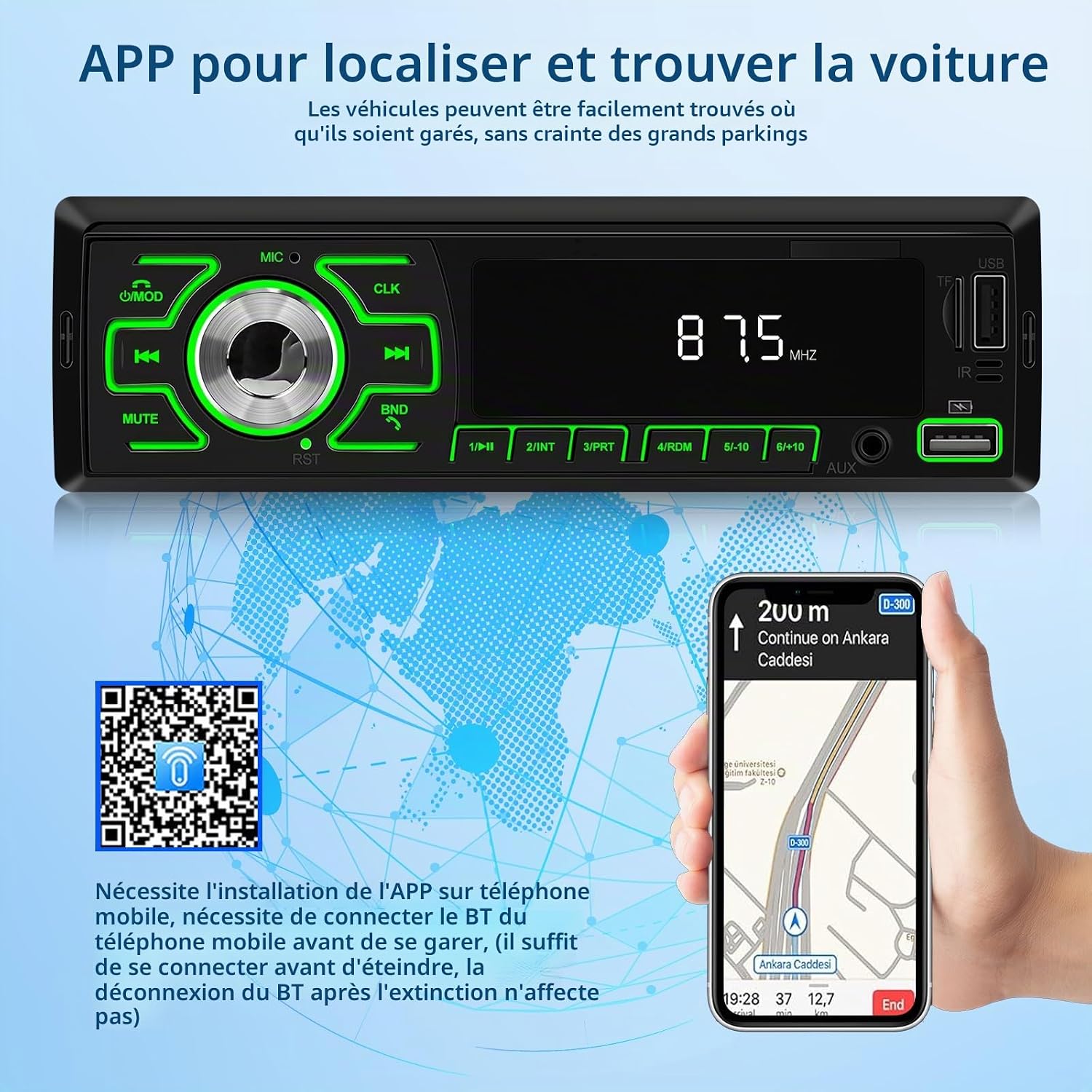
Image: Smartphone app interface for remote control and car location.
4.7 7-Color Backlight
Personalize your car's interior with the adjustable 7-color LED backlight for the buttons and LCD screen.
- Access the backlight settings through the menu or a dedicated button (refer to the unit's front panel).
- Choose a specific color to match your car's dashboard lighting or set it to cycle through colors randomly.

Image: Demonstration of the 7-color adjustable backlight feature.
4.8 Power Off Memory Function
The unit retains your last played frequency, song, and EQ settings even after the power is turned off, ensuring a seamless experience upon restart.

Image: Power Off Memory Function retaining settings.
5. Maintenance
To ensure the longevity and optimal performance of your NHOPEEW car radio, follow these maintenance guidelines:
- Cleaning: Use a soft, dry cloth to clean the unit's display and buttons. Avoid using abrasive cleaners or solvents, as they may damage the surface.
- Temperature: Avoid exposing the unit to extreme temperatures, direct sunlight for prolonged periods, or high humidity.
- Connections: Periodically check all wiring connections to ensure they are secure and free from corrosion.
- Software Updates: Check the manufacturer's website for any available firmware updates to improve performance or add new features.
6. Troubleshooting
If you encounter any issues with your car radio, refer to the following common problems and solutions:
| Problem | Possible Cause | Solution |
|---|---|---|
| No power | Incorrect wiring; Blown fuse; Car battery low | Check power and ground connections; Replace fuse; Check car battery. |
| No sound | Volume too low; Mute activated; Speaker wires disconnected | Increase volume; Deactivate mute; Check speaker wiring. |
| Bluetooth not connecting | Bluetooth not enabled; Device not in pairing mode; Interference | Ensure Bluetooth is on for both devices; Put radio in pairing mode; Move closer to the unit. |
| Poor FM reception | Antenna not connected; Weak signal area; Antenna damaged | Check antenna connection; Try a different location; Inspect antenna for damage. |
| USB/TF card not recognized | Unsupported file format; Corrupted media; Incorrectly inserted | Ensure files are MP3/WMA/WAV/FLAC; Try a different USB/TF card; Reinsert media correctly. |
If the problem persists after trying these solutions, please contact customer support.
7. Product Specifications
| Feature | Detail |
|---|---|
| Brand | NHOPEEW |
| Model Number | A3356 |
| Connectivity Technology | Bluetooth 5.1 |
| Controller Type | Android, iOS (via APP) |
| Special Feature | FM Tuner, 7-Color Backlight, APP Control, Car Location |
| Compatible Devices | Smartphone |
| Connector Type | USB Type A, AUX In, TF Card Slot |
| Audio Output Mode | Stereo |
| Surround Sound Channel Configuration | 4 Channels |
| Video Encoding | RM (Note: This unit is primarily for audio, video playback capability may be limited or for specific formats only) |
| Color | 7 colors (backlight) |
| Output Power | 50 Watts (per channel, total 200W) |
| Control Method | Buttons, Application |
| Digital Media Format | WAV, WMA, MP3, FLAC |
| Country of Origin | China |
8. Warranty and Support
8.1 Product Warranty
This NHOPEEW product comes with a 2-year warranty from the date of purchase, covering manufacturing defects. Please retain your proof of purchase for warranty claims.
8.2 Customer Support
For any questions, technical assistance, or warranty claims, please contact our customer support team:
- For customers who have ordered products: Navigate to "My Orders" and select "Contact Seller."
- For customers who have not yet ordered products: Visit the product page and use the "Ask a question" or "Contact Seller" option.
We offer 30-day hassle-free returns and online support to resolve any issues you may encounter.