
Rii RK200
Contents
Rii RK200 Wireless Keyboard and Mouse Combo User Manual
Model: RK200
Introduction
The Rii RK200 Wireless Keyboard and Mouse Combo provides a convenient and efficient input solution for your computer. This full-sized cordless set operates on a 2.4GHz wireless connection, offering reliable performance for various operating systems. This manual provides detailed instructions for setup, operation, maintenance, and troubleshooting to ensure optimal use of your device.
What's in the Box
- Wireless Mouse ×1
- Wireless Keyboard ×1
- USB Receiver ×1 (stored in the keyboard battery compartment)
- User Manual ×1
Setup Guide
1. Battery Installation
Locate the battery compartments on the underside of both the keyboard and the mouse. Insert the required AAA batteries, ensuring correct polarity. The keyboard requires one AAA battery, and the mouse requires two AAA batteries. Batteries are not included.
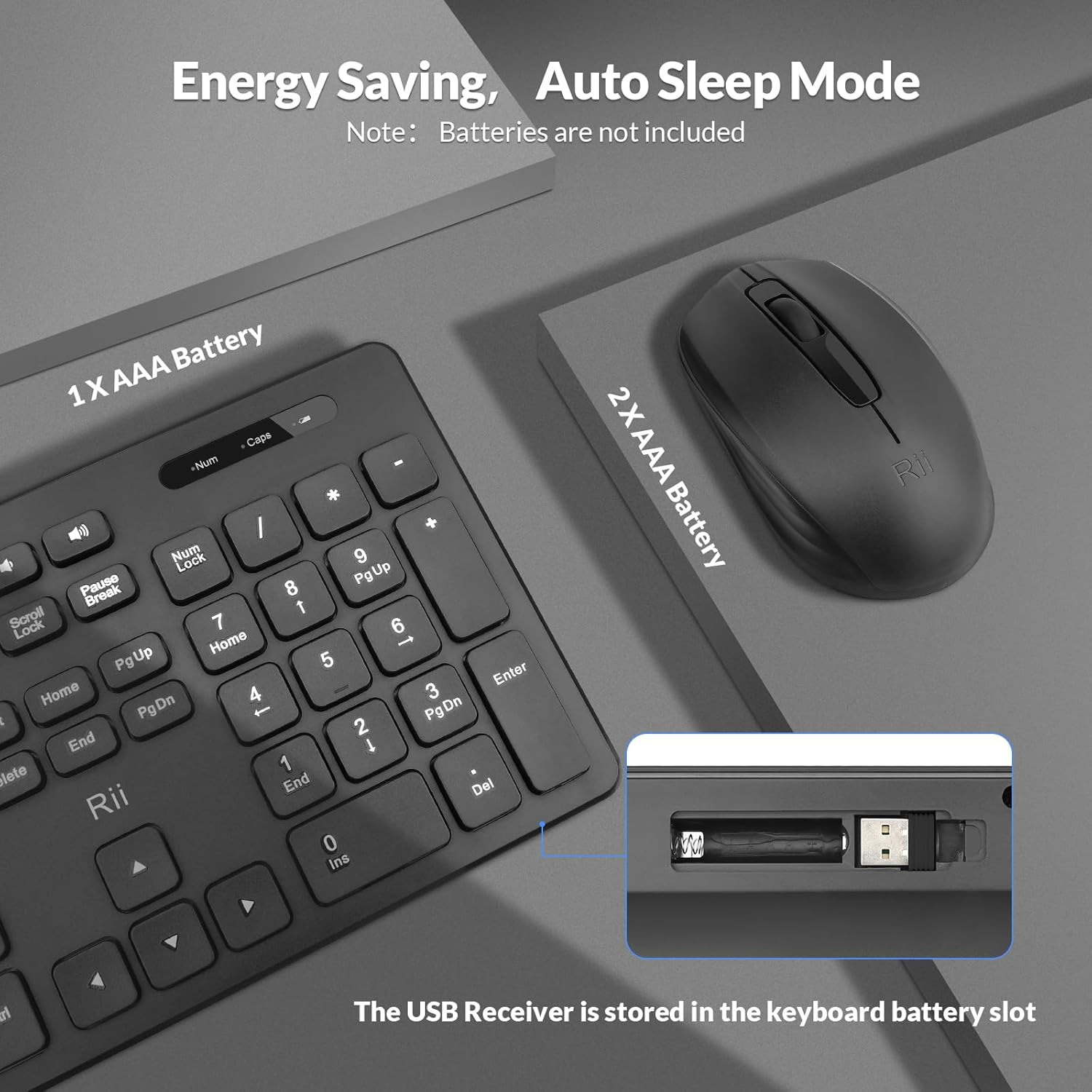
Figure 1: Battery compartments and USB receiver location.
2. USB Receiver Connection
The USB receiver is conveniently stored within the keyboard's battery compartment. Carefully remove it. Plug the USB receiver into an available USB port on your computer. The system will automatically detect and install the necessary drivers.

Figure 2: The 2.4G wireless connection uses a single USB receiver for both devices, offering a range of up to 10 meters.
3. Power On
Turn on the mouse using the power switch located on its underside. The keyboard powers on automatically once batteries are installed and the USB receiver is connected.
Operating Instructions
General Use
The Rii RK200 combo offers a comfortable and responsive typing and navigation experience. The full-sized keyboard features 108 keys, including a numeric keypad, and multimedia shortcut keys for quick access to common functions.
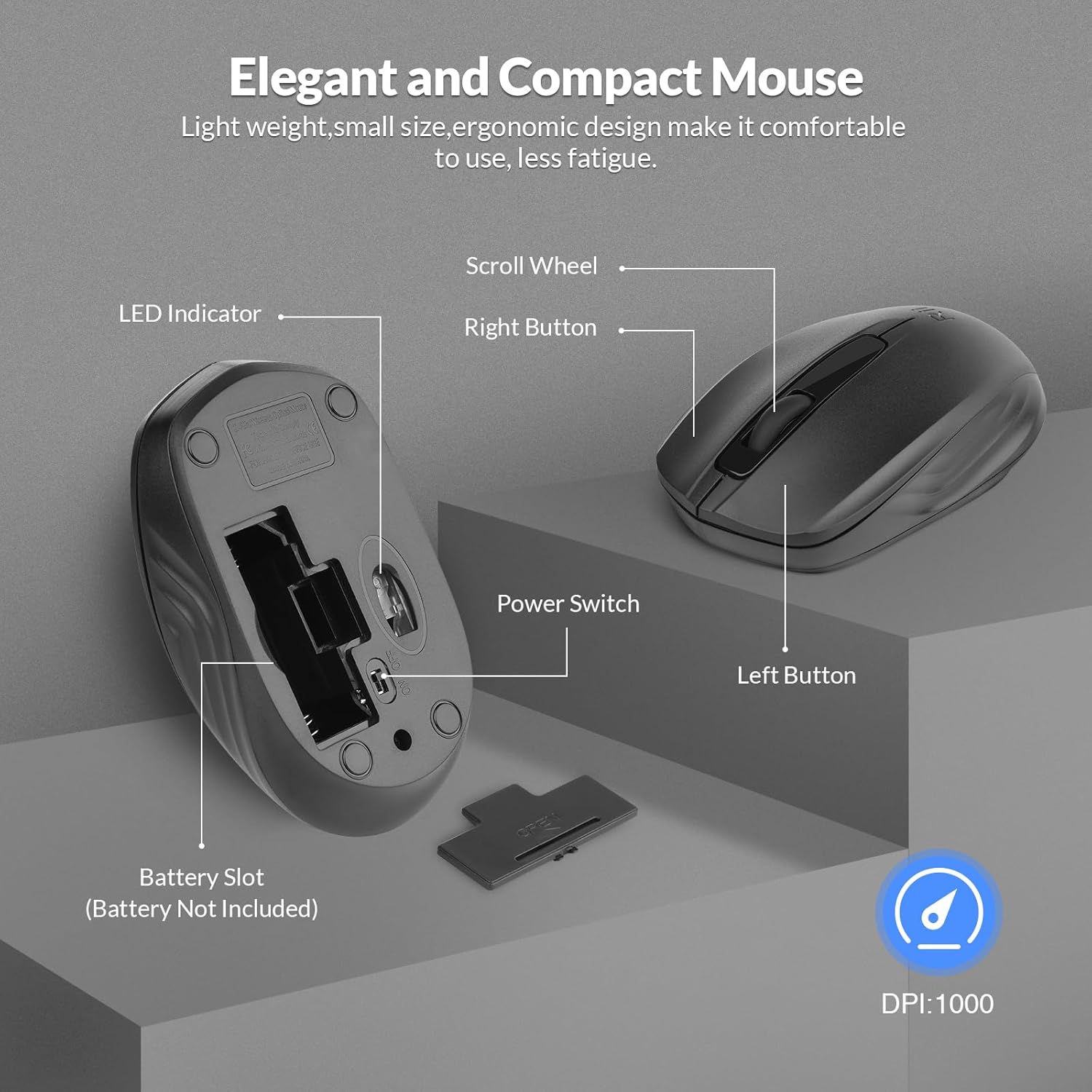
Figure 3: The standard full-size keyboard is designed for comfortable use.
Multimedia Shortcut Keys
The multimedia shortcut keys (F1-F12, etc.) provide quick access to functions like volume control, media playback, and more. Please note that these multimedia shortcuts are not compatible with Mac systems.
Indicator Lights
The keyboard features indicator lights for Num Lock, Caps Lock, and a Low-Battery warning, located above the numeric keypad.

Figure 4: Keyboard indicator lights for NumLock, Caps Lock, and Low-Battery.
Mouse Features
The ergonomic mouse is lightweight and compact, designed for comfortable use. It features a scroll wheel, left button, right button, and an LED indicator. The mouse operates at a DPI of 1000 for precise tracking.
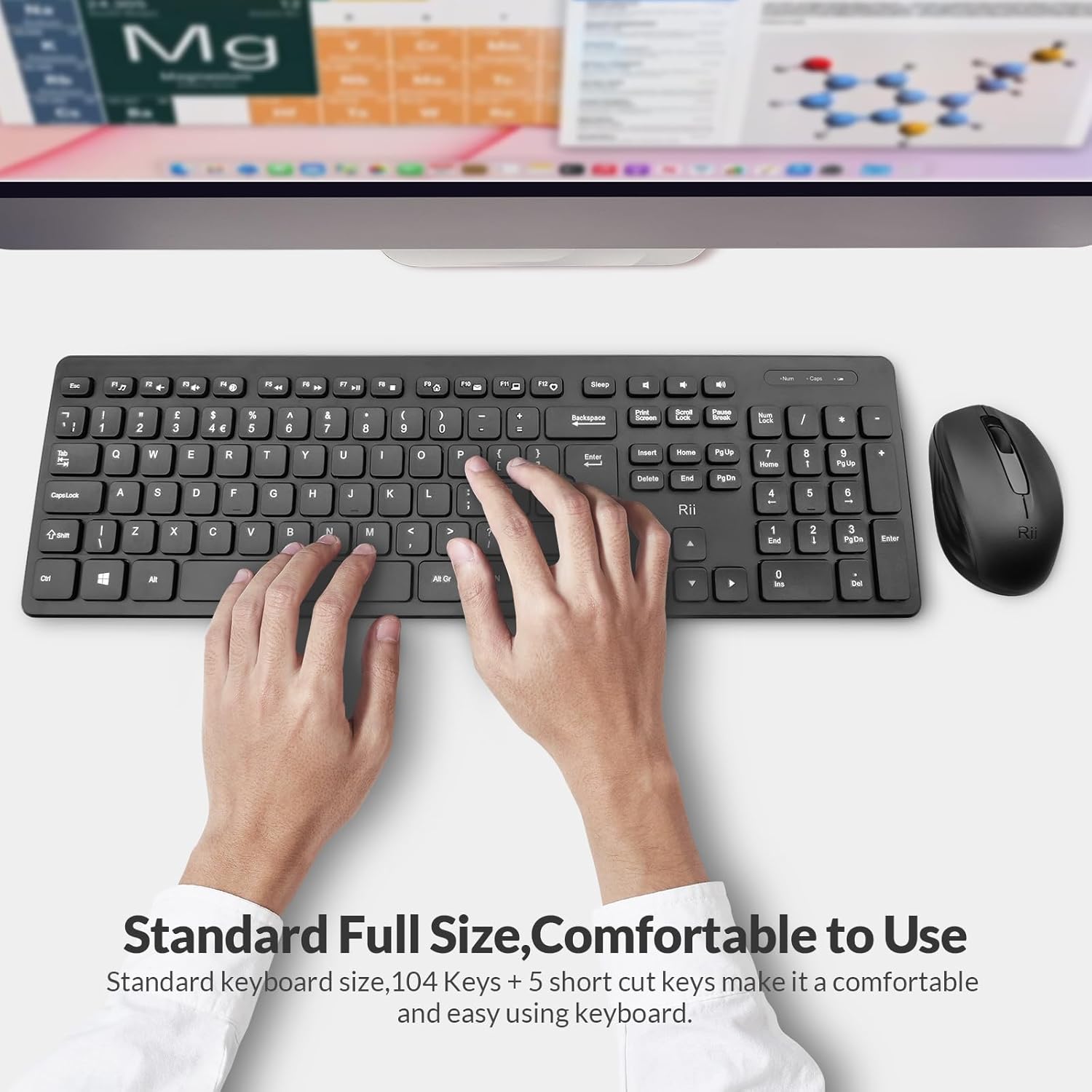
Figure 5: Key features of the Rii RK200 mouse.
Compatibility
The Rii RK200 Wireless Keyboard and Mouse Combo is compatible with a wide range of operating systems, including:
- Windows 2000 / ME / XP / Vista / 7 / 8 / 10 / 11
- Mac OS
- Chrome OS
- Linux systems
It is suitable for any device with a USB port, such as Dell, HP, laptops, desktops, and Chromebooks.
Maintenance
Battery Replacement
When the low-battery indicator on the keyboard illuminates, or if the mouse performance degrades, replace the AAA batteries. Ensure to use fresh batteries and dispose of old ones responsibly according to local regulations.
Cleaning
To clean the keyboard and mouse, use a soft, dry cloth. For stubborn dirt, a slightly damp cloth can be used, but ensure no liquid enters the devices. Avoid harsh chemicals or abrasive materials that could damage the surface.
Troubleshooting
Connection Issues
If the keyboard or mouse cannot be connected to your computer, try the following steps:
- Remove the batteries from both the keyboard and mouse, and unplug the USB receiver from your computer.
- Reinstall the batteries in both devices and plug the USB receiver back into a USB port on your computer.
- For the keyboard, long-press ESC + K keys simultaneously to re-pair. For the mouse, long-press Scroll button + Right Button simultaneously to re-pair.
Sleep Mode
The devices feature a smart sleep mode to conserve power. The keyboard will enter sleep mode after 15 minutes of inactivity, and the mouse after 10 minutes. To wake them up, simply press any button or key.
Specifications
| Brand | Rii |
| Model | RK200 |
| Connectivity Technology | 2.4GHz Wireless |
| Keyboard Battery | 1 x AAA (not included) |
| Mouse Battery | 2 x AAA (not included) |
| Wireless Range | Up to 10 meters (33 ft) |
| Keyboard Keys | 108 Full-sized keys with multimedia shortcuts |
| Mouse DPI | 1000 |
| Compatible OS | Windows XP / VISTA / 7 / 8 / 10 / 11, Mac OS, Chrome OS, Linux |
| Item Weight | 1.41 pounds |
| Package Dimensions | 17.44 x 8.19 x 2.17 inches |
Warranty and Support
For warranty information and technical support, please refer to the official Rii website or contact Rii customer service directly. Keep your purchase receipt for warranty claims.
Ask a question about this manual
Ask about setup, troubleshooting, compatibility, parts, safety, or missing instructions. Manuals+ will review the question and use this page’s manual context to help answer it.