
1. Introduction
This manual provides instructions for the installation, operation, and maintenance of your BDFFLY Smart TV LED Backlight Kit with HDMI Sync Box. This kit enhances your viewing experience by synchronizing LED lighting with the colors displayed on your TV screen, creating an immersive environment. The system is designed for TVs ranging from 55 to 75 inches and features HDMI 4K@30Hz signal processing for accurate color synchronization.

Image 1.1: BDFFLY TV Backlight Kit in operation, illustrating synchronized lighting for 55-75 inch televisions.
2. Package Contents
Verify that all components are present in your package:
- LED Strip Light (16.4ft, suitable for 55-75 inch TVs)
- HDMI 4K30Hz Sync Box
- Power Adapter
- Cable Clips
- User Manual (this document)
3. Safety Information
Please read and follow these safety guidelines to prevent damage to the product or personal injury:
- Ensure the power supply voltage matches the product's requirements.
- Do not expose the LED strip or sync box to water or moisture.
- Avoid bending the LED strip sharply, as this may damage the circuit.
- Do not attempt to open or modify the sync box or LED strip.
- Keep out of reach of children.
- Unplug the power adapter before cleaning or when not in use for extended periods.
4. Setup and Installation
Follow these steps to install your BDFFLY Smart TV LED Backlight Kit:
4.1 Physical Installation of LED Strip
- Clean the TV Back Surface: Ensure the back of your TV is clean and dry for optimal adhesion.
- Prepare the LED Strip: Carefully tear off the release sticker from the back of the LED strip light.
- Attach the LED Strip: Stick the LED strip to the back of your TV, ensuring it is positioned evenly around the edges. The strip is designed for 55-75 inch TVs and can be trimmed at designated cut marks if necessary to achieve a reasonable fit. Refer to Image 4.1 for visual guidance.
- Secure with Cable Clips: Use the provided cable clips to further secure the LED strip lights, ensuring a snug fit and preventing sagging.

Image 4.1: Step-by-step guide for attaching the LED strip to the TV and connecting the sync box.

Image 4.2: The LED strip can be trimmed at marked points to fit your TV size. Detached parts cannot be reconnected.
4.2 Wiring Connections
- Connect LED Strip to Sync Box: Plug the connector from the LED strip into the designated 'LIGHT' port on the HDMI Sync Box.
- Connect HDMI Source: Connect your video source (e.g., streaming device, game console, PC) to the 'HDMI IN' port on the Sync Box using an HDMI cable.
- Connect Sync Box to TV: Connect the 'HDMI OUT' port of the Sync Box to an HDMI input on your TV.
- Connect Power: Plug the power adapter into the Sync Box's 'DC' port and then into a power outlet.
Important Note: The color synchronization function requires an HDMI 1.4b (4K@30Hz) signal source. Ensure your TV and connected devices support this specification for optimal performance. Only the color with the most pixels in the video will be synchronized.

Image 4.3: Wiring diagram showing connections between the LED strip, sync box, TV, and various HDMI input sources.
4.3 App Download and Setup
To manage your lights and access advanced features, download the companion application:
- Scan the QR code provided in Image 4.4 or visit www.lixingzhaoming.com/downloads/ to download the 'Hi lighting' app.
- Install the app on your smartphone or tablet.
- Follow the in-app instructions to pair your device with the HDMI Sync Box.

Image 4.4: App control interface and QR code for downloading the 'Hi lighting' application.
5. Operating Instructions
5.1 HDMI Sync Function
The HDMI Sync Box captures the color of the video signal from your connected HDMI source and projects corresponding colors onto the wall behind your TV via the LED strip. This creates an immersive viewing experience with:
- Zero Delay: Real-time color synchronization with no noticeable lag.
- Color Accuracy: The system aims to match the dominant colors on your screen.
- Broad Compatibility: Works with any TV content (streaming, gaming, videos) as long as the signal passes through the sync box.

Image 5.1: Light synchronization with TV images during a gaming session.
5.2 Remote Control and App Control
Control your LED backlight kit using either the included remote control or the 'Hi lighting' app:
- Scene Modes: Choose from 10 pre-set scene modes to match your mood or content.
- Audio Modes: Activate 3 distinct audio modes that allow the lights to sync with music or sound rhythms.
- Customization: The app provides additional options for color adjustment, brightness, and creating custom lighting effects.
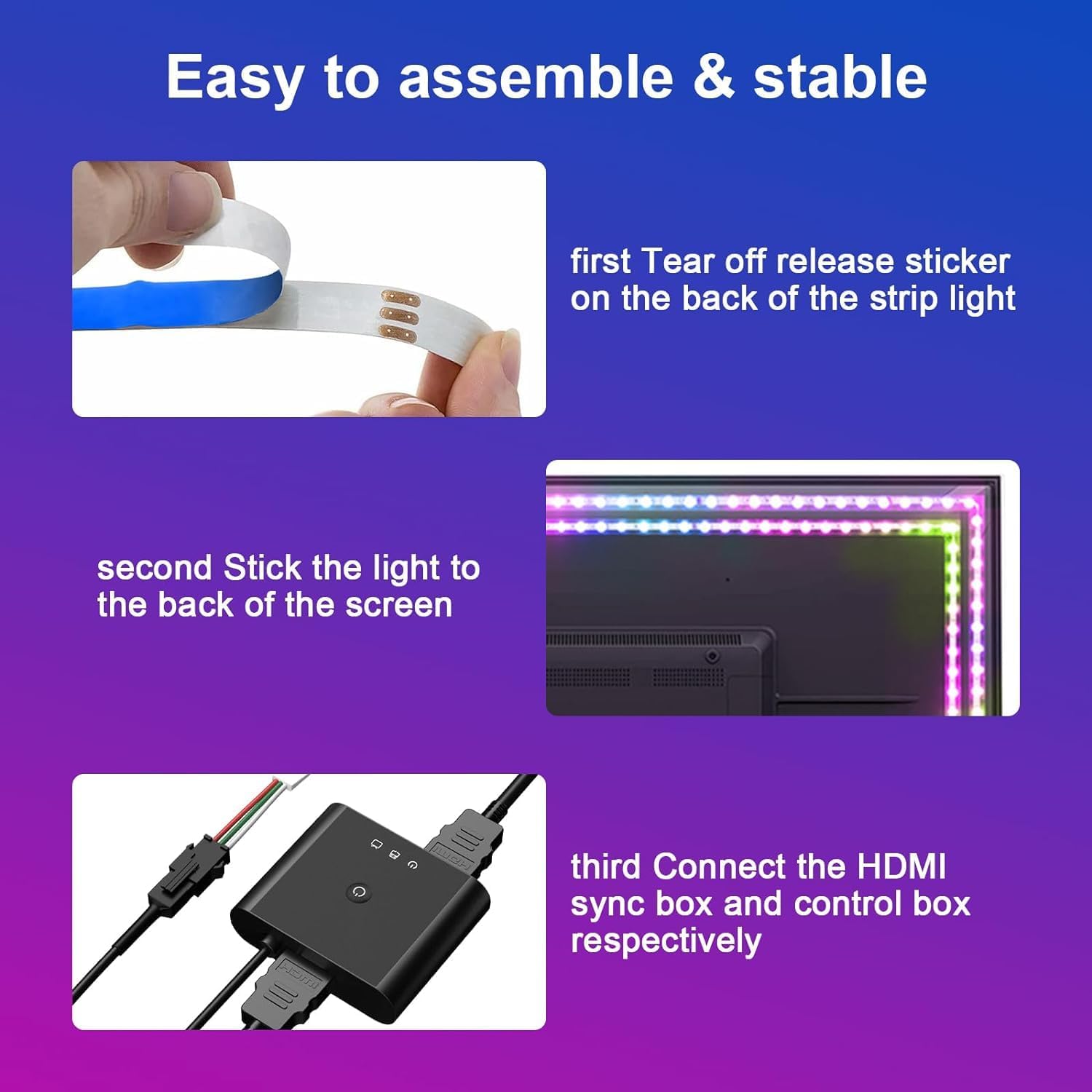
Image 5.2: Light synchronization with audio rhythm, demonstrating one of the audio modes.
6. Maintenance
To ensure the longevity and optimal performance of your LED Backlight Kit:
- Cleaning: Gently wipe the LED strip and sync box with a dry, soft cloth. Do not use liquid cleaners.
- Storage: If storing the kit, ensure it is kept in a dry, cool place away from direct sunlight.
- Cable Management: Periodically check that all cables are securely connected and not pinched or damaged.
7. Troubleshooting
If you encounter issues with your BDFFLY Smart TV LED Backlight Kit, refer to the following common problems and solutions:
- No Lights or Incorrect Colors:
- Ensure all cables are securely connected, especially the HDMI input/output and power.
- Verify that your HDMI source is outputting a signal compatible with HDMI 1.4b (4K@30Hz). Higher refresh rates or resolutions (e.g., 4K@60Hz) may not be supported by the sync box, leading to no signal or distorted image/colors. Adjust your source device's video settings if necessary.
- Check the app for correct settings and calibration. Perform a color sync calibration if available in the app.
- Restart the sync box by unplugging and re-plugging the power adapter.
- Lights Not Synchronizing with TV Content:
- Confirm that your video source is connected to the 'HDMI IN' port of the sync box and the sync box is connected to your TV's HDMI input. The sync function relies on the signal passing through the sync box.
- Ensure the sync mode is activated via the remote or app.
- App Connectivity Issues:
- Ensure Bluetooth or Wi-Fi (depending on the app's connection method) is enabled on your smartphone.
- Make sure your smartphone is within range of the sync box.
- Restart the app and the sync box.
- Image Quality Degradation (e.g., lag, weird image):
- The sync box supports HDMI 1.4b (4K@30Hz). If your source is outputting a higher resolution or refresh rate, it might cause compatibility issues. Adjust your source device's video output settings to 4K@30Hz or lower.
- Certain advanced video features like Dolby Vision might not be fully compatible. Try adjusting these settings on your source device.
8. Specifications
| Feature | Specification |
|---|---|
| Model Number | PYD-AL11-C3-EU |
| Brand | BDFFLY |
| TV Size Compatibility | 55-75 Inches |
| LED Strip Length | 16.4 ft (5 meters) |
| HDMI Sync Box Input | HDMI 1.4b (4K@30Hz) |
| Control Method | App Control, Remote Control |
| Light Source Type | LED |
| Light Color | Multicolor (RGBIC) |
| Voltage | 12 Volts |
| Wattage | 10 Watts |
| Indoor/Outdoor Usage | Indoor |
| Included Components | HDMI 4K30Hz Sync Box, cable clips |

Image 8.1: Energy label for BDFFLY AL11-C3, indicating energy efficiency class G. For more details, visit eprel.ec.europa.eu/qr/2020181.
9. Warranty and Support
For warranty information and customer support, please refer to the documentation provided with your purchase or contact BDFFLY customer service through their official channels. Specific warranty terms may vary by region and retailer.