
surmen M75
surmen M75 75% Wireless Creamy Keyboard User Manual
Model: M75
1. Product Overview
The surmen M75 is a 75% layout mechanical keyboard designed for versatility and performance. It features a gasket-mounted structure, pre-lubed switches, and triple-mode connectivity (Bluetooth 5.0, 2.4Ghz wireless, and USB-C wired). The keyboard incorporates sound-absorbing pads for a pleasing acoustic experience and south-facing RGB LEDs for customizable lighting. It is hot-swappable, allowing for easy switch replacement without soldering.

Image: The surmen M75 75% Wireless Creamy Keyboard in Deep Sea color, showcasing its compact layout and vibrant RGB backlighting.
2. Package Contents
Please verify that all items are present in the package:
- surmen M75 Keyboard
- USB-A to USB-C Cable
- 2.4Ghz Wireless Receiver (stored in the keyboard's bottom compartment)
- Keycap Puller
- Switch Puller
3. Setup Guide
3.1 Initial Charging
Before first use, it is recommended to fully charge the keyboard. Connect the provided USB-C cable to the keyboard's USB-C port and the other end to a power source (e.g., computer USB port, wall adapter). The keyboard is equipped with a 5000mAh battery.

Image: Illustration showing how to check the battery level by pressing FN+Alt in wireless mode. The indicator lights on the number row will show the approximate charge level.
3.2 Connectivity Modes
The M75 keyboard supports three connection modes: Wired, 2.4Ghz Wireless, and Bluetooth 5.0. A switch located on the side of the keyboard allows you to select between Windows and Mac operating systems, and also between the connectivity modes (BT, 2.4G, Line).
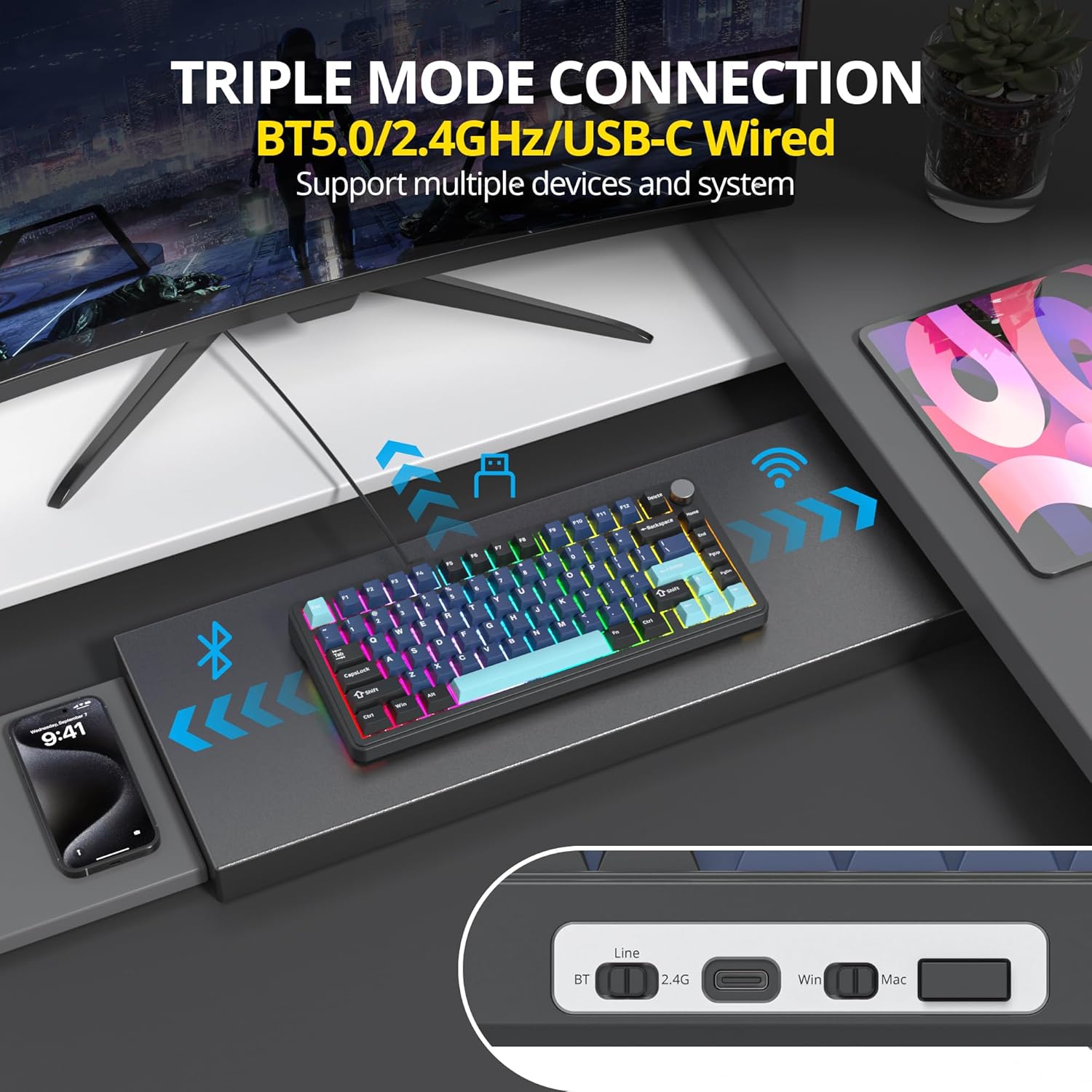
Image: Diagram illustrating the triple-mode connection options: Bluetooth 5.0, 2.4Ghz wireless, and USB-C wired, compatible with multiple devices and systems.
- Wired Mode: Connect the USB-C cable directly to your computer. Ensure the mode switch is set to 'Line'.
- 2.4Ghz Wireless Mode: Plug the 2.4Ghz wireless receiver into a USB port on your computer. Set the mode switch to '2.4G'. The keyboard should connect automatically.
- Bluetooth Mode: Set the mode switch to 'BT'. The keyboard can store up to 3 Bluetooth devices. To pair, press and hold FN + 1, 2, or 3 until the corresponding key flashes, indicating pairing mode. Search for 'surmen M75' on your device's Bluetooth settings and connect.

Image: Close-up view of the keyboard's side, showing the USB-C port and the toggle switches for Bluetooth, 2.4Ghz, and Windows/Mac modes.
4. Operating Instructions
4.1 Multimedia Keys and Functionality
The M75 keyboard features dedicated function keys and multimedia controls accessible via the FN key combination. The layout and functions vary slightly between Windows and Mac modes.

Image: A detailed chart outlining the FN key combinations for multimedia and system functions on both Windows and Mac operating systems.
4.2 RGB Lighting Control
The keyboard features customizable RGB backlighting with 16 unique effects and over 16.8 million colors. The south-facing LEDs ensure optimal illumination from the typist's perspective.
- Changing Effects: Use the dedicated software or specific FN key combinations to cycle through lighting modes.
- Music Rhythm Mode: The RGB lighting can synchronize with music beats, creating dynamic visual effects.

Image: Close-up view of the keyboard's south-facing RGB LEDs, showing how they illuminate the keycaps from below.
4.3 Volume Knob Functionality
The multi-function knob located on the top right of the keyboard provides quick control over volume and RGB lighting settings.
- Rotate: Adjusts system volume or RGB brightness (depending on mode).
- Press: Mutes/unmutes audio or switches between RGB lighting modes.

Image: Diagram illustrating the functions of the volume knob, including brightness/volume adjustment and switching RGB modes or muting/unmuting audio.
4.4 Software Customization (Macros & Lighting)
The surmen M75 supports professional software for advanced customization. This software allows you to configure macros, rebind keys, and fine-tune RGB lighting effects with 16.8 million color options.
- Macro Programming: Create complex key sequences for improved work and gaming efficiency.
- Custom Shortcuts: Assign custom shortcuts to various keys.
- Lighting Customization: Access a full spectrum of RGB colors and lighting effects.
Note: The software typically requires the keyboard to be in wired mode for configuration. Refer to the official surmen website for software download and detailed instructions.

Image: Screenshot of the keyboard's driver software interface, showing options for macro recording, editing, custom shortcut keys, and various RGB lighting effects.
5. Maintenance
5.1 Hot-Swappable Switches
The M75 keyboard features hot-swappable sockets, allowing you to change mechanical switches without soldering. It is compatible with most 3-pin and 5-pin mechanical switches.
- Removing Switches: Use the provided switch puller to gently grip and pull the switch upwards.
- Installing Switches: Align the pins of the new switch with the holes on the PCB and press down firmly until it clicks into place. Ensure pins are straight to avoid bending.

Image: Diagram illustrating the hot-swappable nature of the keyboard, showing switches being inserted and removed from the PCB.
5.2 Keycap Care
The keyboard comes with durable double-shot PBT keycaps. To clean them, use the provided keycap puller to remove them. Clean with a soft, damp cloth and mild soap if necessary. Ensure keycaps are completely dry before reattaching.

Image: Close-up showing the texture and profile of the double-shot PBT keycaps, highlighting their durability and design.
5.3 General Cleaning
Regularly clean your keyboard to maintain its performance and appearance. Use a soft brush or compressed air to remove dust and debris from between the keys. For surface cleaning, use a soft, lint-free cloth lightly dampened with water or a mild cleaning solution. Avoid excessive moisture.
6. Troubleshooting
- Keyboard not responding:
- Ensure the correct connectivity mode (Wired, 2.4G, BT) is selected via the side switch.
- Check battery level (FN+Alt). Recharge if low.
- For 2.4Ghz, ensure the receiver is securely plugged in. Try a different USB port.
- For Bluetooth, ensure the keyboard is paired correctly (FN+1/2/3) and within range. Try re-pairing.
- In wired mode, ensure the USB-C cable is properly connected to both the keyboard and the computer. Try a different USB port or cable.
- RGB lighting not working or incorrect:
- Check if the lighting is turned off via the volume knob or software.
- Ensure the keyboard is in wired mode when using the customization software.
- Reset lighting settings through the software.
- Keys not registering or double-typing:
- Ensure the switch is properly seated in its socket. Gently press down on the keycap.
- If a specific key is problematic, try replacing the switch with a spare one or a known working switch from another key.
- Clean any debris around the switch.
- Software not detecting keyboard:
- Ensure the keyboard is connected via USB-C cable and the mode switch is set to 'Line'.
- Restart the software and/or your computer.
- Ensure you have the latest version of the software from the official surmen website.
7. Specifications
| Feature | Description |
|---|---|
| Brand | surmen |
| Model | M75 |
| Layout | 75% (82 Keys) |
| Connectivity | Bluetooth 5.0, 2.4Ghz RF, USB-C Wired |
| Switches | Pre-lubed Mechanical Switches (Hot-Swappable 3/5-pin) |
| Keycaps | Double Shot PBT |
| Battery Capacity | 5000mAh Lithium Polymer |
| RGB Backlighting | South-facing, 16.8 Million Colors, Music Rhythm Effects |
| Operating System Compatibility | Windows, Mac OS |
| Item Weight | 2.6 pounds |
| Package Dimensions | 14.06 x 7.2 x 1.93 inches |
| Special Features | Volume Roller, Programmable Keys, Gasket Mount, Sound Absorbing Pads |
8. Warranty and Support
For warranty information, technical support, or further inquiries, please refer to the official surmen website or contact their customer service directly. Keep your purchase receipt as proof of purchase for any warranty claims.
You can visit the official surmen store for more information: surmen Store on Amazon
Ask a question about this manual
Ask about setup, troubleshooting, compatibility, parts, safety, or missing instructions. Manuals+ will review the question and use this page’s manual context to help answer it.